The iPhone users can update their devices easily from the Settings page. But, what if the iOS update download and install page is greyed out on your device? Unlike the Android, there isn’t an easy way out of this situation, means that you can’t update your iPhone another way. But, there are some things you can still do to make it right. So, without wasting any more time, follow these steps.
Fix 1 – Check the battery level
You should check the battery level on your iPhone. You must have more than 50% battery level on your iPhone to initiate the update process.
Step 1 – You can check the battery level directly from the status bar.

Step 2 – But, if the battery level doesn’t show up on your iPhone, open the Settings.
Step 3 – Open up the “Battery” settings in there.

Step 4 – Turn on the “Battery Percentage” option in that page.
This will show you the current battery percentage on the status bar.

Check the battery number. If the current battery level is lower than the 50% mark, you must charge the device immediately. You can update your iPhone once the device has enough charge left.
Fix 2 – Connect to a Wi-Fi
The size of the iOS update package varies from 1 to 5 GB. Not only the size, but the stability of the network is also important for updating the iPhone. So, instead of using the mobile data, use the Wi-Fi to download and update your iPhone.
Step 1 – Go to the Control Center.
Step 2 – Turn on the Wi-Fi and connect to it.

Step 3 – While you are connected to the Wi-Fi, go to the Settings page.
Step 4 – Go to the General tab and open the Software Update page from there and tap “Download and install” button to start download and installing the iOS.

See whether the ‘Download and install’ button is still greyed out or not.
Fix 3 – Delete older update packages
Whenever you try to update the iOS, it creates a residual update package on your iPhone. You must delete the previous update packages.
Step 1 – We have to start by opening the Settings page. So, open the ⚙ button.

Step 2 – Thereafter, open up the “General” tab.

Step 3 – Inside the General tab, you will find the “iPhone Storage” option. Open this up.

Step 4 – Within a few seconds you will see the storage information there. Scroll down and open the “iOS <version number>” folder.
[ Here, the “<version number>” represents the version of the iOS folder that contains the update package residual files.]

Step 5 – Now, if there are some package files are left unused on your iPhone, you will see the “Delete Update” option there.
Step 6 – Next, tap the “Delete Update” option to remove the update from your iPhone.
Doing this will free up more space on your iPhone. Go check the update page on your iPhone and see whether it is greyed out or not.
Fix 4 – Update the iPhone from iTunes
You can install the update on your iPhone from iTunes app on a MacBook or a Windows PC/laptop.
Step 1 – At first, connect your iPhone to the computer using a cable (lightning or USB type C, use a dongle if you need).
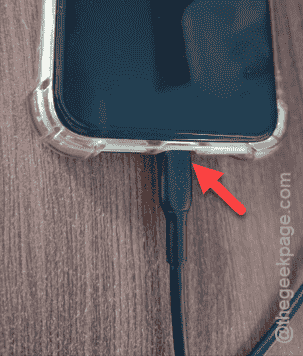
Step 2 – After this, tap the Volume Plus button once. Later, tap the Volume Down button once again.
Step 3 – Later, long-press the Power button on the right-hand panel.
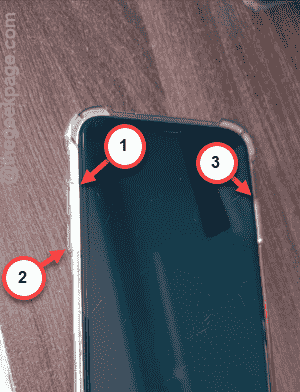
Step 4 – Soon, you shall see the iPhone will be turned off and show up this message –
support.apple.com/iPhone/restore
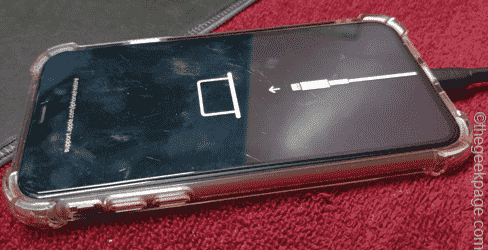
When this message appears, understand that your iPhone has entered into the Recovery Mode.
Now, you have to do these steps on the iTunes app on your laptop.
Step 1 – Load the iTunes app on your computer. If you haven’t got that, install that from the Microsoft Store.
[This step is optional if you are doing this on a MacBook.]
Step 3 – For the first time users of the iTunes app, you have to log in using your Apple ID credentials.
Step 4 – Use the “Sign in to the iTunes Store” option.
You must use the same Apple ID that you are using on your iPhone.

Once you are logged in, the iTunes app will automatically recognize the connected iPhone.
Step 5 – There, you will see a message that contains the “Update” function.
Use the update option to update the iPhone.
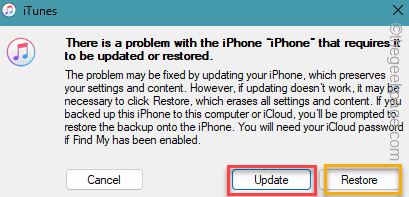
Follow the steps on your iPhone to start the updating process.
This way, you can update your iPhone even if the ‘Software Update’ page is inaccessible.
Hope these fixes have helped you!