Why is File Explorer suddenly covered in black squares? One day everything looks normal. The next, your folders sit inside pitch-black blocks, icons go dark, and parts of the window just stop drawing. No crash. No error message. The UI quietly rots while you watch.
And you did not do anything to cause it. This one is on Windows.
What’s Actually Breaking
Short version: Windows keeps saved copies of your icons and thumbnails so folders open fast. When that cache gets corrupted, Windows can’t draw the real image anymore. So what does it show instead? A solid black square. That’s the fallback. Ugly.
But cached icons are only half the story. The new File Explorer leans hard on your graphics card to draw itself. And when the GPU side chokes — a video memory leak, a scheduling conflict — you get black voids and flashing blocks instead of a window.
Sometimes the cause is dumber than either of those. A wallpaper file that got moved to an external drive. An old registry hack for hiding shortcut arrows. Windows never tells you which one you’ve got — it just serves the black boxes and lets you guess.
The good news: almost none of this means your graphics card is dying. It’s Windows tripping over its own rendering.
Work through the fixes in order. The early ones take seconds.
Fix 1 – Reset the Graphics Driver
Quick one.
1 – At first, press the Ctrl + Shift + Win + B (yes, all four keys at once).
Your monitor screen will blink black for a moment. Takes about two seconds, and it won’t close any of your apps.
But if the blocks came right back, keep going. Something deeper is feeding them.
Fix 2 – Restart Windows Explorer
File Explorer, the taskbar, and the desktop all run as one process.
1 – Press Ctrl + Shift + Esc to open Task Manager.
2 – Type “explorer” in the search box at the top. Faster than scrolling the whole list.
3 – Right-click Windows Explorer in the results.
4 – Click Restart.
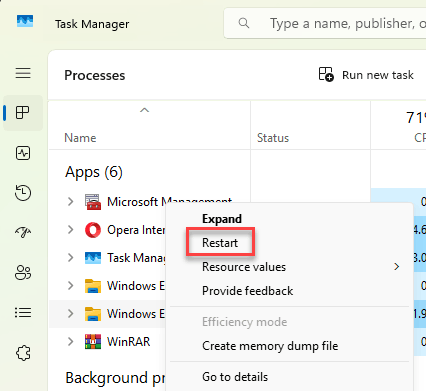
Your taskbar and desktop vanish for a couple of seconds. That’s normal. And everything comes back on its own.
Fix 3 – Clear the Icon and Thumbnail Caches
Clean up the corrupted thumbnail cache from your system.
Heads up: the last step reboots your PC instantly (no countdown, no warning). Save your work first.
1 – Click Start and type “cmd“.
2 – Right-click Command Prompt and choose Run as administrator.
3 – Type this and press Enter. Your desktop will disappear — that’s you stopping File Explorer, and it’s expected.
taskkill /IM explorer.exe /F
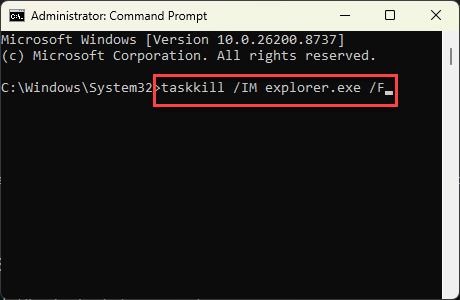
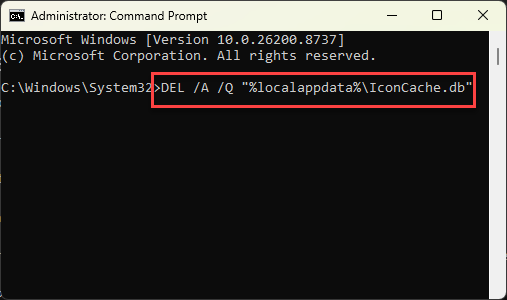
4 – Type or copy-paste these two commands from here, and press Enter.
DEL /A /Q "%localappdata%\IconCache.db"
DEL /A /F /Q "%localappdata%\Microsoft\Windows\Explorer\iconcache*"
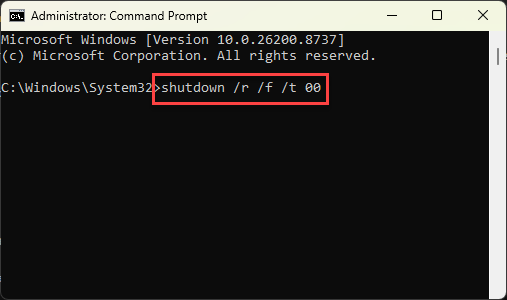
6 – Type this in the terminal and press Enter. Your PC reboots immediately and rebuilds a clean cache.
shutdown /r /f /t 00
Check if this offers any help.
Fix 4 – Turn Off Hardware-Accelerated GPU Scheduling
Windows 11 hands a chunk of window-drawing work to your graphics card. Sounds great on paper. But on some machines the feature leaks video memory, and File Explorer starts rendering black voids where folders should be.
Turning it off puts the CPU back in charge of the UI.
1 – Press Windows + I to open Settings.
2 – Click System in the left sidebar.
3 – Click Display.
4 – Scroll down and click Graphics.
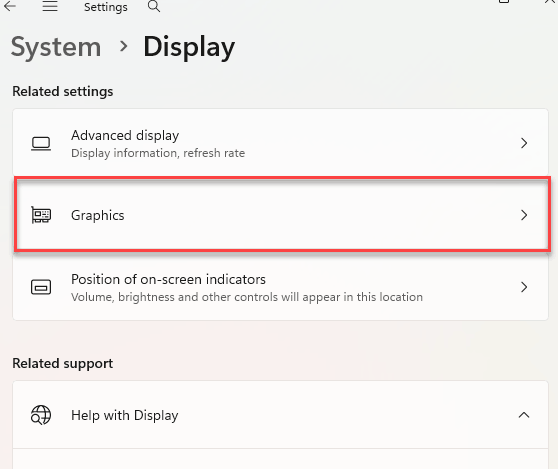
5 – Click Default graphics settings.
6 – Turn off the Hardware-accelerated GPU scheduling toggle. It is the first option on the page.
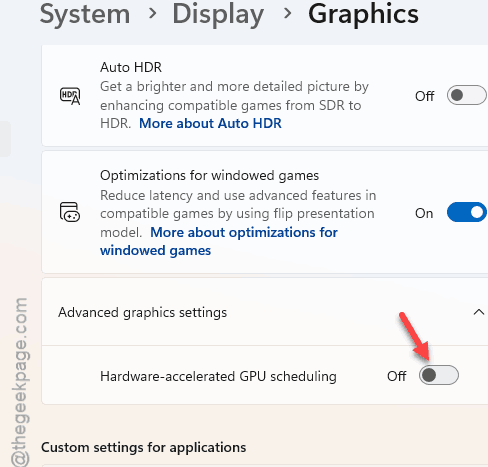
7 – Restart your PC.
You will not feel a difference in everyday use. Games might care. Folders don’t.
Fix 5 – Stop Windows From Throttling the Window Manager
Tell Windows to run the dwm in high performance mode.
Forcing it to full speed fixes that.
1 – Open the Graphics settings page like in Fix 4.
2 – Click Add desktop app, then click Browse.
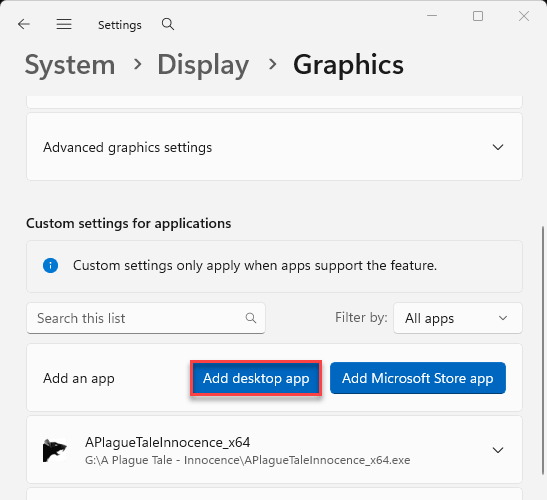
3 – Type C:\Windows\System32\dwm.exe in the file name box and click Add.
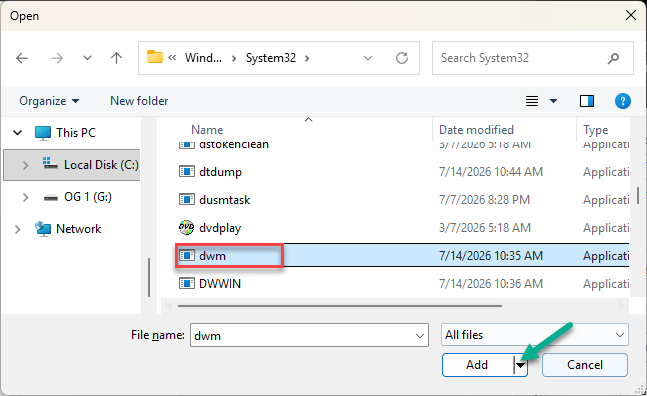
4 – Choose the dwm.exe in the app list, then click Options.
5 – Select High performance and click Save.
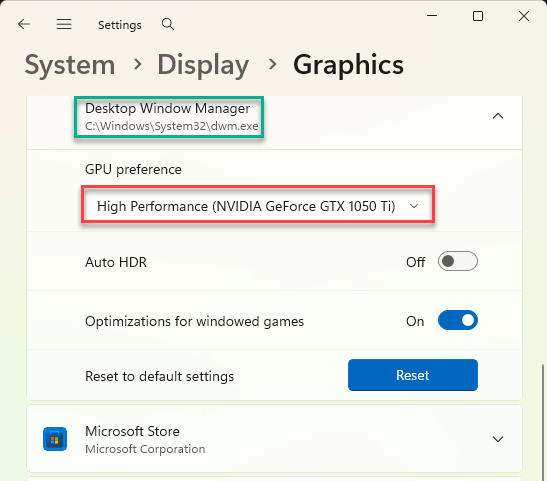
No reboot needed. Open a few folders and watch whether the flicker is gone.
Fix 6 – Fix the Black Flashes Near Chrome or Edge
If the blocks mostly flash when you drag File Explorer across a browser window, that is a different fight. The browser’s hardware acceleration is clashing with the Windows renderer. And both lose.
The flags page you’re about to open looks intimidating. You’re only touching one setting, and you can put it back to Default later.
1 – Open Chrome or Edge.
2 – Type chrome://flags/#use-angle in the address bar and press Enter. On Edge, use edge://flags/#use-angle instead.
3 – Find Choose ANGLE graphics backend.
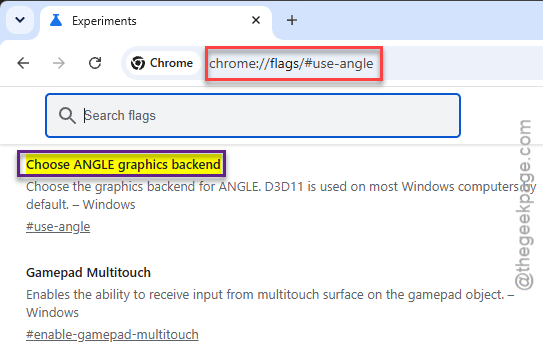
4 – Change the dropdown from Default to OpenGL or D3D11 or 12 (either works).
5 – Click the Relaunch button at the bottom of the window.
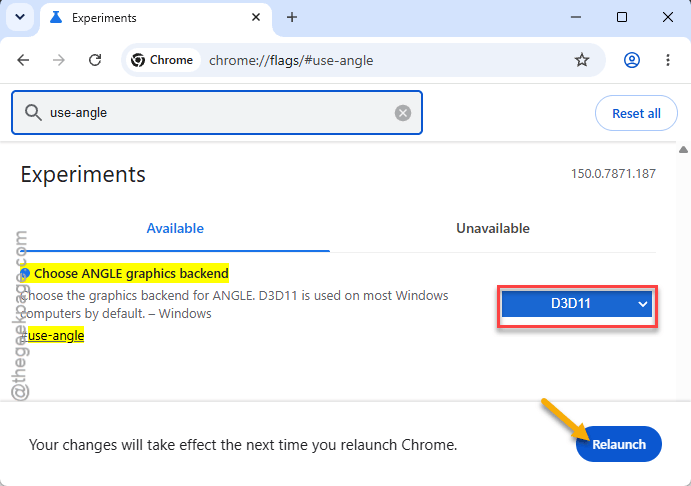
ANGLE is the translation layer the browser uses to talk to your graphics card. Switching it moves that traffic onto a path that does not fight with Explorer.
Fix 7 – Put Your Wallpaper File Back on the C: Drive
Weird one, but real. If you recently moved files to an external drive, your wallpaper image may have gone along for the ride. Windows can’t find it anymore, transparency effects break, and black boxes show up behind icons and Explorer panels.
1 – Press Windows + I to open Settings.
2 – Click Personalization in the left sidebar, then click Background.
3 – Pick one of the default Windows images from the list (any of them — this is just a test).
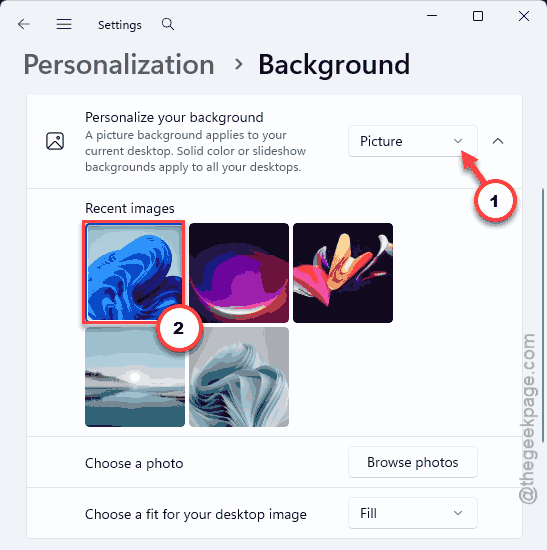
Black boxes gone? That was the whole problem. If you want your old wallpaper back, move the image file to your C: drive first, then browse to it from that same Background page. And keep wallpapers off external drives — the moment the drive unplugs, this mess comes back.
Fix 8 – Black Squares Where Shortcut Arrows Used to Be
Ever run a registry hack to hide the little arrows on shortcut icons? On Windows 11, the old hacks backfire. Instead of no arrow, you get a permanent black square stamped on every shortcut.
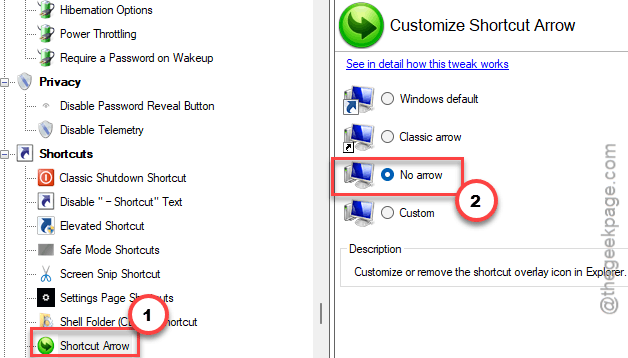
The safe way out is Winaero Tweaker, a customization tool (it’s free). It changes the icon overlay properly instead of gutting a registry value.
1 – Download and install Winaero Tweaker.
2 – Open it and click Shortcuts in the left pane.
3 – Click Shortcut Arrow.
4 – Select No arrow.
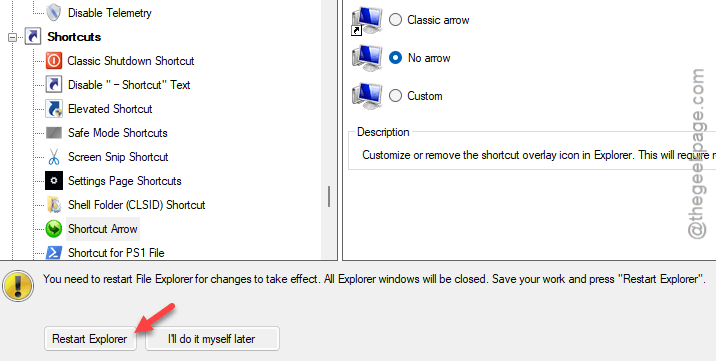
5 – Click Restart Explorer at the bottom of the window.
And skip manual registry edits for this stuff going forward. The tweaker does the same job without the black-square surprise.
People Also Ask
How do you fix a corrupted File Explorer?
Start with the icon cache. Stop Explorer from an admin Command Prompt, delete IconCache.db from the %localappdata% folder, then restart so Windows rebuilds it clean.
How do I get File Explorer back to normal?
Restart it first — open Task Manager, right-click Windows Explorer, and hit Restart. That clears most one-off glitches. If the modern interface stays broken on your hardware, a free GitHub tool called ExplorerPatcher can roll Explorer back to the old Windows 10 ribbon layout. Nuclear option, but it works.