Not hearing anything on the Instagram app? You can’t bear with a social-media app like Instagram with no sound for too long. So, if you are frustrated with this muted Instagram experience and looking for a quick resolution, you have come to the right destination. These fixes are detailed to help you solve the problem quickly.
Fix 1 – Disable the Bluetooth
It is possible that you forgot to disconnect the Bluetooth on your iPhone. In that case, the sound will play on Instagram, but you won’t be hearing anything.
Step 1 – You can directly check this from the status bar on your iPhone. See if you can see the Bluetooth icon is showing up or not.
Step 2 – If you can see the Bluetooth icon there, it must be connected to another audio devices nearby. So, you have to open the Control Center.
Step 3 – Disable the Bluetooth, if it is turned on.
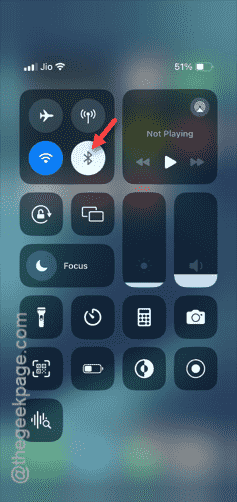
After turning off the Bluetooth feature, check with the videos on your Instagram feed.
If you can’t hear any sound from there, see whether your phone is in silent mode or not.
Fix 2 – Check if your iPhone is mute
You can’t hear anything from Instagram, it is possible that your iPhone is in the mute mode.
Step 1 – Every iPhone is equipped with the Action button/Silent switch.
Step 2 – On the left-hand side of the iPhone, check whether the Silent switch is toggled to the silent mode.
Step 3 – If the Silent Switch is toggled to On mode, the media volume gets depleted to zero. You must toggle it to the normal mode.
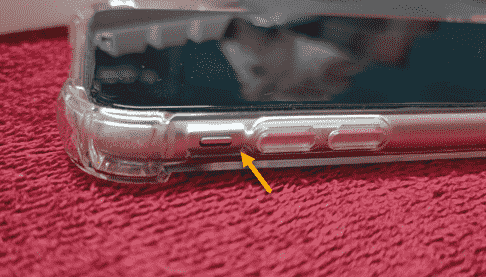
When you have tweaked it, the Instagram app will behave normally. You can hear the sounds in the app normally once more.
Fix 3 – Update the Instagram
Check for an Instagram update and install it on your iPhone.
Step 1 – Go to the App Store panel.
Step 2 – You shall found your profile icon in the top-left corner.
Step 3 – Use that to open the App Store main settings page.
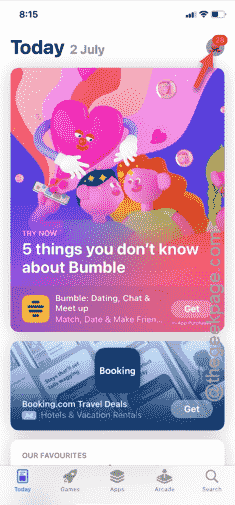
Step 4 – Now, if you start to scroll through that page, you will see the list of apps installed on your iPhone.
Step 5 – Go down until you see the Instagram app in there.
Step 6 – When you reach the Instagram Store page, if there is an update pending, you must see the “Update” button there.
Step 7 – Tap that to start updating Instagram.
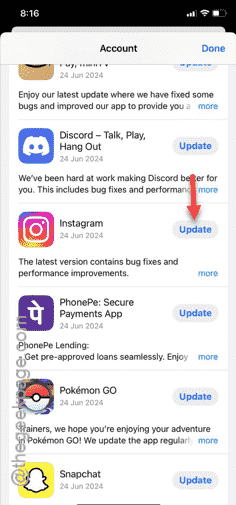
Step 8 – Once it is updated, tap “Done“.
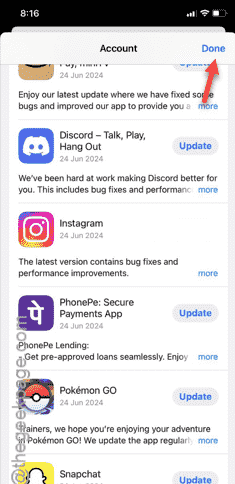
Once you have updated the Instagram, open the Reels or to your own feed. See whether you can view the Instagram post with sound or not.
Fix 4 – Enable change with buttons option
Generally, the volume buttons on your iPhones affects the media volume only. But, enabling the ‘Change with buttons’ settings can take care of this situation.
Step 1 – Get to your iPhone’s Settings page.
Step 2 – Open up the “Sounds & Haptics” button in there.
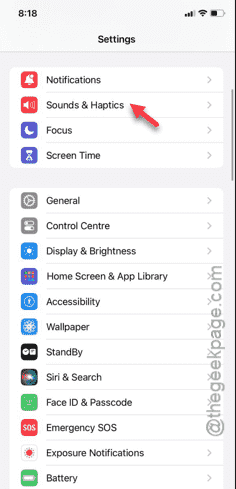
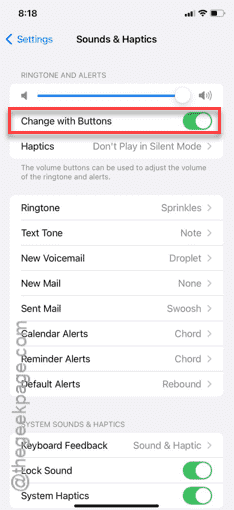
Step 3 – You will find the “Change with Buttons” feature. Switch that to On mode.
Step 4 – Increase the volume of the iPhone to the maximum using the side buttons.
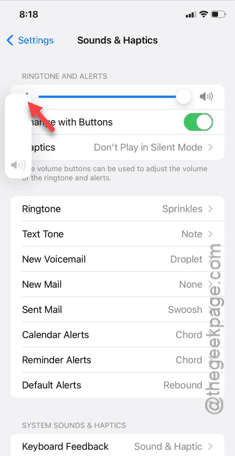
Test the Instagram app one more time. See whether you can actually hear anything from the Instagram app.
Fix 5 – Reinstall Instagram
If you still can’t hear anything from the Instagram app, try reinstalling the Instagram app.
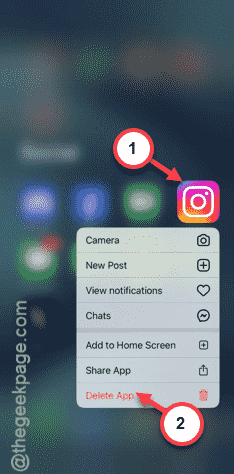
Step 1 – You have to find the “Instagram” app on the iPhone screen.
Step 2 – All you have to do is to hold down the Instagram app and tap the “Delete App” option from the context menu.
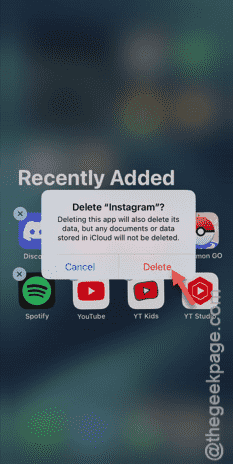
Step 3 – Your iPhone will show you an additional warning message. So, tap the “Delete” option to finally remove the Instagram app.
Step 4 – Once you have removed Instagram, go to the App Store.
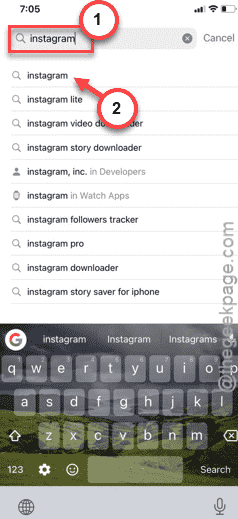
Step 5 – In the App Store page, you must search for the “Instagram” app.
Step 6 – In that search result, tap to get the “Instagram” app.
The rest of the steps in the process are quite easy. After getting the Instagram app, you must sign in to your Instagram account.