On your Apple devices, you can take control of your iCloud account straight from the iPhone/iPad Settings console. But, in some cases, you may find this “Sign out” option greyed out, making it impossible for you to sign out from your Apple account. In this article, we have shown you the ways to fix this problem.
Why the ‘Sign out’ option is greyed out in iPhone Settings?
The Apple ID on your iPhone is the most important part of the device. The main part of the Apple ID, iCloud, maintains the synchronization of sensitive personal information. So, Apple has this security feature where the ‘Sign out’ option is not available all the time. This is done to prevent its abuse by any one other the main user of the device.
Fix 1 – Disable the Content & Privacy restrictions
If the Content & Privacy Restrictions are enabled on the device, the ‘Sign out’ feature will be blocked or greyed out.
Step 1 – At first, open the Settings on the device.
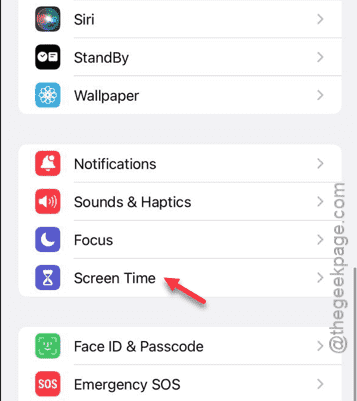
Step 2 – Next, tap to open the “Screen Time” settings.
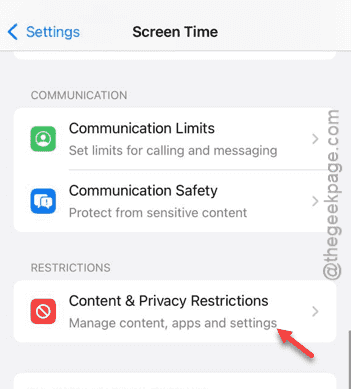
Step 3 – After opening the Screen Time settings, scroll straight to find the “Content & Privacy Restrictions” menu. Open that up.
Step 4 – You have to turn off this “Content & Privacy Restrictions” module.
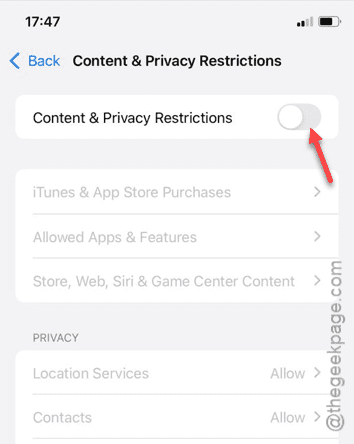
Once the Content & Privacy Restrictions are lifted, you can go back to the Apple ID settings page. Try to sign out from there.
See if the option is available or not.
Fix 2 – Turn off the Screen Time
If the ‘Sign out’ option is still not available, the Screen Time should be the one you are looking for. You can’t access it if the feature is enabled.
Step 1 – You need to open up the Settings tab.
Step 2 – Later, go to the “Screen Time” module.
Step 3 – In that Screen Time settings, look for the “Turn off Screen Time” option. If you can find that, tap to access that.
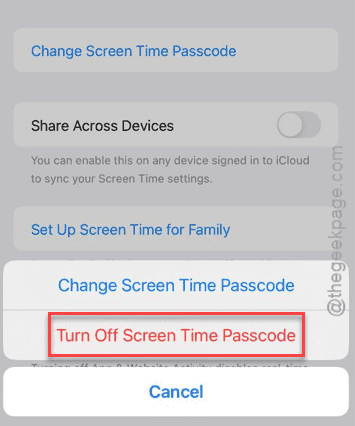
Step 4 – You will see a long prompt on the screen. So, tap the “Turn off Screen Time” option to turn off the Screen Time.
Provide the current Screen Time passcode and disable the Screen Time completely on your iPhone.
After disabling the Screen Time security, the ‘Sign Out’ option won’t be greyed out on your iPhone Settings.
Fix 3 – Check the Apple server status
The Apple ID signing in or logging out procedure requires a stable connection to the Apple servers. So, if the Apple servers are down, ‘Sign out’ option won’t be available.
Step 1 – Open up a browser of your choice.
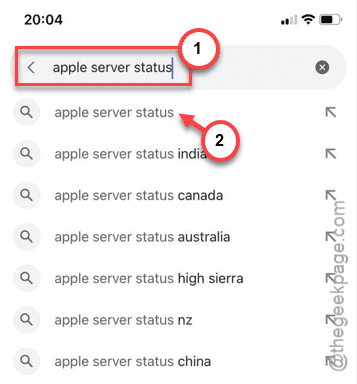
Step 2 – Google the “apple server status” term from the search bar.
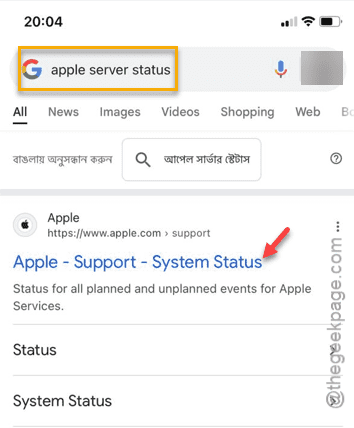
Step 3 – Tap the “Support-System Status” link directly in the search result to open it up.
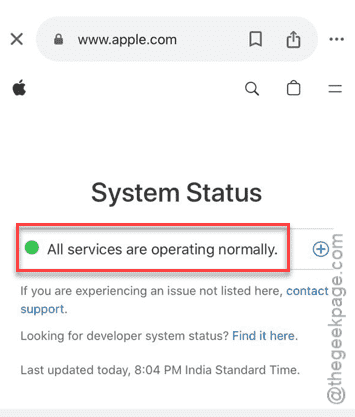
Step 4 – View the System Status in there. If it reads “All services are operating normally.” message appears in the browser page, the Apple servers are functioning properly.
But, if you see anything otherwise, the Apple servers are currently down and you can’t access them.
Go ahead to the Settings tab and see whether you can use the ‘Sign out’ option or not.
Check whether this works or not.