FaceID and the passcode are the main two security features of your iPhone. So, if you can’t see the Face ID and Passcode settings on your iPhone Settings page, it is a matter of concern. Face ID is the main security your iPhone offers so that no one except you can access your account.
Why the Passcode & FaceID settings are hidden?
The Passcode & FaceID settings on your iPhone can be hidden using a particular setting on the device. As the FaceID & Passcode settings provides the highest level of security on the device, many users prefer to hide the settings to withhold any unnecessary changes. Besides this modifier, this can also be a glitch in the iOS that has caused the FaceID & Passcode from disappearing from the Settings page.
Fix 1 – Allow the Passcode changes
There is a Content & Privacy Restriction module that controls the alteration of FaceID & Passcode settings. You have to allow the changes in the iPhone Settings.
Step 1 – Begin by going to the iPhone Settings.
Step 2 – There, touch to open the “Screen Time” settings.
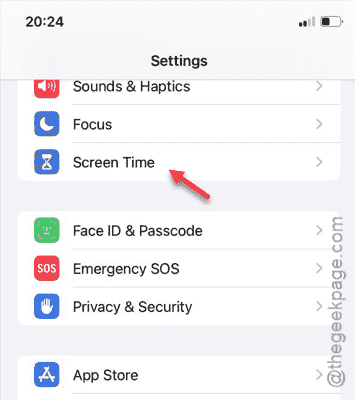
Step 3 – In the Screen Time settings, you need to open the “Content & Privacy Restrictions” module.

Step 4 – You can disable the “Content & Privacy Restrictions” module directly, which in turn will revoke all the restrictions placed on your device.
This should be enough for you to see the FaceID & Passcode settings in the Settings page.

Step 5 – But, if you don’t want to disable the ‘Content & Privacy Restrictions’ module completely, you have to open the “Passcode & Face ID” settings.

Step 6 – Set it to “Allow” so that you can view and change the FaceID & Passcode settings.

After this, you can just go back to the iPhone Settings page, and you will see the FaceID & Passcode settings.
See whether you can access that settings and make some changes in the FaceID settings.
Fix 2 – Force restart the iPhone
A force-restart procedure can be useful in this case, if a glitch or bug has caused this.
Step 1 – At first, terminate all the apps in the iPhone.
Step 2 – Next, press&release the Volume Up button of the device.
Step 3 – Then, press&release the Volume Down button, next.
Step 4 – Later, pinch and hold the Power button on the iPhone.
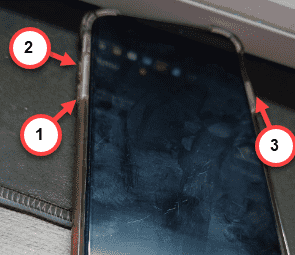
When you have pressed the button for long enough, the iPhone will get rebooted automatically.
This whole procedure is known as ‘Force-Reboot’. After executing the whole procedure, get back to the Settings tab.
Check whether you can view the FaceID & Passcode settings. Hope these fixes have helped you solve the issue.