Having problems with the ‘Restore iPad’ option while you have put your iPad on Recovery Mode? Users can only put their iPads in advanced recovery mode by plugging it to their PC or MacBook. A single misstep in the recovery mode can lead to catastrophic failure for the iPad. So if you are having any problem with the restore IPad option while you are in the recovery mode, you have just came to the right place. This guide should be helpful for both the Windows and MacBook users.
Fix 1 – Confirm the prompt to Update the iPad
If you are trying to restore the iPad in Recovery Mode from a MacBook, the Finder throws up a confirmation prompt that appears behind the Finder window. This is easily missed by the users and hence this problem arises.
Step 1 – Load up the iPad in Recovery Mode and connect that to your MacBook.
Step 2 – Later, select the iPad from the Finder and tap the Restore iPad option there.
Step 3 – Now, the Finder will throw up a hidden confirmation prompt that states that the connected iPad will be automatically updated to the latest iPadOS version during the reset process.
But this prompt won’t show directly on the Finder page, it does appear in the background.
Step 4 – So, you can just minimize the Finder and confirm the prompt.
Step 5 – Later, you can just go through the additional steps to restore the iPad.
This way, you can complete the whole process.
Fix 2 – Use the proper cable or different port
Sometimes, the usage of incompatible cables can cause problems with the restoring procedure of the iPad. So, if you are using a third-party USB-C or USB A cable or using a dongle to bypass the cable, stop doing that and use the original USB cable that is compatible with the iPad.
Whether you are using a MacBook or PC, try using a different port to plug in the iPad. Using alternate ports should ease the restoring process in recovery mode.
Fix 3 – Hard reset the iPad and retry
A few users have fixed the issue simply by hard-restarting the iPad.
Step 1 – At first, press the Volume Up button of the iPad and release that.
Step 2 – Next, press and release the Volume Down button.
Step 3 – Then, go ahead and press-hold the Power button on the iPad. Do press and hold the Power button on the iPad until the Apple logo appears on the screen.
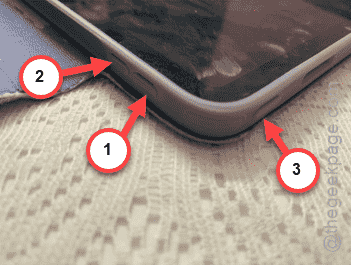
This is the standard way of force-restarting your iPad. After you have force restarted the device, put it in recovery mode and plug it in to the MacBook or PC. Then, you may proceed with the restore procedure.
Extra Tips:
If you are still having some problem restoring the iPad in the Recovery Mode, these solutions will be helpful~
1. If it is possible for you, update to the latest version of iPadOS first, and then put it in recovery mode to restore it.
2. For PC users, update the Apple Devices app before you put the device on restore.
Hope these fixes have helped you!