Gamers may come across with the 0x8007003B error code while signing in to their Xbox account. This error prompt only shows up if there is a problem with the log in process on the Xbox app and other Xbox devices such as Xbox Series X or Xbox Series S. This comprehensive guide contains all the solutions that you will need to troubleshoot the problem on all the devices, including your consoles.
Try Preliminary workarounds –
1. Restart your PC or the Xbox console where you are facing this problem.
2. Check Xbox services status from the Xbox live status. Sometimes the server downtime can cause sign in problems on both the Xbox app and the consoles.
Fix 1 – Log in with the same account on Xbox app and Store
The discrepancy between the accounts login on the Xbox app and the Microsoft Store can cause this 0x8007003B error. So you must ensure that you are using the same account on both the applications.
Step 1 – Go to the windows Settings page and open up the E-mail and accounts tab.
Step 2 – Move to the e-mail and accounts tab. On the right-hand side, find the Add a Microsoft account option and click that.
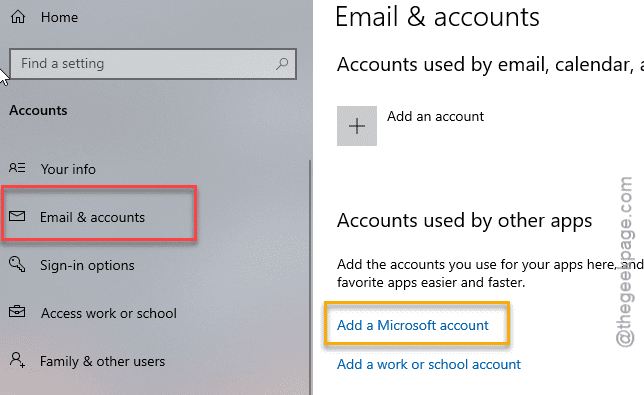
Step 3 – Now, login with your Microsoft account credentials, like your mail ID and password. You may also use any other verification method (like authenticator app or code-based log in process).
Now you have to use the same account to log into the Microsoft Store application.
Step 4 – Load up the Microsoft Store application. Tap the profile icon on the check which Microsoft account you are using.
Step 5 – If you’re not using the same account, sign out from there.
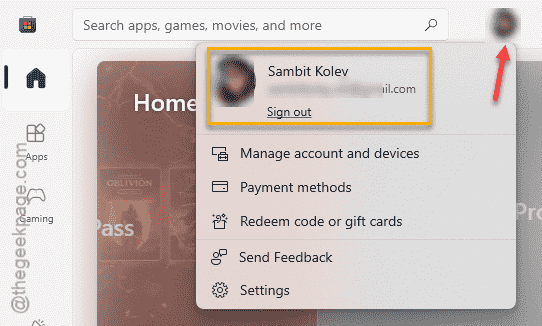
Step 6 – Then, sign in using the correct Microsoft account.
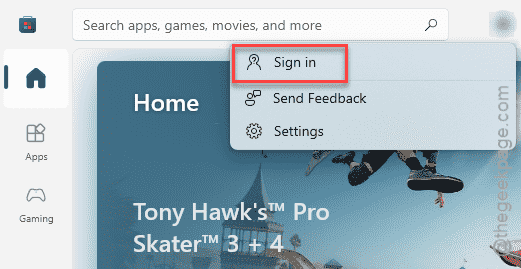
Step 7 – Next, open up the Xbox app. Check whether the Xbox is using the same account or not.
Step 8 – Otherwise, if you don’t find the account in the Xbox app, sign out from the Xbox app.
Step 9 – Then, tap the Sign in option, and it will show up the account choice console. Select the account of your choice from there and tap Continue. Complete the log in procedure.
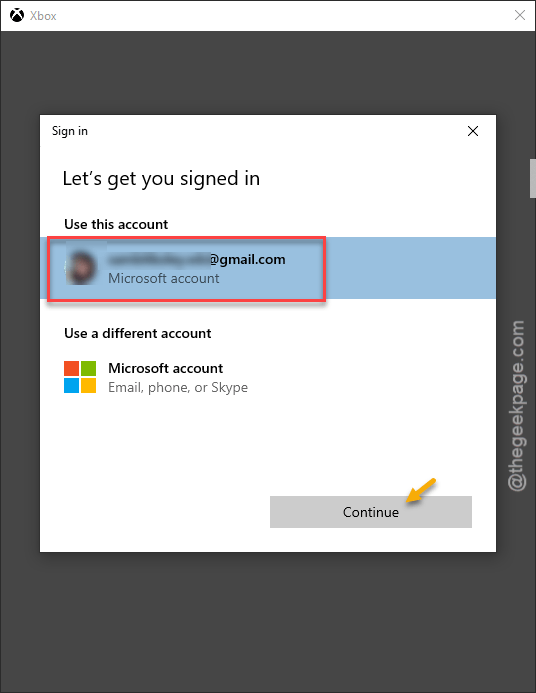
This will put an end to the sign in problem that you’re having on the Xbox app.
Fix 2 – Turn off the sign-in automatically function
The automatic sign feature can create this log in issue on the Xbox app.
Step 1 – On the Windows Settings page, go to the Accounts tab.
Step 2 – Open up the Sign-in options tab.
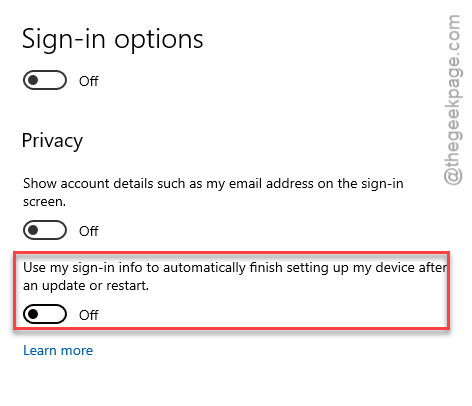
Step 3 – Finally, turn off the Use my sign-in info to automatically finish setting up after an update option there.
Fix 3 – Run the Xbox Gaming Services Repair tool
Every Xbox application is equipped with an inbuilt gaming services repair tool that you can use to fix this issue.
Step 1 – Load up the Xbox app if you have closed it already.
Step 2 – On the Xbox app, tap the profile icon in the top left corner and click the support option.
Step 3 – Now you have to use the Gaming Services Repair Tool option in the support section.
The gaming service repair well now run a bunch of steps on your system, like restarting several Xbox services.
It will ask you a routine question whether it has fixed the issue or not. Give Y or N based on your problem status.
Fix 4 – Modify the Microsoft Account Sign-in assistant
You will need the Microsoft Account Sign-in assistant service to startup automatically on your system and function.
Step 1 – At first, search for services from the search box. Next, load up the Services utility.
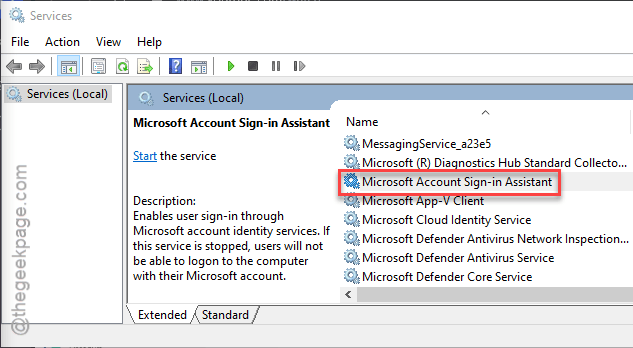
Step 2 – Locate the Microsoft Account Sign-in Assistant service. Double-tap that service to modify it.
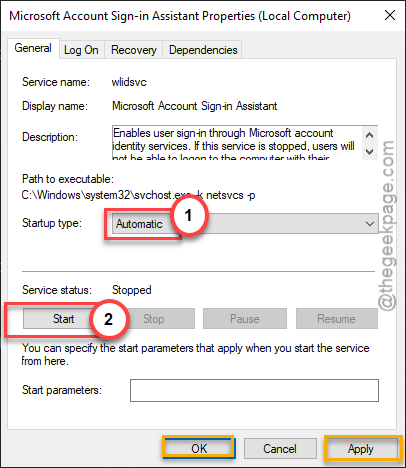
Step 3 – We need to start the service at the system startup. So, set this to Automatic mode.
Step 4 – Start the service, if the service has not started yet.
Step 5 – Save the changes in there.
Step 6 – Later, right-click the Microsoft Account Sign-in Assistant service and use the Restart function to restart the service.
After you have restarted it, try to log in to the Xbox app again.
Fix 5 – Empty the TokenBroker folder
The Tokenbroker folder is responsible for storing all the authentication tokens that Microsoft services and other Microsoft applications use.
Step 1 – Hold up the Win+R buttons together.
Step 2 – Next, paste this address there and hit Enter.
C:\Users\%username%\appData\Local\Packages\Microsoft.XboxIdentityProvider_8wekyb3d8bbwe\AC\TokenBroker
Step 3 – Delete all the contents in the folder there.
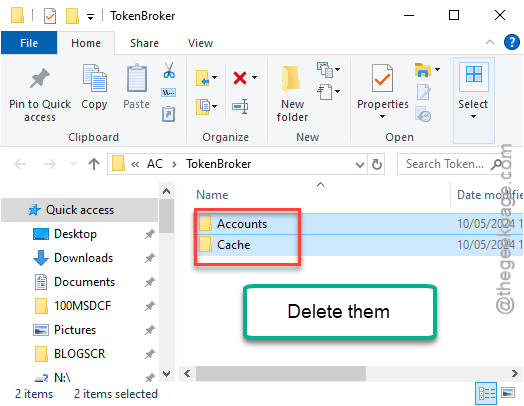
After emptying the folder, you can retry logging in to the Xbox app or Microsoft Store. Check if this works out for you.
Fix 6 – Use the correct time zone, time
Your system must use the proper time and date settings to avoid this 0x8007003B sign in issue.
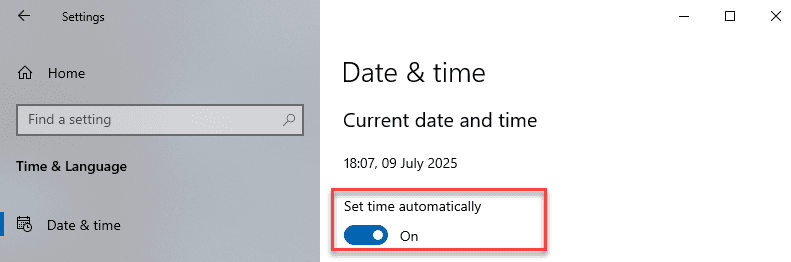
Step 1 – Load up the Windows Settings panel. Go to the Time & language tab.
Step 2 – Next, open up the Date & time panel.
Step 3 – Later, make sure to turn on the Set time zone automatically and Set time automatically settings.
Close everything and give it another try. You won’t face the 0x8007003B error again.