Does your Apple Watch losing battery power all of a sudden? The battery of an Apple Watch was always a concern before the introduction of the Watch Ultra series. But, still, there should not be a sudden dip in the watch battery. Here is the detailed explanations behind the reason of this problem, and some fixes or measures that you can apply to resolve the issue.
Reasons why the Apple Watch battery dropping suddenly?
An average Apple Watch claims to provide just 18 hours of battery backup. During that time, the Apple Watch slowly depletes the battery over the routine course of daily work. But, the sudden battery drop can be caused by either very high watch display brightness or too apps running in the background. Even getting too many notifications from various applications and having the always on display turned drains the battery much quicker than it normally should.
A recent watchOS update may have caused this issue as well. The past updates, like watchOS 10.1, watchOS 9.0 has many users reporting high battery drops. These solutions will help you put the plug on this drastic battery drain issue. These solutions should be helpful in this case ~
Fix 1 – Close the apps in the background
The apps that you have left on in the background can consume a lot of battery power and easily drain it.
Step 1 – Simply double-tap your watch crown to get access to all the apps operating on your watch.
Step 2 – Slide across all the running app windows one-by-one and tap the ❌ to terminate them all.
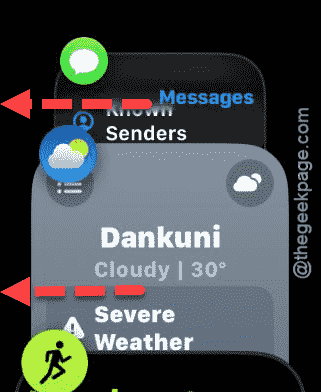
Do this before leaving the watch in idle mode, like before going to bed at night.
Fix 2 – Turn off Background App Refresh and other features
Background App Refresh can consume a lot of energy if you have too many apps on your watch.
Step 1 – On your Apple Watch, tap the ⚙ icon to load up the Settings panel.
Step 2 – Next, follow this path to here~
General > Background App Refresh
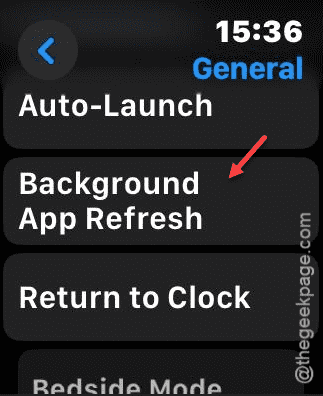
Step 3 – Then, turn off the Background App Refresh from there.
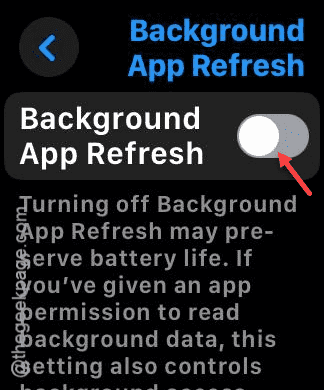
Step 4 – Now open up the Watch app on your iPhone.
Step 5 – In the Watch app, open the Display & Brightness option.
Step 6 – Later, turn off the Wake on Wrist Raise mode.
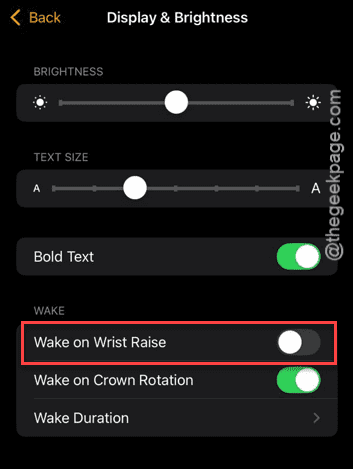
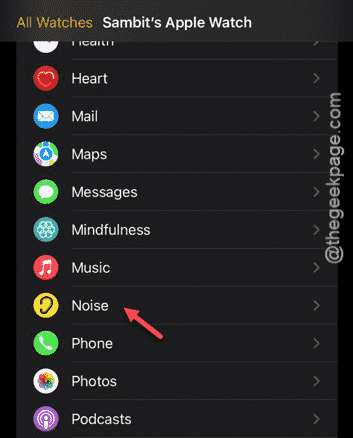
Step 7 – Now, go to the Noise app settings from the same watch app settings page.
Step 8 – Turn off the Environmental Sound Measurements toggle.
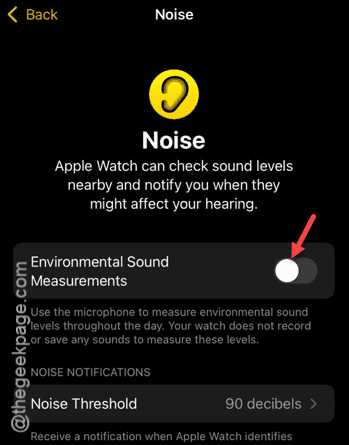
After turning it off, the battery drain issue on the Apple Watch will be resolved.
Fix 3 – Disable AOD and turn down the brightness
Always-On-Display does consume a lot of energy as some pixels of the display never turns off. On the other hand, setting the watch display to high brightness can drain the battery a lot faster.
Step 1 – Tap the digital crown once to load the App List on watch. Next, open the Settings page.
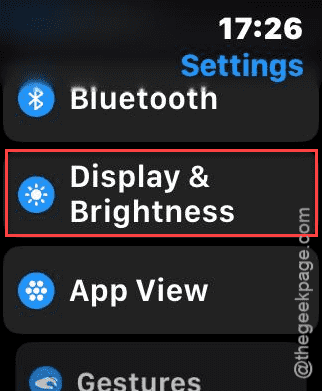
Step 2 – Go to the Display & Brightness settings from there.
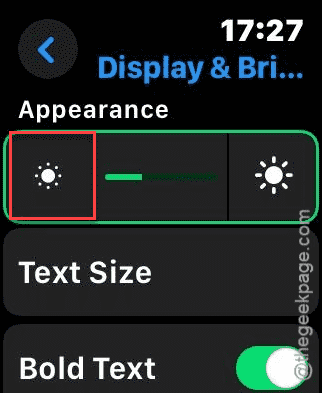
Step 3 – Now, lower the brightness all the way down to the lowest setting.
Step 4 – Then, scroll down and disable the Always option, if it is available in there.
These steps should help you save a lot of battery power.
Fix 4 – Force restart the Apple Watch
Force restarting the Apple Watch is a simple yet most effective solutions that you can implement in this case.
Step 1 – At first, press-hold the digital crown (round button) and the side button (flat button) together.
Step 2 – Keep pressing these buttons together for at least 10–12 seconds.
Step 3 – Release the buttons as soon as the Apple logo shows up on the watch screen.
This way, Once you have force-restarted the watch, see if the battery is still draining fast.
Fix 5 – Turn on Low Power mode
Possibly the best way to minimize the idle battery drain is to put the watch in low power mode.
Step 1 – Hit the side button of the watch once.
Step 2 – On the Control Centre of the watch, tap the Battery icon to load it up.
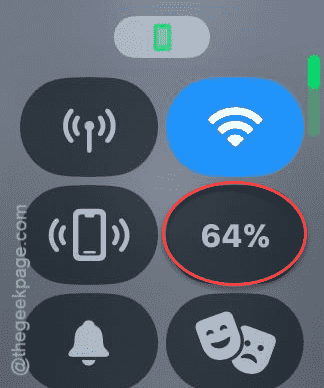
Step 3 – Tap the Low Power Mode to enact the low power mode on your watch.
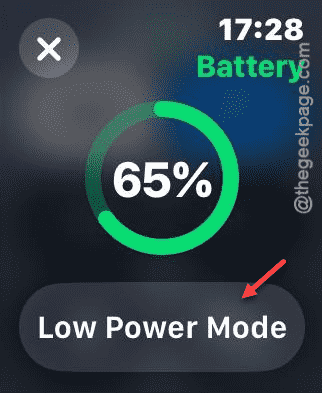
Step 4 – Choose to Turn on the Low Power mode to activate it.
Do this before you go to bed, and you will notice improvements in the battery drain.
Fix 6 – Disable the Cellular data
Continuous usage of cellular data does eat up some chunk of battery power of the Apple Watch.
Step 1 – To do this, tap the side button of the watch once.
Step 2 – Next, tap the Cellular icon in the Control Centre.

Step 3 – Turn off the Mobile Service switch from there.
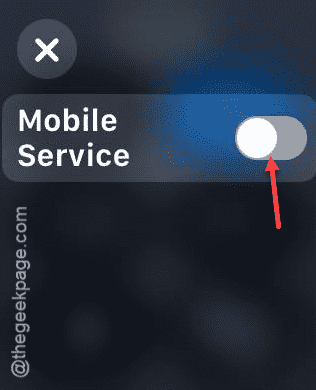
After you have turned it off, it will fix the battery drain issue for sure.
Hope these fixes have helped you solve the Apple Watch’s battery drain issue.