The Essential mod of Minecraft enhances the gameplay while introducing some ease of life improvements in the game. But what is the use of having the Essential mod if it cannot establish a proper network connection? This problem has raised quite a number of eyebrows in the Minecraft community and hence, here are the perfect solutions to tackle this problem on your own.
Fix 1 – Tweak the Curseforge arguments
You can add a particular Java argument in Curseforge for the Minecraft game to enforce the Java Argument to use the IPv4 protocol over the IPv6.
Step 1 – Load up the Curseforge console.
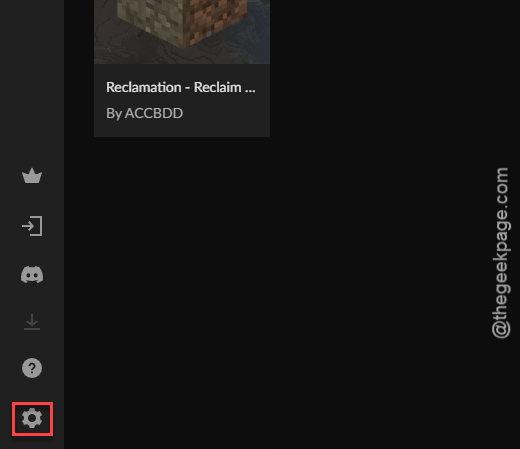
Step 2 – Tap the ⚙ Settings to load the Curseforge settings there.
Step 3 – Once you are in the Curseforge settings, go to the Minecraft from the left-hand tab.
Step 4 – Scroll down to the bottom through and reach the Default Additional Arguments tab. Paste this there –
-Djava.net.preferIPv4Stack=true
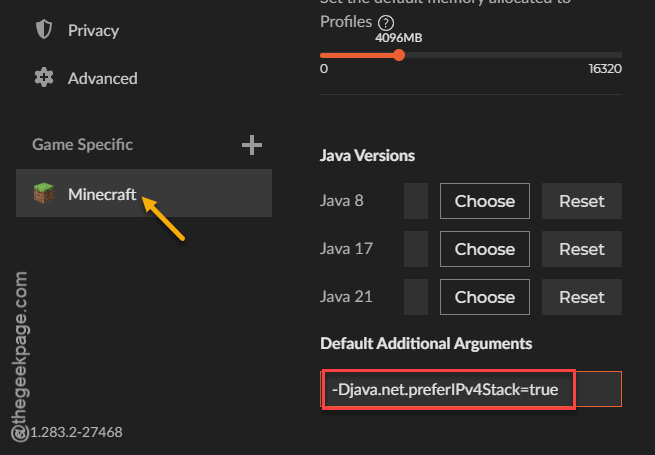
Once you have pasted it there, you may return to the main Curseforge page and relaunch the Minecraft game.
You won’t face the internet connection issues with the Essential mod again.
Fix 2 – Update the mod Curseforge
Use the latest version of the modpack that you are using.
Step 1 – Open up the Curseforge app on the device.
Step 2 – Next, go to the My Modpacks there.
Step 3 – Now, locate the Essential mod for the mod profile there.
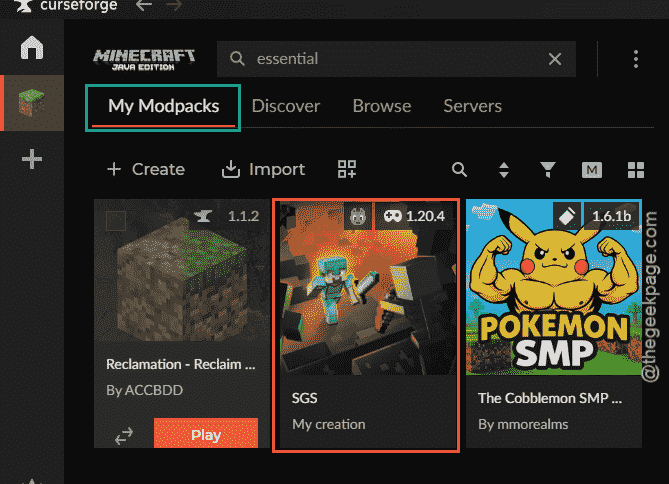
Step 4 – Now, right-click the mod file and tap the Profile options.
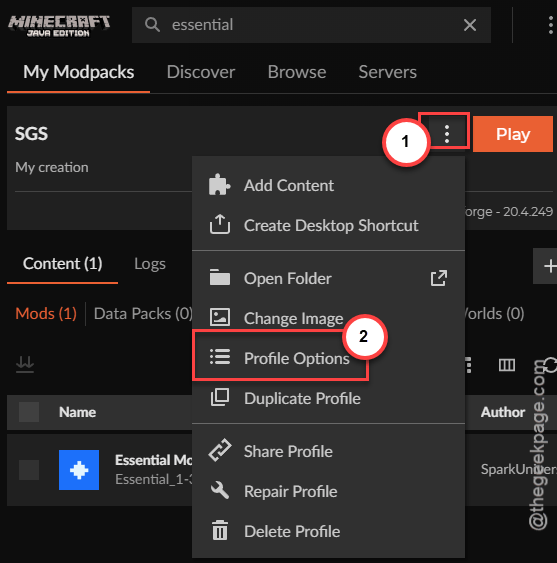
Step 5 – Scroll down to the Advanced Settings. Go to the Current Modloader Versions and set it to the latest forge version from there.
Step 6 – Tap Done to save the changes.
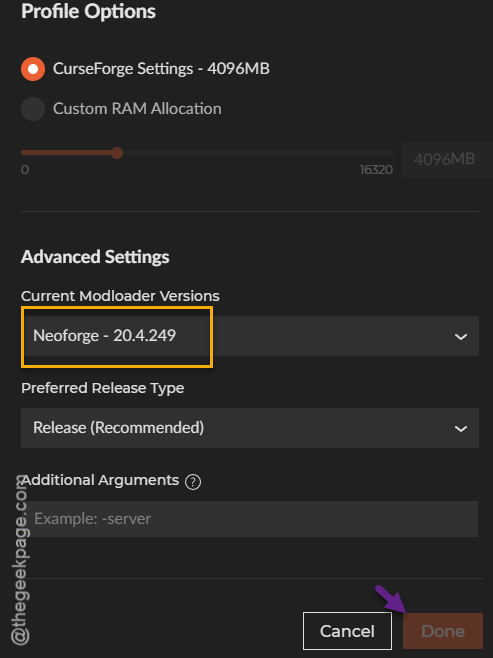
After you have implemented this change, relaunch the Minecraft and check.
Fix 3 – Disconnect the Ethernet (Starlink users)
If you are a Starlink user having this no connection problem with the Essential mod on Minecraft, these are the steps you need to follow ~
Step 1 – Disconnect the Ethernet if you are using that to connect to the internet and play Minecraft.
Step 2 – You should download and use a simple Cloudflare DNS app. Download and install the app on your machine. This has fixed the problem for many users.
Step 3 – If you are still having the ‘No connection’ message while playing Minecraft, opt for another network to use the Essential mod on Minecraft.
Fix 4 – Check the server status
The Essential mod goes through standard maintenance.
Step 1 – You can directly reach the Essential Status page.
Step 2 – Check the status of Essential servers there. If there is an issue with the servers, you can directly track it from there.
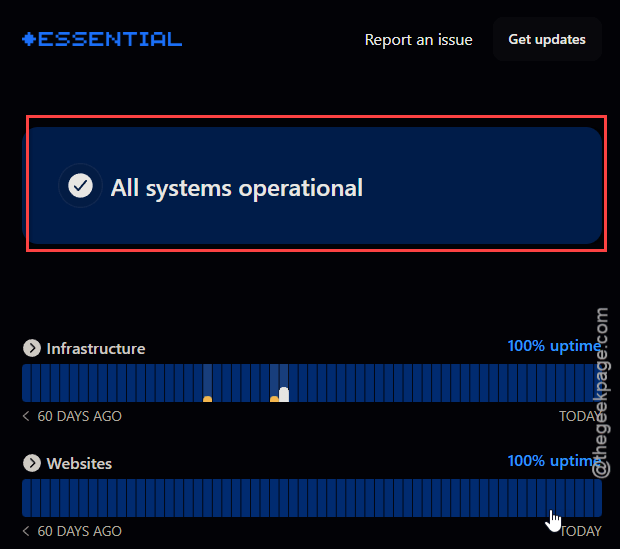
Additionally, you can track the X feed of Essential services,
Fix 5 – Deactivate and reactivate the network card
This error can be a resultant of the network issues from your end. To check and fix that issue, you must deactivate and reactivate the network card on your device.
Step 1 – Right-click the Windows icon and tap the Device Manager.
Step 2 – In the Device Manager panel, expand the Network adapters panel.
Step 3 – Later, right-click the network adapter that you are using and tap the Disable device.
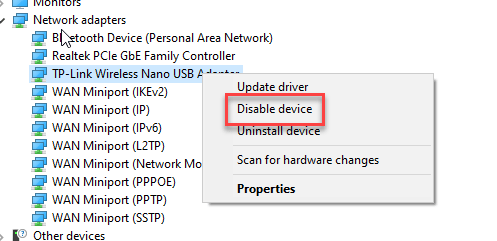
Step 4 – This will disable the network adapter on your machine. Wait for some time.
Step 5 – After some time, right-click the same disabled adapter and click Enable device to re-enable it.
After re-enabling the network adapter, close the Device Manager console.