You put the headset on and hit play. Silence. Windows says connected. The volume bar moves. Still nothing. And it all started right after you set up Phone Link.
Why This Happens
Basically? Your headset runs two audio modes. Stereo for music. And a hands-free mode for calls — the tinny, walkie-talkie one.
Phone Link grabs that hands-free channel so it can route your phone’s calls through the PC. But it doesn’t always let go. The channel stays seized, the stereo side stays blocked, and your music has nowhere to play.
There’s a second failure mode too. Phone Link’s volume and the Windows volume can drift out of sync, and the headset’s internal amp ends up told to sit at zero. Muted at the hardware level. Great design.
Fix 1 – Turn Off Audio Routing in Phone Link
The root cause switch. Don’t take phone calls on your PC? Then this feature does nothing for you except steal your audio.
1 – Open the Phone Link app.
2 – Click the Settings gear.
3 – Click Features, then Calls.
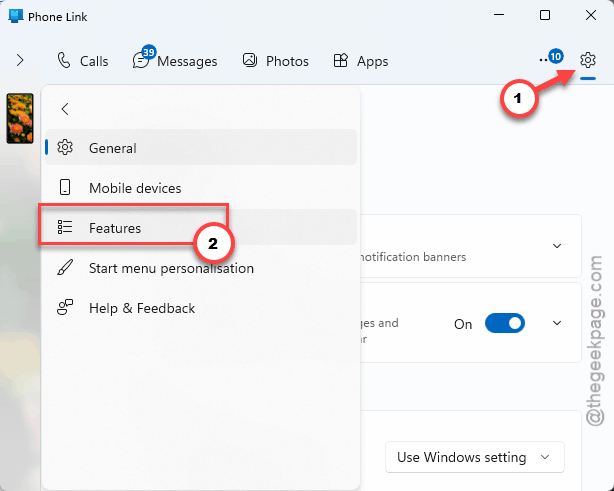
4 – Toggle off Allow this PC to make and manage calls from my mobile device feature.
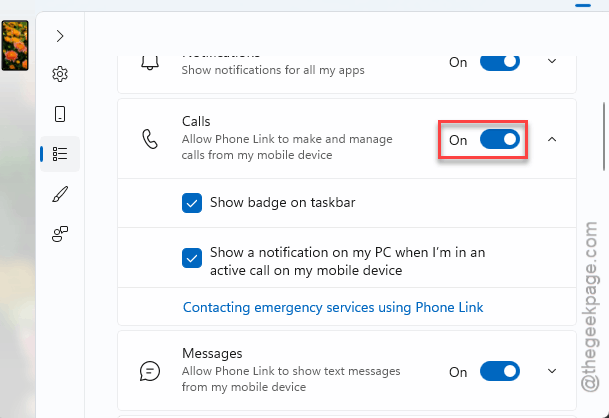
5 – Reconnect your headset and test.
Fix 2 – Restart the Bluetooth Support Service
Quick one. The hands-free routing token can get stuck even after the toggles above, and bouncing the Bluetooth service shakes it loose.
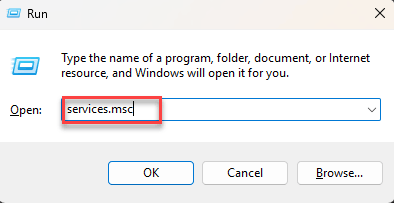
1 – Press Windows + R, type this, press Enter.
services.msc
2 – Then find Bluetooth Support Service in the list.
3 – Then,, right-click it, and pick Restart.
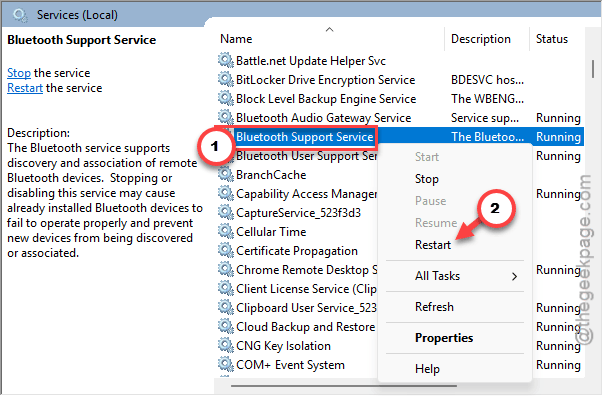
Your headset drops for a few seconds and reconnects. Done.
Fix 3 – Disable Absolute Volume in the Registry
For the volume-desync version of this bug — the one where the headset mutes itself at full Windows volume. This registry switch makes Windows stop controlling the headset’s internal amp.
1 – Press the Windows key, type “cmd”, right-click Command Prompt, and choose Run as administrator.
2 – Paste this as one line and press Enter:
reg add HKLM\SYSTEM\ControlSet001\Control\Bluetooth\Audio\AVRCP\CT /v DisableAbsoluteVolume /t REG_DWORD /d 1 /f
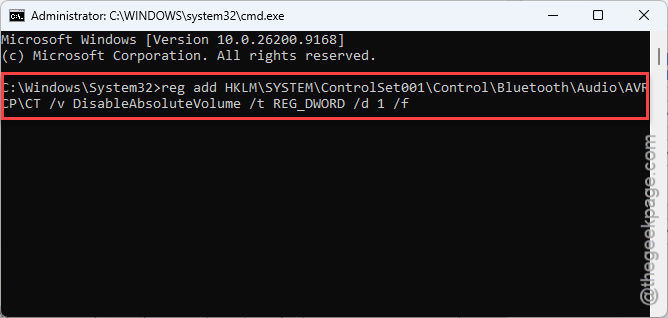
3 – Wait for the line that says the operation completed successfully.
4 – Restart your PC.
After this, the headset keeps its own volume and Windows keeps its own. Two sliders instead of one. Slightly annoying, but nothing can force the amp to zero anymore.
Fix 4 – Reset the Phone Link App
Last resort. A corrupted device association inside Phone Link can keep the mute alive through everything above. Wipe the app’s data and let it rebuild.
1 – Press Windows + I to open Settings.
2 – Go to System, then System components.
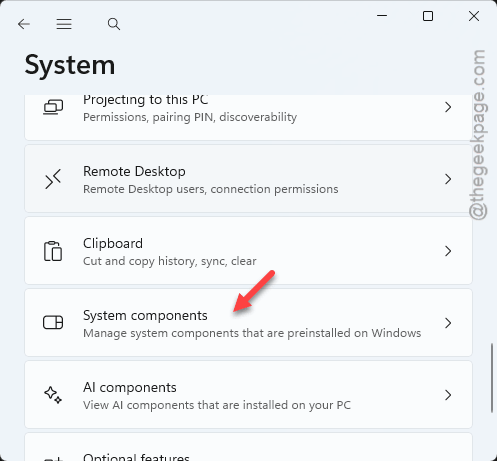
3 – Type “Phone Link” in the search box at the top.
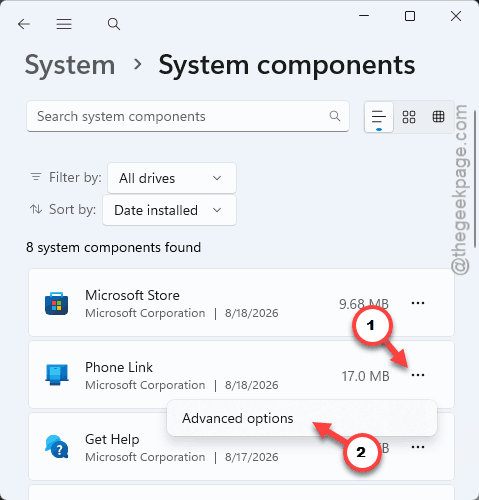
4 – Click the three dots (⋯) next to the app and choose Advanced options.
5 – Scroll down and click Reset.
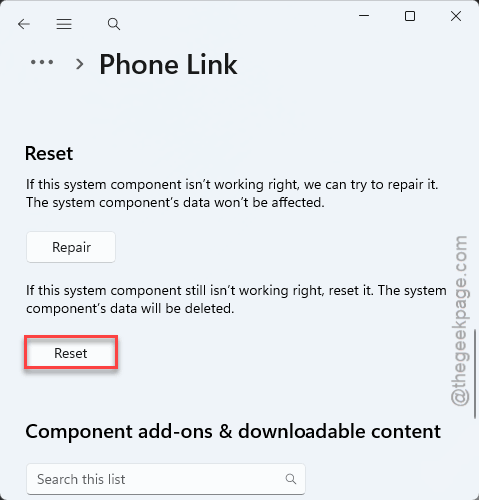
You’ll have to link your phone again afterward. So keep it nearby — the pairing QR code comes back like it’s day one.
How to Prevent This
- Leave audio routing off in Phone Link unless you genuinely take calls at your desk. It’s the whole trigger.
- Music-only headset? Keep Handsfree Telephony unchecked permanently. No hands-free channel, no hijack. Period.
- If the mute-at-full-volume thing ever creeps back, the registry fix from Fix 5 is safe to leave in place for good.
People Also Ask
Why does my Bluetooth headset sound terrible during PC calls?
Calls run over the hands-free mode, which is a low-quality channel built for voice, not music. Stereo mode can’t run at the same time. That’s normal Bluetooth behavior, not a bug — although it surprises everyone the first time. Better mics usually mean plugging in a separate one.
Is disabling absolute volume in the registry safe?
Yes. All it changes is who controls the headset’s built-in volume. With it disabled, Windows volume and headset volume become two separate sliders instead of one linked control. Nothing breaks, and you can undo it any time by setting the same registry value back to 0.
Will resetting Phone Link unpair my phone?
It wipes the app’s stored data, including the link to your phone — that’s the point, since a corrupted device association is what keeps the bug alive. Your Bluetooth pairing in Windows stays, but you’ll walk through the Phone Link setup with the QR code again.