Another day, another Windows 11 cursor bug. This time the pointer gets stuck as the text I-beam (that thin capital-I shape) and stays that way. Over buttons. Over the desktop. Everywhere. Clicking still works. It just looks wrong, and it’s annoying enough to make you restart.
The Short Version
Windows draws the cursor on the graphics card now. Fast. But when a program swaps the cursor shape and the swap gets lost, the GPU keeps showing the last one it had. That’s the I-beam.
Chromium browsers trigger it most. Chrome, Edge, Brave. You hover a text box, tab away, and the arrow never comes back. And the Windows 11 accessibility features (the colored text cursor indicator especially) fight with normal cursor drawing on top of that.
Why hasn’t this been fixed? Good question. It’s been around since 22H2.
The fixes all do the same basic thing: force Windows to redraw the cursor. Start with the quick ones.
Fix 1 – Force a Redraw
Two quick tries. No settings involved.
1 – Press Windows + D. All your windows minimize.
2 – Press Windows + D again to bring them back.
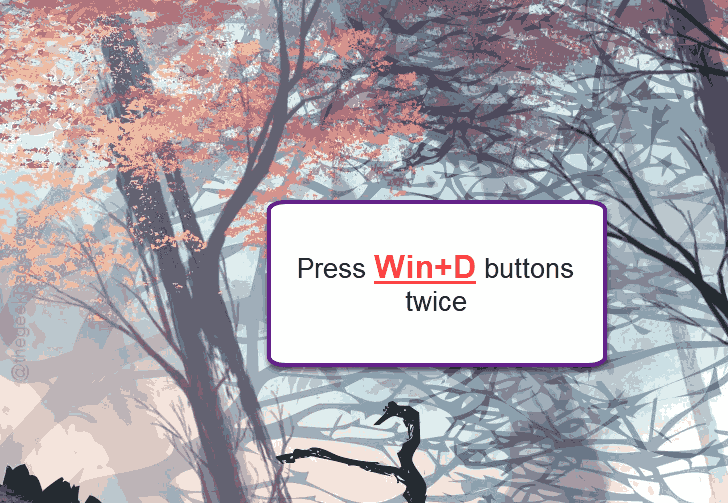
That refresh is often enough to snap the cursor back to an arrow.
Didn’t work?
1 – Close your browser. All windows of it.
2 – Then check the system tray in the bottom right corner of the taskbar (click the little up arrow) and make sure the browser isn’t still running back there.
3 – Right-click it and quit if it is.
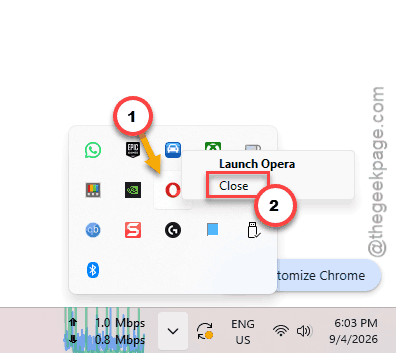
Open the browser again.
Fixed? Fine. But it’ll be back. The next fixes stop it from sticking so often.
Fix 2 – Cycle the Pointer Scheme
Loading a different cursor pack and switching back resets the stuck state.
1 – Press Windows + R, type main.cpl, and press Enter.
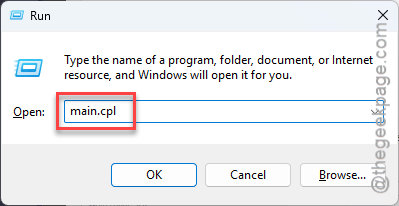
The Mouse Properties window opens.
2 – Click the Pointers tab at the top.
3 – Open the Scheme dropdown and choose Windows Black (system scheme).
4 – Click Apply. Your cursor turns black.
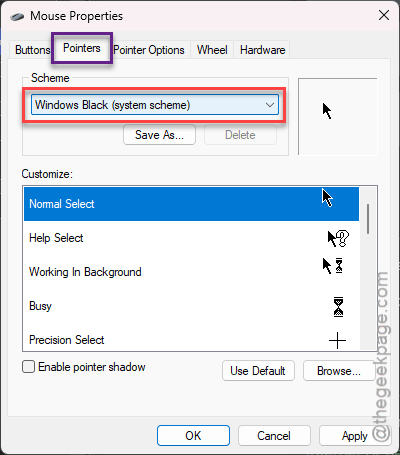
5 – Open the Scheme dropdown again and choose Windows Default (system scheme).
6 – Click Apply, then OK.
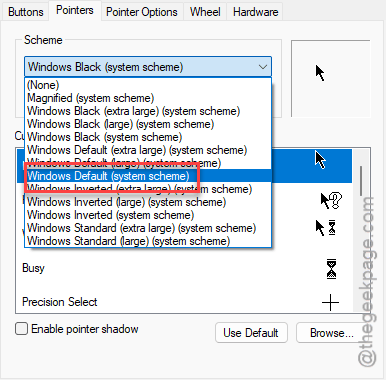
Alternative in the same window:
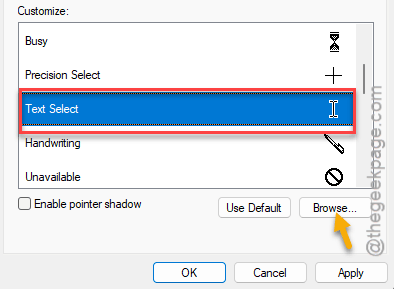
1 – At first, click Text Select in the Customize list.
2 – Then, click Browse.
3 – Finally, pick the file named beam_r, and click Apply.
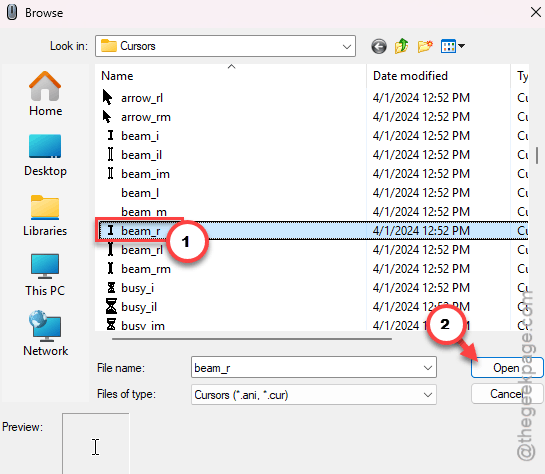
That swaps the I-beam for a fresh copy of itself, which also breaks the stuck state.
Fix 3 – Bump the Cursor Size and Back
Same idea, different setting. And changing the size makes Windows rebuild every cursor image.
1 – Press Windows + I to open Settings.
2 – Click Accessibility in the left sidebar.
3 – Click Mouse pointer and touch.
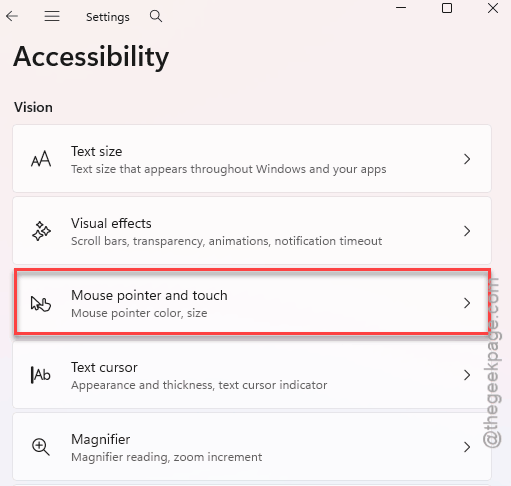
4 – Drag the Size slider one notch to the right.
5 – Click around the desktop a few times.
6 – Drag the slider back where it was.
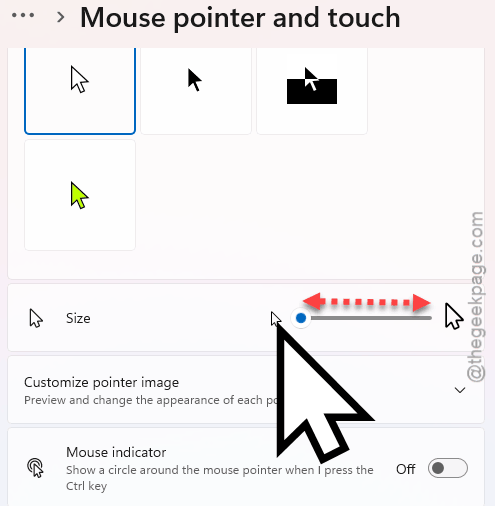
Check if this works.
Fix 4 – Flip Pointer Trails On and Off
Pointer trails make Windows draw the cursor in software instead of on the GPU. You don’t want trails (nobody does).
1 – At first, press Windows + R, type main.cpl, and press Enter.
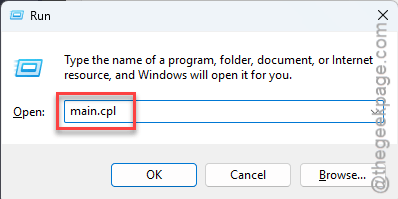
2 – Click the Pointer Options tab.
3 – Check Display pointer trails.
4 – Click Apply.
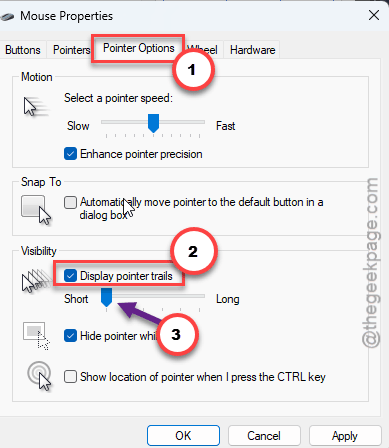
Move the mouse. Ugly, right?
5 – Uncheck Display pointer trails and click OK.
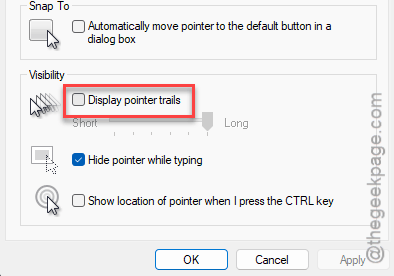
Test if this works.
Fix 5 – Restart Desktop Window Manager
Desktop Window Manager (DWM) is the process that draws everything on screen, cursor included. Ending it flushes the bad cursor image out of video memory.
1 – Press Ctrl + Shift + Esc to open Task Manager.
2 – Click the Details tab. On the new Task Manager it’s in the left sidebar.
3 – Scroll down to dwm.exe. The list is alphabetical.
4 – Right-click it and choose End task.
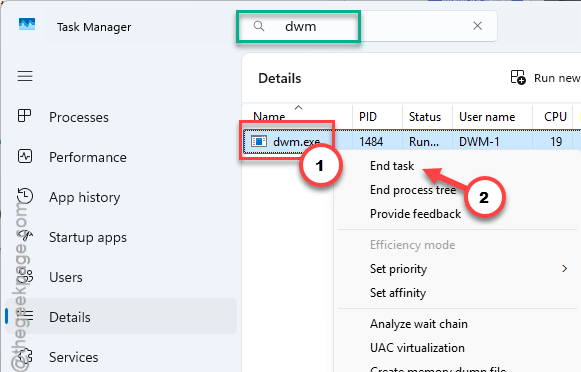
5 – Click End process on the warning.
The screen goes black for a second. Then everything comes back. And nothing closes, nothing is lost. Looks scary the first time.
Fix 6 – Turn Off the Text Cursor Indicator
Keeps happening? Check this one. The text cursor indicator is the colored blob Windows 11 can put around your typing cursor. Nice idea. But it clashes with regular cursor drawing, and plenty of people have it on without knowing.
1 – Open Settings and click Accessibility.
2 – Click Text cursor.
3 – Switch Text cursor indicator to Off.
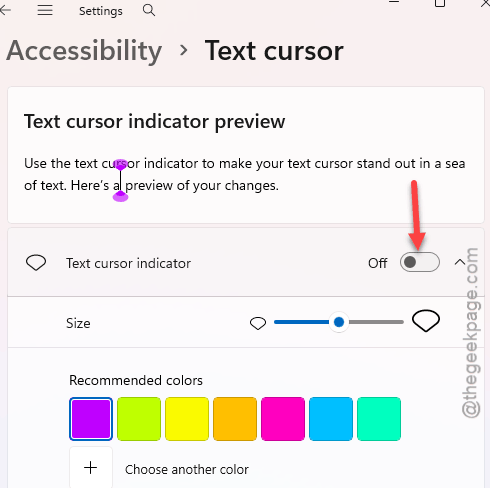
No restart needed. So test it over the next day or two.
Avoiding This Next Time
- Keep pointer trails off and the text cursor indicator off. Both mess with cursor drawing.
- If one browser triggers it constantly, try the same sites in another. Brave and Chrome share the bug. Firefox mostly doesn’t.
- Learn Windows + D twice. Fastest reset there is.
Quick Answers
How to fix a stuck cursor on Windows 11?
A stuck cursor shape is a drawing glitch, not a broken mouse. Change the cursor size in Settings, Accessibility, Mouse pointer and touch, then change it back. Or end dwm.exe in Task Manager’s Details tab. Windows restarts it right away with a fresh cursor. Both take under a minute.
Why does my cursor stay as an I-beam after leaving a text box?
Chromium browsers like Chrome, Edge, and Brave sometimes fail to tell Windows the cursor should change back. The graphics card keeps the last shape it was given. Closing every browser window, including the one in the system tray, clears it. Turning off the text cursor indicator in Accessibility settings makes it rarer.