The Hunt 1896 update swapped out the entire engine underneath Hunt: Showdown. That’s why a game that ran fine in July now hitches every few seconds and paints textures in late. Crytek moved to a new CryEngine build, and your old settings never got the memo. This is fixable, so, don’t worry.
Why This Happens
Short version: the new engine is hungrier and pickier than the old one, and it inherited a pile of settings from the old one.
The VRAM target slider is the worst offender. Set it at 90 percent, and the new engine over-books your graphics memory, spills into slower system RAM, and stutters hard after about half an hour of play. Why does it ship at 90? No idea.
Then there’s the config file. Your attributes.xml is full of values from CryEngine 5.6, and the new DirectX 12 renderer chokes on some of them. And Steam Input keeps polling for a controller you’re not using, which interrupts frame pacing on mouse and keyboard. On big Ryzen chips, the engine also trips over virtual cores and freezes for five seconds at a time.
So it’s not one bug. It’s four or five small ones stacked on top of a fresh engine.
Fix 1 – Drop the VRAM Target to 80 Percent
Start here. This one fixes the after-30-minutes stutter and most of the texture pop-in.
1 – Launch Hunt: Showdown 1896 and open Settings.
2 – Click the Graphics tab.
3 – Scroll down to Video Memory (VRAM) Usage Target.
4 – Lower it from 90 to 80. Got a card with 8 GB or less? Go to 70.
5 – Apply the settings.
6 – Close the game completely and relaunch it. The new limit only takes effect on a fresh start.
Textures might load a touch slower in the first few seconds of a match. That’s the trade, and it’s a good one. Better than a hitch every time you round a corner.
Fix 2 – Delete the Old attributes.xml
Your settings file is a relic from the old engine. Delete it, and the game builds a clean one for the new renderer. Your keybinds and graphics settings reset (write down anything you customized first), but your account, unlocks, and hunters are safe on the server.
1 – Open Steam and right-click Hunt: Showdown 1896 in your library.
2 – Hover over Manage and click Browse local files.
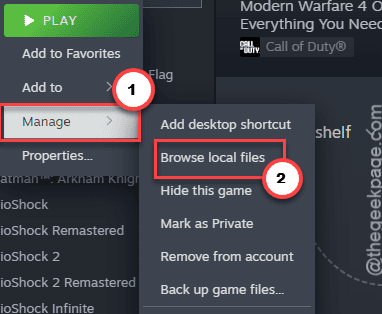
3 – Open user, then profiles, then default.
4 – Delete attributes.xml.
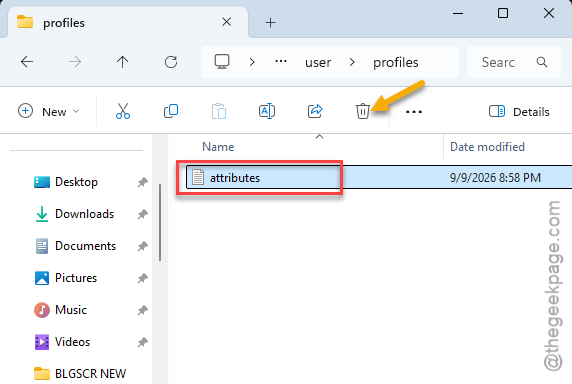
5 – Launch the game. It creates a fresh file on startup.
Then redo Fix 1, because the VRAM slider goes back to 90 with the new file. Of course it does.
Fix 3 – Turn Off Steam Input
Mouse and keyboard player? Steam still checks for a controller dozens of times a second on this game’s behalf. Each check is tiny. But they add up to a micro-stutter you can feel in gunfights.
1 – Right-click Hunt: Showdown 1896 in your Steam library.
2 – Click Properties.
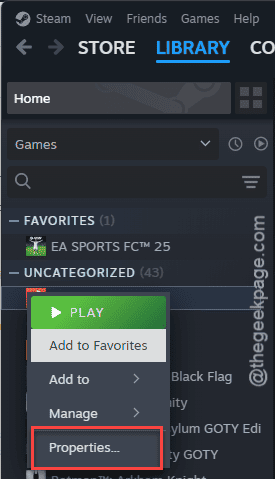
3 – Click the Controller tab in the left sidebar.
4 – Open the dropdown and pick Disable Steam Input.
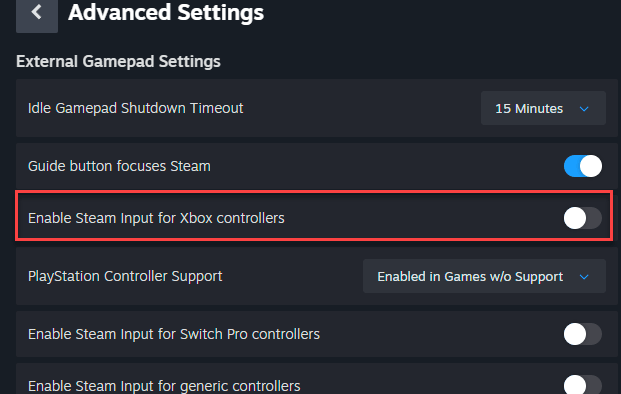
5 – Close the window and launch the game.
Playing on a controller? Skip this one. You need Steam Input on.
Fix 4 – Go Fullscreen and Cap the Frame Rate
Borderless mode breaks G-Sync and FreeSync pacing in this update. So frames arrive unevenly, and you get that rubber-band feeling even when the FPS counter says 120. Real fullscreen plus a cap fixes the pacing.
1 – In the game’s Graphics settings, change Display Mode from Borderless to Fullscreen.
2 – Set VSync to Off.
3 – Set NVIDIA Reflex Low Latency to On + Boost. AMD players won’t see this option, and that’s fine.
4 – Set the in-game frame rate cap to 3 or 4 below your monitor’s refresh rate. A 144 Hz monitor gets 140.
5 – Open the NVIDIA Control Panel or AMD Adrenalin and make sure G-Sync or FreeSync is turned on for fullscreen applications.
Alt-tabbing gets a bit slower in true fullscreen. Annoying, I know. It’s still worth it for the smoothness.
Fix 5 – Pin Steam to Your Physical Cores
Ryzen 9 or a big Intel chip? The engine gets confused by virtual cores (the second thread on each physical core, called SMT or hyperthreading), and the FPS drops to 10 for five seconds at a time. Normally you’d fix that on the game’s own process. But Easy Anti-Cheat blocks that. So you do it to Steam instead, and the game inherits the setting when Steam launches it.
1 – Close the game, but leave Steam running.
2 – Press Ctrl + Shift + Esc to open Task Manager.
3 – Click the Details tab.
4 – Right-click steam.exe and click Set affinity.
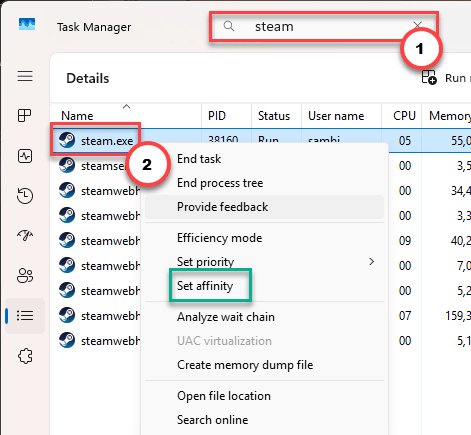
5 – Uncheck All Processors.
6 – Check only the first 16 threads, CPU 0 through CPU 15.
7 – Click OK and launch the game from Steam.
This resets every time Steam restarts (thanks, Windows). If it helps, the five-second freezes vanish immediately, and you’ll know it’s worth redoing.
Fix 6 – Set the Game to High Priority
Windows 11 loves to throttle background threads, and it sometimes decides the game’s audio thread counts as background. Audio desyncs, then the stutter follows. High priority tells Windows to stop being clever.
1 – Launch the game.
2 – Press Ctrl + Shift + Esc and open the Details tab, like in Fix 5.
3 – Right-click HuntGame.exe.
4 – Hover over Set priority and click High.
5 – Click Change priority to confirm.
Not Realtime. High. Realtime starves your mouse and keyboard drivers, and then you have a whole new problem.
How to Prevent This
- Leave the VRAM target at 80 or below. Every big patch seems to reset it, so glance at it after updates.
- Delete attributes.xml after any engine-level update. Old configs on a new engine are a guaranteed mess.
- Keep Steam Input off for this game unless you actually use a controller. Period.
- And cap your frame rate. Uncapped frames on a variable refresh monitor buy you nothing but uneven pacing.
People Also Ask
Why is my game stuttering even with high FPS?
Because frame rate and frame pacing aren’t the same thing. You can average 120 FPS while individual frames arrive unevenly, and that unevenness is what you feel as stutter. In Hunt 1896, borderless mode breaks G-Sync pacing and Steam Input interrupts the frame timing. Switch to fullscreen, cap frames under your refresh rate, and turn off Steam Input.
How do I fix graphics stuttering?
Lower the game’s VRAM usage target to 80 percent so the engine stops spilling into system RAM. Delete the old attributes.xml so the new renderer gets clean settings. Then run in true fullscreen with a frame cap a few frames under your refresh rate. On high-core CPUs, pin Steam to physical cores in Task Manager before launching.
Why is Hunt: Showdown 1896 constantly crashing?
Most crashes trace back to the same VRAM over-allocation that causes stutter. The engine books more graphics memory than it has, runs out, and dies. Drop the VRAM target to 70 or 80 percent and delete attributes.xml. If it still crashes, verify the game files through Steam, since the engine swap replaced a lot of files and some downloads went wrong.