This one looks like the Start menu died. But It didn’t. You click All, and under your pinned apps there’s just… nothing. A blank gray canvas where two hundred apps should be. Though the Windows search still works. So the apps exist but the list just won’t draw. Nine times out of ten it’s a view setting or a cached file, not a broken Windows install. So put the reinstall idea away. Most people are sorted by Fix 2.
What’s Going On Here
Microsoft redesigned the Start menu again in 2025. The All Apps list got a new Category view that groups your apps into folders like Productivity and Games. Clever idea. But that grouping relies on a little classification file, and when that file hangs (wondering why nobody tested this on older hardware? Same), the whole lower half of the menu stays empty.
There’s a second cause. The Start menu is actually its own little app, called StartMenuExperienceHost. It keeps a cache of your installed apps.
Some tweaking tools and work laptops set it. You’d never know. Windows doesn’t say “this was hidden by a policy.” It just shows the void.
Fix 1 – Switch the View From Category to List
Start here. It takes five seconds and fixes the newest version of this bug.
1 – Click Start.
2 – Look fpr All in the top left corner of the menu.
3 – Look for the small View dropdown at the top right of the All Apps section. It probably says Category.
4 – Click it and pick List.
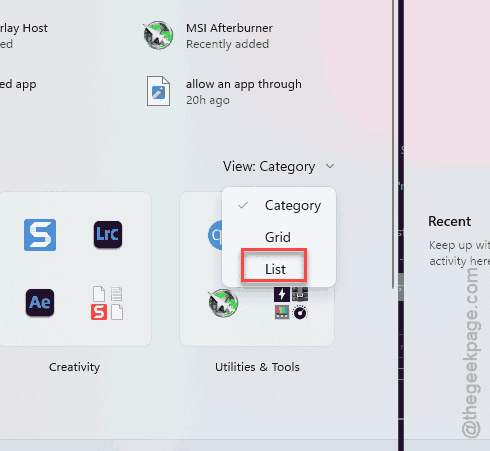
The apps should pour back in.
Fix 2 – Restart the Start Menu Process
The second resolution that you should try is to restart the Start menu process.
1 – At first, press Ctrl + Shift + Esc to open Task Manager.
2 – Proceed to the Details in the left sidebar.
3 – Scroll down to StartMenuExperienceHost.exe. Typing the first few letters jumps you there.
4 – Right-click it and pick End task.
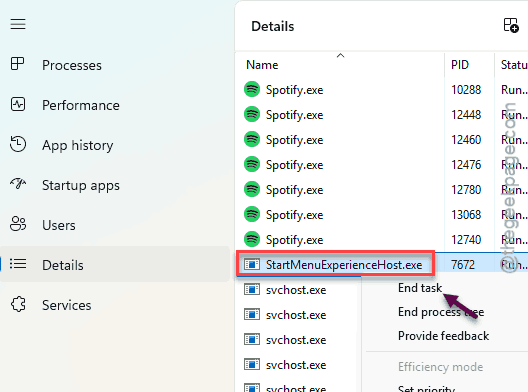
See if the issue persists.
Fix 3 – Rebuild the Start Menu Cache
You should try rebuilding the Start menu cache from the scratch.
Does this delete anything of yours? No. But your pinned apps may reset to defaults. That’s all.
1 – Right-click the Start button and pick Terminal (Admin). If Start won’t open at all, press Windows + X instead.
2 – Click Yes when Windows asks for permission.
3 – Paste this line and press Enter:
Stop-Process -Name "StartMenuExperienceHost" -Force
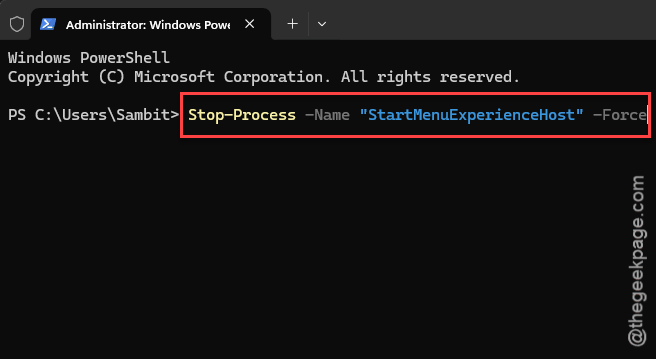
4 – Paste this line and press Enter:
Remove-Item -Path "$env:LOCALAPPDATA\Packages\Microsoft.Windows.StartMenuExperienceHost_cw5n1h2txyewy\LocalState\*" -Recurse -Force
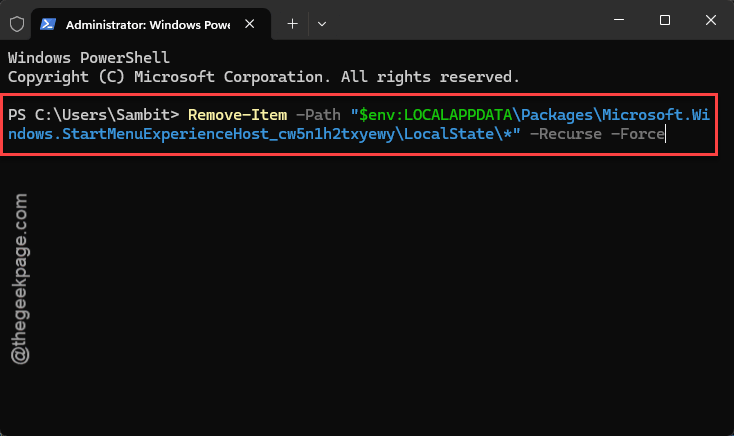
5 – Paste this line and press Enter:
Get-AppxPackage -AllUsers Microsoft.Windows.StartMenuExperienceHost | Foreach {Add-AppxPackage -DisableDevelopmentMode -Register "$($_.InstallLocation)\AppXManifest.xml"}
6 – Paste this line and press Enter:
Get-AppxPackage -AllUsers Microsoft.Windows.ShellExperienceHost | Foreach {Add-AppxPackage -DisableDevelopmentMode -Register "$($_.InstallLocation)\AppXManifest.xml"}
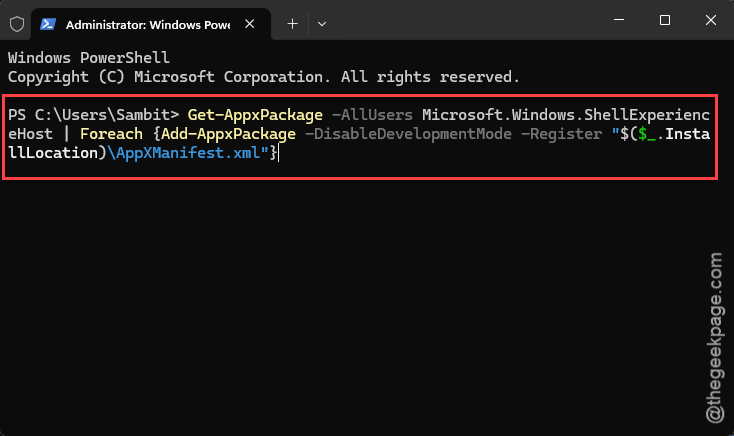
7 – Paste this last line and press Enter:
Stop-Process -Name explorer -Force
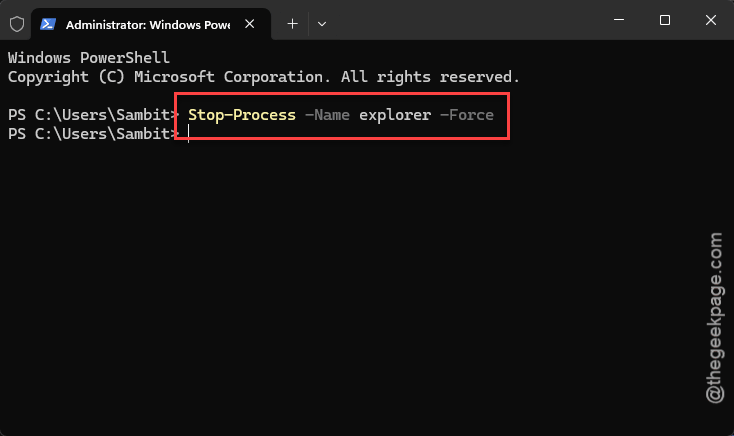
Wait for a few seconds, and then test it.
Fix 4 – Remove the Policy That Hides the List
Tweak your system registry that hides the list.
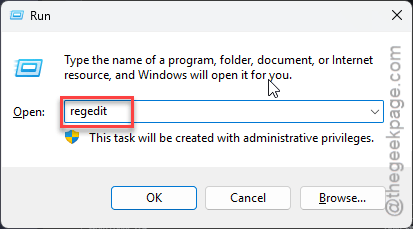
1 – Start by hitting the Windows + R buttons together.
2 – Write regedit, and press Enter.
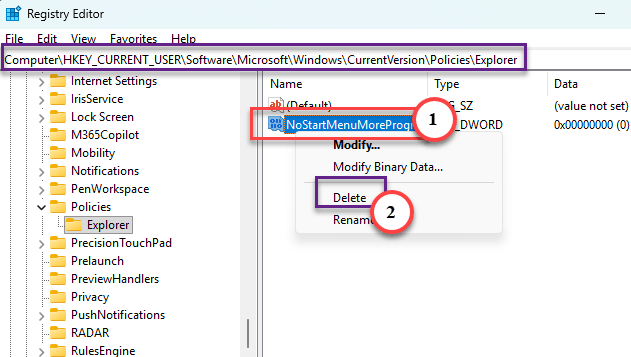
2 – Click the address bar at the top, paste this, and press Enter:
HKEY_CURRENT_USER\Software\Microsoft\Windows\CurrentVersion\Policies\Explorer
3 – Look in the right pane for a value named NoStartMenuMorePrograms.
4 – If it’s there, right-click it and pick Delete.
5 – Check the same path under HKEY_LOCAL_MACHINE too (swap the first part of the address). Delete it there as well if you find it.
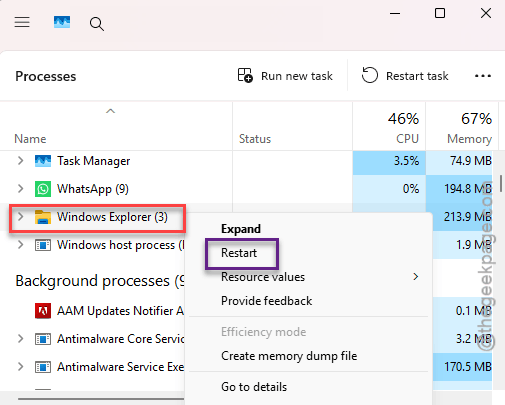
6 – Then, right-click the Start menu and open Task Manager.
6 – Find the Windows Explorer entity, and tap Restart.
Nothing named that in either place? Then this wasn’t your cause. Skip ahead.
Fix 5 – Check Where Windows Looks for Shortcuts
Look whether Windows is looking for shortcuts in two of the folders.
1 – Open regedit like in Fix 4.
2 – Next, paste this directly on address bar and press Enter to proceed
HKEY_CURRENT_USER\Software\Microsoft\Windows\CurrentVersion\Explorer\User Shell Folders
3 – Double-click Programs and check that the value reads exactly:
%USERPROFILE%\AppData\Roaming\Microsoft\Windows\Start Menu\Programs
4 – Make sure that is showing the value correctly. Then click OK.
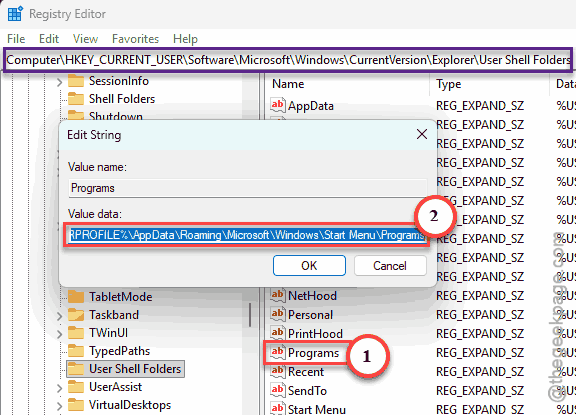
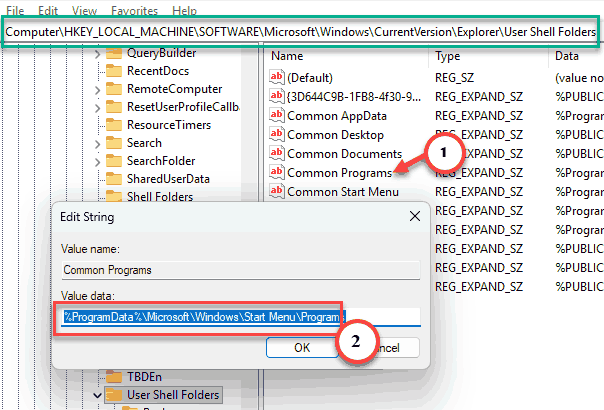
5 – Proceed to the same path under HKEY_LOCAL_MACHINE.
6 – Finally double-click Common Programs and check what it says:
%ProgramData%\Microsoft\Windows\Start Menu\Programs
7 – Sign out of Windows and sign back in.
And a restart won’t do here. The paths only reload on sign-in.
Fix 6 – Re-register Every App
Last resort, and it’s a slow one.So ignore the red. It’s mostly apps that were already registered.
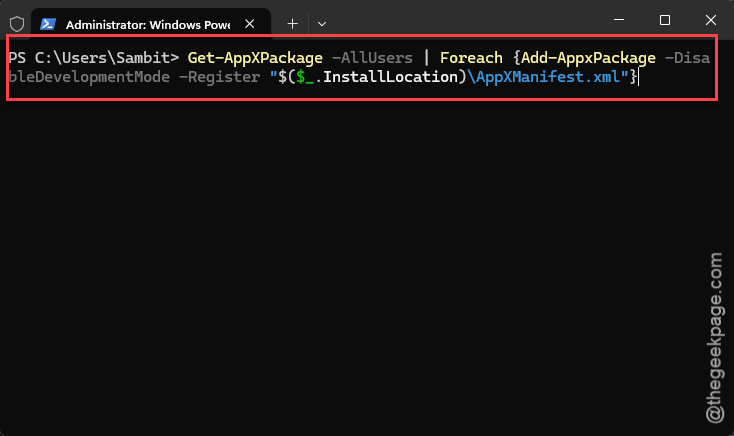
1 – Open Terminal (Admin) like in Fix 3.
2 – Paste this and press Enter:
Get-AppXPackage -AllUsers | Foreach {Add-AppxPackage -DisableDevelopmentMode -Register "$($_.InstallLocation)\AppXManifest.xml"}
3 – Wait until the prompt comes back. Go make a coffee.
4 – Restart the PC.
And if the list is back but your Start menu layout looks odd? Microsoft pushes menu layouts through a cache folder.
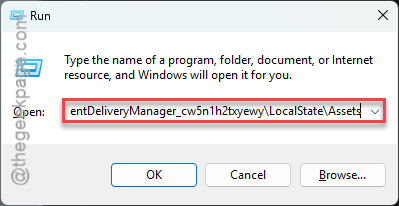
1 – Press Windows + R.
2 – Then, paste:
%localappdata%\Packages\Microsoft.Windows.ContentDeliveryManager_cw5n1h2txyewy\LocalState\Assets
3 – Finally, delete everything inside, and reboot.
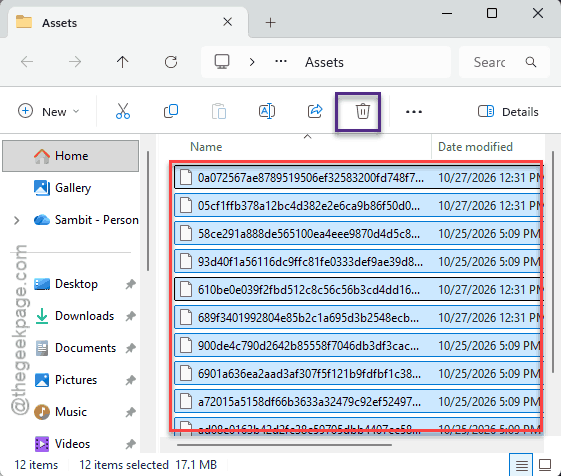
Windows downloads a fresh layout.
Avoiding This Next Time
- Stay on List view.
- Be careful with debloat scripts. Many of them set the hide-All-Apps policy without telling you. Read what they change first.
- Don’t move your user folder to another drive with a quick registry hack. That’s how the shortcut paths break.