Windows 11 quietly overrides your HDR profile every time it boots.. Sometimes after spending so much time on callibrating the monitor, the picture appears to be washed out again after a system reboot. It’s fixable, and you will not need to recalibrate even once. Here’s what’s going on.
What’s Actually Going On
Short version: Windows 11 has a feature called Auto Color Management, and it thinks it knows better than you. It manages colors on its own. And when it does, it skips right over user-made HDR profiles. Yours included.
There’s a second culprit too. At every logon, a background task called Calibration Loader is supposed to apply your profile. But it fires the moment you log in — sometimes before your graphics driver is even awake. When that race goes wrong, the task fails quietly. Why doesn’t it just retry? Good question.
And then there’s Fast Startup. It saves a snapshot of your system to make booting faster, but that snapshot often forgets your LUT (the look-up table — basically the color recipe your calibration is stored in). Fast boot, wrong colors. Not a great trade.
Fix 1 – Point Color Management at Your Profile
Start here. The Settings app looks like it saved your choice, but the old-school Color Management tool is the one Windows actually listens to.
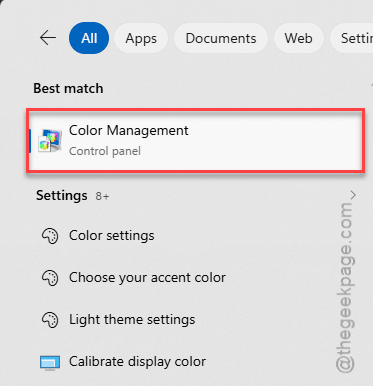
1 – Click the search box in the taskbar and type “Color Management“.
2 – Open Color Management from the results.
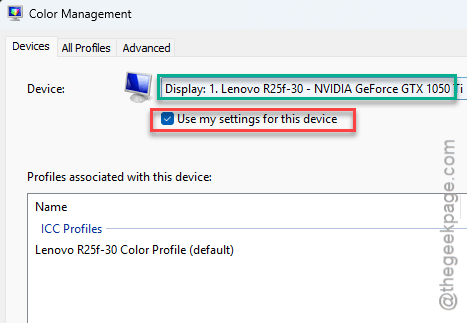
3 – In the Device drop-down at the top, pick your HDR monitor.
4 – Check the box that says Use my settings for this device.
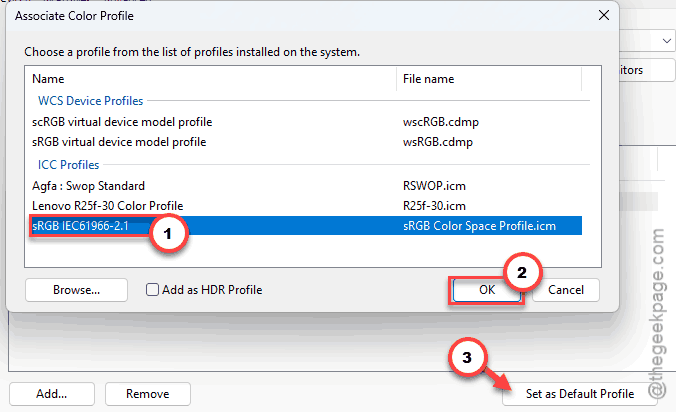
5 – If your profile is missing from the list, click Add, then choose Add as HDR profile.
6 – Click your profile in the list, then click Set as Default Profile.
7 – Close the window.
Wondering why this tool looks like it’s from 2010? Because it basically is. It still outranks the shiny Settings page, though.
Fix 2 – Set It as the System Default Too
One layer deeper. Fix 1 set the profile for your user account, but Windows keeps a second, system-wide list — and parts of the system read that one instead.
1 – Open Color Management again, like in Fix 1.
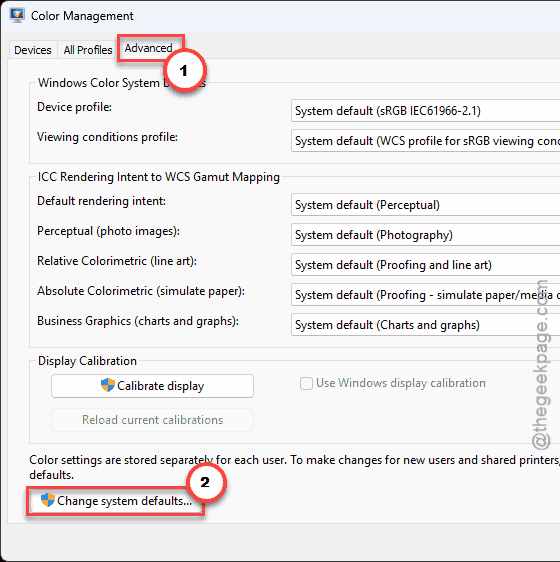
2 – Go to the Advanced tab.
3 – Click Change system defaults near the bottom. A second window opens (it looks almost identical — check the title bar if you get lost).
4 – In that new window, go to the Devices tab and select your display.
5 – Check Use my settings for this device.
6 – Select your HDR profile and click Set as Default Profile.
7 – Close both windows.
Check if this works.
Fix 3 – Turn Off Auto Color Management
You should turn off the auto color management on your system.
1 – Press Windows + I, go to System > Display.
2 – Go to the Advanced display section.
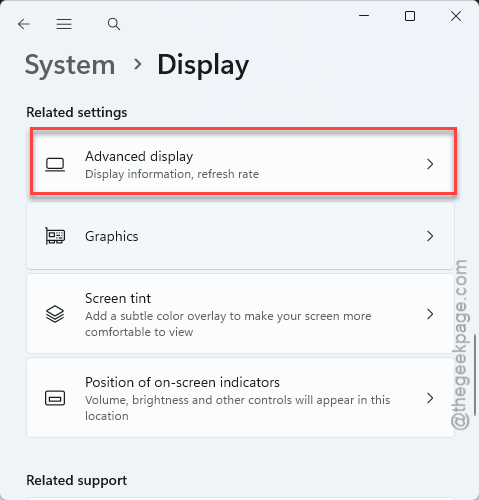
3 – Then, switch off the toggle that says Automatically manage color for apps.
That’s the feature that keeps steamrolling your profile. With it off, Windows stops second-guessing your calibration.
Fix 4 – Give the Calibration Loader a Head Start
This one fixes the boot race. You’re telling the loader to wait 30 seconds, so the graphics driver is fully awake before your profile gets applied.
1 – Press the Windows key, type “Task Scheduler”, and open it.
2 – In the left pane, expand Task Scheduler Library > Microsoft > Windows > Windows Color System.
3 – Double-click the Calibration Loader task.
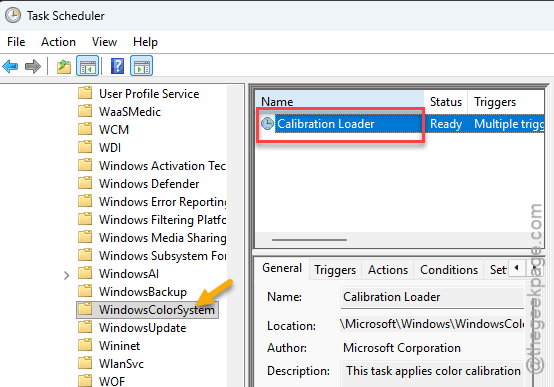
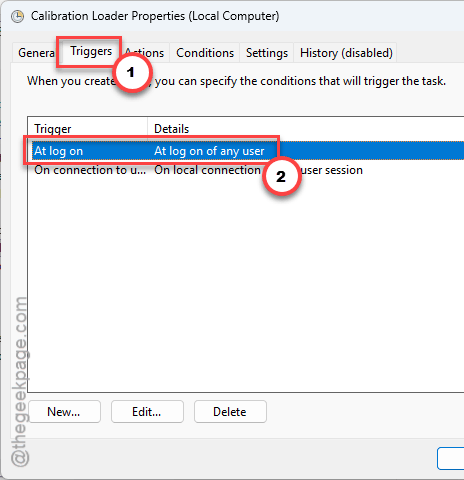
4 – Go to the Triggers tab.
5 – Select At log on and click Edit.
6 – Check Delay task for, set it to 30 seconds, and click OK.
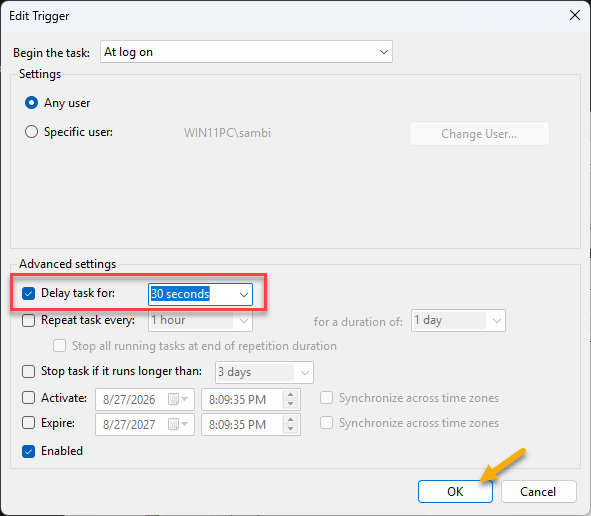
7 – Now select On connection to user session and give it the same 30-second delay you just set.
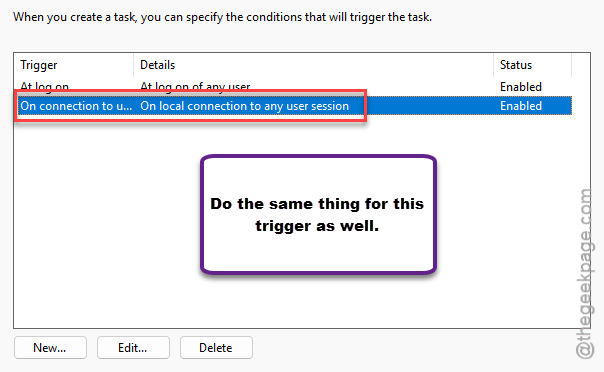
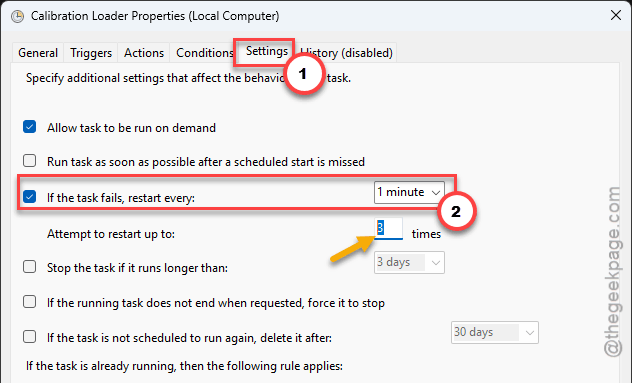
8 – Go to the Settings tab.
9 – Check If the task fails, restart every, set it to 1 minute, and leave the attempts at 3.
10 – Click OK and restart your PC.
Your desktop shows up first, and about half a minute later the colors visibly snap into place. That snap means it worked.
Fix 5 – Turn Off Fast Startup
Fast Startup is that snapshot feature from earlier — the one that forgets your LUT on the way back up.
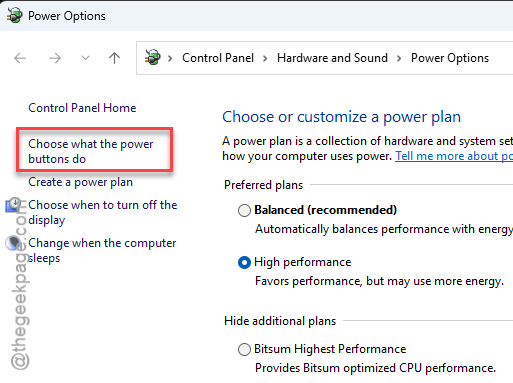
1 – Click the search box and type “Choose a power plan”, then open it.
2 – Click Choose what the power buttons do in the left sidebar.
3 – Click Change settings that are currently unavailable near the top. The greyed-out checkboxes below light up.
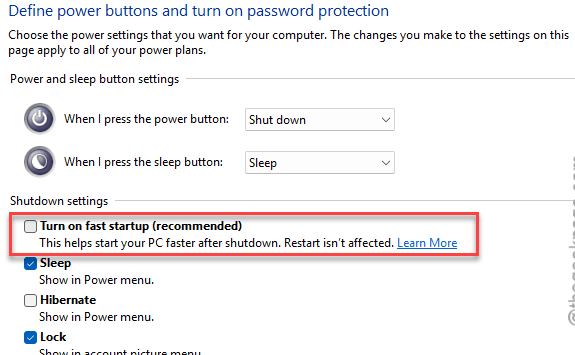
4 – Uncheck Turn on fast startup.
5 – Click Save changes and restart.
Boot takes a few seconds longer now. But your calibration survives it, which is the better end of that deal.
Fix 6 – Delay the Display Enhancement Service
Still resetting? One more thing to tame. There’s a background service that applies HDR metadata, and it sometimes hangs while Windows is still waking up.
1 – Press Windows + R, type services.msc, and press Enter.
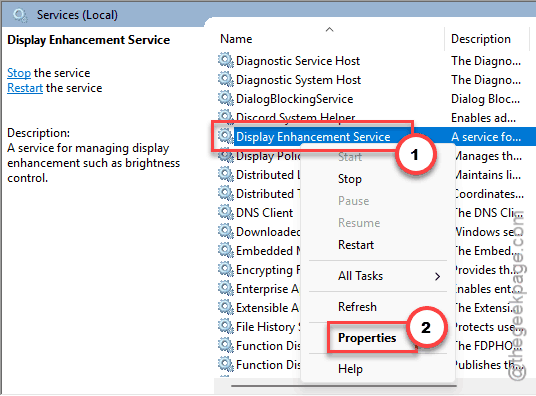
2 – Scroll down to Display Enhancement Service (the list is alphabetical, so it’s up in the D section).
3 – Right-click it and choose Properties.
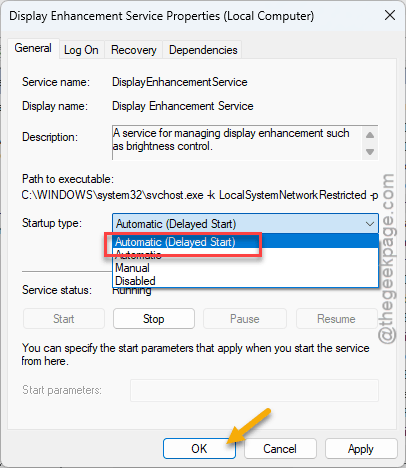
4 – Set Startup type to Automatic (Delayed Start).
5 – Click OK and reboot.
Check if this works.
So It Doesn’t Happen Again
- Keep one profile per monitor. A pile of old calibration attempts just gives Windows more ways to pick the wrong one.
- Leave Auto Color Management off. And peek at that toggle after big Windows updates — settings like this have a habit of wandering.
- Keep Fast Startup off. Slower boot, yes. Worth it.
- After a graphics driver update, open Color Management and check your profile is still the default. Takes ten seconds.
Quick Answers
How do I calibrate HDR settings in Windows 11?
Grab the Windows HDR Calibration app from the Microsoft Store — it’s free, and it’s Microsoft’s own tool. It walks you through three test patterns and saves the result as an HDR profile. Then set that profile as your default in Color Management so it actually sticks.
Is it better to disable or calibrate HDR?
Calibrate, if your monitor has real HDR hardware. A proper profile fixes the washed-out look most people complain about. But on a budget panel with bare-minimum HDR support? Turning HDR off often looks better than any amount of calibrating will.
I can’t enable HDR in Windows 11. How do I fix it?
Check Settings > System > Display first — if the HDR toggle is missing, your monitor or your cable doesn’t support it. Try the cable that shipped with the monitor. And run Windows Update, because display driver updates are what unlock that toggle on a lot of machines.
Why does my HDR profile reset after a big Windows update?
Feature updates can reinstall your display driver, and a fresh driver sometimes drops the default profile selection. The profile file itself is still on your disk. Open Color Management, set it as the default again, and you’re back to normal in under a minute.