Why does your cursor jump half a screen every time it crosses monitors? This is happening because there is a new setting that eases the cursor across display borders on Windows 11 devices. And it sometimes glitche badly. Mismatched scaling makes it worse (150% on one screen, 100% on the other). Windows loses track of where the pointer actually is, remaps the coordinates mid-crossing, and drops your cursor somewhere else entirely. The fixes below go from most likely to most obscure.
Fix 1 – Turn Off “Ease Cursor Movement”
The main offender. This setting is supposed to smooth border crossings. It does the opposite.
1 – Press Windows + I to open Settings.
2 – Go to System > Display.
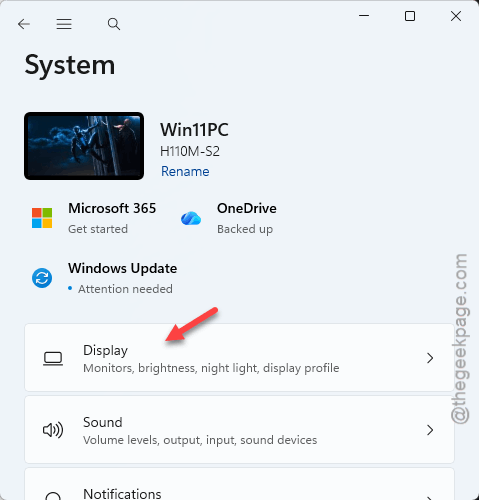
3 – Scroll down and expand the Multiple displays section.
4 – Uncheck the Ease cursor movement between displays.
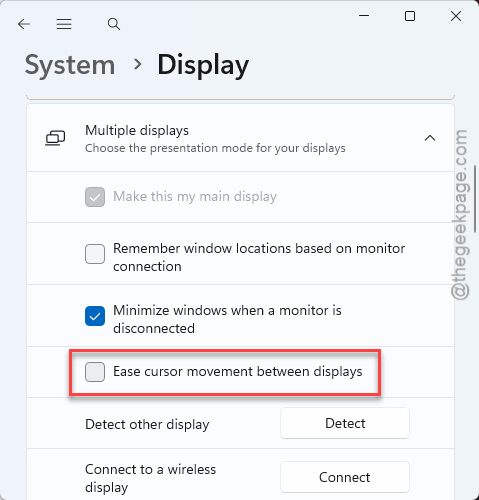
Test it right away — drag the cursor across the border a few times.
Fix 2 – Match the Scaling on Both Monitors
Windows maps cursor coordinates from one screen to the other. Different scale percentages? The math breaks right at the border.
1 – Stay in Settings > System. Go to the Display section.
2 – Click your first monitor in the diagram at the top.
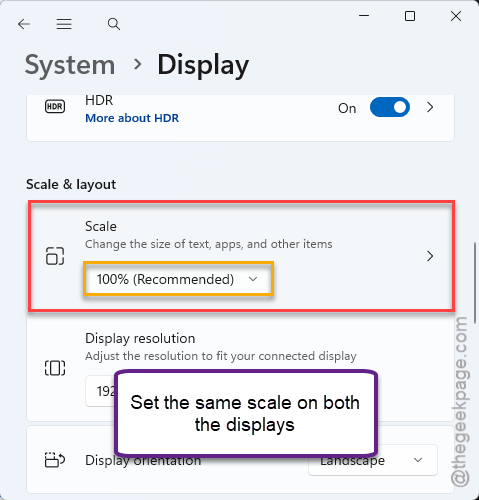
3 – Look under Scale and note the percentage.
4 – Click the second monitor and set its Scale to the exact same number.
And if you genuinely need different scales — a small laptop panel next to a 4K screen, say — grab LittleBigMouse or Cursr instead. Both are free. They map your real monitor sizes and force clean 1:1 crossings that Windows can’t manage on its own.
Fix 3 – Turn Off “Enhance Pointer Precision”
Quick one.
1 – Open the Start menu, type “Mouse settings”, and press Enter.
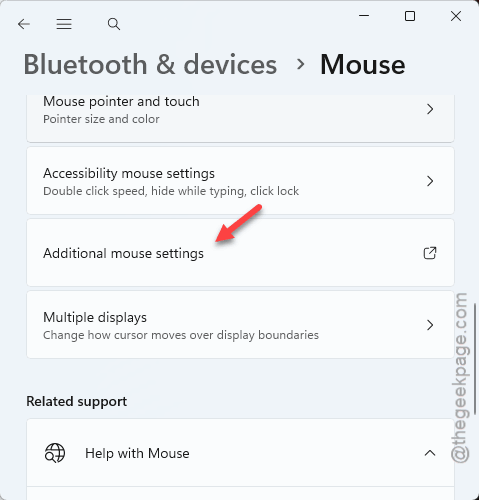
2 – Then, tap the Additional mouse settings to open the classic properties window.
3 – Go to the Pointer Options tab, uncheck Enhance pointer precision, and click Apply.
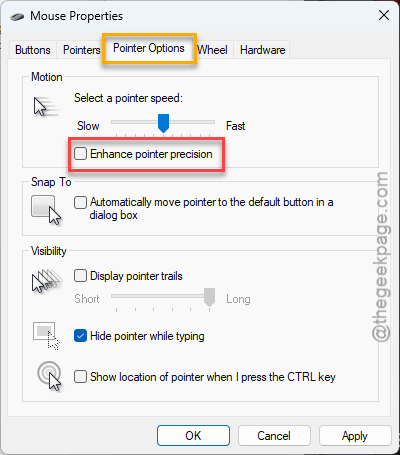
That “precision” is really acceleration. And with two monitors, acceleration turns into random skipping.
Fix 4 – Restart the Desktop Window Manager
DWM (the Windows process that draws everything on your screen) keeps a coordinate cache for multi-monitor setups. That cache corrupts.
1 – Press Ctrl + Shift + Esc to open Task Manager.
2 – Click the Details tab.
3 – Find dwm.exe in the list.
4 – Right-click it and select End task.
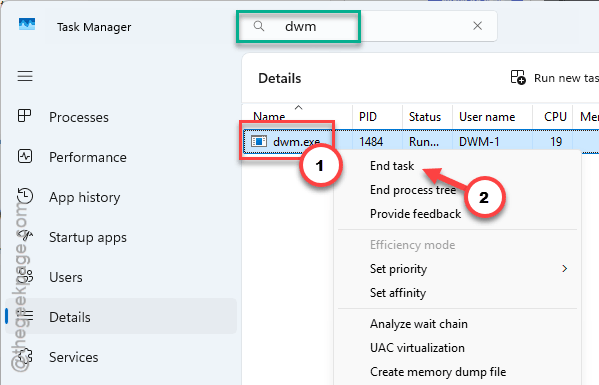
Your screens flash black for a second. Normal. It restarts itself, cache wiped.
Fix 5 – Disable MPO in the Registry
Deeper cut, for mixed-refresh setups — a 144Hz screen next to a 60Hz one. A GPU feature called Multi-Plane Overlay (it renders the cursor on its own separate layer) scrambles cursor coordinates on exactly that kind of pairing.
1 – Press Windows + R, type regedit, and press Enter.
2 – Paste this into the address bar at the top:
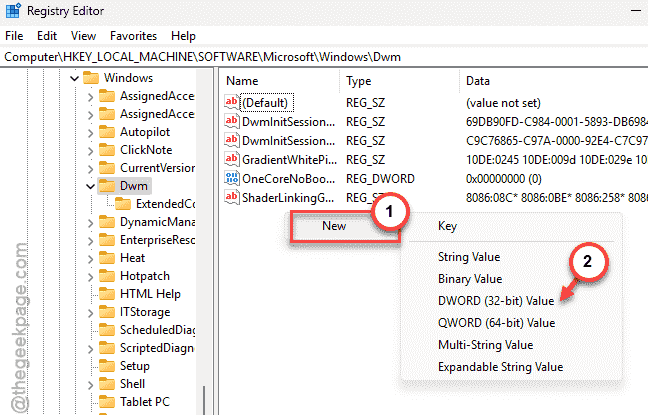
HKEY_LOCAL_MACHINE\SOFTWARE\Microsoft\Windows\Dwm
3 – Right-click empty space in the right pane and choose New > DWORD (32-bit) Value.
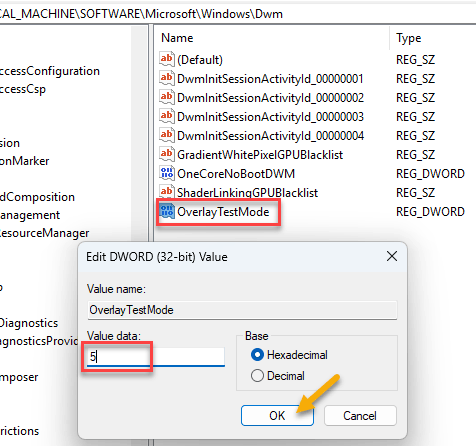
4 – Name it OverlayTestMode.
5 – Double-click it and set the value to 5.
6 – Click OK and restart your PC.
Check if this works.
Fix 6 – Disable the Laptop Touchpad
Using an external mouse on a laptop? The touchpad is still listening. Two pointing devices feeding one cursor — and a stray palm brush reads as a teleport.
1 – Press Windows + X and select Device Manager.
2 – Expand Mice and other pointing devices.
3 – Right-click your built-in touchpad and select Disable device.
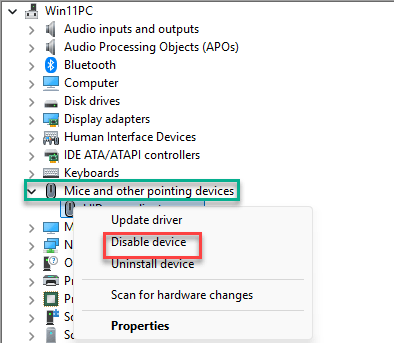
It’s usually named Synaptics, ELAN, or HID-compliant mouse. Your external mouse keeps working — this only kills the touchpad.
Fix 7 – Turn Off Hardware Cursor in Your Game
Cursor only teleports when you tab out of a game? That’s the game engine fighting Windows for cursor control.
Open the game’s graphics or interface settings and look for a Hardware Cursor toggle. Switch it off. But the name and location vary by game — check the interface tab first, then video.
Keep It From Coming Back
- Set scaling once, same number on both screens. Then leave it alone.
- Recheck the Multiple displays section after feature updates. Toggles like that have a way of flipping back on.
- Shopping for a second monitor? Matching resolution and refresh rate spares you this whole page.
- Never use the touchpad anyway? Keep it disabled for good.
People Also Ask
Why is my mouse cursor teleporting to my second monitor?
Usually it’s the “Ease cursor movement between displays” setting in Windows 11 — it snaps the cursor across misaligned monitor borders. Mismatched display scaling makes it worse.
How do I fix cursor problems on a dual monitor setup?
Start with the two big ones: match the scale percentage on both monitors, and turn off pointer acceleration in the mouse Pointer Options tab. Still jumpy? Restart dwm.exe from Task Manager to flush the coordinate cache. On mixed refresh rates, disabling Multi-Plane Overlay helps too.