You open Recall settings to pause the snapshots. The Pause button is greyed out. Dead. So the one feature that photographs your screen all day is also the one you can’t switch off right now. Of course it is.
Why This Happens
Here’s the thing about that Pause button: it doesn’t do the pausing. It just sends a request to a background agent — the actual snapshot engine that runs as its own process.
And when that agent hangs mid-recording, the button greys out. The UI can’t reach a frozen process, so it locks the toggle rather than lie to you. Corrupted app preferences and stuck permission states pull the same trick.
But greyed-out doesn’t mean unstoppable. You can kill the engine directly, repair the app behind the button, or go over the app’s head entirely with policy. All three below.
Fix 1 – Kill the Snapshot Engine in Task Manager
First priority: stop the capturing right now. Fix the button after.
1 – Press Ctrl + Shift + Esc to open Task Manager.
2 – In the Processes tab, type “Recall” in the search box at the top. Nothing there? Search for “Windows AI Host” instead.
3 – Right-click the process and select End task.
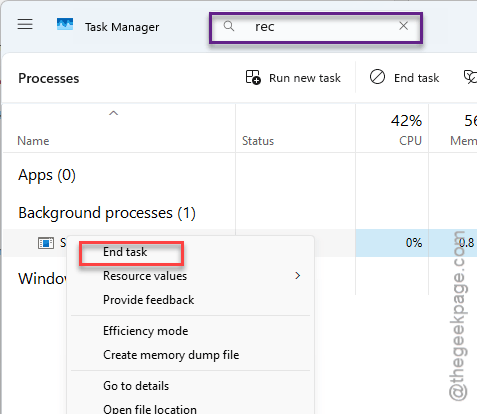
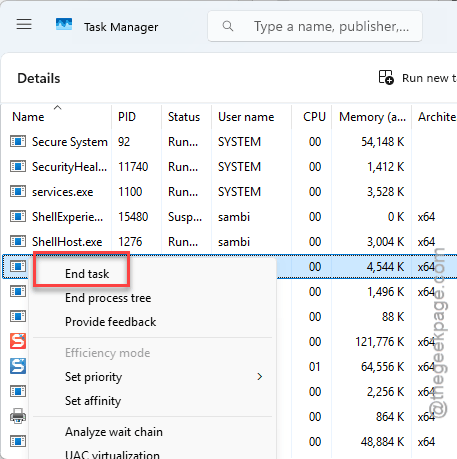
4 – Still hunting? Open the Details tab, find SnapshotManager.exe, right-click it, and hit End task there.
5 – Reopen Recall from the taskbar and check the Pause button.
Snapshots stop the moment the process dies. And with the hung engine gone, the button usually wakes up too.
Fix 2 – Stop the Snapshot Service From PowerShell
Same idea, more muscle. Killing the service stops the whole servicing stack instead of one process, and it works even when Task Manager can’t find anything to kill.
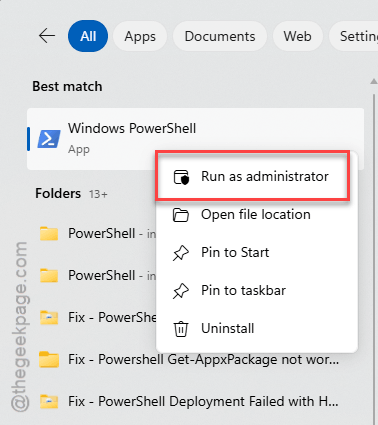
1 – Press the Windows key and type “PowerShell”.
2 – Right-click Windows PowerShell and choose Run as administrator.
3 – Type this and press Enter:
Stop-Service -Name "RecallSnapshotSvc" -Force
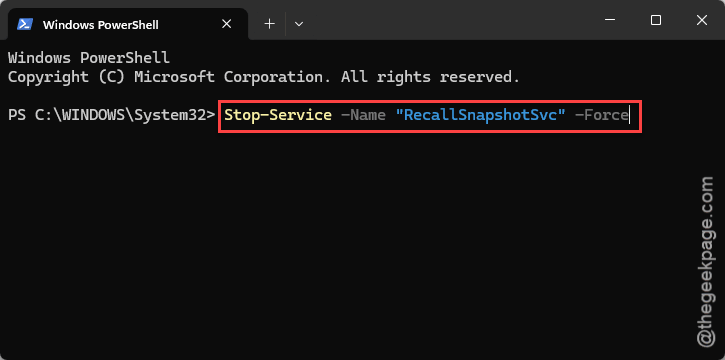
4 – Wait for the prompt to return — no news is good news with this command.
The service stays down until the next reboot. Not permanent, but it buys you a quiet machine while you repair the app.
Fix 3 – Repair, Then Reset the Recall App
Now fix the button itself. A corrupted toggle configuration keeps it greyed even after the engine restarts, and the app’s Repair function targets exactly that.
1 – Press Windows + I to open Settings.
2 – Go to System > AI features. Don’t see it? Use Apps > Installed apps instead.
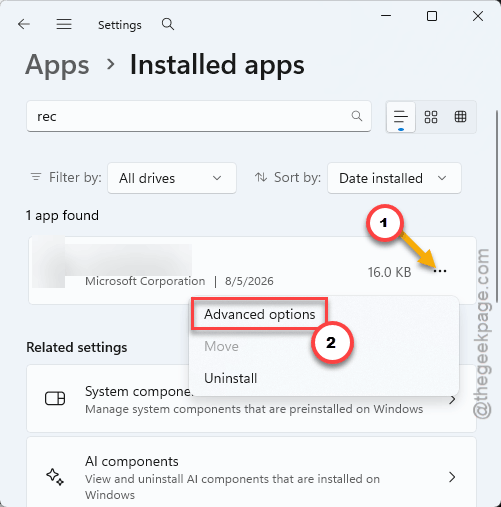
3 – Search for “Recall”, click the three dots (⋯), and select Advanced options.
4 – Scroll down to the Reset section and click Repair. Wait for the checkmark to appear beside it.
5 – Button still dead after a Repair? Click Reset on the same page.
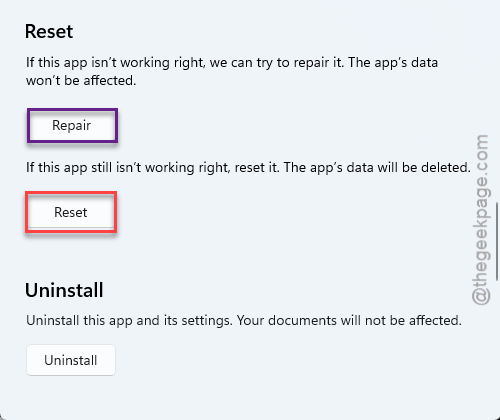
That clears the local preferences and restarts the UI fresh.
Fix 4 – Shake the Policy Loose
Weird fix, but it works on stuck permission states: you slam the snapshot policy on and off, and the system rebuilds its permissions on the way back.
1 – Press Windows + R, type gpedit.msc, and press Enter.
2 – In the left pane, go to Computer Configuration > Administrative Templates > Windows Components > Windows AI.
3 – Double-click Turn off saving snapshots for Windows.
4 – Set it to Enabled and click Apply.
5 – Now set it right back to Not Configured and click OK.
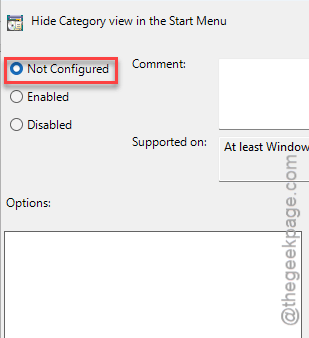
That on-off cycle forces Recall to drop its stuck state. Check the Pause button after.
Fix 5 – Exclude Your Whole C: Drive
The workaround for when nothing will pause. If Recall insists on running, tell it to ignore everything — a recorder with nothing to record is as good as paused.
1 – Open Settings and go to Privacy & security.
2 – Click Recall & snapshots.
3 – Find Exclude folders and click to add an entry.
4 – Add your entire C:\ drive to the list.
Recall keeps “running”, but it’s starved. Petty? A little. Effective? Completely.
Fix 6 – Turn Recall Off for Good
And if this episode has soured you on the feature, skip the broken Settings toggle entirely. Policy overrides the GUI, greyed buttons and all.
1 – Open gpedit.msc again, like in Fix 4.
2 – Go to Windows Components > Windows AI > Recall.
3 – Double-click Turn off Windows Recall.
4 – Set it to Enabled, click Apply, then OK.
5 – Restart your PC.
Recall shuts down system-wide, and no update to the Settings app can flip it back while the policy stands.
How to Prevent This
- Not a Recall user? Leave the policy from Fix 6 enabled permanently. A feature that’s off can’t hang.
- If you do use it, keep sensitive folders in the exclusion list anyway. When the pause sticks again someday, at least those stay unphotographed.
- After big Windows updates, glance at Recall’s settings once. The snapshot agent is young, and updates have a way of waking it up confused.
People Also Ask
How do I turn off Recall in Windows 11 completely?
The reliable route is group policy. Open gpedit.msc, go to Computer Configuration > Administrative Templates > Windows Components > Windows AI > Recall, set “Turn off Windows Recall” to Enabled, and restart. Unlike the Settings toggle, policy can’t be blocked by a hung snapshot agent.
Why is Pause updates greyed out in Windows 11?
Different button, same frustration. The Windows Update pause is usually locked by an organization policy on work or school PCs, or because updates are already mid-install. Let a pending install finish and reboot first — on a managed device, though, that lock belongs to your IT admin.
Does excluding the C: drive really stop Recall from capturing?
In practice, yes. Recall only snapshots what it’s allowed to see, so an exclusion list covering your whole drive leaves it nothing to capture. The process still runs in the background, which is why it’s a workaround — the group policy switch is the real off button.