A Windows update changed how your PC handles power and storage. And your SSD did not cope well. So now it freezes halfway through a file copy. Or sits at 100% active time doing nothing. Or Windows flat-out says the drive is offline. Scary stuff (especially if your files live on that drive). The good part? The drive itself is almost always fine. It’s a settings problem.
Why This Happens
Short version: the update and your SSD’s controller (the little chip that runs the drive) stopped agreeing with each other.
Take the August security patch, KB5063878. It changed how Windows manages power on PCI Express, which is the slot your SSD plugs into. So the drive powers down for a split second in the middle of a transfer. And everything stalls.
Feature updates add another problem. They can quietly switch on a deep-sleep timer for NVMe drives (the fast, stick-shaped SSDs). Some drives don’t wake up in time. Windows panics and drops them offline. Not great.
And a second SSD that’s missing after the restart? That’s usually a policy the update reset, one that tells Windows to keep extra drives offline at boot. Why would an update do that? Nobody asked for it.
Fix 1 – Run a Disk Check to Clear the Error Flag
Start here. During a heavy stall, the update often marks your drive as corrupted when it isn’t. That flag (techs call it the dirty bit) is what sets off the offline warnings. A disk check clears it.
1 – Click Start and type ‘cmd’ in the search box.
2 – Click Run as administrator on the right side of the search results.
3 – Type this code, and press Enter. Swap C: for your drive’s letter if it’s a different one.
chkdsk C: /f /r /x
4 – Type Y and press Enter when it asks to schedule the scan.
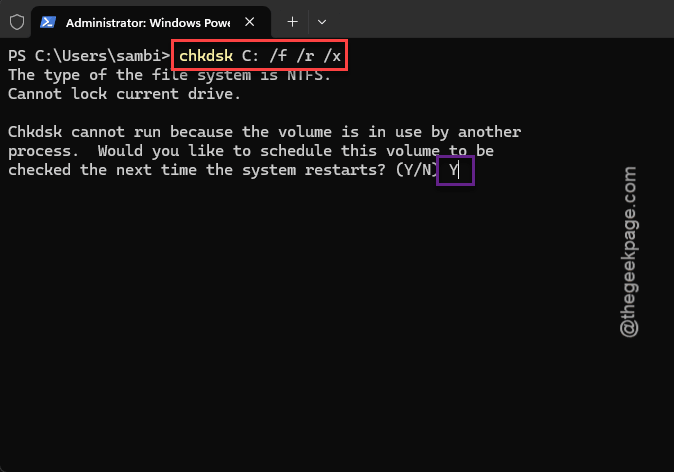
5 – Restart your PC.
The scan runs before Windows loads. It can take a while on a big drive (an hour isn’t unusual), so do not switch the PC off while the percentage is climbing. And yes, it’s boring to wait.
Fix 2 – Turn Off PCIe Link State Power Management
Does the drive drop out right after sleep or hibernation? Then this is your fix. The motherboard cuts power to the SSD slot to save energy, and then fails to bring it back properly.
1 – Press Windows + R to open the Run box.
2 – Type control and press Enter. The old Control Panel opens.
3 – Click Hardware and Sound.
4 – Click Power Options.
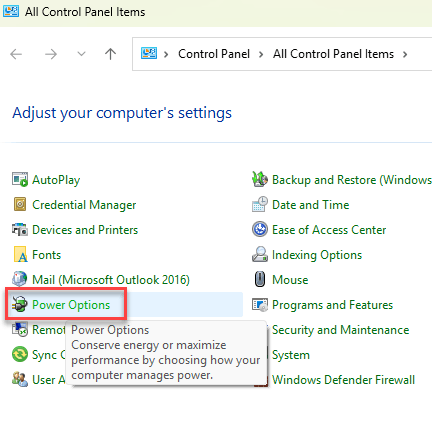
5 – Click Change plan settings next to the plan that’s selected.
6 – Click Change advanced power settings. A small window pops up.
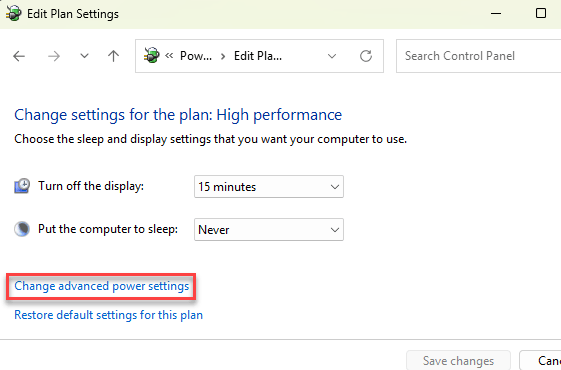
7 – Scroll down and click the plus sign next to PCI Express.
8 – Expand Link State Power Management.
9 – Change the setting to Off. On a laptop, do it for both On battery and Plugged in.
10 – Click Apply, then restart.
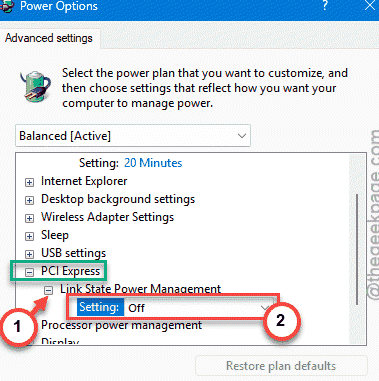
Your laptop will use a touch more battery. But a frozen drive costs you more.
Fix 3 – Unhide the Primary NVMe Idle Timeout
This is the deep-sleep timer from earlier. Windows hides it by default, for some reason. So you have to reveal it with one command first.
1 – Right-click the Start button.
2 – Select Terminal (Admin). On some PCs it says Windows PowerShell (Admin).
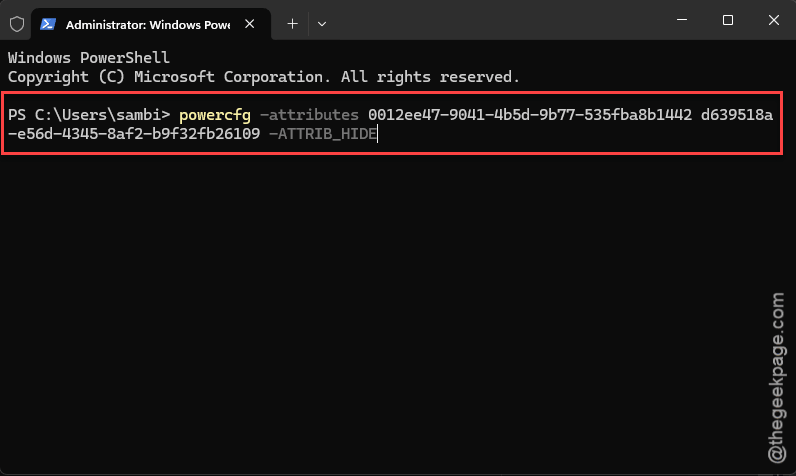
3 – Copy this command, paste it in, and press Enter:
powercfg -attributes 0012ee47-9041-4b5d-9b77-535fba8b1442 d639518a-e56d-4345-8af2-b9f32fb26109 -ATTRIB_HIDE
Nothing shows up after you press Enter. That’s normal.
4 – Open the advanced power settings window again, the same way as in Fix 2 (steps 1 to 6).
5 – Expand the Hard disk category. A new option called Primary NVMe Idle Timeout is now in there.
6 – Change the value to 0 for both On battery and Plugged in.
7 – Click Apply and restart your PC.
Zero means the drive never gets pushed into that deep sleep. Drives with Phison and Silicon Motion controllers trip on it the most.
Fix 4 – Bring an Offline Drive Back With DiskPart
Is your second SSD missing from File Explorer after the update? Then Windows is probably holding it offline on purpose. DiskPart (a built-in disk tool you type commands into) can flip that back.
1 – Open Terminal (Admin) like you did in Fix 3.
2 – Type diskpart and press Enter.
3 – Type san and press Enter. If it answers with Offline Shared or Offline All, you found the culprit.
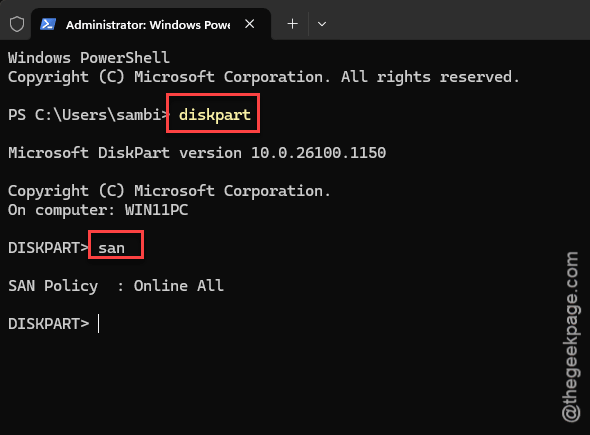
4 – Type san policy=OnlineAll and press Enter.
5 – Type list disk and press Enter.
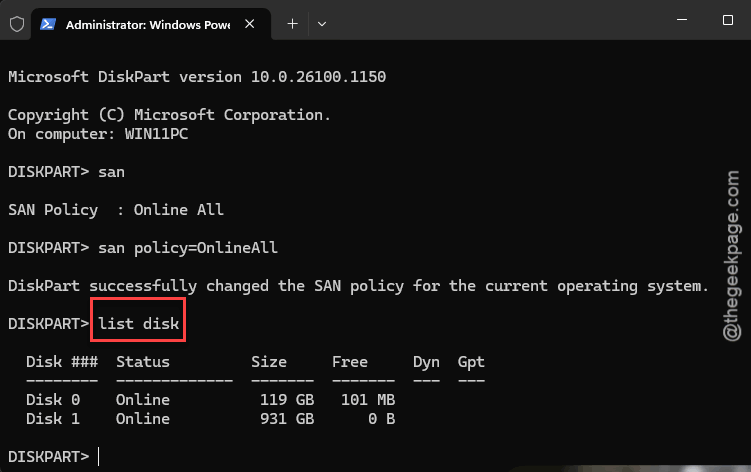
6 – Find your offline SSD in the list and note its number.
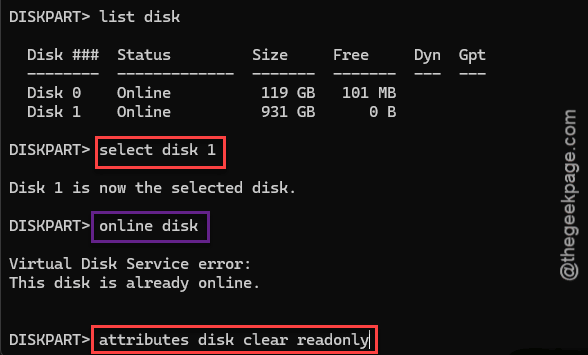
7 – Type select disk 1 and press Enter. Use your drive’s number in place of 1.
8 – Type online disk and press Enter.
9 – Type attributes disk clear readonly and press Enter.
10 – Type exit and press Enter.
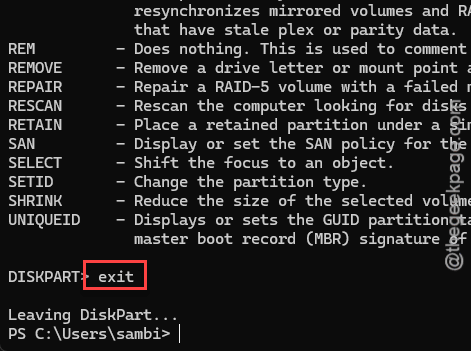
Open File Explorer and check. The drive should be back, with its letter and all your files.
Fix 5 – Turn Off Write-Cache Buffer Flushing
Does the drive lock at 100% active time while the transfer speed reads 0 KB/s? That points to a DRAM-less SSD (a budget drive with no memory chip of its own, like the Crucial P3 or WD SN770). After the update, Windows floods it with flush commands until it chokes.
1 – Press Windows + X and select Device Manager.
2 – Expand Disk drives.
3 – Right-click the SSD that freezes and select Properties.
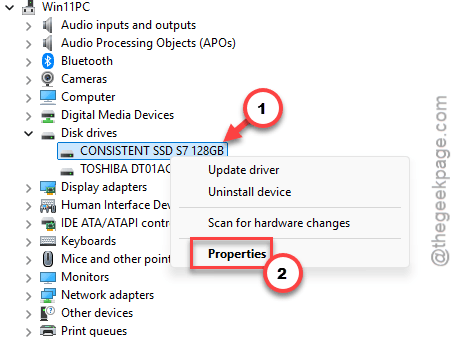
4 – Click the Policies tab.
5 – Leave the first box, Enable write caching on the device, checked.
6 – Check the second box, Turn off Windows write-cache buffer flushing on the device.
7 – Click OK.
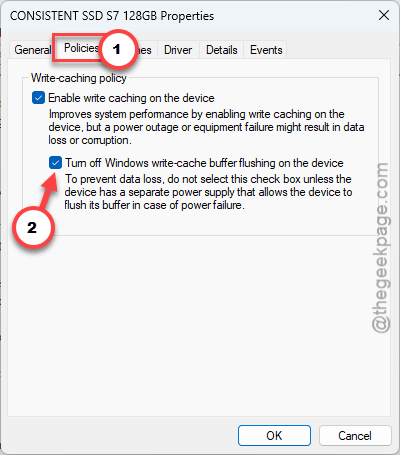
One honest warning. Windows itself notes, right under that box, that a power cut could cost you unsaved data with this turned on. On a desktop with no battery backup, that’s a real risk. So think about it first.
Fix 6 – Or Switch Write Caching Off Completely
Still stalling? Go the other way.
1 – Open that same Policies tab from Fix 5.
2 – Then, uncheck Enable write caching on the device, and click OK.
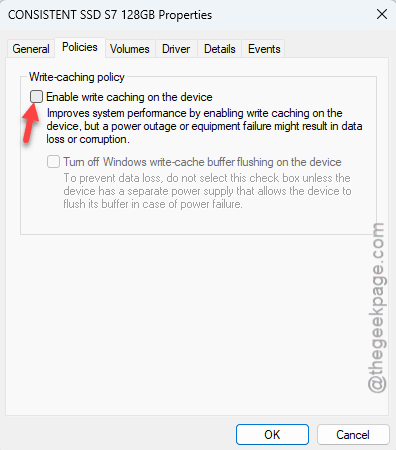
Windows then writes data straight to the drive and skips the cache layer that keeps stalling under KB5063878. Big copies get a bit slower. Slow beats frozen, though.
Fix 7 – Set a Fixed Pagefile Size
The pagefile is disk space Windows borrows when memory runs low. When it keeps growing and shrinking, it can set off the stutter in memory-hungry apps. Locking it to one size steadies the load on the drive.
1 – Press Windows + R.
2 – Type sysdm.cpl and press Enter.
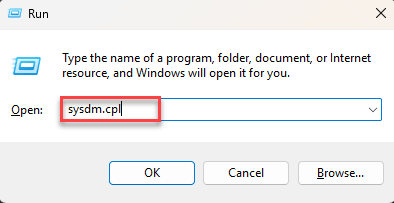
3 – Click the Advanced tab at the top.
4 – Click Settings under Performance.
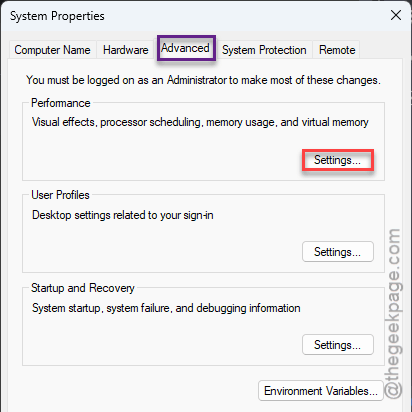
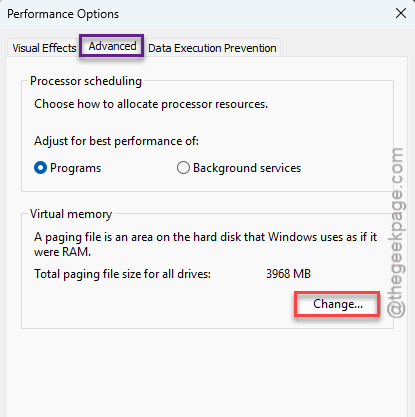
5 – Click the Advanced tab in the new window.
6 – Click Change under Virtual memory.
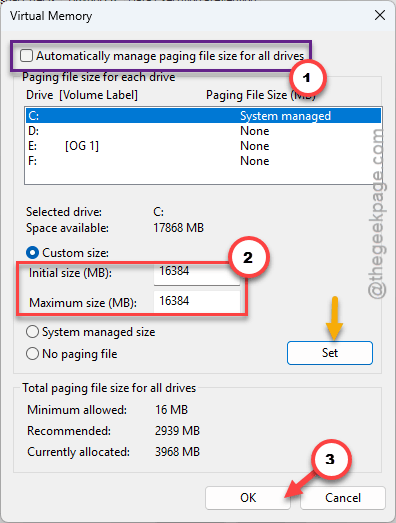
7 – Uncheck Automatically manage paging file size for all drives at the top.
8 – Select Custom size.
9 – Type 16384 in both the Initial size and Maximum size boxes. That’s 16 GB.
10 – Click Set, then OK.
Restart your PC. Check if this works.
Fix 8 – Uninstall the KB5063878 Update
Last resort. If the drive still keeps dropping offline under load, take the patch off until Microsoft sorts out the conflict.
1 – Press Windows + I to open Settings.
2 – Click Windows Update at the bottom of the left sidebar.
3 – Click Update history.
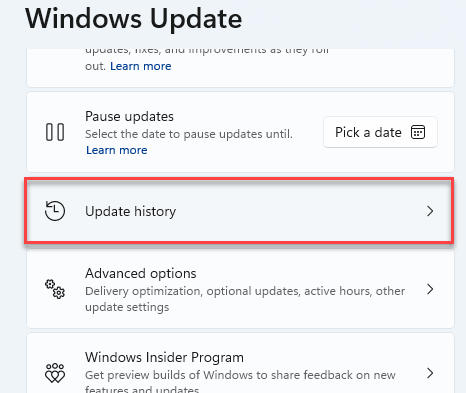
4 – Scroll down and click Uninstall updates.
5 – Find KB5063878 in the list.
6 – Click Uninstall next to it.
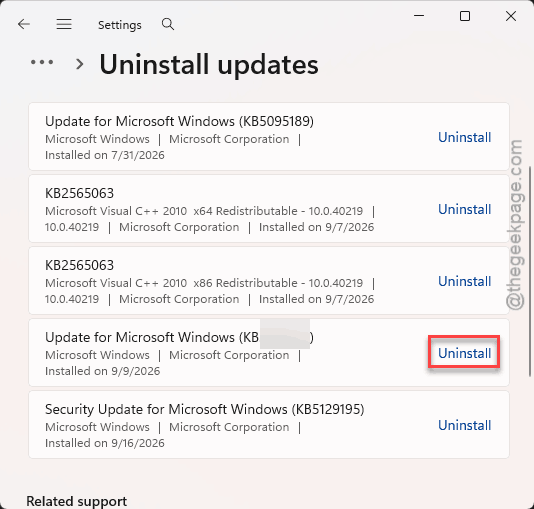
7 – Follow the prompts and restart.
But it is a security patch, so don’t treat this as permanent. Windows will offer it again later anyway (of course it will).
How to Prevent This
- Check your drive’s health now and then with CrystalDiskInfo (a free tool). If it says Good, the drive is fine and Windows is the problem.
- Look at your power settings again after every big update. Updates love to reset them. Every time.
- Leave PCIe Link State Power Management off if your SSD has dropped out even once.
- Back up anything you can’t replace. A drive that vanished mid-copy hasn’t earned your full trust yet.
People Also Ask
Can you fix a corrupted SSD drive?
Often, yes. Run chkdsk with the /f and /r switches first, because that repairs file system errors and clears false corruption flags. If the drive shows as offline, DiskPart can bring it back. Real hardware failure is a different story, so check the drive’s health in CrystalDiskInfo before assuming the worst.
How can I fix errors on my SSD?
Start with a disk check. Open Command Prompt as administrator, run chkdsk C: /f /r /x, then restart so the scan can run. After that, turn off PCIe Link State Power Management in your power plan. Those two steps clear most freezing and offline errors that show up after an update.
What causes SSD to crash?
A few things. Power-saving features that put the drive to sleep and don’t wake it in time are a big one. Buggy Windows updates are another. Budget SSDs also choke when Windows floods them with cache flush commands. Actual drive failure happens too, but it’s less common than people fear.