Windows rebuilds the Hyper-V network stack every time it boots. And sometimes it botches the job. The Default Switch shows up, your VM connects to it, and nothing routes. WSL2 hits the same wall. The terminal opens fine, but apt and curl just time out. No error. Just silence.
Why This Happens
Short version: the Default Switch is not a real network card. It’s a virtual adapter Windows generates at boot, glued to your actual connection through NAT (network address translation — the trick that lets one internet connection feed many virtual machines).
That NAT table stalls. Sleep and resume breaks it. VPN clients break it. Big Windows updates break it too.
And when it stalls, nothing tells you. The switch still says “Connected”. But packets from your VM or your WSL2 terminal go out and never come back. DNS usually dies first — names stop resolving while raw IP addresses sometimes still work.
Fix 1 – Restart the Host Network Service
This service runs the whole virtual network show.
1 – Press Windows + R, type services.msc, and press Enter.
2 – Scroll down to Host Network Service. The list is alphabetical, so it’s under H.
3 – Right-click it and choose Restart.
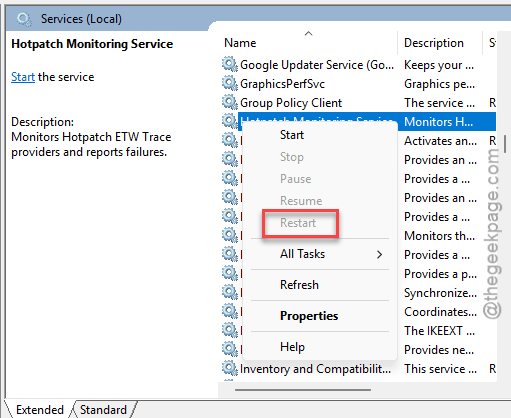
4 – Wait for the progress bar to finish. Takes a few seconds.
Then check your VM or WSL2 terminal. Working? Good. Not working? Keep going.
Fix 2 – Shut Down WSL and Let It Grab a Fresh Route
WSL2 caches its network route from the host.
1 – Right-click the Start button and choose Terminal (Admin).
2 – Type wsl –shutdown and press Enter.
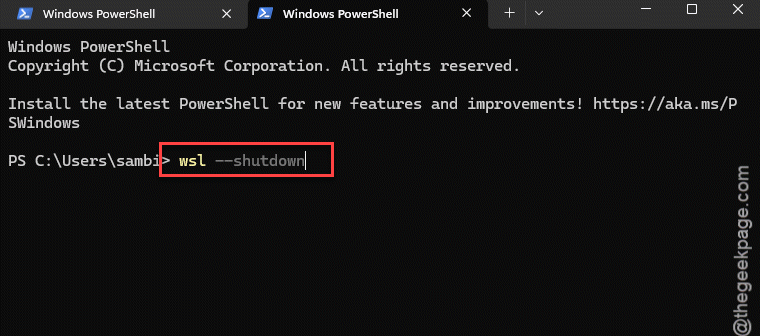
3 – Wait about 10 seconds. WSL needs a moment to fully stop in the background.
4 – Open your Linux distro again from the Start menu.
Check if this works out for you.
Fix 3 – Reset Winsock and the Network Stack
Resetting the windows sockets should help you resolve you.
1 – Click Start, type cmd, right-click Command Prompt, and pick Run as administrator.
2 – Type this code: netsh winsock reset and press Enter.
3 – Write downnetsh int ip reset and press Enter.
4 – Then, finally execute this code ipconfig /flushdns and press Enter.
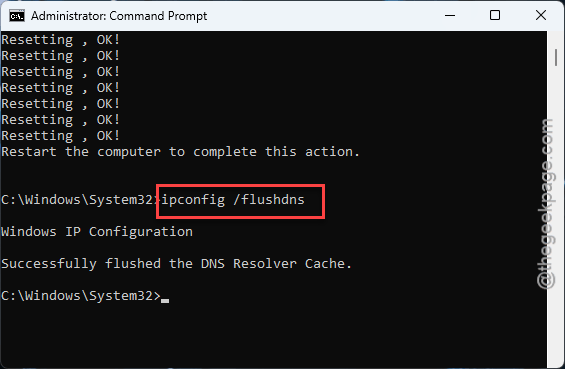
5 – Restart your PC.
Your Wi-Fi password survives this. A custom static IP does not — you would have to set that up again after the reboot.
Fix 4 – Rebuild the Default Switch
If the switch itself is corrupted, no amount of restarting saves it. Delete it and let Windows build a clean one.
1 – Open Terminal (Admin) like in Fix 2.
2 – Type this code and press Enter.
Get-HNSNetwork | Remove-HNSNetwork
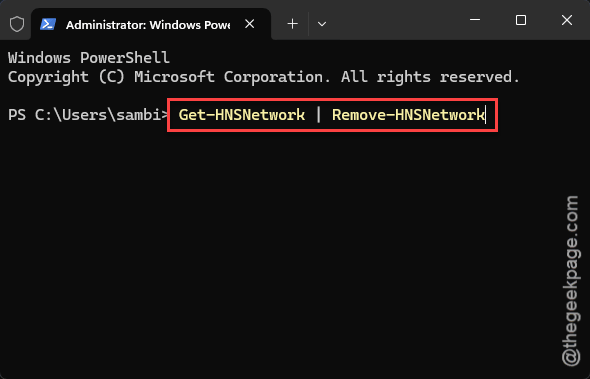
3 – Restart your PC.
Windows regenerates the Default Switch during boot.
Fix 5 – Set DNS by Hand Inside WSL2
Sometimes the route is fine and only DNS is dead. The host’s DNS forwarder just stops answering.
1 – Open your WSL distro.
2 – Type this code, and press Enter.
sudo nano /etc/resolv.conf
3 – Delete the existing nameserver lines.
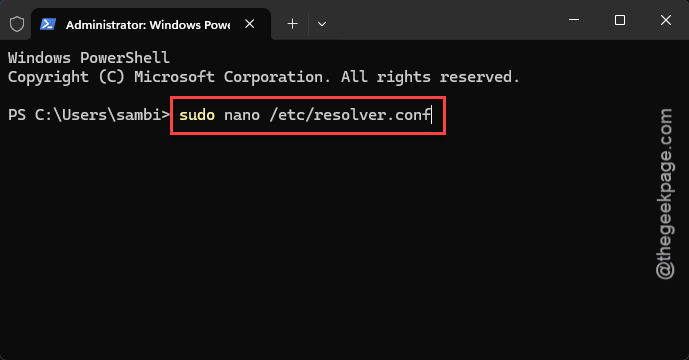
4 – Add this line: nameserver 8.8.8.8
5 – Press Ctrl + O to save, then Ctrl + X to exit.
That points Linux straight at Google’s DNS and skips the broken forwarder. Heads up — WSL can overwrite this file on its next restart. Annoying. But it gets you working right now.
Fix 6 – Check Your Firewall Rules
Firewalls treat the Default Switch as an “unidentified network”. And strict ones block it outright.
1 – Open your firewall app, third-party or Windows Security.
2 – Look at the inbound rules for the public network profile.
3 – A blanket “block all incoming traffic” rule on public networks catches the virtual switch, because that’s the profile it lands on.
4 – Loosen that rule or add an exception for the vEthernet adapter, then test again.
While you’re in there, check whether the firewall pushes its own DNS address. One user traced this exact problem to that single setting.
How to Prevent This
- Run wsl –shutdown before putting a laptop to sleep. Sleep is the number one killer of the NAT table.
- Keep your VPN client updated. Old VPN drivers fight the virtual switch over routing. Constantly.
- After a big Windows update, restart twice. Sounds dumb. The second boot rebuilds the virtual network from scratch, and that alone heads off most of these stalls.
People Also Ask
Does deleting the Hyper-V Default Switch break my virtual machines?
No. Windows rebuilds the Default Switch automatically on the next boot, and VMs attached to it reconnect on their own. You do not lose any VM data. Anything using a custom external switch is untouched — this only regenerates the built-in one.
Why does ping 8.8.8.8 work in WSL but websites won’t load?
That’s DNS, not routing. The host’s DNS forwarder has died while the connection itself still works. Edit /etc/resolv.conf inside WSL and set nameserver 8.8.8.8 so Linux queries Google’s DNS directly instead of asking the dead forwarder.