Another day, another piece of the Windows 11 taskbar quietly going missing. This time it’s the volume slider. You click the speaker in the corner, the panel slides up, and there’s a blank gap where the slider used to be. No slider, no mute button. Sound still works, mostly.
Why This Happens
Basically? The slider isn’t a fixed part of the panel. It only shows up when two things agree: the audio service says there’s a working speaker, and the panel’s layout says the slider belongs there.
The audio side breaks when the Windows Audio service (or its partner, the Endpoint Builder) hangs. Then the panel checks with the service, hears nothing, and hides the slider.
The layout side is a Quick Settings bug. The panel remembers its layout in the registry, and that memory gets scrambled, especially after a Windows update or a display change (plugging in a second monitor is a favorite trigger). And once it’s scrambled, the slider is just gone.
Wondering which one you’ve got? Doesn’t matter much. Start at the top.
Fix 1 – Restart Windows Explorer
Explorer draws the taskbar and the Quick Settings panel. Restart it and the whole taskbar reloads. And your open windows stay open, don’t worry.
1 – Press Ctrl + Shift + Esc to open Task Manager.
2 – Click the Processes tab in the left sidebar.
3 – Scroll down the list and find Windows Explorer.
4 – Right-click it and click Restart.
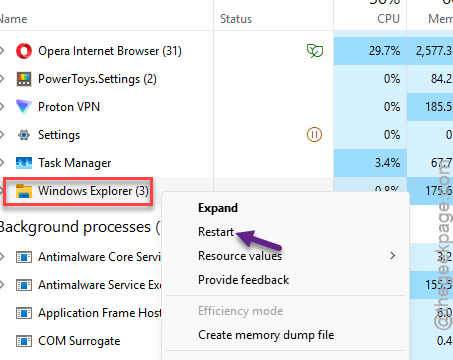
The taskbar vanishes for a second, then comes back. That’s normal. Now click the speaker icon and check.
Fix 2 – Nudge the Quick Settings Layout
Still gone? Unpinning any button and pinning it back forces the grid to redraw. So the slider often comes back with it.
1 – Click the Wi-Fi, speaker, or battery icon in the bottom right corner to open Quick Settings.
2 – Click the small pencil icon in the bottom right corner of the panel.
3 – Click the unpin icon on any button, like Bluetooth.
4 – Click Done.
5 – Click the pencil icon again.
6 – Click Add and pin the button back.
7 – Click Done and close the panel.
Open the panel again. Slider there? Great.
Fix 3 – Restart the Windows Audio Services
If the audio service hung, restarting Explorer won’t help. So restart the service itself.
1 – Press Windows + R, type services.msc, and press Enter.
2 – Scroll down to Windows Audio. The list is alphabetical, so it’s near the bottom.
3 – Right-click Windows Audio and click Restart. If it says Start instead, click that.
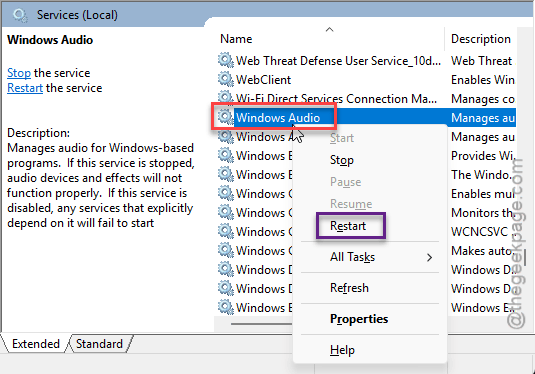
4 – Right-click Windows Audio Endpoint Builder, right below it, and click Restart.
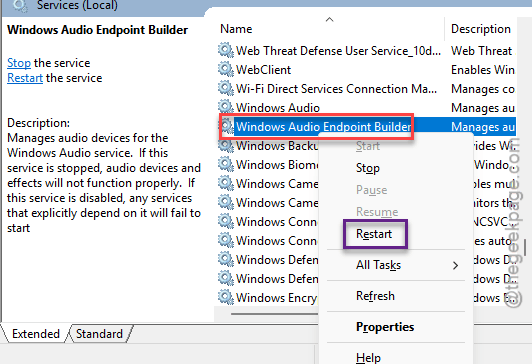
5 – Close the window and open Quick Settings.
Sound cuts out for a second or two while they restart. Then the slider should be back where it belongs.
Fix 4 – Check the Volume Icon Isn’t Switched Off
Sound odd? It is not. Windows sometimes flips this switch on its own.
1 –Right-click an empty spot on the taskbar and click Taskbar settings.
2 – Scroll down to the Notification area heading.
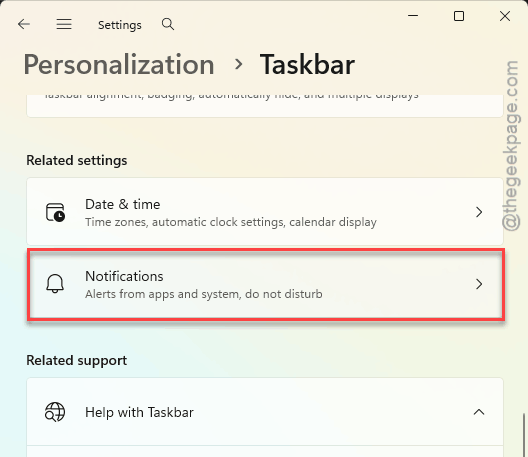
3 – Then, open Turn system icons on or off, and make sure Volume is on (the wording differs a little between builds).
4 – Also check Select which icons appear on the taskbar and unhide Volume if it’s hidden there.
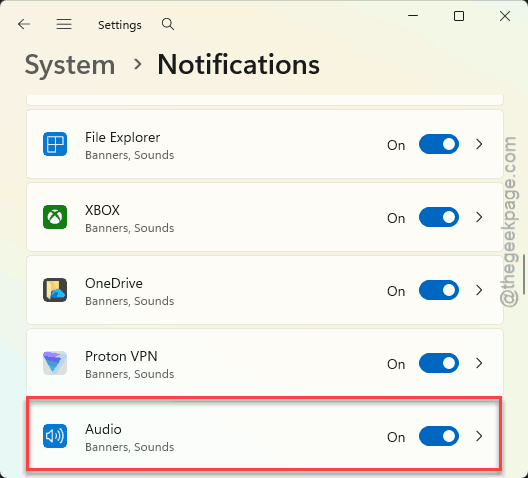
Then click the speaker and test the slider.
Fix 5 – Reset the Quick Settings Layout in the Registry
Nuclear option for the panel (not for your PC). This wipes the saved layout so Windows rebuilds it from factory defaults. But you’ll lose any custom button order. Small price (you can re-pin them in a minute).
1 – Press Windows + R buttons together.
2 – Type this, and press Enter.
regedit
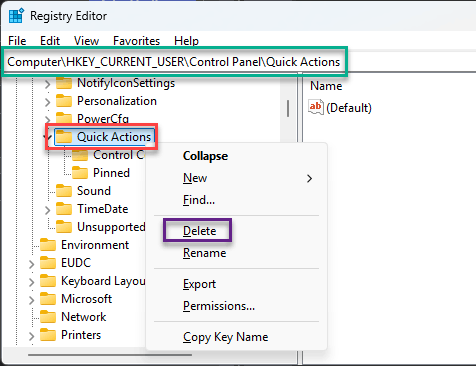
3 – Direct, paste this in the address bar, and press Enter.
HKEY_CURRENT_USER\Control Panel\Quick Actions
4 – In the left pane, right-click the Quick Actions folder.
5 – Click Delete, then Yes.
6 – Restart your PC.
After the restart, the panel comes back with the default layout, slider included. Re-pin your buttons like in Fix 2.
How to Prevent This
- After a Windows update, open Quick Settings once and check. Updates love resetting the layout.
- Skip third-party taskbar tweakers. They fight the panel for control. And the panel loses. Every time.