The Start Citizen gamers have reported that 3.24 Vulkan renderer is broken on their machines. It is not that case. Some times, the leftover files from the old DirectX 11 days getting in its way, plus a couple of Windows and driver settings causing it to fail. Nobody needs to reinstall 100 GB over this. Here are some fixes that helped others to recover from their misery.
What’s Going On
Vulkan is the new graphics path in Star Citizen (it replaces DirectX 11, and it’s still labeled beta for a reason). Fresh installs handle it fine. But yours isn’t fresh.
Old config files in the USER folder tell the engine things that were true three patches ago. Old shader caches from DirectX sessions poison the Vulkan pipeline before it even starts. And that’s before the driver gets involved. AMD’s Anti-Lag injects code into the game, which Vulkan hates. Windows’ memory randomization setting, if someone turned it off, causes a very specific “failed to create logical device” crash. Intel chips with efficiency cores confuse the new renderer during planet landings.
So, lots of small causes. All cheap to fix.
Fix 1 – Wipe the USER Folder and Shader Caches
Do this first. It clears out everything left over from older builds, and it fixes more Vulkan crashes than anything else on this page.
1 – Open File Explorer and go to your install folder. Usually that’s Roberts Space Industries, then StarCitizen, then LIVE.
2 – Delete the USER folder. Your keybinds go with it, so export them from the in-game settings first if you care.
3 – Press Windows + R.
4 – Type %localappdata% and press Enter.
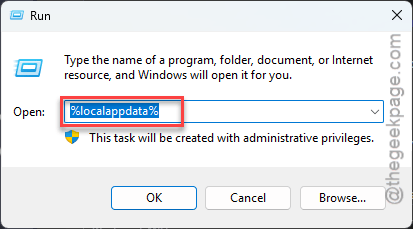
5 – Open the Star Citizen folder.
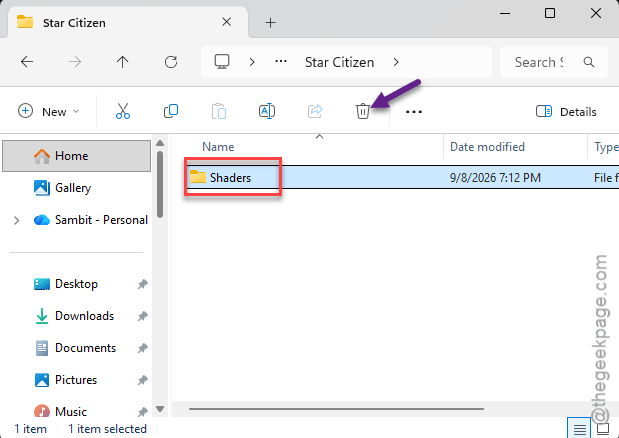
6 – Delete the Shaders folder.
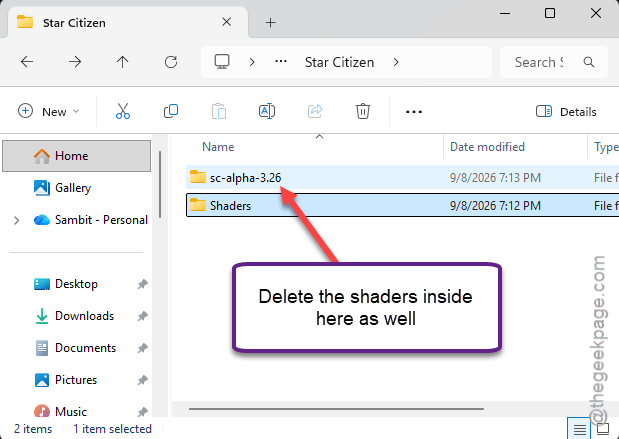
7 – Open the folder named after your current build (something like sc-alpha-3.24) and delete the shaders and vulkanshadercache folders inside it too.
8 – Relaunch the RSI Launcher and start the game.
Sit on the main menu until the shader compilation bar hits 100 percent. Takes five to ten minutes. Do not jump into a ship before it finishes, or you’ll crash and blame the wrong thing.
And get in the habit of repeating this after every major patch. Two minutes. Saves an evening.
Fix 2 – Force DirectX 11 If You Can’t Reach the Menu
Crashing before the settings screen ever loads? You can’t switch renderers from inside the game. So switch it in the file.
1 – Open the LIVE folder from Fix 1.
2 – Right-click user.cfg and open it with Notepad. If the file doesn’t exist, right-click an empty spot, choose New, then Text Document, and name it user.cfg.
3 – Find the line starting with r_GraphicsAPI. Add it on a new line if it’s missing.
4 – Make the line read r_GraphicsAPI = 0 (0 means DirectX 11, 1 means Vulkan).
5 – Save with Ctrl + S and launch the game.
Not working? There’s a second place the game reads this from. Go to %localappdata%, open Star Citizen, open the newest Shaders folder, then GraphicsSettings, and open GraphicsSettings.json in Notepad. Change the line “GraphicsRenderer”: 1 to “GraphicsRenderer”: 0 and save.
This gets you playing on the old renderer. Not the goal. But a working game beats a pretty crash. Flip both values back to 1 once the other fixes are in.
Fix 3 – Turn Off AMD Anti-Lag
AMD card? Anti-Lag injects its own code into the game to shave input delay. Vulkan sees that as tampering and dies during shader compilation. Ugly, but at least it’s a two-minute fix.
1 – Open AMD Software: Adrenalin Edition.
2 – Click the Gaming tab at the top.
3 – Click Star Citizen in the list.
4 – Switch Radeon Anti-Lag off, along with any other boosters like Radeon Boost.
5 – Go back and click the Graphics tab for global settings.
6 – Switch Radeon Anti-Lag off here as well. The global setting overrides the game profile, so both have to be off.
7 – Scroll down on the same tab and click Reset Shader Cache.
Then launch the game and wait out the shader bar again.
Fix 4 – Turn Mandatory ASLR Back On
Getting “Failed to create Vulkan logical device”? This is the fix. ASLR (a Windows memory protection that shuffles where programs load) sometimes gets switched off by tweak guides or anti-cheat workarounds. And Vulkan needs it on.
1 – Press the Windows key, type Windows Security, and press Enter.
2 – Click App & browser control.
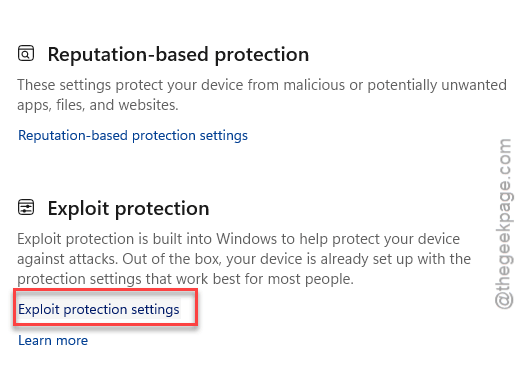
3 – Scroll to the bottom and click Exploit protection settings.
4 – Stay on the System settings tab.
5 – Find Force randomization for images (Mandatory ASLR).
6 – Change the dropdown to On by default.
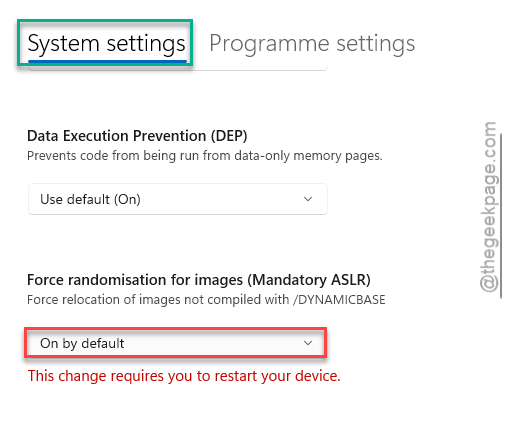
7 – Restart the PC.
Nothing else on your system should care about this change. If some ancient program complains afterward, that program is the problem.
Fix 5 – Install the Vulkan Runtime
Seeing an error about vulkan-1.dll or “Failed to initialize Vulkan dynamic function entry”? Your Windows copy of the Vulkan libraries is old or gone. Drivers are supposed to keep it current. But they don’t always.
1 – Open a browser and search for the LunarG Vulkan SDK download page.
2 – Download the latest VulkanRT-X64 installer (the Runtime, not the full SDK).
3 – Right-click the downloaded file and click Run as administrator.
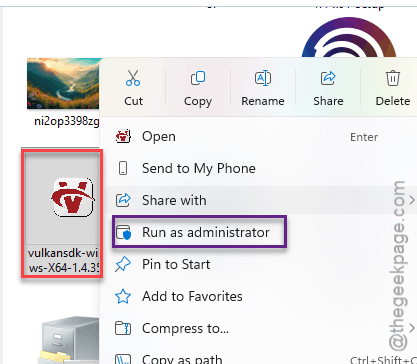
4 – Click through the installer.
5 – Restart the PC.
Launch the game after the restart. The DLL error should be gone.
Fix 6 – Keep the Game Off Intel’s E-Cores
12th Gen Intel or newer? Those chips mix fast performance cores with slow efficiency cores. The Vulkan renderer hands heavy work to the slow ones sometimes, and the engine freezes mid-planet-entry. Process Lasso (a free tool) pins the game to the fast cores.
1 – Download and install Process Lasso from its official site.
2 – Launch Star Citizen.
3 – Press Alt + Tab and open Process Lasso.
4 – Right-click StarCitizen.exe in the list.
5 – Hover over CPU Affinity, then Always, and click Disable E-Cores.
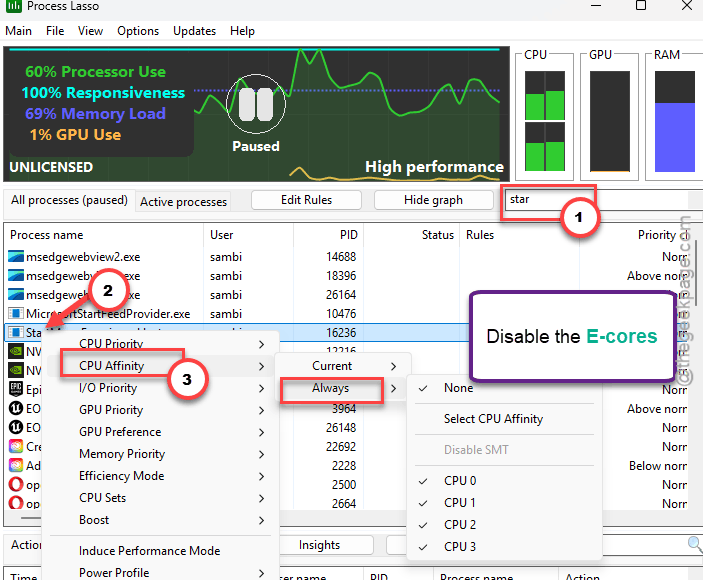
6 – Tab back into the game.
The Always part matters. It makes the rule stick for every future launch, so this is a one-time job (as long as Process Lasso starts with Windows, which it does by default).
Fix 7 – Verify the Game Files
Last resort before anything drastic. The launcher can check every file against the server copy and re-download the broken ones.
1 – Open the RSI Launcher.
2 – Click the Settings icon (the gear in the top right).
3 – Click Verify.
It scans the whole install, so expect ten to twenty minutes. Anything damaged downloads again on its own. And if the launcher itself is misbehaving, this is the button that usually calms it down.
People Also Ask
Why does Star Citizen crash when I use Vulkan?
Usually leftover files. Old configs in the USER folder and shader caches from DirectX 11 sessions break the Vulkan pipeline before it starts. Delete both and let shaders recompile. On AMD cards, Anti-Lag causes crashes too. A missing Vulkan runtime or Mandatory ASLR set to off gives specific errors about logical devices or vulkan-1.dll.
Does Vulkan cause crashes?
Not by itself. Vulkan is stable in plenty of games. Star Citizen’s version is still marked beta, and it’s picky about its environment. Corrupted shader caches, driver injections like AMD Anti-Lag, and Intel efficiency cores trip it up. Clean those out and most people find Vulkan runs smoother than DirectX 11 did.
Does Star Citizen run better on Vulkan or DX11?
Vulkan, once it works. It spreads work across more CPU cores, so cities and busy stations stutter less, and frame rates on mid-range cards go up noticeably. DirectX 11 is the safe fallback when Vulkan crashes. Set r_GraphicsAPI to 0 in user.cfg to use it, then switch back to 1 after fixing the cause.