You click the WiFi icon. Or volume. Or battery. Nothing. Quick Settings refuses to open. You won’t get the error prompt or any direct error code, just the Quick Settings sitting idle. This is a known Windows 11 bug. Been around for a while. And it drives people insane.
Why This Happens
Here’s the deal. Quick Settings runs through Shell Experience Host. Same process that handles the taskbar and Start menu. When a Windows update corrupts it, Quick Settings stops responding. Icons are there. They look normal. But clicking does absolutely nothing.
And sometimes it’s not even corruption. A Group Policy setting can silently disable the Action Center—and Quick Settings goes with it. Especially on work PCs. Or if someone poked around in gpedit and flipped the wrong switch.
Either way it is an annoying experience, so you must resolve it.
Fix 1 – Restart Windows Explorer
Quick and easy. Try this first.
1 – Press Ctrl + Shift + Esc to open Task Manager.
2 – Click the Processes tab.
3 – Find Windows Explorer in the list.
4 – Right-click it.
5 – Click Restart.
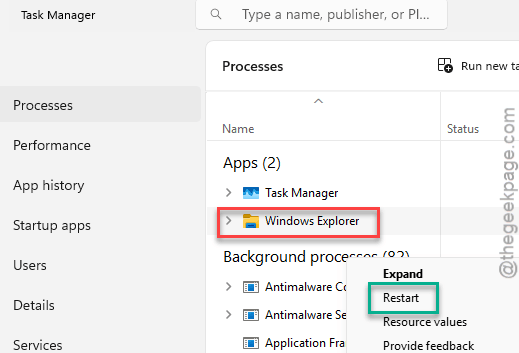
Taskbar flickers. Try Quick Settings now. Working? Great. If not, proceed to the next solution.
Fix 2 – Check Group Policy Settings
If someone disabled the Action Center via Group Policy, Quick Settings dies with it. They’re linked.
1 – Press Win + R.
2 – Type gpedit.msc
3 – Press Enter.
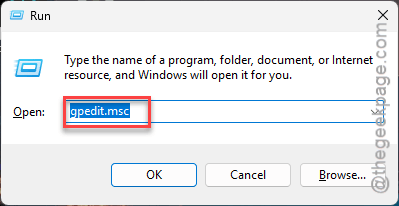
4 – Go to User Configuration.
5 – Open Administrative Templates.
6 – Open Start Menu and Taskbar.
7 – Double-click Remove Notifications and Action Center.
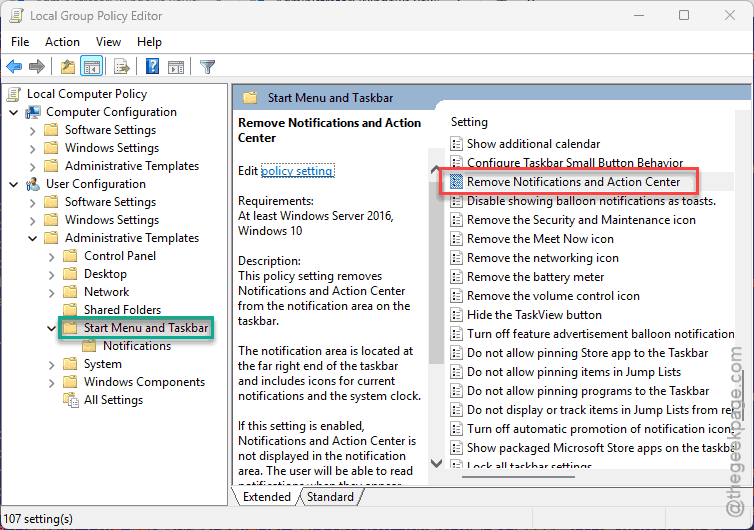
8 – Set it to Not Configured.
9 – Click Apply. Then OK.
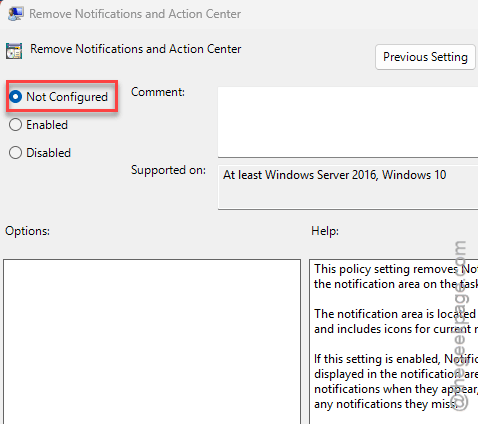
This only works on Windows 11 Pro or Enterprise (Home doesn’t have gpedit). But if this was enabled? That’s your entire problem right there.
Fix 3 – Re-register Shell Experience Host
Re-registers the process that runs Quick Settings. Works for most people.
1 – At first, press the Win+X keys together.
2 – Then, tap the Terminal (Admin) to access it.
3 – After this, right-click the 🇻 button. Tap Windows PowerShell (Admin) to load it up.
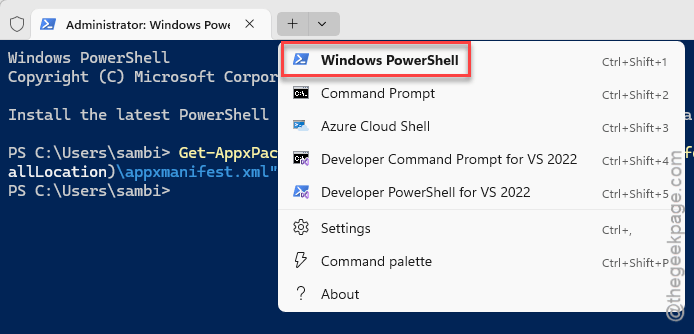
4 – Paste this command in the terminal and press Enter:
Get-AppxPackage Microsoft.Windows.ShellExperienceHost | foreach {Add-AppxPackage -register "$($_.InstallLocation)\appxmanifest.xml" -DisableDevelopmentMode}
5 – Then paste this one and press Enter:
Get-AppXPackage | Foreach {Add-AppxPackage -DisableDevelopmentMode -Register "$($_.InstallLocation)\AppXManifest.xml"}
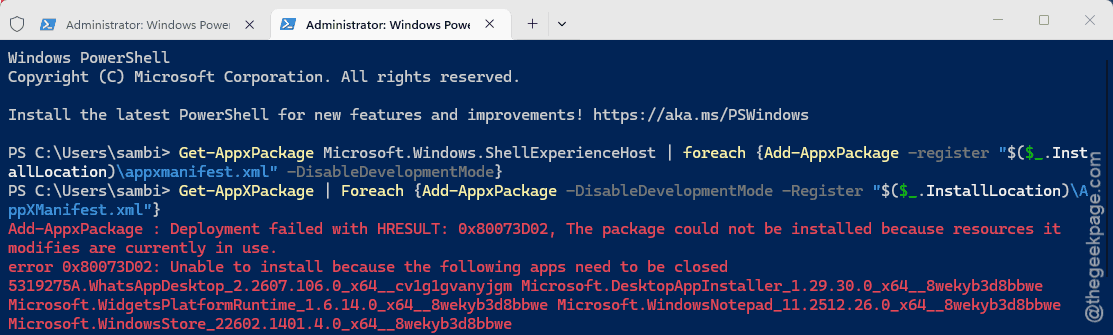
9 – Ignore the red error text. Let it finish.
10 – Restart your PC.
And that should fix it. Reinstalls all the shell components that handle Quick Settings, the Start menu, and notifications.
Fix 4 – Run SFC and DISM
Corrupted system files can break Quick Settings. These commands find and fix them.
1 – Open Task Manager.
2 – Click File.
3 – Click Run new task.
4 – Type cmd in the box.
5 – Check the Create this task with administrative privileges box.
6 – Click OK.
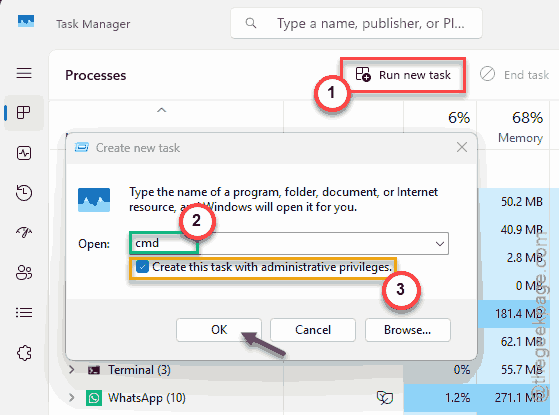
7 – Type this command and press Enter:
sfc /scannow
8 – Wait for it to finish. Takes a few minutes.
9 – Now type this and press Enter:
DISM /Online /Cleanup-Image /RestoreHealth
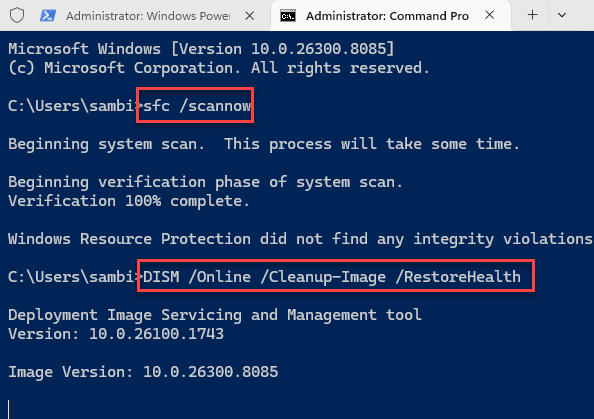
10 – Wait again. This one takes longer.
11 – Restart your computer.
Fix 5 – Check for Windows Updates
Microsoft has patched this multiple times. Make sure you’re current.
1 – Open Settings.
2 – Click Windows Update.
3 – Click Check for updates.
4 – Install everything. Including optional updates.
5 – Restart.
Sometimes it’s that simple. For some reason, these fixes don’t always install automatically.
How to Prevent This
- After Windows updates, click Quick Settings right away to check.
- Don’t install shell customization tools. They break things.
- Run SFC scans periodically.
- If you’re on a work PC, ask IT before touching Group Policy settings.
People Also Ask
How to enable quick settings in Windows 11?
Should be on by default. Click the WiFi/volume/battery area. If nothing happens, restart Explorer. Still dead? Re-register Shell Experience Host via PowerShell.
How do I fix the Windows 11 taskbar glitch?
Restart Explorer in Task Manager. If it keeps happening, SFC and DISM. Then re-register apps through PowerShell.
How to fix the settings app not opening in Windows 11?
Same approach. Re-register apps via PowerShell. Or reset Settings — right-click it in Start, App settings, Reset. SFC scan if that fails.