Looks like a hardware problem. It mostly isn’t. Helldivers 2 has been shoving more work onto the CPU since the Escalation of Freedom update, and the new swamp biomes are the worst of it. Volumetric fog, uncapped frames, async compute pushing tasks onto every thread at once. Your processor climbs past 90°C, throttles, and then the game just dies. Not great. But nearly all of it can be dialed back from settings, and the last two fixes handle the crashes that aren’t about heat at all.
Fix 1 – Cap the Frame Rate at 60
Uncapped frames are the biggest heat source. The engine renders as fast as it can, the CPU feeds it as fast as it can, and the temperature follows. A 60 FPS cap changes that in one click.
1 – Right-click an empty spot on the desktop.
2 – Click NVIDIA Control Panel or AMD Software, whichever you have.
3 – Go to Manage 3D Settings, then the Program Settings tab.
4 – Select Helldivers 2 from the program list.
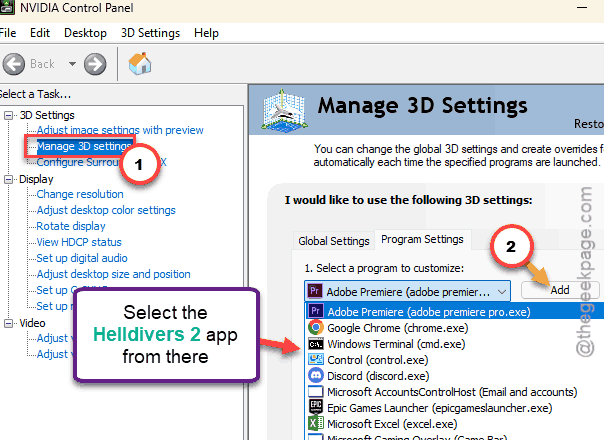
5 – Turn on Max Frame Rate and set it to 60.
6 – Click Apply and launch the game.
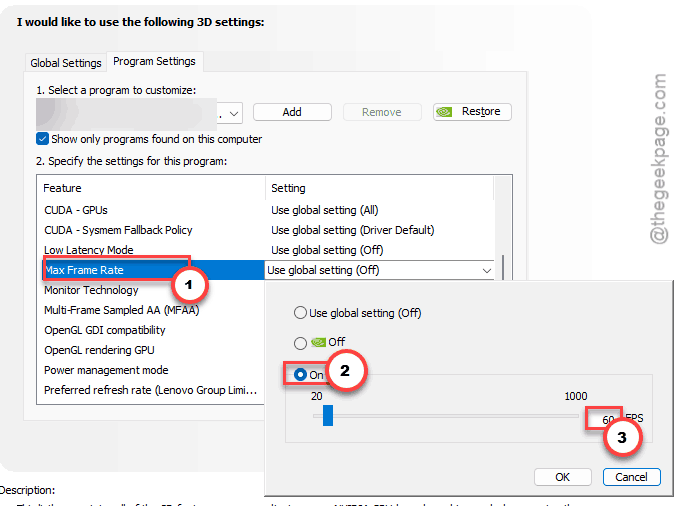
Sixty feels low if you’re used to 144. But watch the temperature in a swamp mission. (Ten degrees cooler is common.) And then creep the cap up in steps of 10 until the heat comes back, and back off one step.
Fix 2 – Turn Off NVIDIA Reflex Low Latency
Quick one.
1 – Open the in-game Options.
2 – Then, go to Display section.
3 – Find NVIDIA Reflex Low Latency, and set it to Off.
Reflex keeps the CPU on a short leash to trim input lag.
Fix 3 – Drop Volumetric Fog to Lowest
The fog in the new biomes looks great. It also runs mostly on the CPU (the update leaned on processor-side volumetric rendering instead of the GPU, for some reason).
1 – Open the in-game Options menu.
2 – Click Graphics.
3 – Scroll down to Volumetric Fog Quality.
4 – Set it to Lowest.
Swamp missions stop hammering the CPU. And the fog does not vanish, it just gets thinner.
Fix 4 – Disable Async Compute in the Config File
Async compute splits rendering work across all your CPU threads at once. Sounds efficient.
1 – Close the game.
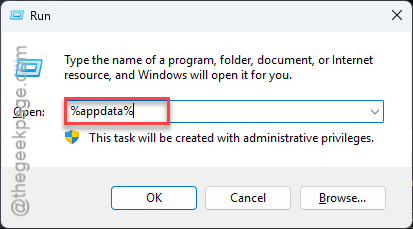
2 – Press Windows + R, type %appdata%, and press Enter.
3 – Open the Arrowhead folder, then Helldivers2.
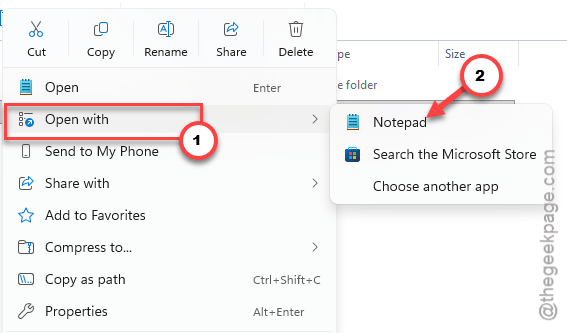
4 – Right-click user_settings.config and open it with Notepad.
5 – Press Ctrl + F and search for async_compute.
6 – Change async_compute = true to async_compute = false.
7 – Save the file with Ctrl + S and close Notepad.
8 – Restart your PC.
Frame rate may dip a touch. Temperatures dip more.
Fix 5 – Turn Off Processor Boost Mode
Turbo boost is your CPU sprinting. Helldivers 2 makes it sprint the entire mission. Disabling boost mode caps the clock at base speed, which cuts heat hard (Windows hides this option, so you unhide it first). Drastic? A bit.
1 – Click the search icon on the taskbar, type cmd, right-click Command Prompt, and click Run as administrator.
2 – Paste this line and press Enter:
powercfg.exe -attributes sub_processor perfboostmode -attrib_hide
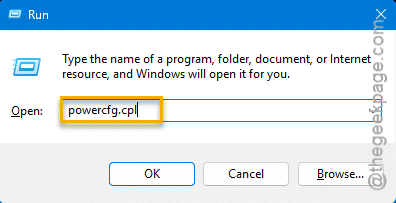
3 – Press Windows + R together.
4 – Then, type this code and press Enter.
powercfg.cpl
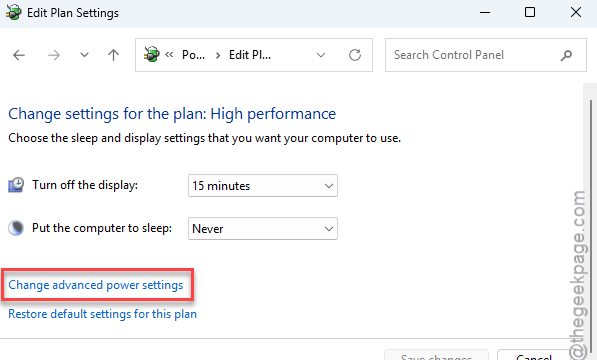
5 – Click Change plan settings next to your active plan, then Change advanced power settings.
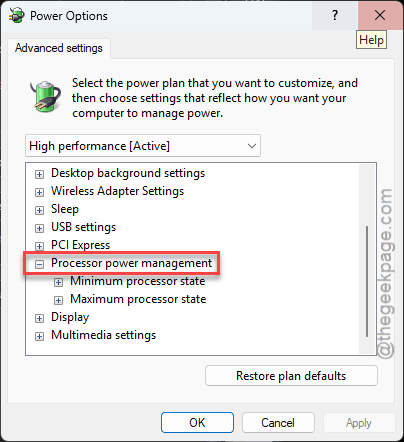
6 – Expand Processor power management, then Processor performance boost mode.
7 – Set it to Disabled.
8 – Click Apply, then OK.
Base clocks are plenty for this game. But if your GPU temperature climbs to fill the gap, cap the GPU’s temperature and power limit in MSI Afterburner.
Fix 6 – Clear the Shader Cache and Verify Files
Shaders compiled before the update can clash with the new engine code.
1 – Close the game.
2 – Press Windows + R, type %appdata%, and press Enter.
3 – Open Arrowhead, then Helldivers2, like in Fix 4.
4 – Delete the shader_cache folder.
5 – Open Steam, right-click Helldivers 2 in your library, and click Properties.
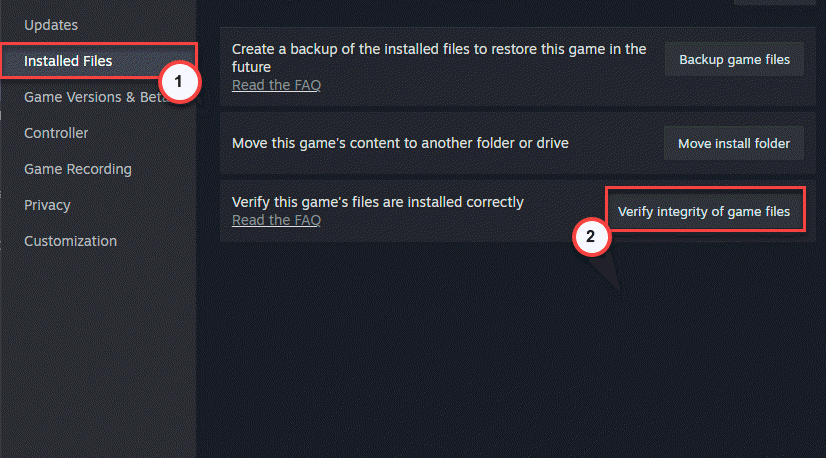
6 – Click Installed Files in the left column.
7 – Click Verify integrity of game files. Wait for the bar to finish.
8 – Launch the game. The boot screen sits on shader compiling for a few minutes. Let it.
Fix 7 – Undervolt the CPU in the BIOS
Advanced, and it’s the one real fix for the hardware side. A small negative voltage offset means less power and less heat at the same speed. Skip this if BIOS menus make you nervous. Nobody will judge.
1 – Restart the PC and tap F2 or Delete repeatedly as it boots. That opens the BIOS.
2 – Find the Overclocking or Advanced CPU Core Settings tab. Names vary by board.
3 – Set a core voltage offset of -0.05 V. On Ryzen chips, use Curve Optimizer with a small negative value instead.
4 – Save and exit. The PC reboots.
If the PC won’t boot or crashes on the desktop, go back in and reduce the offset. Small steps. And test in a swamp mission before going lower.
Fix 8 – Delete GameGuard and Unplug Extra Gear
Some of these crashes aren’t thermal at all. Two known culprits: a corrupted GameGuard folder (the anti-cheat that ships with the game) and odd USB peripherals.
1 – Unplug anything you don’t need for the session: steering wheels, spare controllers, Bluetooth headsets.
2 – Open the game’s install folder. It’s usually Steam\steamapps\common\Helldivers 2\bin.
3 – Delete the GameGuard folder.
4 – Verify the game files in Steam again, like in Fix 6. Steam downloads a clean copy.
Unplugging gear sounds silly. But it fixed crashes for plenty of people.
Keep It From Coming Back
- Leave the 60 FPS cap on for swamp missions. Raise it elsewhere if you must.
- Patches rewrite user_settings.config and flip async compute back on. So recheck it after every update.
- Watch temperatures in MSI Afterburner for the first ten minutes of a mission. Above 90°C? Back off a setting.
- Clean the dust. Boring. Works.
People Also Ask
Why is my CPU overheating in Helldivers 2?
The Escalation of Freedom update moved a lot of rendering onto the processor. Volumetric fog in the swamp biomes, async compute across every thread, and uncapped frames all pile up. Cap the frame rate at 60 in your GPU control panel, drop Volumetric Fog to Lowest, and turn off NVIDIA Reflex. That trims 10°C or more.
Is 72°C too hot for a CPU?
No. 72°C under a heavy game load is normal for modern chips. The trouble starts in the 90s, where the CPU throttles and the game crashes to protect itself. If Helldivers 2 pushes you past 90°C, cap the frame rate, lower the fog setting, disable boost mode, or undervolt in the BIOS.