The Patch 13.04 quietly tweaked a few Valorant in-game features, modified the in-game settings, some users have faced VAN 1067 error along with other bugs, like frequent mouse freezing events. That’s the real story behind both of these problems. The mouse freezing mid-round? Vanguard now blocks kernel-level mouse software. The VAN 1067 disconnect? Vanguard’s new build colliding with Windows 11’s own security.
What Changed in 13.04
Vanguard isn’t a normal anti-cheat. It’s a kernel driver, which means it sits at the deepest level of Windows — the same level as your hardware drivers. So it doesn’t just watch the game. It watches everything down there.
And 13.04 made it pickier. Custom mouse-curve tools like RawAccel inject into that same kernel space, so Vanguard now freezes your mouse rather than tolerate them. Windows 11’s Memory Integrity feature polices kernel drivers too, and the two security systems trip over each other — that collision is your VAN 1067.
There’s a quieter failure mode as well. The patch sometimes botches Vanguard’s own service settings, so the anti-cheat crashes silently in the background before you ever load a match. A mess? Absolutely. But every piece of it has a fix below.
Fix 1 – Set the vgc Service to Automatic
Start here, because the patch often breaks this on its own. When Vanguard’s service doesn’t start with the right priority, it dies quietly and takes your connection with it.
1 – Press Windows + R, type services.msc, and hit Enter.
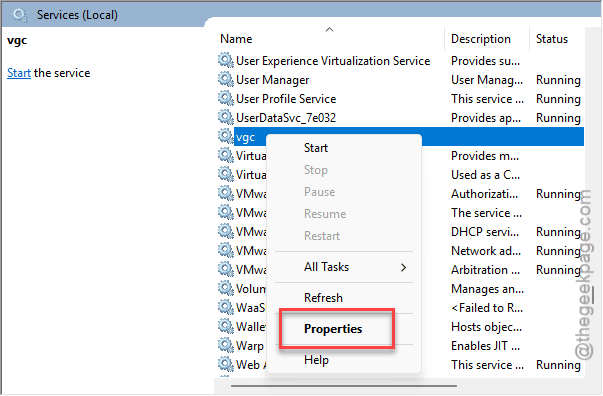
2 – Scroll down to find vgc in the list. It’s near the bottom, sorted alphabetically.
3 – Right-click it and select Properties.
4 – Change Startup type to Automatic.
5 – If the service shows as stopped, click Start.
6 – Click Apply, then OK.
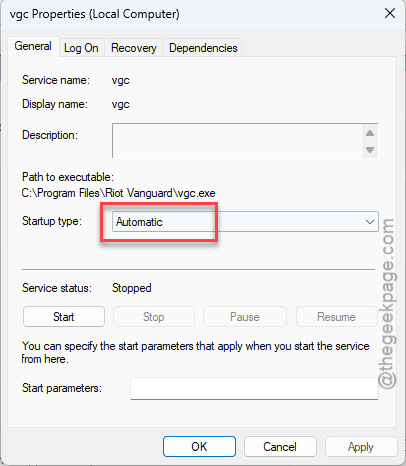
And leave it on Automatic permanently. Every time this gets reset to Manual — by a patch, by a “PC optimizer” app, by anything — the silent crashes come back.
Fix 2 – Uninstall RawAccel and Its Cousins
This is the mouse-freeze headliner. Vanguard’s update actively blocks kernel-level mouse curve injection now. It doesn’t warn you. It just freezes your mouse mid-game.
1 – Press Windows + I to open Settings.
2 – Go to Apps > Installed apps.
3 – In the search box at the top, type “RawAccel“. Check for “Interception” too, plus any other custom mouse curve software you’ve collected.
4 – Uninstall whatever turns up.
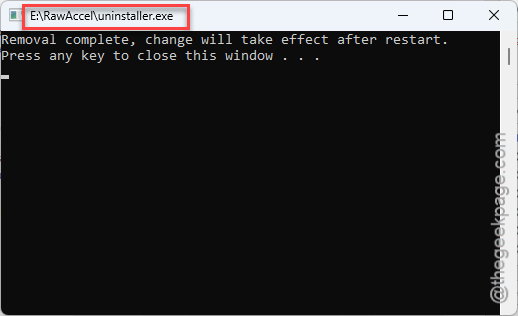
5 – Reboot your PC.
Going to miss your custom curve? Understandable. But dial in the in-game sensitivity instead — Vanguard blocks the injection either way, so the freeze stays until the software goes.
Fix 3 – Turn Off Memory Integrity
Memory Integrity (Windows calls the family of features VBS, for virtualization-based security) guards the kernel against tampering. Noble job. But it currently conflicts with Vanguard’s updated driver, and VAN 1067 is the result.
1 – Press the Windows key, type “Core Isolation”, and open it.
2 – Find the Memory Integrity toggle.
3 – Switch it off.
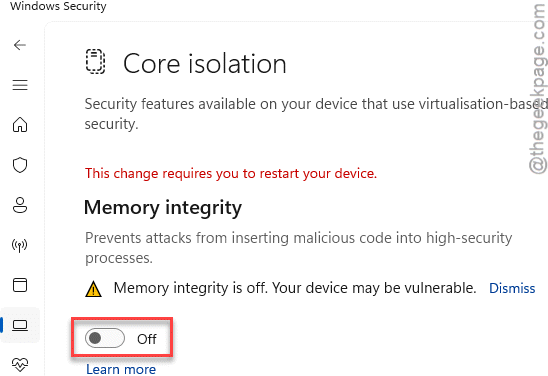
4 – Restart your computer to finish the change.
Fair warning: this is a real security feature, and turning it off is a trade. If Valorant is the only thing breaking, it’s your call whether the game is worth it.
Fix 4 – Enable TPM 2.0 and Secure Boot
Patch 13.04 strictly enforces both of these now. Without them, Vanguard doesn’t error out politely — it just freezes the client.
1 – Restart your PC and repeatedly press your BIOS key while it boots. Usually F2 or DEL; the splash screen tells you.
2 – Find the Security tab. On some boards this lives under Boot instead.
3 – Enable Secure Boot.
4 – Make sure TPM 2.0 is on. It may be listed as fTPM on AMD boards or Intel PTT on Intel ones — same thing, different badge.
5 – Save and exit. The usual key is F10.
BIOS menus all look different, so if you can’t find these, search your motherboard model plus “enable Secure Boot”. Two minutes of searching beats guessing.
Fix 5 – Exclude the Vanguard Folder From Defender
Ever get input lag so bad the game feels underwater? That’s Defender’s real-time scanner looping against Vanguard’s new driver signature, over and over.
1 – Open Windows Security and click Virus & threat protection.
2 – Click Manage settings under the protection settings heading.
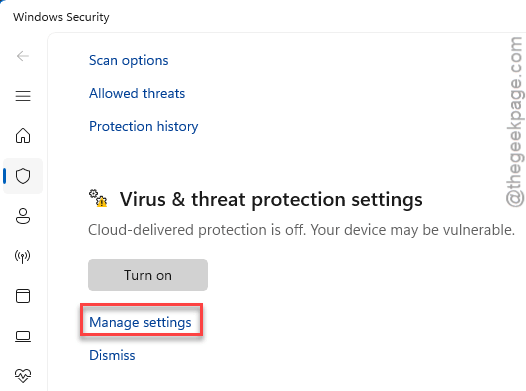
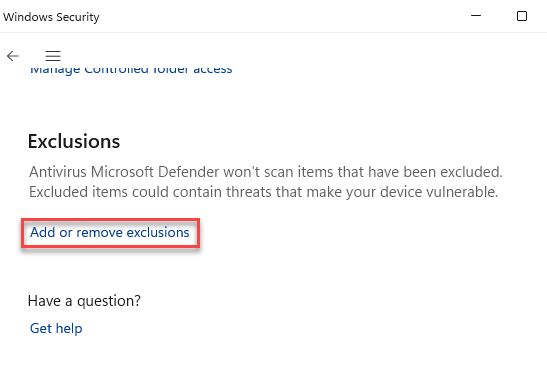
3 – Scroll down to Exclusions and click Add or remove exclusions.
4 – Add the folder C:\Program Files\Riot Vanguard.
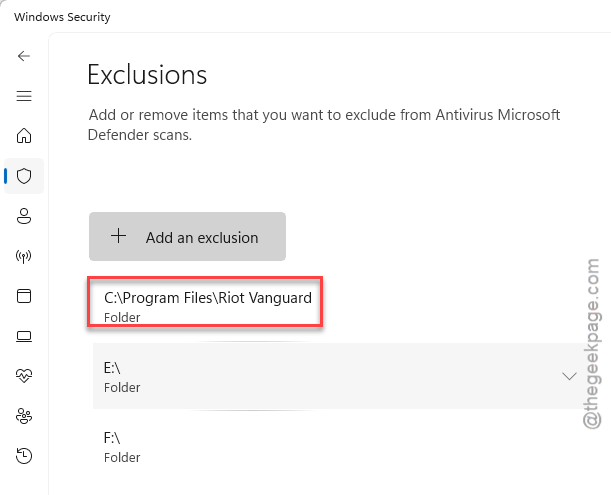
Keep the exclusion to that one folder — no need to carve out anything wider for this to work.
Fix 6 – Unplug KVM Switches and Flaky USB Hubs
Vanguard polls your hardware constantly. And KVM switches, unpowered USB splitters, and forgotten controllers confuse that poll badly enough that Vanguard terminates itself — cursor frozen, round over.
1 – Unplug any KVM switch, unpowered USB hub, or secondary controller connected right now.
2 – Plug your mouse and keyboard directly into the rear USB ports on the motherboard.
3 – Launch Valorant and play a round.
Rear ports specifically, not the case’s front panel — the back ones talk straight to the motherboard with nothing in between. If the freezes stop here, you’ve found your culprit.
Fix 7 – Wipe Vanguard and Let It Rebuild
The full reset, for when the anti-cheat itself is corrupted and nothing above moved the needle.
1 – Open File Explorer and go to C:\Windows.
2 – Find the file named vgkbootstatus.dat and delete it.
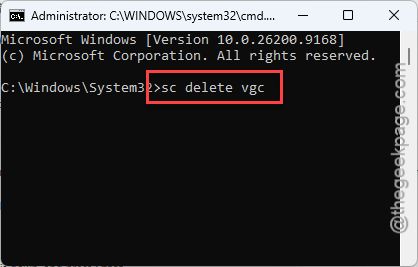
3 – Open the Start menu, type cmd, right-click Command Prompt, and select Run as administrator.
4 – Type this, and press Enter.
sc delete vgc
5 – Next, write this down, and press Enter.
sc delete vgk
6 – Restart your PC.
7 – Open the Riot Client. It detects the missing anti-cheat and downloads a fresh copy on its own.
Vanguard will demand one more reboot after it reinstalls. That’s normal — it loads at boot, so it can’t start mid-session. Not another error, promise.
People Also Ask
How do I fix VAN 1067 in Valorant?
Three things clear it for most players: set the vgc service to Automatic in services.msc, turn off Memory Integrity under Core Isolation, and enable TPM 2.0 plus Secure Boot in your BIOS. Patch 13.04 enforces those security requirements strictly, so partial compliance now throws the error.
Is VAN 1067 a ban?
No. It looks scary, but it’s a compatibility error, not a punishment — Vanguard and Windows 11’s security features are fighting over the kernel. Your account is fine. Fix the Windows-side settings and the error goes away. Actual bans show completely different messages.
Why does my mouse freeze in Valorant but nowhere else?
Because Vanguard blocks kernel-level mouse software like RawAccel, and only Valorant runs Vanguard. Other games never notice the injection. Uninstall the mouse curve tool and reboot. A failing KVM switch or USB hub can trigger the same freeze by disrupting Vanguard’s hardware polling.