The 20 minute focus sessions helps you improve your productivity drastically. But, some users have seem to face some trouble with starting fresh Focus sessions. The modern Focus sesssion is nothing but a cloud app that works in sync with your Spotify account and Microsoft To Do. Here are some solutions that should help you fix the issue.
Fix 1 – Sign Out of Spotify and Microsoft To Do
Start here. The Spotify and To Do hookups are the most common blockers, because the app pings their servers before the timer runs. If either connection is broken, your session just sits there waiting.
1 – Open the Clock app. If you can’t find it, press the Windows key and type “Clock”.
2 – Click the Settings gear in the bottom left corner.
3 – Scroll down to the Spotify section and click Sign out.
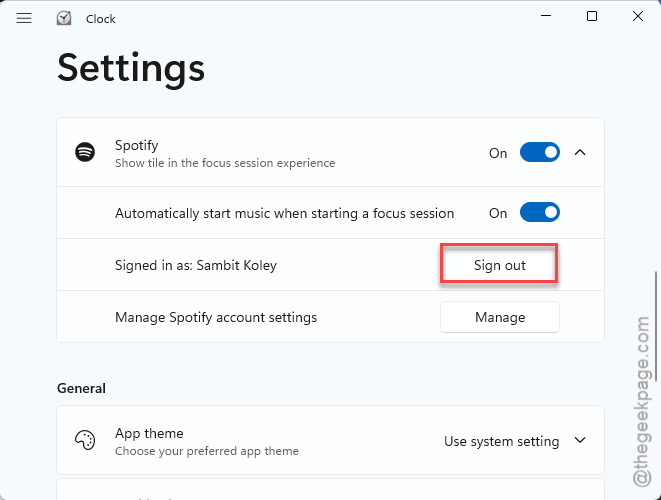
4 – Click Sign out under Microsoft To Do as well.
5 – Go back to Focus Sessions and try starting a session.
And don’t worry — you can reconnect both later if you actually use them. This just stops the app from waiting on servers that aren’t answering.
Fix 2 – Sign Out of Your Microsoft Account, Then Back In
Still stuck? Then the account token might be the problem. That’s the little credential the app uses to log your daily streak, and when it goes bad, the session gets blocked (the app won’t tell you any of this, of course).
1 – In the Clock app, click Settings in the bottom left.
2 – Click your profile picture at the top.
3 – Click Sign out.
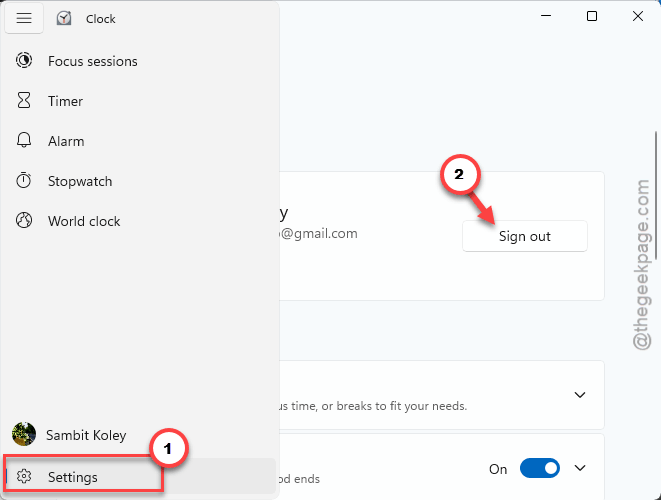
4 – Close the Clock app completely.
5 – Reopen the app, go back to Settings, and sign in with the same account.
Takes about a minute. And for a lot of people, this is the one that does it.
Fix 3 – Reset the Clock App
Is the whole app acting glitchy, not just the Start button? Then reset it.
1 – At first, press Windows + I to open Settings.
2 – Click Apps in the left sidebar.
3 – Click Installed apps.
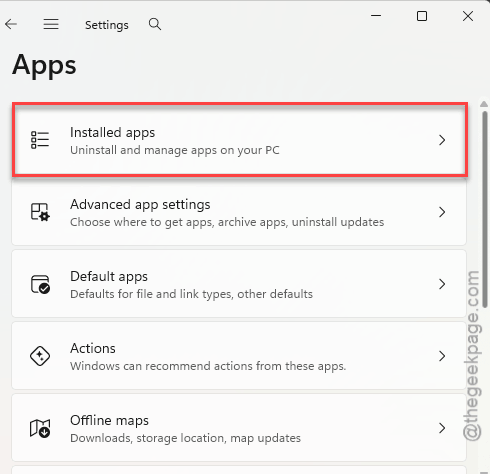
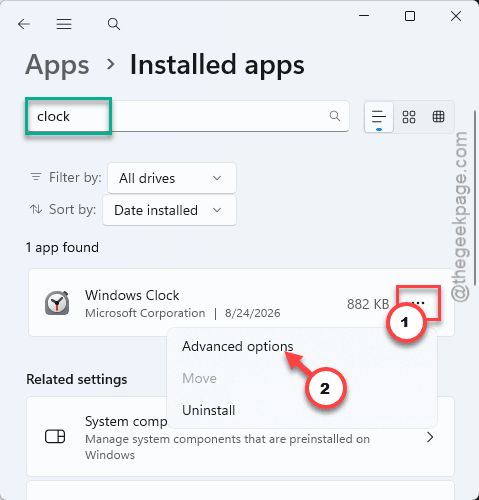
4 – Type “Clock” in the search box at the top. Way faster than scrolling.
5 – Click the three dots (⋯) next to Windows Clock and choose Advanced options.
6 – Scroll down and click Reset.
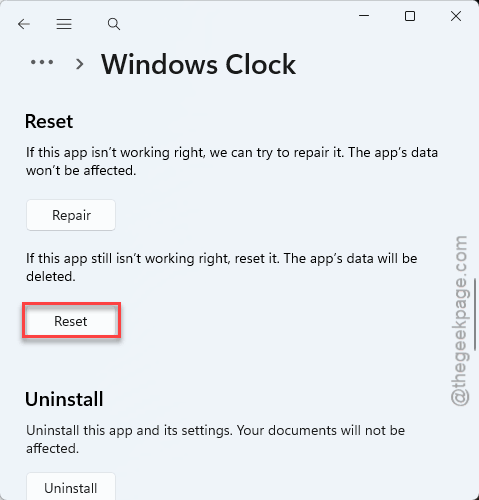
7 – Wait for the small checkmark to appear next to the button, then open the app and test a session.
Fix 4 – Clear the Microsoft Store Cache
Quick one. A gummed-up Store cache can quietly break Store apps, and Clock is one of them. Microsoft’s support answer for this bug recommends clearing the cache before you try a reinstall.
1 – Press Windows + R to open the Run box.
2 – Type this, and click OK.
wsreset.exe
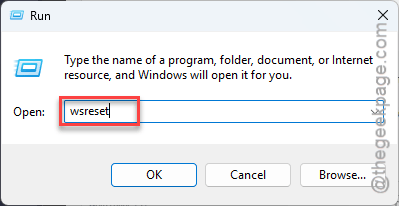
3 – A blank black window opens. Do not close it — after 10 to 30 seconds it closes on its own and the Microsoft Store pops up.
4 – Restart your PC.
Didn’t help on its own? That’s common. It mostly sets the stage for the next fix.
Fix 5 – Reinstall the Clock App
The nuclear option. Pulling the app out completely clears everything — alarms, history, settings — so it’s last for a reason. But when deep package corruption is the cause, nothing lighter will do.
1 – At first, press the Windows key and type “PowerShell”.
2 – Then, right-click Windows PowerShell and choose Run as administrator.
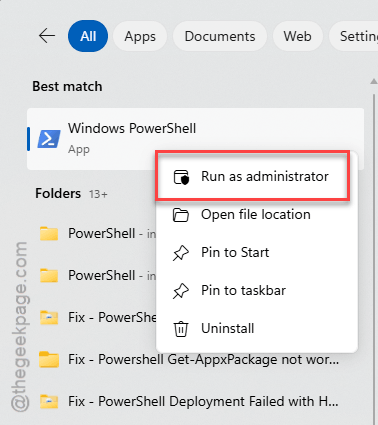
3 – Click Yes when Windows asks for permission.
4 – Type this command and press Enter:
Get-AppxPackage *WindowsAlarms* | Remove-AppxPackage
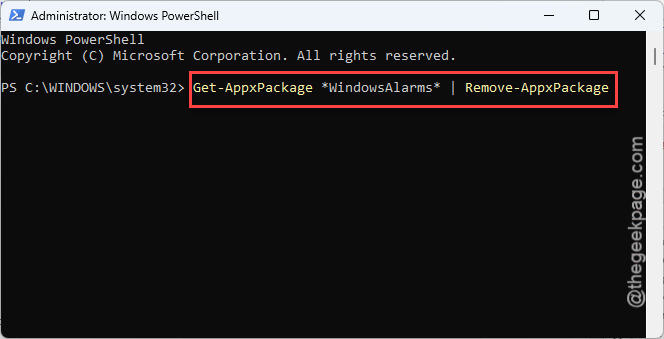
5 – Wait for the blinking prompt to come back. That means it is done — the Clock app is gone.
6 – Open the Microsoft Store, search for “Windows Clock”, and click Install.
Sign back into your Microsoft account inside the app afterward, like in Fix 2. Fresh install, fresh state.
Keep It From Coming Back
- Don’t let your PC sleep mid-session. One user traced this whole bug to the monitor sleeping while a timer ran. Stretch your sleep timer past your session length.
- Leave Spotify and To Do disconnected if you never use them. Fewer cloud calls, fewer things to break.
- Check the Microsoft Store for app updates now and then. The Clock app updates separately from Windows (weird, but true).
People Also Ask
Will resetting the Clock app delete my alarms?
Probably, yes. A reset wipes the app’s local data, and that includes alarms and your focus history. A full reinstall clears even more. So jot down your alarm times first — it takes ten seconds and saves you from rebuilding them from memory.
Why won’t my focus session start when the timer looks fine?
Focus Sessions checks in with your Microsoft account, Spotify, and Microsoft To Do before it starts counting. If any of those connections has gone stale, the session quietly refuses to run. Signing out of the integrations — or out of your account and back in — usually clears it.