Are you experiencing freeze and startup crash while booting up the Halloween The Game Story? Getting Two settings and one driver account for nearly every crash. You can change all three in under ten minutes. The two symptoms people report are a hard freeze a few minutes into story mode, and a crash to desktop before the menu even loads. Same root, different timing.
The Short Version
The release build defaults to DirectX 12. And that DX12 path is shaky. Really shaky. Force DirectX 11 and most of the startup crashes stop on the spot.
The story freeze is a different beast. The “Quality” video preset pushes something the game can’t sustain, and it locks up mid-cutscene. Flip it to “Performance” and it holds. Why ship Quality as the default, then? Nobody knows.
Then there’s your hardware. Newer Intel laptops have an NPU (a small chip for AI tasks) called Intel AI Boost, and the game trips over it. And AMD’s latest drivers have a geometry bug that this game hits head-on. Not ideal, but both have a workaround.
Fix 1 – Force DirectX 11
Do this first. Even if your crash is the story freeze, not the startup one.
1 – Open Steam and click Library.
2 – Right-click Halloween: The Game and pick Properties.
3 – On the General tab, find the Launch Options box near the bottom.
4 – Type -dx11 in the box.
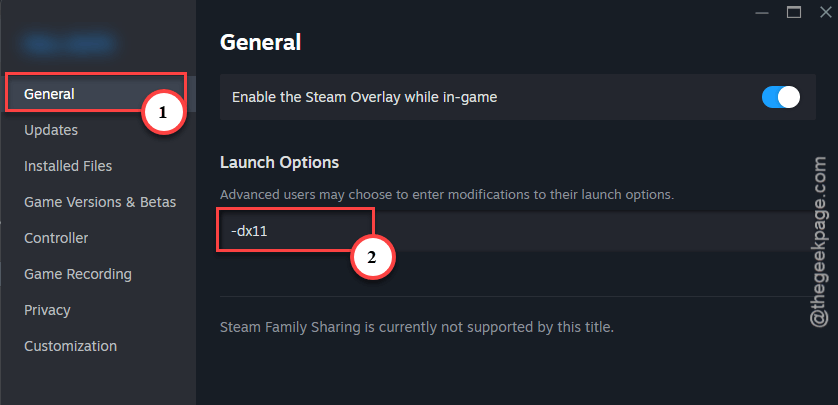
5 – Close the window and launch the game.
Leave it there. And there’s no reason to go back to DX12 until a patch note says they fixed it.
Fix 2 – Switch Video Settings to Performance
This stops the story freeze. The trick is doing it before the game has a chance to lock up.
1 – Close the game if it’s open.
2 – Delete the game’s local settings file so it boots with defaults. Check the game’s folder under your Documents or AppData folder for a config file with the game’s name, and move it to the desktop instead of deleting it if you want a backup.
3 – Launch the game.
4 – Go straight to Settings, then Video. Don’t start the story yet.
5 – Change the preset from Quality to Performance.
6 – Apply, then start the story.
Already at the menu without a freeze? Skip step 2 and just change the preset. And don’t bump it back up after the first cutscene. The freeze comes back if you do.
Fix 3 – Disable Intel AI Boost
If you’re on a newer Intel laptop (Core Ultra, mostly), the game fights with the built-in NPU. But turning that device off is harmless. Windows and your other apps won’t notice.
1 – Press Windows + X and pick Device Manager.
2 – Scroll down and expand Neural processors.
3 – Right-click Intel(R) AI Boost and pick Disable device.
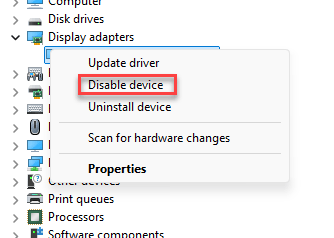
4 – Click Yes to confirm.
5 – Launch the game.
No Neural processors entry? Then your PC doesn’t have one. Skip this.
When you’re done playing, right-click the same device and pick Enable device to put things back. Takes five seconds.
Fix 4 – Roll Back the AMD Driver to 26.2.2
On a Radeon card and still crashing? The current AMD drivers have a geometry bug this game hits hard. Version 26.2.2 from February 2026 doesn’t have it. So go back to that one.
1 – Press Windows + I, click Apps, then Installed apps.
2 – Find AMD Software in the list, click the three dots (⋯), and pick Uninstall. Restart when asked.
3 – Go to AMD’s driver download page, open the Previous Drivers section for your card, and download Adrenalin 26.2.2.
4 – Run the installer and pick Factory Reset when it offers. That clears leftovers from the newer version.
5 – Restart, then launch the game.
One more thing. Open AMD Software, go to Settings, then System, and turn off automatic driver updates for now. Otherwise AMD quietly reinstalls the buggy one next week. Switch it back on once a newer driver fixes the problem.
People Also Ask
Why does Halloween: The Game keep crashing on startup?
The release build defaults to DirectX 12, and that rendering path is unstable right now. Add -dx11 to the game’s Steam launch options to force DirectX 11. On Intel Core Ultra laptops, also disable Intel AI Boost in Device Manager. AMD users may need to roll back to driver 26.2.2.
Is Halloween: The Game down?
Probably not. The story mode runs on your PC, so a freeze there is a local problem, not a server one. Switch the video preset from Quality to Performance and force DirectX 11 through Steam launch options. If it won’t launch at all, check Steam’s status page first.
Does Performance mode make the game look much worse?
A little softer in shadows and lighting. Not much else changes, and the frame rate goes up. Right now Quality mode is what causes the story freeze, so the trade is worth it. Test Quality again after a patch, but expect the freeze to return until then.