You boot Valheim 1.0 for the first time. Load your old world. And half of it is neon purple, from the trees to your longhouse roof. Then the game freezes for a few seconds. Sometimes for good.
Why 1.0 Broke Your Game
Purple in a Unity game means one thing. A texture or shader (the code that tells your GPU how to draw a surface) failed to load, so Unity paints a bright placeholder instead. Ugly on purpose. It’s meant to be noticed.
Usually it’s mods. Version 1.0 changed a lot of game files, and old mods keep reaching for ones that moved or don’t exist anymore. Valheim Plus is a common offender. Jotunn too. And custom texture packs? Almost always.
But vanilla players get it as well. Big jumps like Early Access to 1.0 are exactly where Steam’s patching tends to mangle the huge asset files. The code updates fine. The textures don’t.
The freezing is mostly a separate problem. A Unity bug spreads rendering work across CPU threads badly. So do giant old bases, which push memory past what the game can handle.
Fix 1 – Remove BepInEx and Old Mods
Modded? Start here. Even if you think your mods are up to date.
1 – Right-click Valheim in your Steam Library.
2 – Choose Manage > Browse local files. The game folder opens in File Explorer.
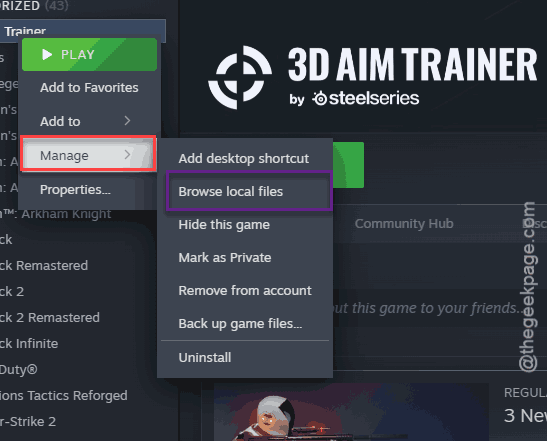
3 – Delete the BepInEx folder.
4 – Delete doorstop_config.ini and winhttp.dll. If there’s an unstripped_corlib folder, delete that too.
5 – Open the valheim_Data folder.
6 – Delete the Managed and Plugins folders inside it.
7 – Go back to Steam, right-click Valheim, and select Properties.
8 – Click Installed Files on the left.
9 – Click Verify integrity of game files.
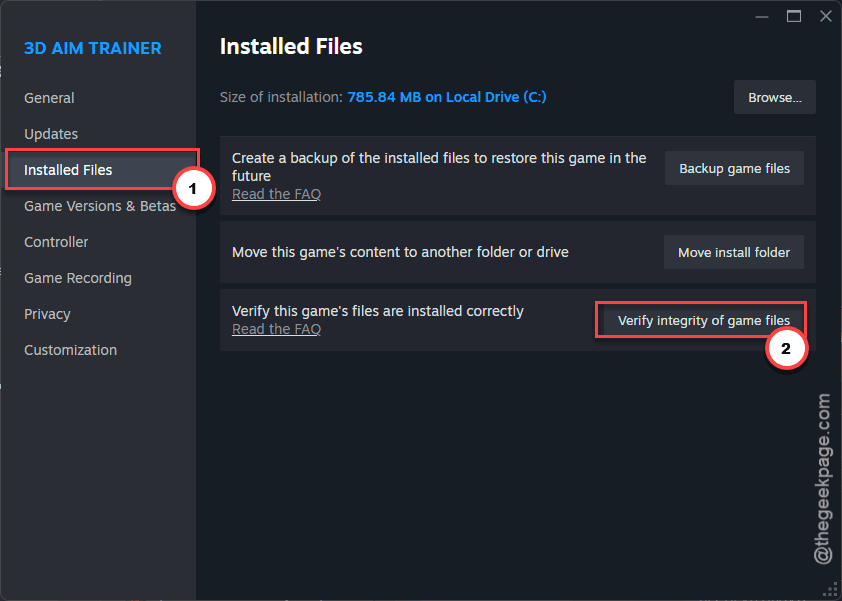
Deleting game folders feels wrong, I know. But Steam puts back clean vanilla copies during the verify (takes a few minutes).
Want your mods back later? Wait until each one says it supports 1.0. Then add them back one at a time. The moment purple returns, you’ve found the bad one.
Using a mod manager like r2modman or Thunderstore? Those keep mods in their own profile folders, not the game folder. So launch Valheim straight from Steam instead of through the manager for a clean, mod-free test.
Fix 2 – Delete the .assets Files and Redownload Them
No mods and still purple? Then the update probably mangled your asset files.
1 – Open the game folder the same way as in Fix 1.
2 – Open valheim_Data.
3 – Type .assets in the search box at the top right of File Explorer. That lists every asset file in one place.
4 – Select all the files ending in .assets and .assets.resS (names like sharedassets0.assets or level0.assets).
5 – Press Delete.
6 – Verify the game files in Steam, like in Fix 1.
Steam notices the missing files and downloads fresh copies straight from its servers. This verify runs longer than usual.
Fix 3 – Turn Off Unity Graphics Jobs
This is the big community fix for hard freezes. Unity splits rendering work across CPU threads, and in Valheim that goes wrong.
1 – At first, right-click Valheim in Steam and select Properties.
2 – On the General tab, scroll down to Launch Options.
3 – Type this in the box.
-gfx-enable-gfx-jobs 0
4 – Add a space, then type this line.
-gfx-enable-native-gfx-jobs 0
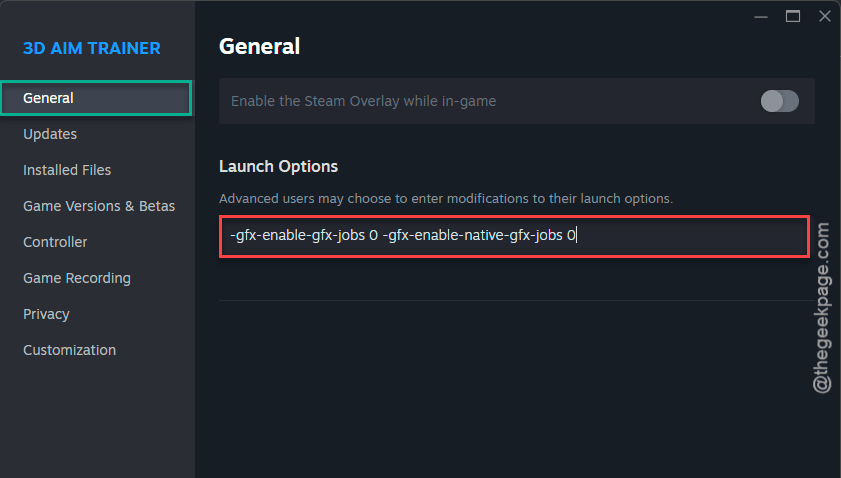
5 – Close the window and start the game.
The whole box should read: -gfx-enable-gfx-jobs 0 -gfx-enable-native-gfx-jobs 0. Frame times get steadier. Freezes mostly stop.
Something feels off after? Undoing it is easy. Clear the Launch Options box and close the window.
Fix 4 – Switch Between Vulkan and Regular Mode
Quick test.
1 – When you hit Play in Steam, Valheim lets you pick how to launch.
2 – One option is Vulkan (a different graphics system than the default). Been using the regular one?
3 – You should try Vulkan. Already on Vulkan? Go back to regular.
Which one works better depends on your graphics card, so just flip it and see.
Fix 5 – Press Alt + Enter on a Black or Frozen Screen
World loaded but the screen is black or stuck? The game might still be running underneath. You can often tell because the music or ambient sound keeps playing (the picture is the only thing that died).
1 – Press Alt + Enter. The game switches to windowed mode.
2 – Wait about 5 seconds.
3 – Press Alt + Enter again to go back to fullscreen.
Silly. Works more often than it should, though.
Fix 6 – Turn Off Steam Cloud for Valheim
If an old mod corrupted a world file, Steam Cloud keeps putting the broken copy back. And you get an endless loading screen every single time.
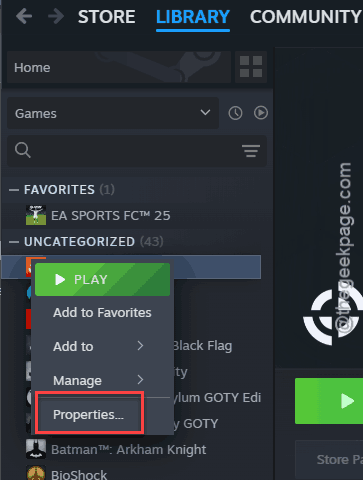
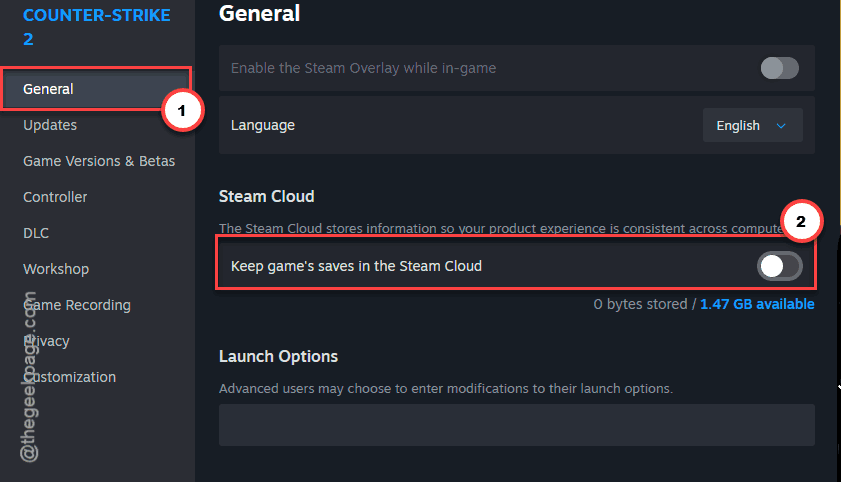
1 – At first, right-click Valheim in Steam and select Properties.
2 – On the General tab, turn off Keep game saves in the Steam Cloud.
3 – Start the game and create a brand new world.
New world loads fine? Then the game itself is okay, and your old world file is the problem. Leave Cloud off until that’s sorted.
Fix 7 – Lower Shadows and Draw Distance
Got a massive base from the Early Access days? 1.0 struggles with super dense builds. Memory spikes, then a freeze.
1 – Open Settings in the game and go to Graphics.
2 – Set Shadow Quality to Low.
3 – Set Draw Distance to Medium.
Not pretty. But it stops the game from grabbing more VRAM (your graphics card’s memory) than you have when you load into the base.
Once you’re in and moving around, try raising one setting at a time. Draw distance first. If the freeze comes back, you know exactly which setting your PC can’t handle there.
Fix 8 – Reset the Game’s Config and Save Folder
Last resort. Back everything up first. Seriously.
Valheim keeps its settings in the Windows Registry, which is a big settings database built into Windows. Renaming its entry makes the game create a fresh one.
1 – Press Windows + R, type regedit, and press Enter. Click Yes if Windows asks for permission.
2 – Paste this in into the address bar at the top and press Enter.
HKEY_CURRENT_USER\Software\IronGate
3 – Right-click the IronGate folder in the left panel and choose Export.
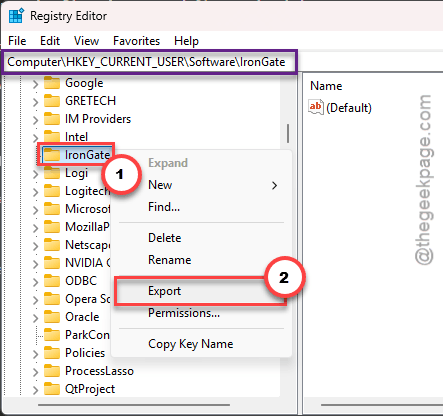
Save the file to your desktop. That’s your backup.
4 – Right-click IronGate again, choose Rename, and call it IronGate_old.
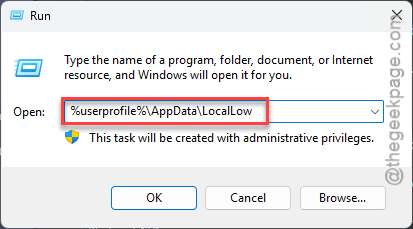
5 – Press Windows + R, type this code, and press Enter.
%userprofile%\AppData\LocalLow
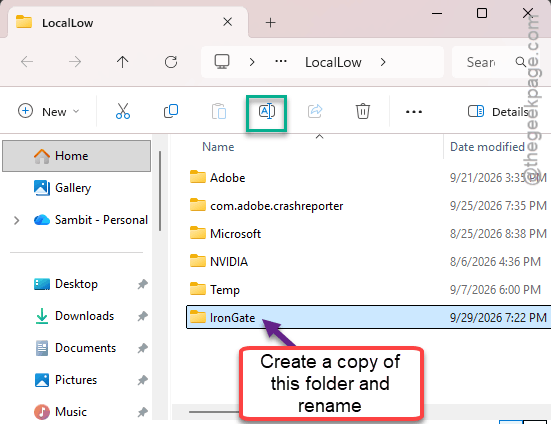
6 – Copy the IronGate folder to your desktop as a second backup.
7 – Rename the original IronGate folder to IronGate_old.
8 – Launch Valheim.
It starts like a fresh install. Runs fine now? Then your old config or save data was the problem, and your worlds are still sitting safely in that backup copy.
Didn’t help? Put everything back. Delete the new IronGate folder in LocalLow and rename IronGate_old back to IronGate. Then double-click the .reg file you exported to your desktop and click Yes. That restores your old settings in the Registry, and you’re back where you started. Nothing lost.
People Also Ask
Why does my Valheim keep freezing?
In 1.0, most freezes come from a Unity threading bug. Adding -gfx-enable-gfx-jobs 0 -gfx-enable-native-gfx-jobs 0 to your Steam launch options fixes a lot of them. Huge old bases cause memory spikes too, so lower shadows and draw distance. Outdated mods are the other big trigger.
Why are textures purple in Valheim?
Purple means a texture or shader failed to load, so Unity shows a placeholder. After 1.0, outdated mods are the usual cause. Remove BepInEx and verify your files. Not using mods? Delete the .assets files in valheim_Data, then verify so Steam downloads clean copies.
Is Valheim still good in 2026?
Yes, if you enjoy survival and building games. Version 1.0 is the finished release after years of Early Access, so it’s the most complete Valheim has ever been. Launch bugs like the purple textures are annoying. But they’re fixable, and mostly caused by leftover mods.