You glance down at the taskbar and find the Wi-Fi icon is sitting on top of the volume icon. The battery is half under the clock. You click one, and the wrong thing opens. It looked fine yesterday. And then an update came through, and now the whole corner is a pile-up of broken icons.
What Broke
The taskbar remembers where every tray icon goes. Pixel positions, saved to disk. After a build update, the new taskbar reads the old positions and the spacing math comes out wrong (the update changed the icon size, the old file didn’t). So icons land on top of each other.
Sometimes it’s the icon cache instead. Windows keeps a little database of every icon it has drawn, and when that goes stale, the tray stacks things badly. And sometimes it’s just one app whose tray registration got confused. Discord and Slack are repeat offenders.
Why doesn’t Windows just recalculate this on its own? Ask Microsoft. It’s been like this since the first big 22H2 patch.
Fix 1 – Restart Windows Explorer
Try this first fix by restarting the windows explorer process.
1 – At first, press Ctrl + Shift + Esc to open Task Manager.
2 – In the Processes tab, scroll down to Windows Explorer.
3 – Right-click it and choose Restart.
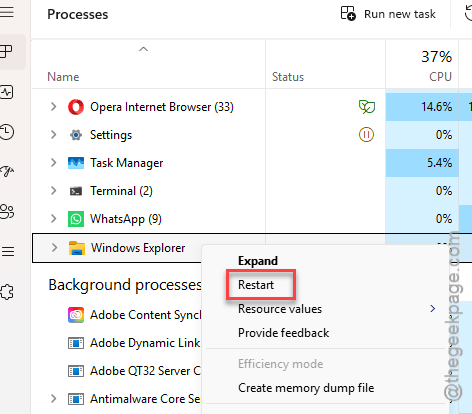
Your open windows stay open. Fixed? Good. But it’s a temporary fix. If the overlap returns after the next reboot, keep reading.
Fix 2 – Nudge the Taskbar Alignment
Moving the taskbar to the left and back forces Windows to recalculate icon spacing. Silly. But it works.
1 – Right-click an empty spot on the taskbar and choose Taskbar settings.
2 – Scroll down and click Taskbar behaviors to expand it.
3 – Change Taskbar alignment to Left.
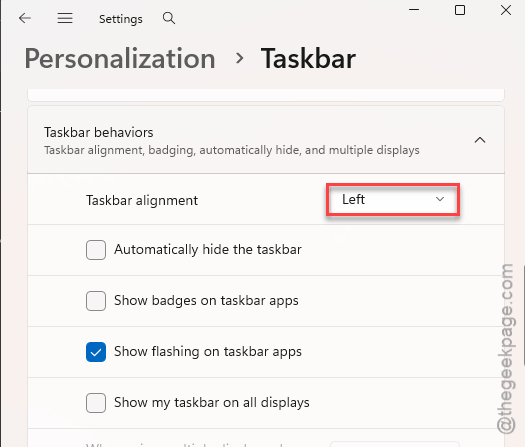
4 – Wait about three seconds. Watch the tray icons shuffle.
5 – Change it back to Center.
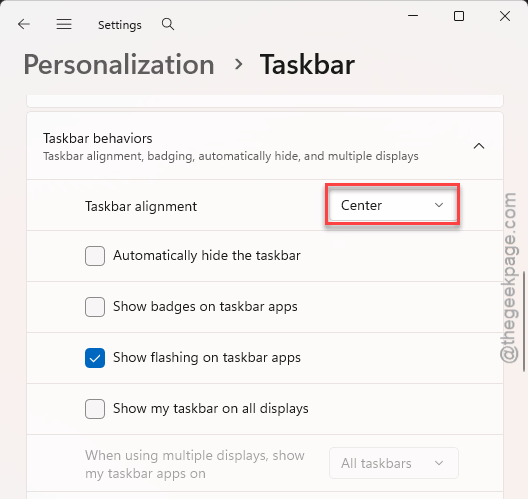
And if you like it on the left? Leave it there. The spacing bug shows up less often with left alignment, for whatever reason.
Fix 3 – Toggle the Overlapping Icons Off and On
Each tray icon has its own on/off switch in Settings. Flipping them makes Windows re-register their positions.
1 – Right-click the taskbar and choose Taskbar settings.
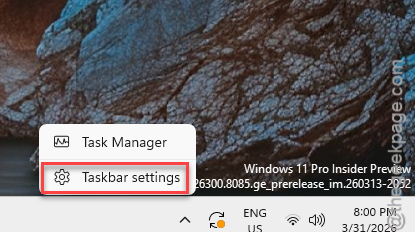
2 – Click Other system tray icons to expand it. Older builds call this Taskbar corner overflow.
3 – Switch every icon that overlaps to Off. They move into the hidden overflow menu.
4 – Switch them back to On one at a time.
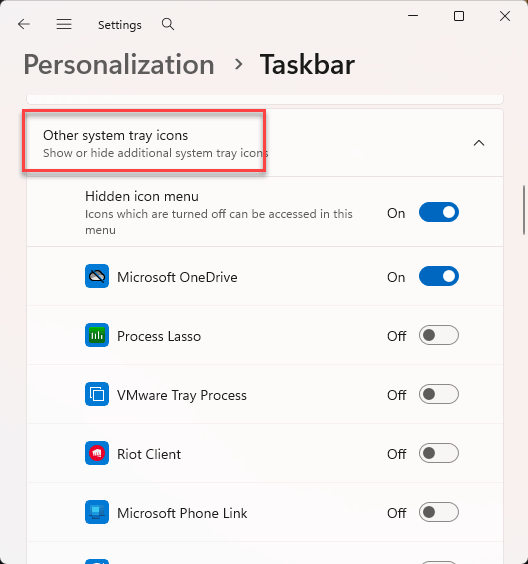
And each one should slot into its own space as it comes back.
Fix 4 – Unpin and Re-Pin the App
One app doing all the overlapping? Its taskbar pin is probably the confused part.
1 – At first, you should right-click the app’s icon on the taskbar, and choose Unpin from taskbar.
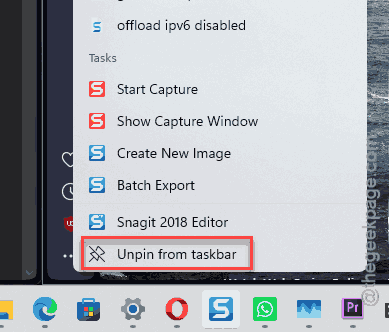
2 – Close the app completely, including from the tray if it lives there.
3 – Open the Start menu and search for the app.
4 – Right-click it in the results and choose Pin to taskbar.
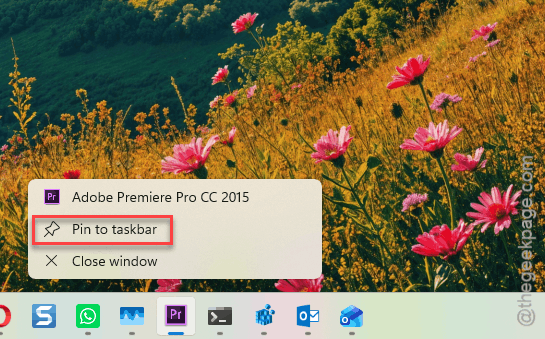
5 – Open the app again.
Discord, Slack, Steam. Those three cause most of the app-specific overlaps I’ve seen, and this clears them every time.
Fix 5 – Clear the Icon Cache
Stale icon cache from the previous build? So delete it. Windows rebuilds it on the next restart, and you lose nothing (the icons come back exactly as they were).
1 – At first, hit the Windows key, type “cmd“.
2 – Next, just right-click Command Prompt, and then, finally choose Run as administrator.
2 – Next, paste this line and press Enter:
del /A /Q "%localappdata%\IconCache.db"
3 – Restart your PC.
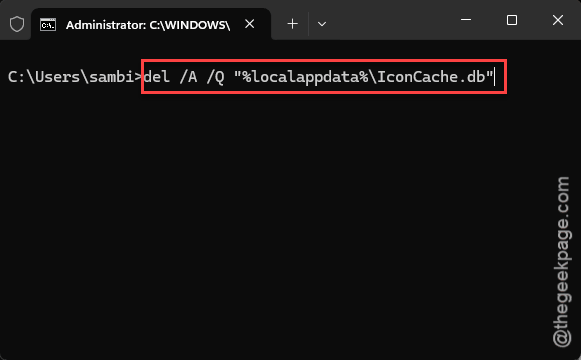
No output after the command? That’s normal. It just deletes the file quietly.
Fix 6 – Reset the Taskbar Layout in the Registry
The nuclear option. This wipes the saved taskbar positions so Windows lays everything out fresh. Your pinned apps stay. But your taskbar position and size go back to default, so you’ll re-do those if you changed them.
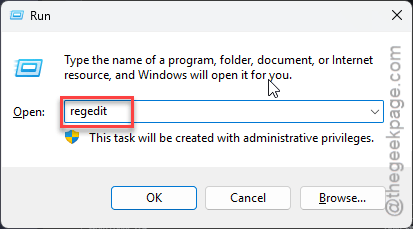
1 – Press Windows + R,
2 – Then, type this, and press Enter.
regedit
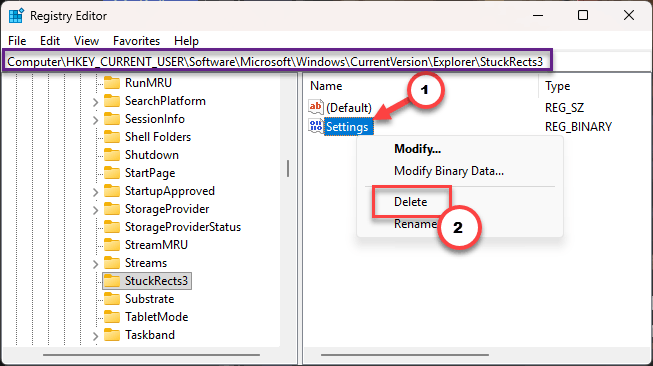
3 – Reach this address in the Registry Editor:
HKEY_CURRENT_USER\Software\Microsoft\Windows\CurrentVersion\Explorer\StuckRects3
4 – On the right pane, right-click the Settings value, and choose Delete.
5 – Click Yes to confirm.
6 – Then, restart your PC.
Check if this works.
People Also Ask
Why are system tray icons moving around on my Windows 11 taskbar?
Sometimes Windows updates can brick the icon positions on the taskbar on Windows taskbar. Deleting the Settings value under the StuckRects3 registry key fixes it for good.
How do I fix a taskbar glitch in Windows 11?
If the taskbar glitches continously, you should try to clear the icon cache. It should force Windows to rebuild the taskbar layout.