Microsoft swapped the old print dialog for a new window called the Print Support App. And on USB printers sometimes, it locks up. You hit Print, a window half-opens, and then nothing. The spooler (the part of Windows that lines up print jobs) can’t take anything new until that frozen window dies. So your whole queue just sits there. The answer hides behind how Windows now pushes every printer through something called Protected Print Mode. It forces a generic driver and the new app instead of the driver your printer maker wrote. Network printers can cope with it. But USB ones, especially older HP and Brother models, freezes up on the first job. Here are some tips to work it out yourself.
Fix 1 – Kill the Frozen Print Support App
Nothing else works until this window is dead.
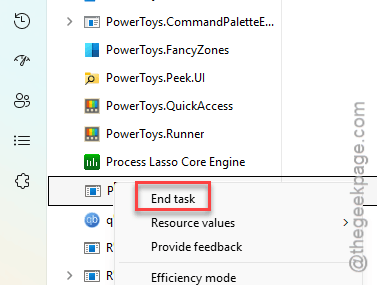
1 – At first, press Ctrl + Shift + Esc to open Task Manager.
2 – Scroll through the Processes list and find Print Support App. On some PCs it shows up as PrintDialog instead.
3 – Right-click it and choose End task.
4 – Go back to your document and try printing again.
Prints now? Great. Freezes again on the next job? Keep going. The queue is probably jammed too.
Fix 2 – Clear the Stuck Print Queue
A corrupted job stuck in the spooler crashes the app the second it opens. Every single time. So you clear the folder by hand.
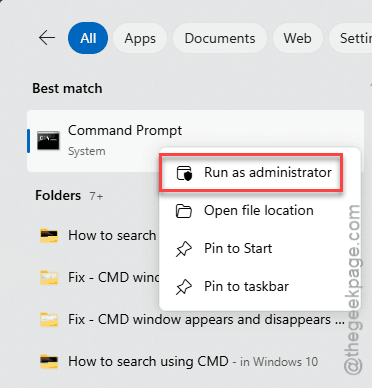
1 – At first, press the Windows key, type “cmd“.
2 –Then, right-click Command Prompt, and choose Run as administrator.
2 – Type this code and press Enter.
net stop spooler
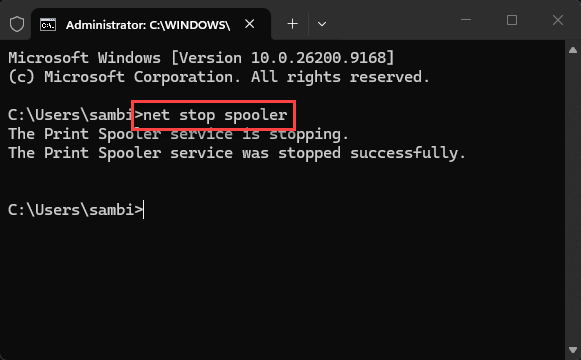
Wait for the message that says the service stopped.
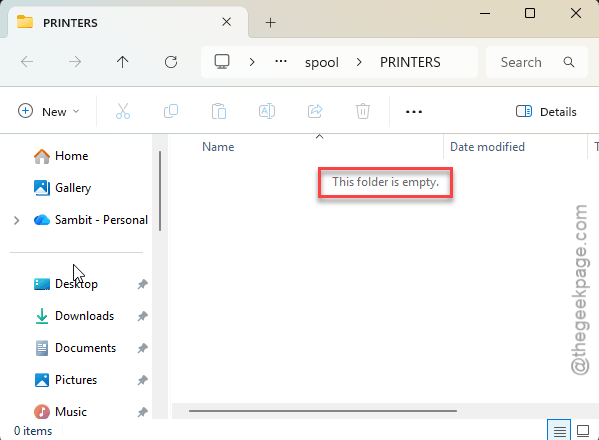
3 – Press Windows + E to open File Explorer and go to this folder:
C:\Windows\System32\spool\PRINTERS
4 – Then, select everything inside the folder (press Ctrl + A) at once, and delete it.
5 – Back in Command Prompt, type this one, and press Enter.
net start spooler
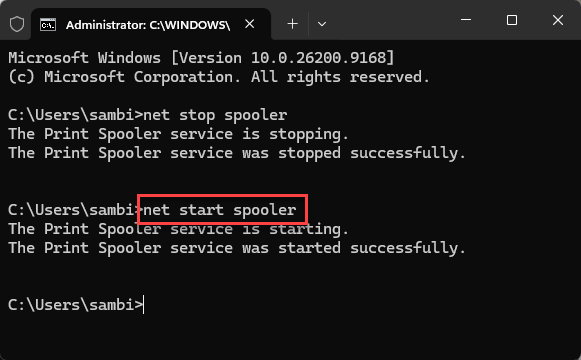
The folder may ask for admin permission when you delete. Click Continue. And don’t worry about losing anything important. Those files are just the stuck jobs.
Fix 3 – Turn Off Windows Protected Print Mode
This is the real fix for most USB printers. Protected Print Mode is the thing forcing the broken app on you. Turn it off, and Windows lets your printer use its own proper driver again. Honestly, this should be off by default for anything plugged in over USB.
1 – At first, press the Windows + I to load the Settings.
2 – Go to the Bluetooth & devices in the left sidebar. Go to the Printers & scanners.
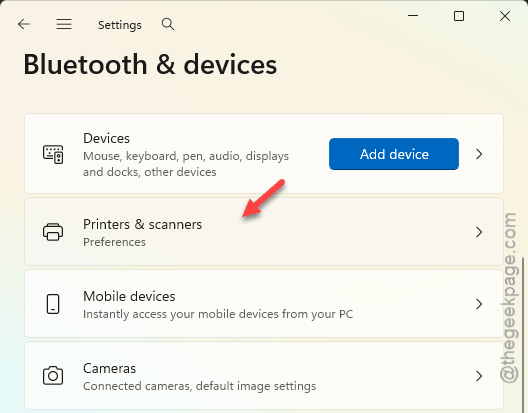
3 – Scroll down to the Printer preferences section.
4 – Find Windows protected print mode and click the Turn off button next to it.
5 – Click Yes on the confirmation pop-up.
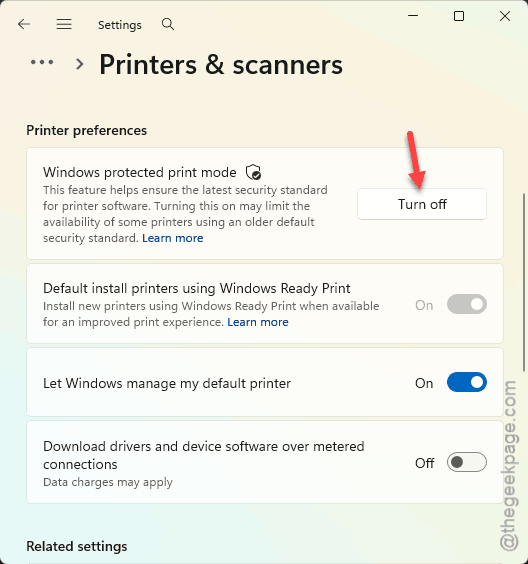
6 – Remove your printer from the list at the top of this page, then add it again so it picks up the native driver.
Reinstalling takes a couple of minutes. And Windows may download the driver in the background without showing much, so give it time before you test.
Fix 4 – Install the KB5040527 Optional Update
Microsoft fixed this exact USB freeze in an optional update. Optional, meaning Windows Update won’t install it on its own. So you have to go and ask for it (why is a bug fix optional? No idea).
1 – Open Settings and click Windows Update at the bottom of the left sidebar.
2 – Click Advanced options.
3 – Click Optional updates.
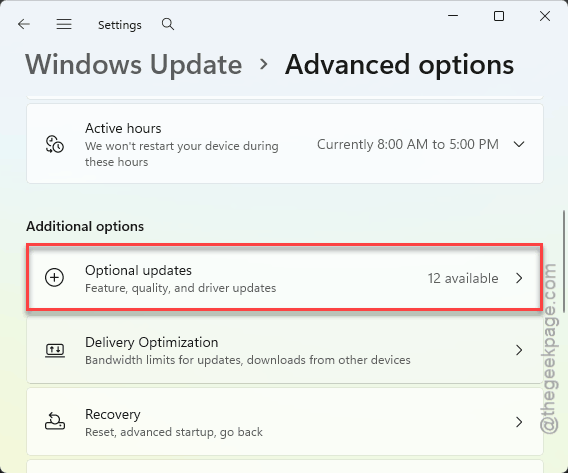
4 – Check KB5040527 or any newer cumulative update listed there, and click Download & install.
5 – Restart when it asks.
If the list is empty, you already have it. Or a later monthly update swallowed it. Either way, move on.
Fix 5 – Uninstall the Print Support App and Use the Maker’s Driver
Still freezing after all that? Then get rid of the app entirely. Windows falls back to the plain old print dialog, which has worked fine for twenty years.
1 – Open Settings, click Apps, then Installed apps.
2 – Type “print” in the search box at the top. Look for Print Support App, or your brand’s version like HP Smart or Brother Print Support App.
3 – Click the three dots (⋯) on the right side of the app and choose Uninstall.
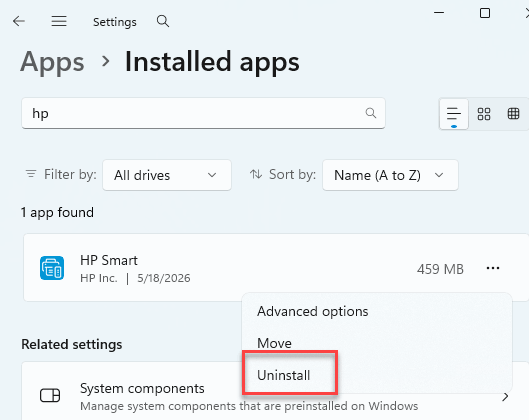
4 – Confirm.
5 – Go to your printer maker’s website, download the full driver package for your model, and install it.
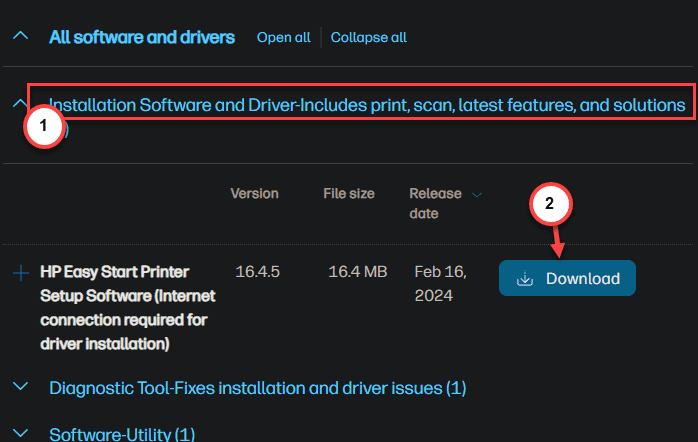
Not the “basic” driver. The full package. Because the basic one sometimes drags the support app right back in.
Keep It From Coming Back
- Leave Protected Print Mode off. Windows may nudge you to turn it back on after big updates. Ignore it.
- Check for optional updates once a month. Print fixes land there first. Weird, but true.