Does the app icons are appearing to be too small on your iPhone screen? The app icons may appear smaller in some cases. In that case, this guide of ours should help you out. The zoom level on the iPhone can be the reason why the app icons are appearing too small on the device. It can also be the part of customization options on the device. We have gone through all the possible cases and the two definite resolutions to address it.
Why the app icons are too small on my iPhone?
Smaller app icons have the benefit of enlisting too many icons on the phone screen at once. When the app icons are too small, you can get to see many app icons together on the screen. This way, you don’t have to scroll through the list of pages endlessly to launch the apps.
But, the smaller app icons can be problematic for elderly people with eye sight issues. Smaller app icons becomes, harder it gets to detect the correct and execute it. So, to avoid this issue, you should find the perfect balance in the zoom level of the app icons.
Fix 1 – Change the Zoom level
There is a definite zoom level on your iPhone that applies universally on the iOS system. So, controlling this zoom level should fix this.
Step 1 – At first, open up the Settings page on your iPhone.
Step 2 – Later, go to the “Display & Brightness” settings.
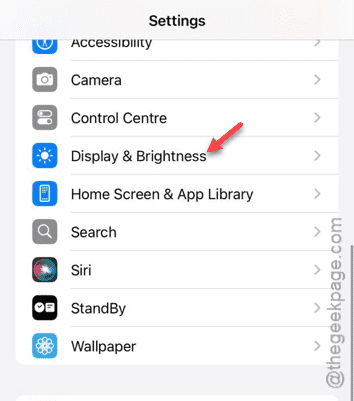
Step 3 – Scroll down to find the ‘Display‘ system. So, open up the “Display Zoom” system.
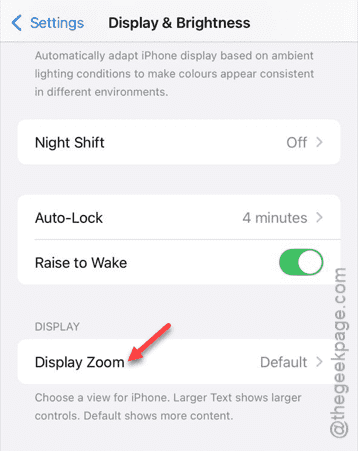
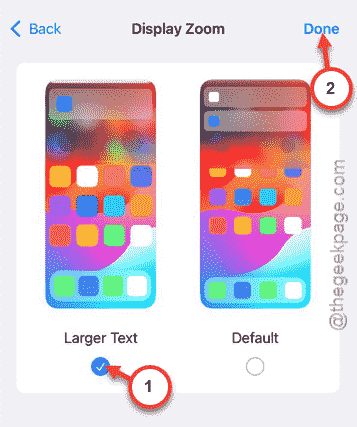
Step 4 – Switch to “Larger Text” mode from there.
Step 5 – Tap the “Done” option to save the changes.
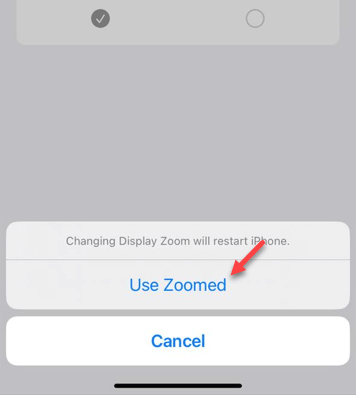
Step 6 – A message should have appeared on your screen with this message –
Changing Display Zoom will restart iPhone.
Step 7 – Tap “Use Zoomed” option there.
You should already be seeing the enlarged menu, texts and app icons. Return to the Home Screen and check whether you can find it there.
Fix 2 – Enlarge the app icons
On the iOS 18, you can enlarge the app icons directly from the iOS home screen page. This will omit the name of the app icons and showcase them bigger than before.
Step 1 – Unlock your iPhone and long-hold the Home Screen for a few seconds.
Step 2 – This shall load up the editing tools on your screen.
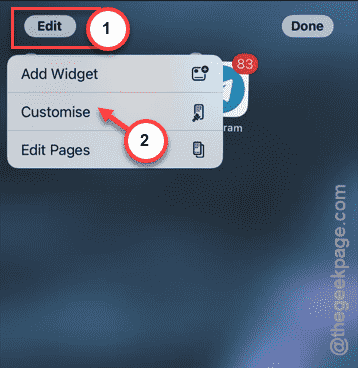
Step 3 – Tap the “Edit” button there and tap “Customize“.
Step 4 – You have to select the “Large” mode from the customization options at the bottom of the screen.
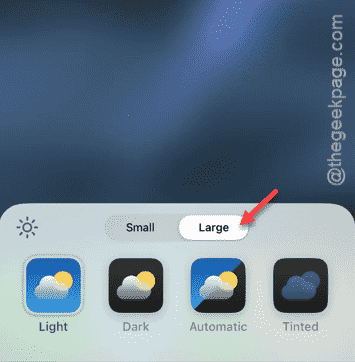
Now the app icons will drop their names and the size should increase. This should fix the smaller app icons issue that you were facing before.