If you are getting the device encryption yellow warning triangle error message, don’t worry. That little yellow warning badge over your C: drive almost always means one thing: Windows started encrypting the drive and never finished the job. Nothing is broken there. Your files are fine. But the drive is sitting in a half-done state, and Windows nags you about it in File Explorer and in Windows Security. So let’s either finish the job or switch it off. Your call.
What’s Actually Going On
Windows 11 (24H2 and 25H2 especially) quietly encrypts the system drive during setup. It uses BitLocker, Microsoft’s built-in drive encryption. But it doesn’t switch the protection on. It parks the drive in a state called “Waiting for activation.” Encrypted, yet unprotected. Hence the badge.
Why park it? Because the final step needs somewhere to store your recovery key. Usually that’s a Microsoft account. Sign in with a local account instead, and that step never happens. The drive just waits. Forever, apparently.
A couple of other things trigger the same icon. A scrambled TPM (the little security chip that holds the encryption keys) is one. And on some laptops, a Thunderbolt or PCIe device fails a hardware check, so Windows refuses to bind the key at all. The ElevenForum threads on that one are long.
Annoying, sure. But is it dangerous? No. Pick your path below.
Fix 1 – Resume Protection From File Explorer
Try this first. Takes ten seconds.
1 – Open File Explorer and click This PC in the left sidebar.
2 – Right-click your C: drive, the one with the yellow badge.
3 – Click Resume BitLocker protection.
4 – Follow the prompts that appear.
Press F5 to refresh the window. Badge gone? Done. If the menu option isn’t there at all, you’re a local-account case. Fix 2 handles that.
Fix 2 – Finish the Activation From the Command Line
This is the proper fix if you want encryption and don’t want to sign in with a Microsoft account. You add the key protector yourself and switch protection on. Windows does it in seconds.
1 – Start by right-tapping the Start button and pick Terminal (Admin).
2 – Type this and press Enter:
manage-bde -status C:
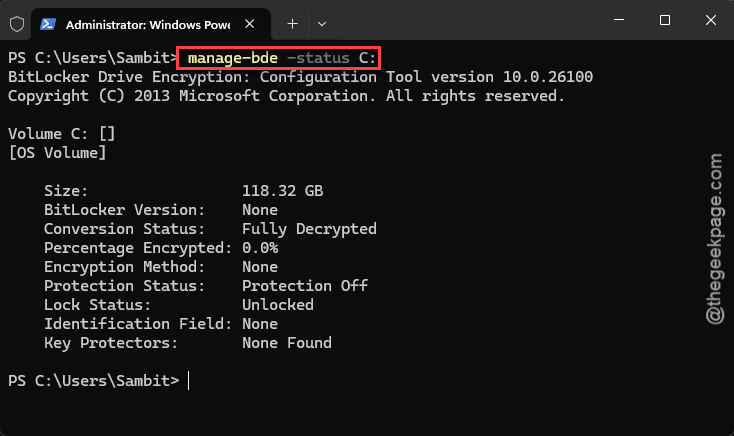
4 – Read the output. If Conversion Status says Fully Encrypted and Protection Status says Protection Off, carry on. That’s the half-done state.
5 – Type this and press Enter:
manage-bde -protectors -add C: -tpm -recoverypassword
6 – Now, Copy the long numerical password that appears and save it somewhere safe.
7 – Type this and press Enter:
manage-bde -protectors -enable C:
8 – Type this and press Enter:
manage-bde -on C:
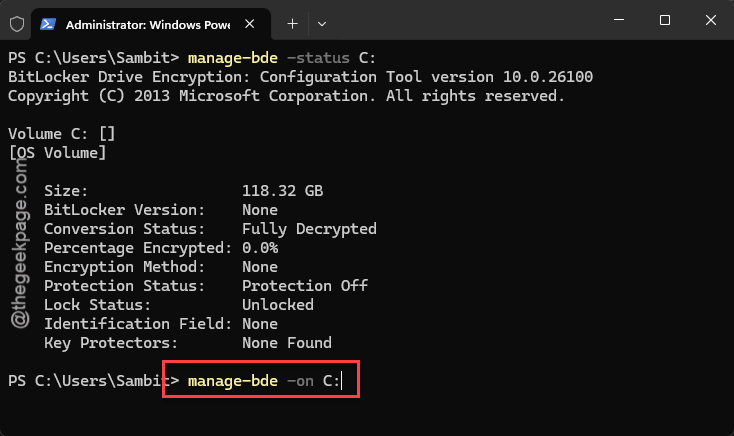
Refresh File Explorer. The badge should be gone. And no Microsoft account required.
Fix 3 – Turn Encryption Off Instead
Don’t want encryption at all? Fair enough. On a home PC that never leaves the house, plenty of people skip it. Turning it off strips the BitLocker data from the drive and the warning goes with it.
Quick way.
1 – Press Windows + I together.
2 – Then, proceed to the Privacy & security,
3 – Go to the Device encryption.
4 – Flip the switch to Off. Wait.
And it is a wait.
If you can’t find it there, here is an alternative Method:
1 – Open Terminal (Admin) like in Fix 2.
2 – Type this and press Enter:
manage-bde -off C:
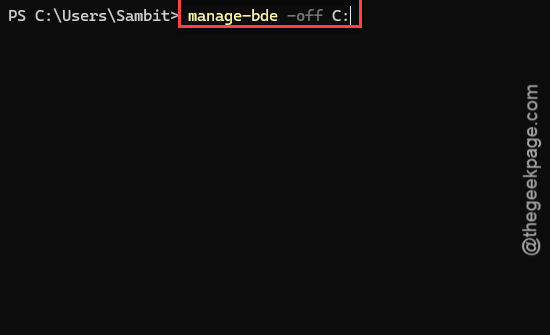
3 – Run manage-bde -status C: every few minutes and watch Percentage Encrypted drop toward 0.0%.
4 – When it reaches zero, press F5 in File Explorer.
Fix 4 – Toggle It Off, Then Back On
Try this fix, if the Fix 2 is not helpful.
Turn encryption off like in Fix 3. Wait for it to hit zero. Then go back to the same Device encryption page and flip the switch to On.
1 – Click Start.
2 – type Manage BitLocker, open it,
3 – and click Turn on BitLocker next to your C: drive.
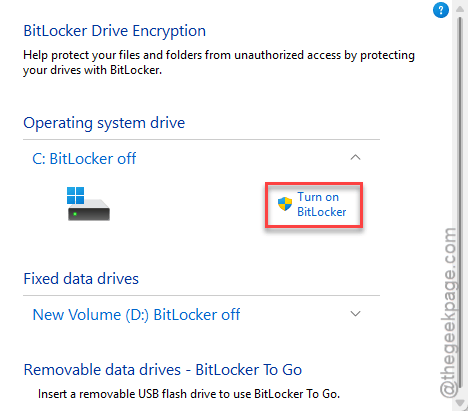
4 – The wizard asks where to back up the recovery key.
5 – Just pick a USB drive or your Microsoft account, then let it run.
Slow. But it fixes stubborn cases that nothing else touches.
Fix 5 – Clear the TPM and Update the BIOS
Try clearing the TPM cache.
NOTE – Do save your recovery key before you proceed any further.
1 – At first, restart the PC and tap the BIOS key as it boots (usually F2, Del, or F10, depending on the maker).
2 – Find the Security tab.
3 – Pick Clear TPM or Reset Security Processor. The wording varies.
4 – Save and reboot.
For the BIOS update, go to your laptop maker’s support page (HP, Dell, ASUS, Lenovo), search your model, and grab the BIOS utility. Run it, plugged into power, and don’t touch the machine until it’s finished.
Fix 6 – Check the Hardware Security Warning
Different flavor of the same problem. Windows Security shows a yellow triangle under Device security saying “Standard hardware security not supported.” That’s a DMA check failing, usually because of an external Thunderbolt dock or a PCIe card.
Check it this way.
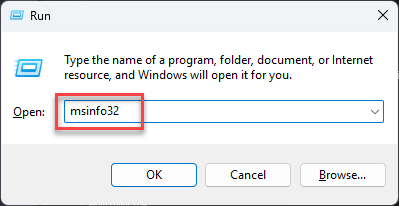
1 – Press Windows + R,
2 – Type msinfo32 and press Enter.
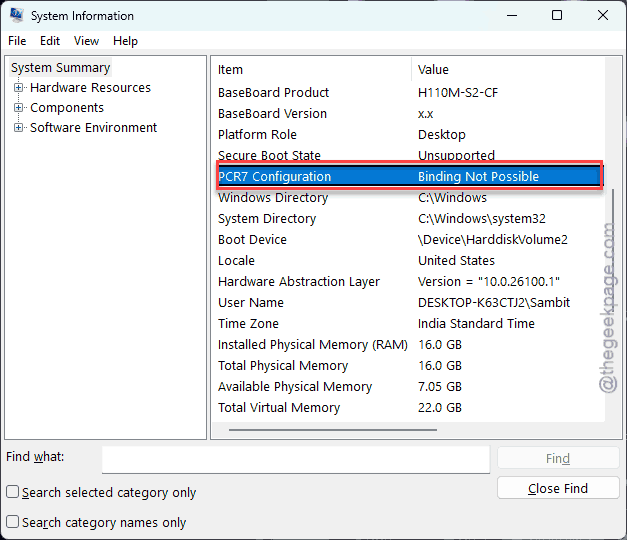
2 – Scroll down the right pane to PCR7 Configuration. If it says Binding Not Possible, that’s the block.
3 – Look a few lines down at Automatic Device Encryption Support. It will probably mention un-allowed DMA capable devices.
There is a registry switch (PreventDeviceEncryption under the BitLocker key) that hides the check entirely. But it only hides it. Unless you know your way around regedit, skip it.
So It Doesn’t Happen Again
- Decide on encryption during setup. On or off, pick one. The half-done state is what causes the badge.
- Back up the recovery key the day you encrypt. Not later.
- Check for a BIOS update once or twice a year. Boring, but it’s where the PCR7 certificates live.
Quick Answers
Why does my C: drive have a yellow triangle in Windows 11?
Windows encrypted the drive with BitLocker but never switched protection on. It sits in a “Waiting for activation” state, and File Explorer flags it. It usually happens with a local account, because there’s nowhere to store the recovery key. Finish activation or turn encryption off and the badge disappears.
How do I turn off device encryption in Windows 11?
Press Windows + I, open Privacy & security, then Device encryption, and flip the switch Off. No switch there? Open Terminal as admin and run manage-bde -off C: instead. Decryption runs in the background and takes anywhere from five to thirty minutes. Refresh File Explorer when it’s finished.
Will I lose my files if I resume BitLocker protection?
Not at all. Resuming protection just switches the lock on for a drive that’s already encrypted. Your data stays exactly where it is.