Why does a Lenovo laptop blue-screen with DPC_WATCHDOG_VIOLATION in the middle of a download, or right as it wakes from sleep? Drivers. Nearly always drivers.
So before you wipe Windows or book a repair, work through these. Most of them take under five minutes.
The Short Version
A DPC is a tiny job a driver hands to Windows and promises to finish fast. Windows runs a timer on it (that’s the watchdog). When a driver takes too long, the timer goes off. Blue screen, stop code 0x133.
On Lenovo machines, the slow driver is usually tied to Wi-Fi. Lenovo’s own Network Boost feature is the one the community blames most, because it can get stuck in a loop during heavy downloads. Frustrating, since it’s meant to make things faster.
But it is not the only suspect. A generic Wi-Fi driver pushed by Windows Update can do it. So can sleep mode, and so can the way Lenovo gaming laptops switch between two graphics chips.
Which one is yours? Hard to say up front. Fix 1 is the likeliest, so start there.
Fix 1 – Turn Off Network Boost in Lenovo Vantage
Crashing during big downloads or online games? Try this before anything else.
1 – Click Start and type ‘Vantage’ in the search box.
2 – Open the Lenovo Vantage app.
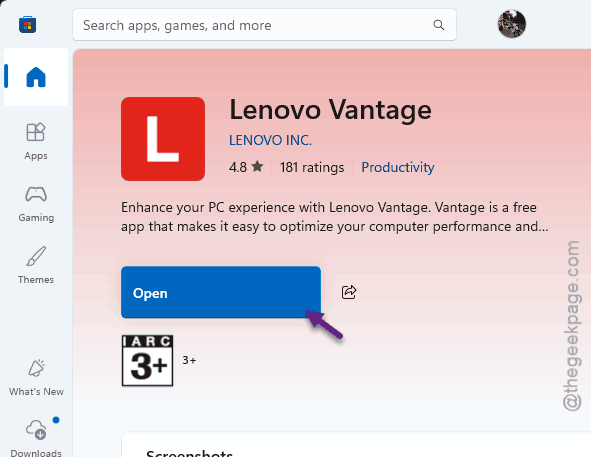
3 – Go to the Network or Performance settings tab. (Which one you see depends on your model.)
4 – Find the Network Boost toggle and turn it Off.
5 – Turn off Auto Close as well.
6 – Restart your PC.
Auto Close is the feature that shuts background apps when you game. It hooks into memory pretty aggressively and can set off the same crash.
And the restart isn’t optional. That’s what unloads the Network Boost driver.
Fix 2 – Roll Back the Intel Wi-Fi Driver
Windows Update likes to swap Lenovo’s tested Wi-Fi driver for a newer generic one. And newer isn’t always better.
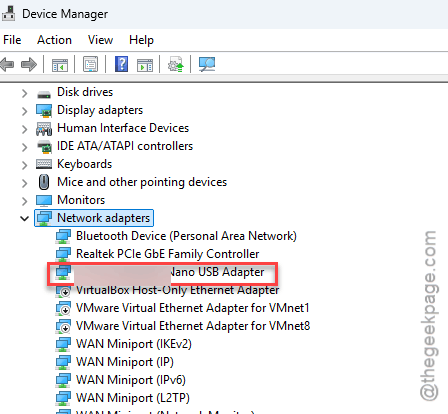
1 – Press Windows + X and select Device Manager (the list of every part inside your PC).
2 – Click the arrow next to Network adapters to expand it.
3 – Double-click your Intel Wi-Fi card. It has a name like Intel Wi-Fi 6E AX211.
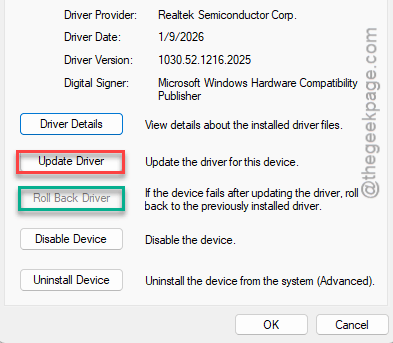
4 – Click the Driver tab at the top.
5 – Click Roll Back Driver.
Is the button greyed out? That happens when Windows didn’t keep the old driver. There’s still a way.
6 – Click Update Driver.
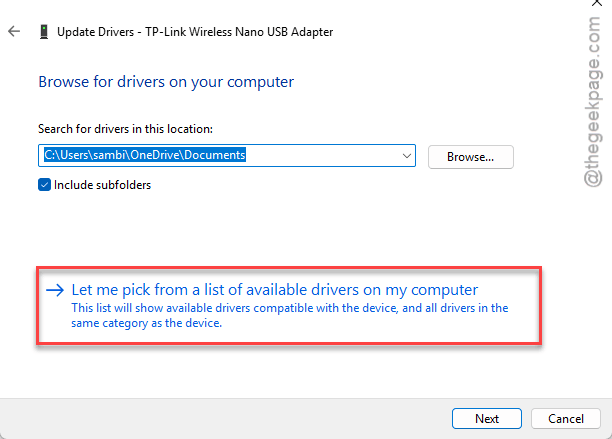
7 – Click Browse my computer for drivers.
8 – Click Let me pick from a list of available drivers on my computer.
9 – Select an older version, one dated before July or August 2026.
10 – Click Next and restart when it finishes.
Check if this works.
Fix 3 – Stop Windows From Powering Down the Wi-Fi Card
Two settings here. Both stop the Wi-Fi card from being cut off and woken up at the wrong moment.
1 – Open your Wi-Fi adapter’s properties in Device Manager, like in Fix 2 (steps 1 to 3).
2 – Click the Power Management tab.
3 – Uncheck Allow the computer to turn off this device to save power.
4 – Click OK.
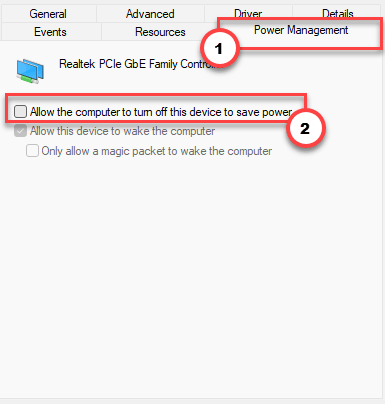
By default, Windows 11 keeps Wi-Fi awake during sleep so it can download updates. Nice idea. But that’s exactly when the driver panics.
Fix 4 – Switch Off Wi-Fi 6 on MediaTek and Realtek Cards
Does your Legion or IdeaPad have a MediaTek MT7921 or a Realtek RTL8852AE card instead of an Intel one? These drivers handle Wi-Fi 6 (also called 802.11ax) badly. So drop down to Wi-Fi 5.
1 – Open Device Manager.
2 – Expand Network adapters.
3 – Right-click your Wi-Fi card and select Properties.
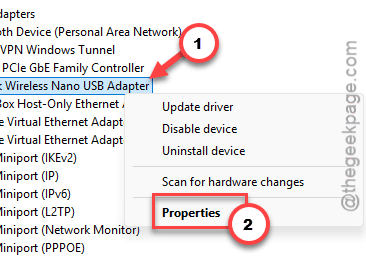
4 – Click the Advanced tab.
5 – Select 802.11ax mode in the list. On some cards it’s called 802.11n/ac/ax mode.
6 – Change the value to 802.11ac.
7 – Click OK and restart.
Wi-Fi 5 is still plenty fast for streaming and gaming (you probably won’t notice the change).
Fix 5 – Switch the GPU to dGPU Mode
This one is for gaming laptops with two graphics chips. In Hybrid Mode, the laptop hands the screen back and forth between the built-in graphics and the dedicated NVIDIA or AMD card. A BIOS bug can stall that hand-off, and the stall trips the watchdog.
1 – Open Lenovo Vantage.
2 – Find the GPU Working Mode or Hybrid Mode toggle on the main dashboard.
3 – Change it from Hybrid Mode to dGPU Mode.
4 – Restart.
Can’t get into Windows at all? Tap F2 over and over as the laptop starts, which opens the BIOS. Go to Configuration, find Graphic Device, and change it to Discrete Graphic. Then save and restart.
But expect shorter battery life in this mode, since the big graphics chip stays on all the time.
Fix 6 – Update the BIOS
Lenovo regularly patches low-level power bugs that cause watchdog timeouts around sleep. It’s the fix Lenovo’s own support site points to.
1 – Open Lenovo Vantage (on work laptops it’s called Lenovo Commercial Vantage).
2 – Click Check for System Updates.
3 – Plug in your charger if a BIOS or UEFI update shows up.
4 – Install the update.
Do not unplug the laptop or close the lid while it installs. The screen may go black for a minute or two, and the laptop restarts on its own. Let it finish.
Fix 7 – Swap to the Standard SATA AHCI Driver
This is the most common fix for this stop code on any PC, not only Lenovo.
1 – Open Device Manager.
2 – Expand IDE ATA/ATAPI controllers.
3 – Right-click the SATA AHCI controller and select Update driver.
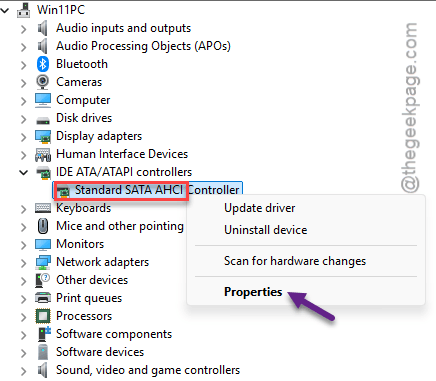
4 – Click Browse my computer for drivers.
5 – Click Let me pick from a list of available drivers on my computer.
6 – Select Standard SATA AHCI Controller and click Next.
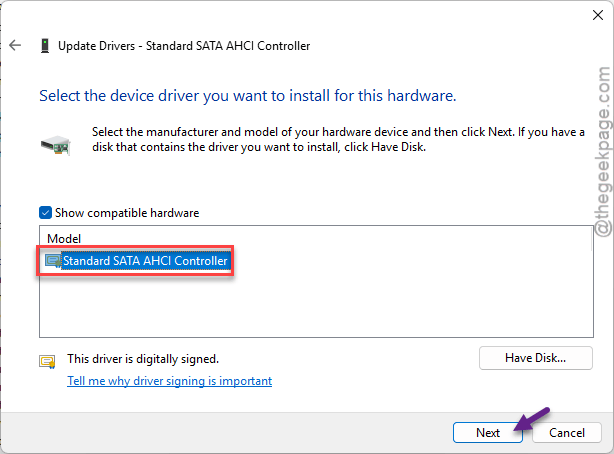
7 – Restart your computer.
Fix 8 – Use Hibernate Instead of Sleep
Still crashing on wake? Skip Sleep entirely. Hibernate saves your work to the drive and powers the laptop fully off. That avoids the low-power idle state that triggers the blue screen.
1 – Click Start, type ‘Control Panel’, and open it.
2 – Click Power Options.
3 – Click Choose what the power buttons do on the left.
4 – Click Change settings that are currently unavailable near the top.
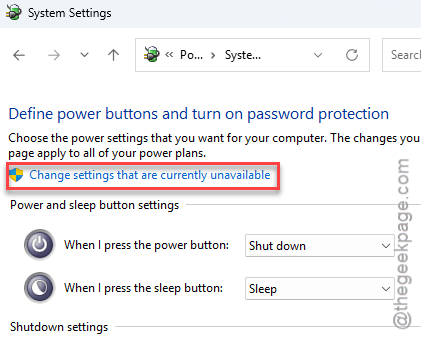
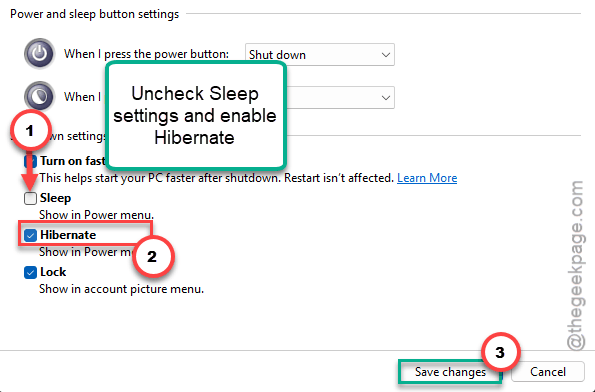
5 – Uncheck Sleep in the shutdown settings list.
6 – Check Hibernate.
7 – Click Save changes.
Waking up takes a few seconds longer. That’s the whole downside.
Avoiding This Next Time
- Get your drivers from Lenovo, not Windows Update. Lenovo’s versions are the stable ones for your model.
- Leave Network Boost off. You won’t miss it.
- Install BIOS updates when Vantage offers them (plugged in, always).
- Blue screen right after a driver update? Roll that driver back the same day, while Windows still has the old one saved.
Quick Answers
How to solve dpc_watchdog_violation error in Windows 11?
Find the driver that’s hanging. On Lenovo laptops, turn off Network Boost in Lenovo Vantage first, then roll back the Wi-Fi driver in Device Manager. On other PCs, switching to the Standard SATA AHCI Controller driver is the most common fix. A BIOS update helps with crashes around sleep.
How to fix stop code dpc_watchdog_violation 0x133?
0x133 means a driver took too long to finish a job. So the fix is nearly always a driver change. Roll back the newest network or storage driver. Turn off Wi-Fi power saving.
Is DPC_WATCHDOG_VIOLATION a hardware problem?
Usually not. It’s a driver taking too long, and that is software. Wi-Fi drivers, storage drivers, and Lenovo’s Network Boost are the common triggers. If the crashes keep coming after driver rollbacks and a BIOS update, then it’s worth having the SSD and memory checked.