RuneScape: Dragonwilds shipped 1.0 with a nasty save bug. Leave a session at the wrong moment and your world could corrupt. Your hours of scraping and world building, just gone from the menu. But your world probably isn’t gone for good. The game keeps backups while you are busy crafting it. This crashes that tend to cause all this have fixes too.
Why This Happens
Short version? Saving is fragile in Dragonwilds right now.
The game writes your world to disk when you leave a session. Close it with Alt + F4 mid-save, or let your PC fall asleep while you’re still in the world, and that write gets cut off halfway. Half a file. Broken world.
And multiplayer makes it worse. If a guest leaves while the host is still saving, the two copies of the world stop matching, and the file ends up mangled.
Then there are the crashes. Casting a fishing rod at anything a player built used to crash the game outright (yes, really). So did changing some settings mid-session. Strange bugs, and any crash during a save can take your world down with it.
Fix 1 – Update to the 1.0.0.4 Hotfix
Jagex’s own patch notes for 1.0.0.4 list three fixes that matter here. World saves corrupting on exit. The fishing rod crash. And the settings crash. So make sure you have it before anything else.
1 – Close Dragonwilds.
2 – Right-click the Steam icon in the system tray at the bottom right of your screen and choose Exit.
3 – Open Steam again.
4 – Go to your Library and click RuneScape: Dragonwilds.
5 – If you see an Update button where Play normally is, click it.
Wait for the download bar to finish before you launch (it’s small, usually a minute or two). Already updated and still missing a world? It probably broke before the patch. Fix 2 is how you get it back.
Fix 2 – Restore Your World From the Automatic Backup
Wondering why your world vanished from the menu? The main save file broke. But the game quietly keeps .bak backup copies, and those are usually fine.
1 – Close the game completely.
2 – Press Windows + R, type %localappdata%\RSDragonwilds\Saved, and press Enter.
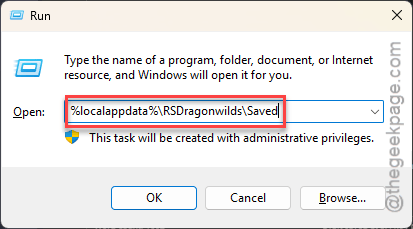
3 – Copy the SaveGames folder to your desktop. On some installs it’s called Worlds instead.
That copy is your safety net. If anything below goes wrong, you still have everything.
4 – Open the original SaveGames (or Worlds) folder.
5 – Find your world’s main save file and the matching file with .bak at the end. They share the same name.
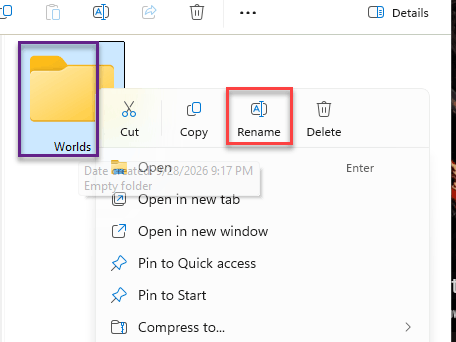
6 – Drag the broken main file to your desktop.
Don’t delete it yet (just in case the backup turns out to be bad too).
7 – Right-click the .bak file and choose Rename.
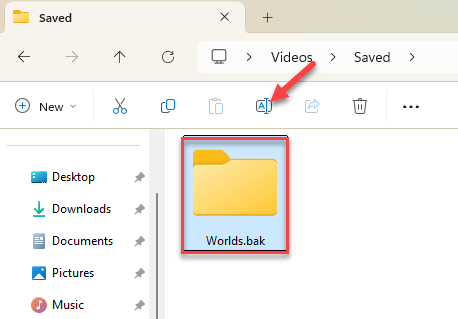
8 – Delete the .bak part at the end of the name and press Enter.
9 – Click Yes when Windows warns you about changing the file extension.
10 – Launch the game and load your world.
Can’t see the .bak part at all? File Explorer hides extensions by default. Click View at the top, then Show, then File name extensions.
You may lose a little progress (whatever happened after the backup was made). Not ideal. But it beats starting over from scratch.
Fix 3 – Turn Off Frame Generation on RTX 40-Series Cards
Got an RTX 40-series card? The game’s frame generation can trigger driver crashes when big chunks of the world load in. And a crash in the middle of a save is exactly how worlds get corrupted.
1 – Close the game.
2 – Press Windows + R, type %localappdata%\RSDragonwilds\Saved\Config\Windows, and press Enter.
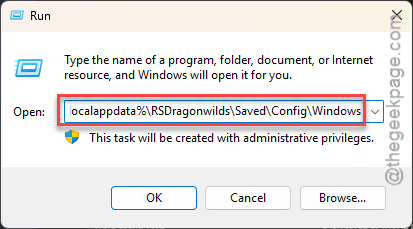
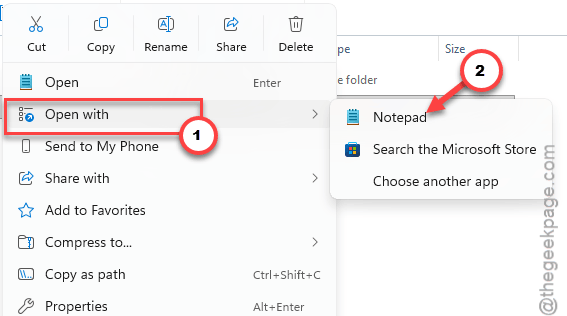
3 – Right-click GameUserSettings.ini and open it with Notepad.
4 – Press Ctrl + F and search for bFrameGeneration.
5 – Change bFrameGeneration=True to bFrameGeneration=False.
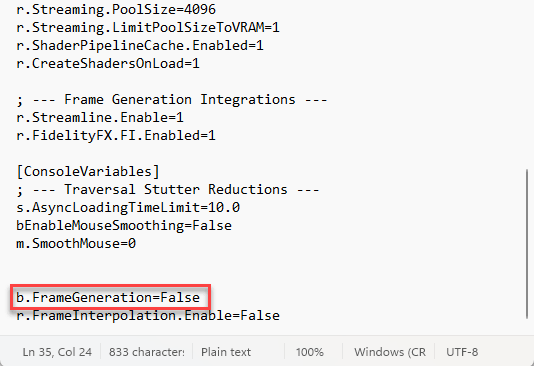
6 – Press Ctrl + S to save, then close Notepad.
Load into your world and walk somewhere new to test it. That’s where it used to crash.
Fix 4 – Reset Your Settings File
Game still crashes when you touch a setting? The patch fixed most of that, but a bad settings file can stick around.
1 – Close the game, open the same Config\Windows folder from Fix 3.
2 – Delete GameUserSettings.ini.
The game makes a fresh one on the next launch (you’ll have to set your graphics options again).
3 – Change them from the main menu this time, not mid-session.
Safer that way.
Fix 5 – Keep Your Fishing Rod Away From Buildings
Not on 1.0.0.4 yet? Then fish carefully.
Face open water and walk at least 10 tiles away from anything a player built first.
Foundations count. So do walls, bridges, and rafts.
If the bobber touches any of them, the game crashes to desktop.
Already crashed? Reload, and don’t touch the rod until you’ve walked away from the structure.
Fix 6 – Let the Host Save and Quit First
Playing with friends? The order you leave in matters more than it should.
1 – When you’re done, have every guest stand still somewhere safe.
2 – The host chooses Save and Quit.
3 – Guests wait until the server closes.
Guests get disconnected on their own once the host is out, and nobody’s save gets written in the middle of someone else’s.
How to Prevent This
- Leave through the menu, every time. Press Esc, click Exit to Main Menu, and wait for the Saving World… icon in the corner to disappear. Then quit to desktop. Never Alt + F4 out of a loaded world.
- Turn off sleep timers in Windows Power Options while you play. Go AFK, the PC sleeps mid-session (even for a coffee break), and the save can break.
- Copy your SaveGames folder somewhere safe once a week. Ten seconds. The .bak files help, but they’re not a real backup.
- Skip the character appearance editor once your character is made. Players report it can corrupt your profile. Not worth it for a new hairstyle.
People Also Ask
Why is RuneScape: Dragonwilds constantly crashing?
Update to patch 1.0.0.4 first. It fixed crashes from fishing near player structures and from changing certain settings. On RTX 40-series cards, turning off frame generation in GameUserSettings.ini stops crashes when big areas load. And check that your graphics driver is current.
Why is my Jagex Launcher constantly crashing?
Usually it’s a damaged install or something blocking it. Try running the launcher as administrator. If that doesn’t help, uninstall it, download a fresh copy from Jagex’s website, and reinstall. Antivirus apps sometimes quarantine launcher files too, so check yours.
Can I recover a corrupted Dragonwilds world?
Most of the time, yes. The game keeps .bak backups in %localappdata%\RSDragonwilds\Saved. Copy that folder somewhere safe first. Then move the broken save out and remove .bak from the backup’s name. You’ll only lose progress made after that backup.