GOG’s new patch lets Sands of Time run at 1080p or 1440p. That’s exactly why your health bar now looks like it was pulled out of taffy. The game draws the HUD for a 4:3 screen, and the patch stretches the whole picture to 16:9 without telling the HUD about it. The sand tanks go wide. The Prince’s health bar goes wide. Everything else looks fine, which makes it extra annoying.
Why This Happens
The game is from 2003. Its engine only knows one shape of screen, the old square-ish 4:3 kind. Nothing wrong with that for its time.
But GOG’s wrapper (the little program that launches the game for you now) tells the game to render wide. It fixes the 3D world. It does not touch the bit of math that places the HUD, so the HUD still thinks the screen is square and gets stretched along with it. Why fix one and not the other? Your guess is as good as mine.
There’s a second layer too. Sands of Time talks to your graphics card in Direct3D 8, which modern drivers barely remember. So even the parts GOG did fix can look off on some cards.
And the game’s own config file, Hardware.ini, gets rewritten by GOG’s setup tool every so often. You fix it, it unfixes itself. Lovely.
The good news? The community solved this years ago. You just have to bolt the fix onto the right file.
Fix 1 – Launch the Original Game File, Not the GOG Wrapper
First thing to know: the shortcut GOG gives you runs a wrapper. The real game is a separate file in the same folder. Running that one directly skips the stretching entirely, and every other fix below works better on it.
1 – Open GOG Galaxy, click the game, click the settings icon next to Play, then Manage installation, then Show folder.
2 – Look for PrinceofPersia.exe (some installs name it POP.exe). That’s the original.
3 – Right-click it and pick Create shortcut, then drag that shortcut to your desktop.
4 – Launch from the new shortcut from now on.
Lost your controller when you did that? Expected. The wrapper was handling it. Fix 5 brings it back.
Fix 2 – Install the Widescreen Fix
This is the real fix. Use the
1 – Download the latest Prince of Persia: The Sands of Time Widescreen Fix.
NOTE – This is an AIO (all in one) fix package that contains the Nemesis2000’s widescreen fix.
2 – Open the zip. Extract the files directly to your game folder.
The Steam default is –
C:\Program Files (x86)\Steam\steamapps\common\Prince of Persia The Sands of Time
3 – During moving the folder, tap Yes / Replace files in the destination option to patch the files, if needed.
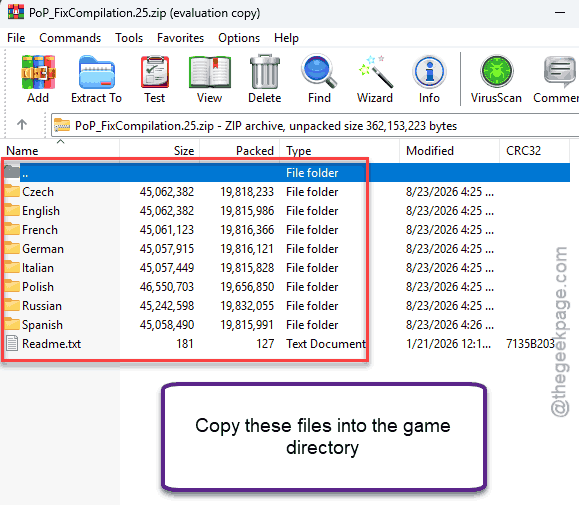
The health bar should be a normal shape on the first screen. If it’s still wide, you probably dropped the files one folder too deep. The dll has to sit right next to the exe, not inside a subfolder.
Fix 3 – Add a Direct3D 8 to 9 Wrapper
Still seeing stretched edges or odd scaling after Fix 2? Your graphics driver is mangling the old Direct3D 8 calls. A tiny translator file converts them to Direct3D 9, which modern cards handle properly.
1 – Download d3d8to9. You’ll get a single file called d3d8.dll (some widescreen packs already include it).
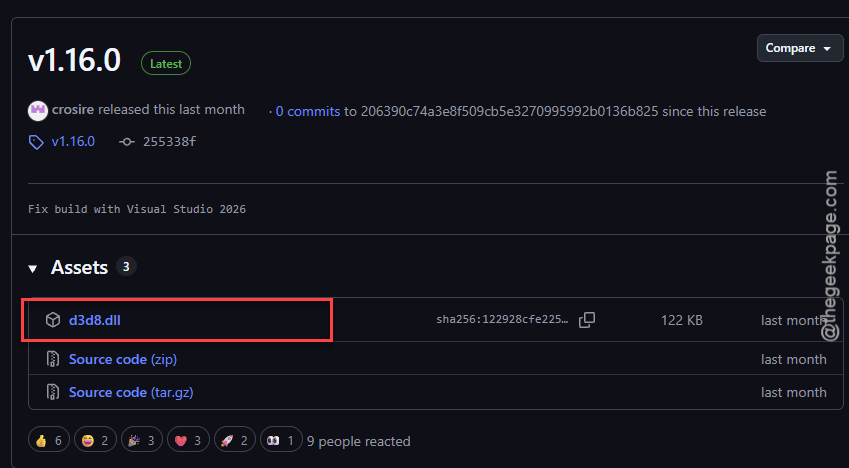
2 – Put d3d8.dll in the game folder next to POP.exe.
3 – Launch the game.
Prefer dgVoodoo2? Same idea, a few more clicks.
1 – Copy D3D8.dll and D3DImm.dll from dgVoodoo’s MS\x86 folder into the game folder.
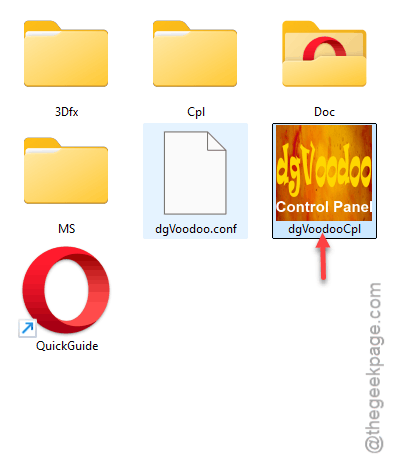
2 – Then open dgVoodooCpl.exe.
3 – Click the DirectX tab.
4 – Set Resolution to your monitor’s native size, and set Scaling mode to Stretched, keep Aspect Ratio.
5 – Click Apply.
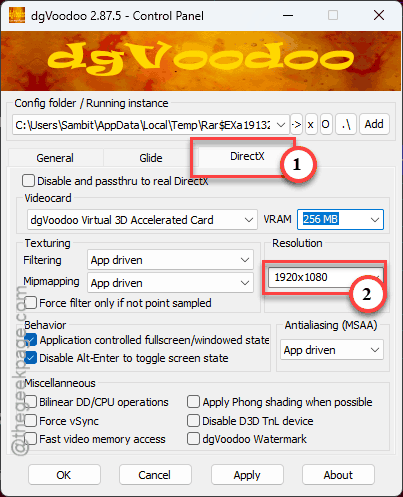
The “keep Aspect Ratio” part is what saves the HUD.
Fix 4 – Check Hardware.ini and Lock It
GOG’s setup tool writes odd resolution values into the game’s config, and the HUD math goes sideways when the numbers don’t match a normal screen shape. So check the file, then stop the tool from touching it again.
1 – Open the game folder and find Hardware.ini.
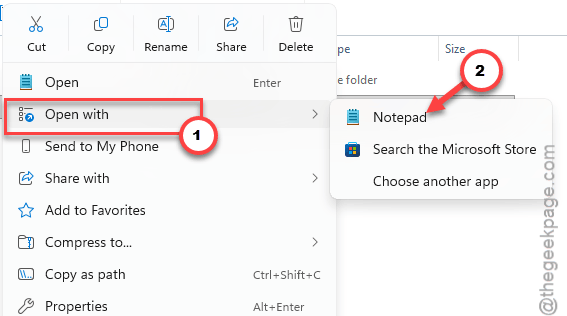
2 – Right-click it and open it with Notepad.
3 – Find the horizontal and vertical resolution lines and make sure they match a real 16:9 or 16:10 size, such as 1920 by 1080 or 2560 by 1600.
4 – If there’s a refresh rate line, make sure it says 60 or lower. Anything higher desyncs the physics and the HUD scaling in this engine (yes, really).
5 – Save and close Notepad.
6 – Right-click Hardware.ini again, pick Properties, tick Read-only at the bottom, and click OK.
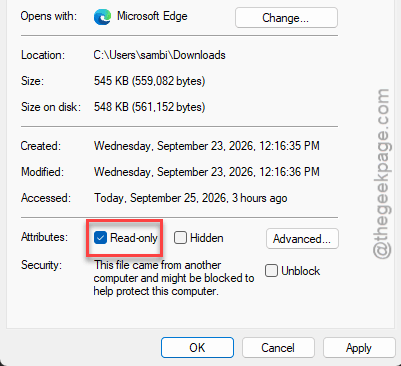
That read-only box is the whole trick. Without it, GOG’s config tool quietly rewrites the file the next time it runs. And you’re back to square one.
Fix 5 – Cap the Game at 60 FPS From Outside
The in-game limiter is unreliable, and V-Sync doesn’t always kick in either. Above 60 frames per second, the Prince starts clipping through things and ropes stop behaving. Cap it from the driver instead.
NVIDIA card?
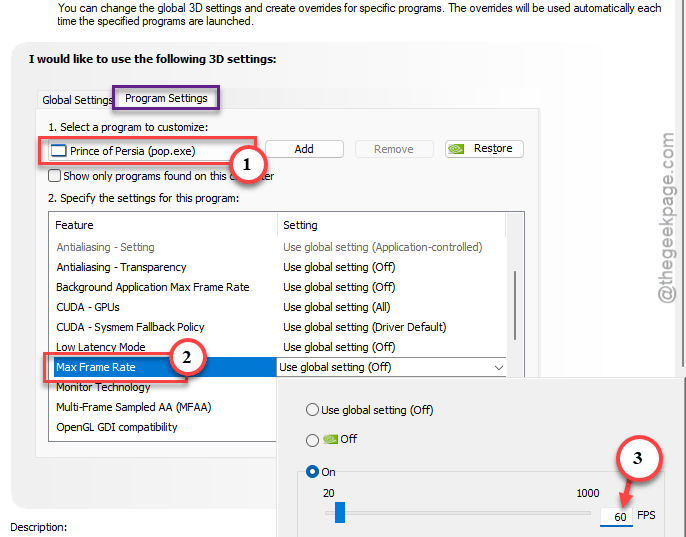
1 – Open NVIDIA Control Panel,
2 – click Manage 3D Settings,
3 – then the Program Settings tab, and add POP.exe.
4 – Set Max Frame Rate to 60 and click Apply.
AMD card?
1 – Open AMD Software.
2 – Find the game under Gaming,
2 – Then, set Frame Rate Target Control to 60. Either works.
If you already run RivaTuner Statistics Server (RTSS) for other games, a 60 FPS limit there does the same job.
One known quirk to expect: in the “Out of the Well” section, one rope glitches in widescreen no matter what. Switch to 4:3 for that one rope, climb it, and switch back. Weird, but it’s the only spot where this happens.
Fix 6 – Get Your Controller Working Without the Wrapper
Running the original exe (Fix 1) drops the wrapper’s controller support, so here’s how to put it back. Two parts.
1 – First, close Steam completely. Not minimized, closed.
2 – Right-click the Steam icon in the system tray (bottom right, near the clock) and pick Exit.
Steam’s background controller profiles break the old DirectInput system this port uses, especially with wireless DualSense pads.
3 – Then install XinputPlus.
Another month, another sim-breaking update. This time it’s a Windows patch and a sim update landing in the same week, and Flight Simulator 2024 is throwing 0xc0000005 at the loading screen. Or mid-flight. Or both, if you’re lucky like me.
It’s not your hardware. And it’s not a bad install. Keep reading.
What Actually Broke
0xc0000005 is an “access violation.” Plain English: the sim reached for a chunk of memory that wasn’t there anymore. That’s it. The code is useless for telling you why, which is very Microsoft.
Two things lined up badly in September. The optional Windows preview update, KB5124010, changed how memory gets handed out, and the sim trips over it constantly. Microsoft already shipped an emergency fix (KB5129195), so at least they admitted it.
After the Sim Update, rewrote how terrain and photogrammetry get streamed. Your old rolling cache still points at the old layout. So the sim loads a tile, looks in the wrong place, and falls over.
Add-ons make it worse. Scenery and liveries built against the old SDK (the toolkit developers use to build add-ons) read memory the new sim no longer allocates. Why does one outdated airport take the whole sim down? Because this engine has never failed gracefully. Not once.
Fix 1 – Install the KB5129195 Emergency Update
Microsoft pushed this hotfix specifically for the memory crashes from the September update. Grab it first. And it’s the one fix that costs you nothing.
1 – Press Windows + I to open Settings.
2 – Click Windows Update at the bottom of the left sidebar.
3 – Click Check for updates.
4 – Look for KB5129195 in the list and let it install. Wait for the progress bar to finish.
5 – Click Restart now.
Not showing up yet? Microsoft rolls these out in waves, so check again tomorrow. Or move on to Fix 2 and pull the bad update instead.
Fix 2 – Uninstall KB5124010
If the hotfix isn’t available, take the problem update off yourself. It was an optional preview anyway. You lose nothing by removing it.
1 – Open Settings and click Windows Update.
2 – Click Update history.
3 – Scroll all the way to the bottom and click Uninstall updates.
4 – Find KB5124010 in the list and click Uninstall next to it.
5 – Restart when Windows asks. The restart takes longer than usual, about three to five minutes.
And once it’s gone, pause updates for a couple of weeks. Windows Update, then Pause updates, pick a date. Otherwise Windows helpfully reinstalls the same patch overnight. Ask me how I know.
Uninstall button missing or failing? Jump to Fix 5.
Fix 3 – Move the Community Folder Aside
Here’s where most 0xc0000005 crashes actually live. One stale add-on. The sim won’t tell you which one. So you test with none and work back.
1 – Close Flight Simulator completely.
2 – Press Windows + R at once.
3 – Next, paste the path for your version, and press Enter.
Microsoft Store or Game Pass:
%localappdata%\Packages\Microsoft.Limitless_8wekyb3d8bbwe\LocalCache\Packages.
Steam:
%appdata%\Microsoft Flight Simulator 2024\Packages.
4 – Then, right-click the Community folder, pick Rename.
5 – You can call it Community_BACKUP.
6 – Go up one level to the LocalCache folder (Store) or the Microsoft Flight Simulator 2024 folder (Steam).
6 – Find Content.xml and delete it. The sim rebuilds a clean one on the next start.
7 – Launch the sim and load a flight.
Flies fine now? Good, it was an add-on. Make a new empty Community folder and copy your add-ons back in a few at a time, testing between batches. Tedious, yes. But it’s the only way to find the guilty one. Keep a list of what you added when, and this never takes more than one evening again.
Fix 4 – Delete the Rolling Cache and Shader Caches
Sim Update 5.1 changed the terrain layout. And your cached tiles didn’t get the memo.
1 – If the sim will open, go to Options, then General Options, then Data.
2 – Scroll down to Rolling Cache and click Delete.
3 – Switch the rolling cache Off for now. You can turn it back on after the next sim update settles.
Can’t reach the menu?
1 – Press Windows + R keys at once.
2 – Then, paste this and hit Enter:
%localappdata%\Packages\Microsoft.Limitless_8wekyb3d8bbwe\LocalCache\
NOTE – Steam users, go to the Packages folder from Fix 3 instead.
3 – Delete ROLLINGCACHE.CCC by hand.
4 – Then clear the Windows shader cache too.
4 – Press Windows + R, and type cleanmgr, press Enter.
5 – Pick your C: drive, tick DirectX Shader Cache, and click OK.
6 – On an NVIDIA card, also empty the %localappdata%\NVIDIA\DXCache folder (the folder itself stays, just delete what’s inside).
First flight after this will stutter for a few minutes while everything rebuilds. That’s normal. Don’t panic and start reinstalling.
Fix 5 – Roll Windows Back With System Restore
If Fix 2 wouldn’t uninstall the update (it happens more than it should), System Restore puts Windows back to an August build. Your files stay. Only system changes get undone.
1 – Press Windows + R, type rstrui, and press Enter.
2 – Click Next.
3 – Pick a restore point dated before the September update. Tick Show more restore points at the bottom left if you only see recent ones.
4 – Click Next, then Finish, then Yes.
The PC restarts and works on it for ten to twenty minutes. Leave it alone. No restore points from August? Then this route is closed, and the hotfix in Fix 1 is your way out. So keep checking for it.
.
4 – Download it, run it, and point it at POP.exe in the game folder.
It adds modern controller support directly to the original file, so you get your pad back without the wrapper’s stretching. Takes about two minutes.
How to Prevent This
- Always launch from your POP.exe shortcut, never the GOG one. The wrapper undoes everything.
- Keep Hardware.ini set to read-only. GOG’s tool will try to rewrite it, and this is the only thing that stops it.
- Leave the 60 FPS cap in place for the whole playthrough. The physics were built for it.
- Back up the whole game folder once it’s working. Then a reinstall takes thirty seconds instead of an evening.
People Also Ask
Why is the HUD stretched in Prince of Persia Sands of Time?
The game was built for 4:3 screens, and GOG’s patch stretches the picture to widescreen without fixing the HUD’s position math. So the health bar and sand tanks get pulled wide. Installing the ThirteenAG Widescreen Fix on the original POP.exe pins the HUD back to its proper shape.
Does the widescreen fix work with the GOG version?
Yes, as long as you apply it to the original game file instead of GOG’s wrapper. Drop dinput8.dll and the scripts folder next to POP.exe, make sure FixHUD is set to 1 in the ini file, and launch POP.exe directly. The wrapper shortcut will keep stretching things otherwise.
Is there a widescreen fix for Prince of Persia Warrior Within?
There is. ThirteenAG’s widescreen fix pack covers all three games in the Sands of Time trilogy, and the install is the same: put the files next to the game’s exe. Warrior Within and The Two Thrones have the same HUD stretching problem, so expect to need it for those too.