Why would a video game reboot your entire PC? Power, usually. Sometimes heat. And once in a while, a graphics driver that locks up and takes everything down with it. Deadlock’s playtest does all three. Some users have complained that Deadlock is causing freezing and crashing issue on some rigs. Not great for a game that’s still technically unfinished. But every one of them is fixable from your side, and none of the fixes cost money.
Where This Comes From
Basically? Source 2 doesn’t hold back. Leave the frame rate uncapped and the menus render thousands of frames a second. Nobody needs a 2,000 FPS main menu. Your CPU hits 91°C anyway.
Then there are the power spikes. When the game jumps from the match map to a menu, the GPU draws a sudden burst of current (a “transient spike,” if you want the term). Your power supply sees that as a fault and cuts power to protect itself. So the PC reboots with no error, no blue screen, nothing in the logs. Looks exactly like a dead PSU. Usually isn’t.
And then there’s Vulkan. Deadlock compiles shaders on background threads while you play. On some GPUs those threads deadlock the display driver (the irony is not lost on anyone). Screen freezes, audio loops, hard reset. Classic.
Which one is yours? Doesn’t matter much. The fixes below cover all three, cheapest first.
Fix 1 – Switch the Rendering API
Deadlock runs on either DirectX 11 or Vulkan. Whichever you’re on, try the other one.
1 – Open Deadlock and click Settings.
2 – Click the Video tab at the top.
3 – Find Rendering API and switch it to the one you’re not using now, either DirectX 11 or Vulkan.
4 – Restart the game when it asks.
5 – Play a full match and do whatever used to trigger the freeze.
Game freezes before you can reach Settings?
1 – Set it from Steam instead.
2 – Then, right-click Deadlock in your Library, pick Properties.
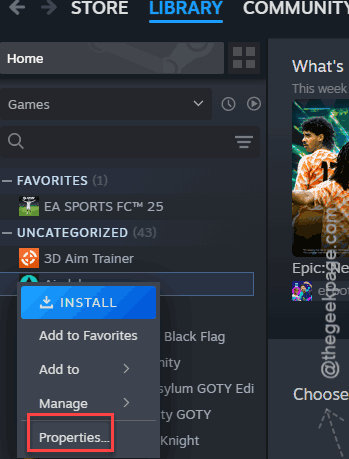
3 – Type -dx11 into the Launch Options box under the General tab (or -vulkan to go the other way).
4 – Add -windowed -noborder after it.
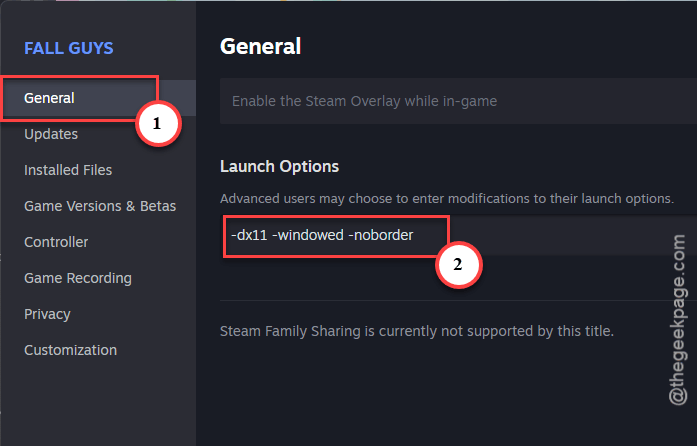
That stops the fullscreen handoff from hanging too. On a Steam Deck or Linux? Stay on Vulkan. DX11 isn’t the native path there.
Fix 2 – Cap the Frame Rate
This is the one that stops the reboots. An FPS cap flattens the power spikes, and it keeps the menus from cooking your CPU.
1 – In Deadlock, open Settings, then Video.
2 – Find Max Frames Per Second (some builds call it FPS Limit).
3 – Set it to your monitor’s refresh rate: 144, 165, 240, whatever yours is. Not 0. Not Unlimited.
4 – Click Apply.
And leave the driver cap on permanently. It’s the single best thing you can do for this game, and it’s free.
Fix 3 – Verify the Game Files
The September update broke a few installs. Corrupted engine files can lock up memory in ways that look like a hardware fault.
1 – Close Deadlock.
2 – In Steam, right-click Deadlock in your Library and pick Properties.
3 – Click Installed Files in the left sidebar.
4 – Click Verify integrity of game files.
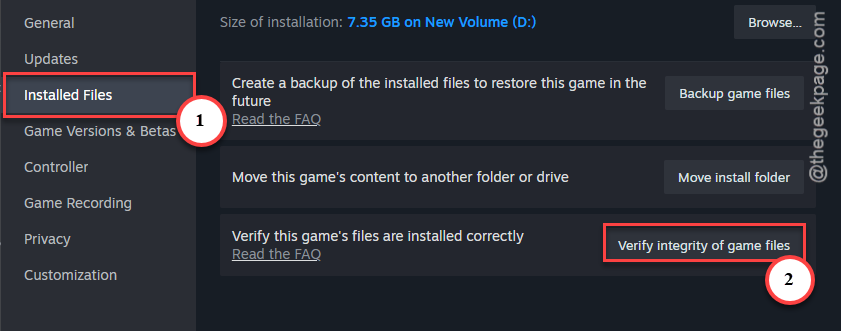
5 – Wait for the progress bar to finish. Steam re-downloads anything damaged on its own.
Takes two to ten minutes. If it reports files replaced, that was likely your problem. But if it comes back clean, keep going.
Fix 4 – Update or Roll Back the Graphics Driver
Two directions here, and which one you take depends on timing.
Crashes started after a driver update? Roll back.
1 – Go to the NVIDIA or AMD website.
2 – Then, download the previous stable driver (not the newest), and do a clean install.
3 – On NVIDIA, that means ticking Perform a clean installation under Custom during setup.
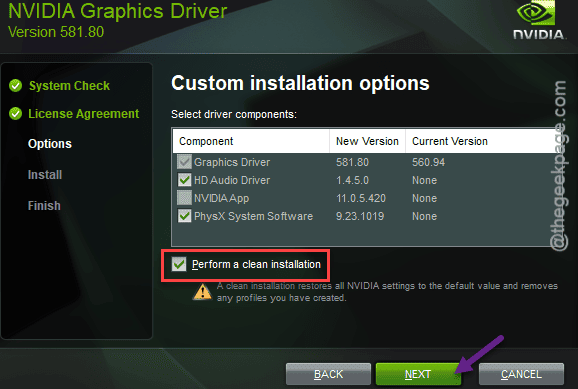
On AMD, pick Factory Reset when the installer offers it.
Haven’t touched drivers in months? Go the other way. Download the latest stable driver from the same sites and install it. Skip the beta or “preview” versions. Deadlock is unstable enough without them.
Either way, restart afterward. Then test.
Fix 5 – Watch Your Temps and Undervolt the CPU
If Fix 2 didn’t stop it, check heat. Deadlock pushes CPUs harder than most shooters, and 91°C+ will shut a PC off cold.
1 – Download and install HWMonitor (free, from the CPUID site).
2 – Open it and leave it running in the background.
3 – Play Deadlock for fifteen minutes, then Alt-Tab back and read the Max column next to your CPU package temperature.
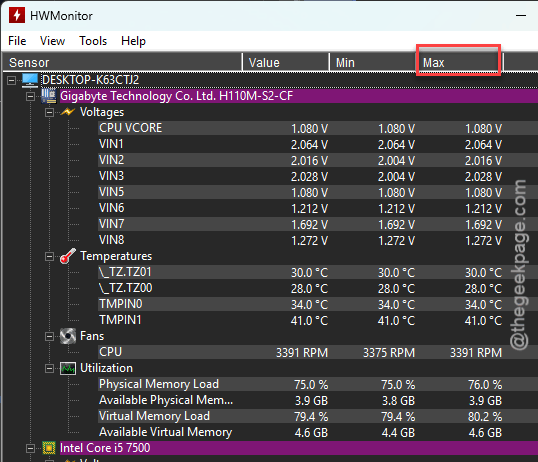
Under 85°C? Heat isn’t your problem, skip to Fix 6. Over 90°C? Keep going.
1 – So the fix is an undervolt. That means telling the CPU to use slightly less voltage, which lowers heat without lowering speed. Restart, tap Delete (or F2) to enter the BIOS.
2 – find the CPU voltage offset setting (usually under an Advanced or Tweaker tab),
3 – Set a negative offset of about -0.05 V to start.
4 – Save, boot, test again.
If the PC is stable, you can go a little further. If it won’t boot, go back in and step it toward zero.
Every board names this differently. So search your motherboard model plus “undervolt offset” if you can’t find it. Five minutes of reading beats a cooked chip.
Fix 6 – Lower the GPU Power Limit to 90%
Reboots with no freeze first, no error, just black and restart? That’s the power supply tripping. And giving the GPU ten percent less headroom keeps the spikes under the limit.
1 – Open your GPU tool. MSI Afterburner works on any card and is free.
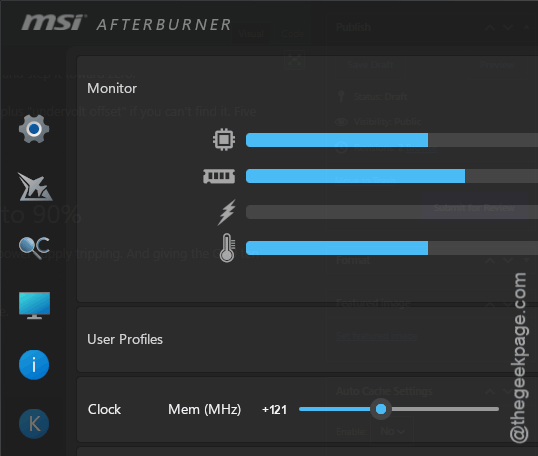
2 – Find the Power Limit slider.
3 – Drag it from 100% down to 90%.
4 – Click the checkmark (or Apply) at the bottom.
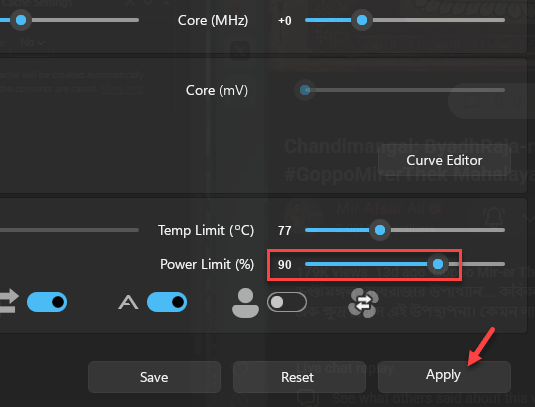
5 – Click the Startup button (the little Windows logo) so the setting sticks after a reboot.
You’ll lose maybe two or three frames per second. You won’t notice. The reboots, you will.
Fix 7 – Turn Off Your Mods
Quick one. Running custom skins, crosshair packs, or any other Deadlock mod?
1 – Pull them all out before you blame the game.
2 – Mods built for last month’s build read memory this month’s build moved.
3 – So remove them, verify files like in Fix 3, and test clean.
Then back one at a time if the game behaves.
So It Doesn’t Happen Again
- Keep the driver-level FPS cap on. Forever. It costs nothing and it’s the main cause here.
- Check your CPU temps once in a while, not just when things break. HWMonitor takes ten seconds to open.
- After each Deadlock patch, verify files before your first match. Takes a few minutes and saves an evening.
- Skip beta GPU drivers while you’re playing a game that’s itself in beta. One unstable thing at a time.
Quick Answers
Why does Deadlock keep crashing my PC?
Almost always power spikes. Uncapped frame rates cause sudden current surges when switching between menus and the map, and your power supply shuts down. Cap your FPS to your monitor’s refresh rate, in-game and in the driver. If reboots continue, lower the GPU power limit to 90%.
Why is Deadlock constantly freezing?
A hard freeze with looping audio usually means the graphics driver locked up during shader compiling. Switch the Rendering API to the other option in Settings, then Video. Also verify your game files in Steam and remove any mods. One of those three clears most freezes.
Is DirectX 11 or Vulkan better for Deadlock?
Neither is better for everyone. Vulkan tends to give higher frame rates but freezes on some GPUs. DirectX 11 is slower by a few frames but more stable on Windows.