Another PowerToys update, another module misbehaving. This time it’s Peek — you tap the preview shortcut on some innocent photo, and File Explorer folds. Taskbar and all. I like Peek. But right now it’s taking Explorer down with it, and that’s a dealbreaker.
The Short Version
Peek doesn’t run beside Explorer. It runs inside it, hooked straight into the shell. So when Peek chokes, it isn’t a polite little app crash — the whole Explorer process goes down with the ship.
And what makes it choke? Heavy image formats, mostly. A .heic or .raw file lands on a corrupted codec and the renderer hard-crashes. Sometimes it’s a fight instead — Peek and Explorer’s own Preview Pane grabbing the same file at the same time. A corrupted thumbnail cache can stall the renderer too, until Explorer just times out.
And some PowerToys releases are plain broken on certain hardware. It happens more than it should.
Fix 1 – Toggle Peek Off and On
Start stupid-simple. Turning the module off and back on forces PowerToys to rewrite its Explorer hooks from scratch.
1 – Click the PowerToys icon in the system tray (bottom right corner) to open its settings.
2 – Click Peek in the left sidebar.
3 – Toggle Peek to Off.
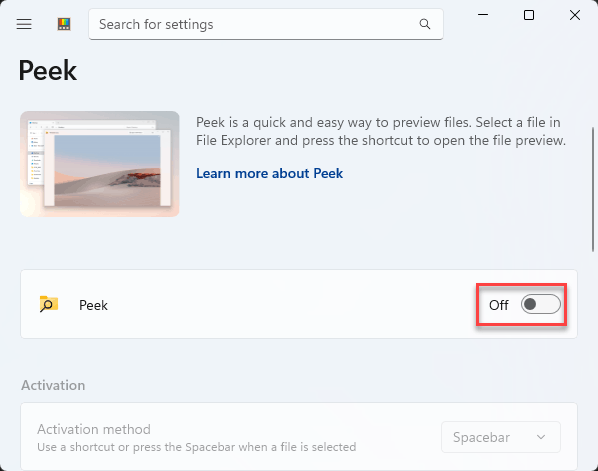
4 – Restart your computer. The full restart matters here — it clears the old hooks.
5 – Open PowerToys again and toggle Peek back On.
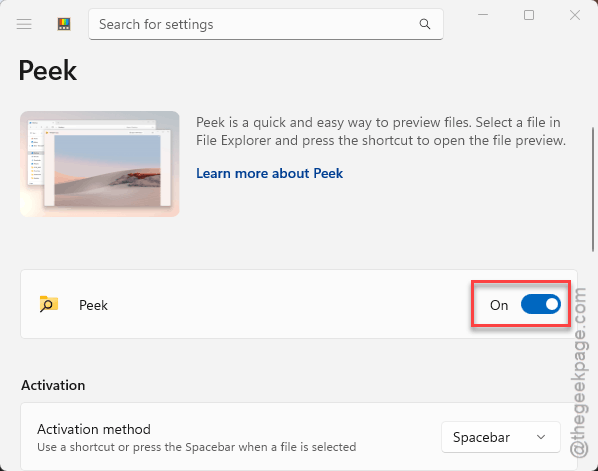
Check if this works.
Fix 2 – Turn Off Explorer’s Preview Pane
Two previewers, one file. Explorer’s built-in Preview Pane and Peek can grab the same file handle at the same moment, and that standoff crashes the shell.
1 – Open File Explorer.
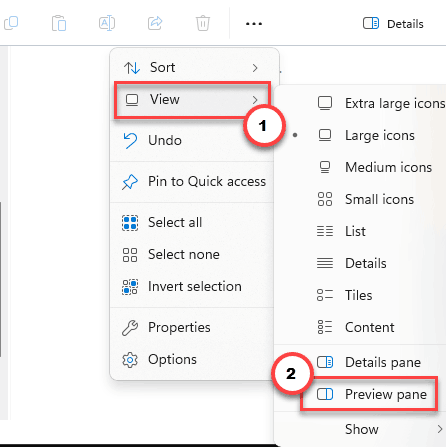
2 – Click View in the command bar at the top.
3 – Hover over Show, and make sure Preview pane is unchecked.
4 – Right-click the Start button and open Task Manager.
5 – Find Windows Explorer in the list, right-click it, and select Restart.
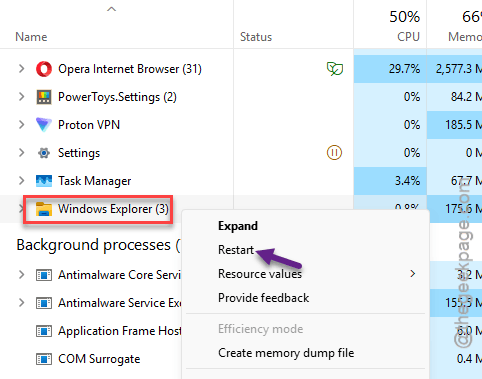
The screen flickers for a second while Explorer reloads. That clears any file handler that was stuck mid-fight.
Fix 3 – Stop Peek From Opening HEIC and RAW Files
The crash almost always has a trigger file. And nine times out of ten it wears a .heic or .raw extension — the heavy formats Peek struggles to render.
1 – Open PowerToys settings and click Peek.
2 – Scroll down to Supported files.
3 – Remove .heic and .raw from the list.
Those files still open fine in the Photos app or your editor. You just stop Peek from face-planting on them every time you browse a folder of phone pictures.
Fix 4 – Reinstall the HEVC Video Extensions
Want Peek to handle those formats instead of dodging them? Then fix the codec underneath. A corrupted HEVC extension from the Microsoft Store makes every third-party previewer crash hard, Peek included.
1 – Press Windows + I to open Settings.
2 – Go to Apps, then Installed apps.
3 – Find HEVC Video Extensions, click the three dots (⋯), and choose Uninstall.
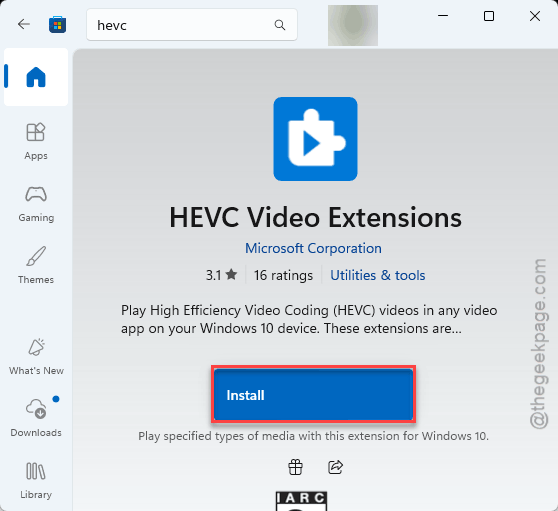
4 – Open the Microsoft Store, search for “HEVC Video Extensions”, and install it again.
5 – Restart your PC before testing. Codecs load at boot.
Fix 5 – Clear the Thumbnail Cache
Corrupted thumbnails stall Peek’s rendering engine, and Explorer eventually gives up waiting. Wiping the cache costs you nothing — Windows rebuilds it on its own.
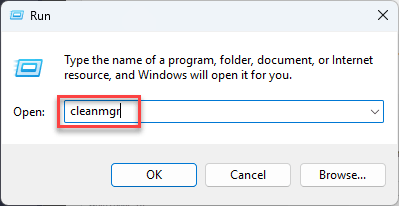
1 – Press Windows + R,
2 – Then, type this, and press Enter.
cleanmgr
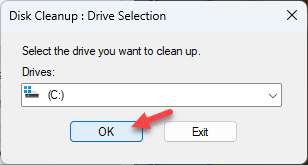
3– Select your C: drive and click OK.
3 – Check Thumbnails in the list, and uncheck everything else.
4 – Click OK, then Delete Files.
5 – Restart your PC so Explorer builds a fresh cache.
Folders full of images will load their previews slowly the first time after this. Normal. It’s rebuilding.
Fix 6 – Run PowerToys as Administrator
During heavy memory spikes, Explorer can terminate Peek’s hook mid-render — and that kill is what brings the crash. Elevated permissions stop Explorer from cutting the cord.
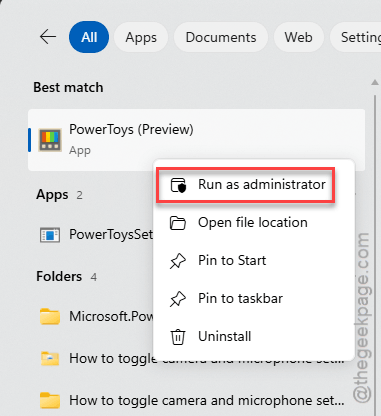
1 – Open the Start menu and find PowerToys.
2 – Right-click it and select Run as administrator.
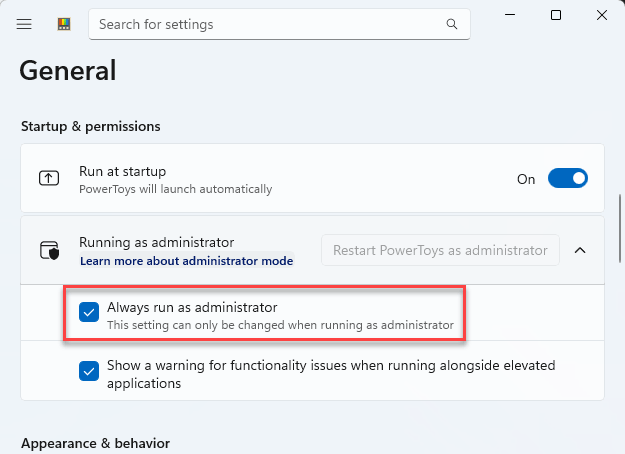
3 – In PowerToys, open the General section in the left sidebar.
4 – Toggle on Always run as administrator, so it sticks after reboots.
Check if this works.
Fix 7 – Roll Back to PowerToys v0.84
Nothing helped? Then the version you’re on may simply be broken on your hardware, and no amount of toggling fixes that. Downgrade and wait out a patch.
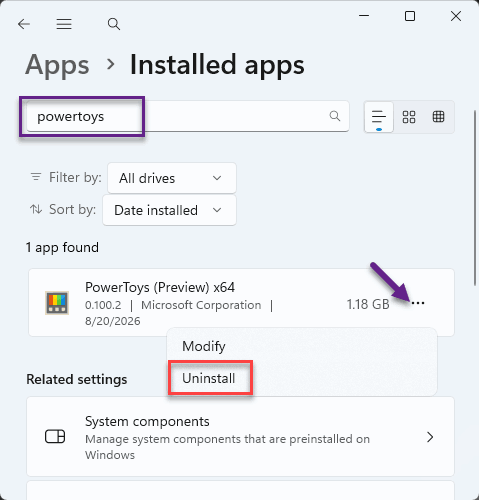
1 – You must uninstall PowerToys from Settings.
2 – Then, go to the Apps tab. Open the Installed apps panel.
2 – Go to the official Microsoft PowerToys Releases page on GitHub.
3 – Find version 0.100 and download its .exe installer.
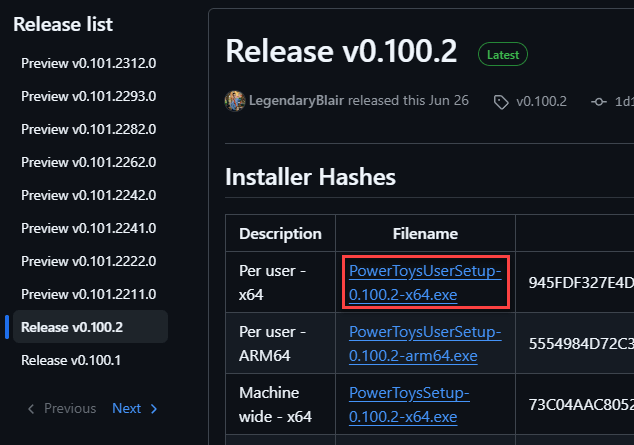
4 – Run the installer, then turn Peek feature on and test.
Skip the update prompts until the changelog mentions a Peek fix. Yes, ignoring updates feels wrong. So does a crashing file manager.
Avoiding This Next Time
- Pick one previewer and stick with it. Peek or the Preview Pane — never both at once.
- Let a new PowerToys version breathe for a week before installing. The GitHub issues page fills up fast when a module breaks. Free early warning.
- Shooting photos on a phone? Keep the HEVC extension installed and updated — half of these crashes are really just that codec rotting quietly.
Quick Answers
Why does File Explorer crash when I right-click a file?
Right-click crashes point at context menu handlers — bits that third-party apps bolt onto Explorer’s menu. Same disease as the Peek problem, different symptom: an add-on failing inside Explorer’s own process. Recently installed apps with Explorer integration are the first things to disable.
Will uninstalling PowerToys stop the crashes?
If Peek is the culprit, yes — but it’s overkill, since you lose every other PowerToys utility with it. Disable just the Peek module first, or roll back to version 0.84 from the GitHub releases page. Save the full uninstall for when a downgrade doesn’t help either.