You click Gallery in File Explorer. The thumbnails start loading. And then the whole window blinks out.
Short version of why: Gallery tries to draw thumbnails for your iCloud photos, but most of those files aren’t really on your PC. They’re placeholders. Explorer asks for pixels that don’t exist yet, chokes on the HEIC format on top of that, and crashes. Not great design, honestly.
Fix 1 – Download the iCloud Photos Folder for Real
The most direct fix. If the files are actually on the disk, Gallery has something to render.
1 – Open File Explorer.
2 – In the left sidebar, click iCloud Photos. If it’s not there, look under This PC for a folder named iCloud Photos.
3 – Right-click the folder itself, not a file inside it.
4 – Click Always keep on this device.
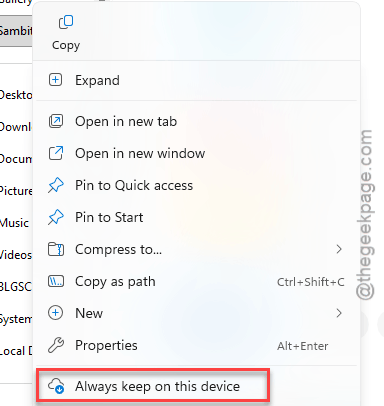
And the little cloud icons next to each photo turn into green checkmarks as they download. That takes a while (a few thousand photos can mean an hour or more, depending on your internet). Leave Gallery alone until the checkmarks are done.
Fix 2 – Turn Thumbnails Off
No thumbnails, no rendering crash. Blunt, but it works.
1 – Press Windows + R.
2 – Type control folders and press Enter.
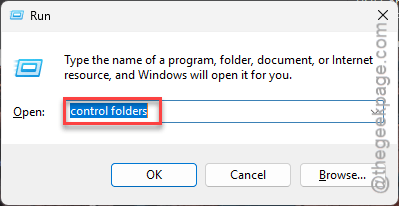
The Folder Options window opens.
3 – Click the View tab at the top.
4 – Check the box for Always show icons, never thumbnails. It’s near the top of the list.
5 – Click Apply, then OK.
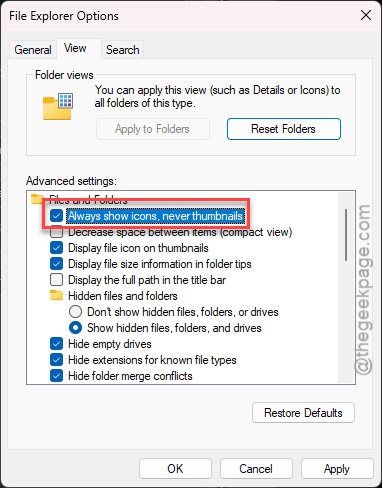
Your photos now show as generic picture icons everywhere in Explorer. Ugly. But Gallery stops dying, and you can flip this back on after Fix 1 finishes downloading everything.
Fix 3 – Restart iCloud
The iCloud desktop app hangs sometimes. And when it hangs, Explorer waits on it forever.
1 – Press Ctrl + Shift + Esc to open Task Manager.
2 – Type icloud in the search box at the top.
3 – Click each iCloud process and click End task.
4 – Open the Start menu and launch iCloud again.
Then open Gallery and check.
Fix 4 – Clear File Explorer History
Explorer keeps a list of recent files and folders. And one corrupted entry in that list can crash it every time the list is read (which is basically every time Gallery opens).
1 – Open the Start menu and type File Explorer Options.
2 – Click the result. Same Folder Options window as Fix 2.
3 – On the General tab, look for the Privacy section near the bottom.
4 – Click Clear.
5 – Click OK.
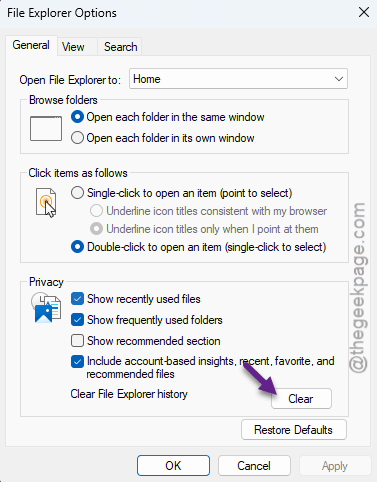
Nothing visible happens when you click Clear. That’s normal.
Fix 5 – Rebuild the Search Index
Gallery leans on Windows Search to sort photos by date. So a corrupted search database means Explorer freezes the moment it asks for that metadata. Rebuilding fixes it. Slow, though.
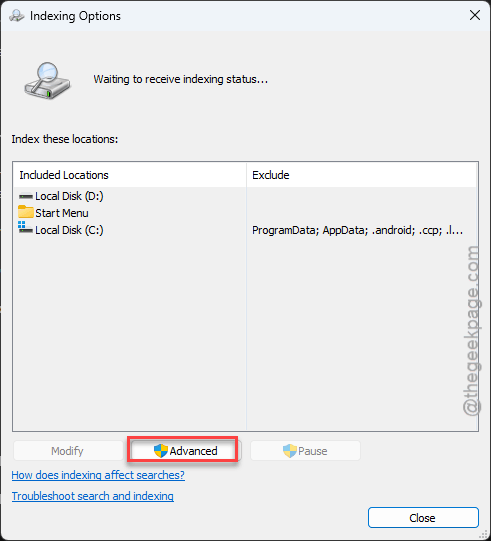
1 – Open the Start menu and type Indexing Options.
2 – Click Indexing Options.
3 – Click Advanced near the bottom of the window.
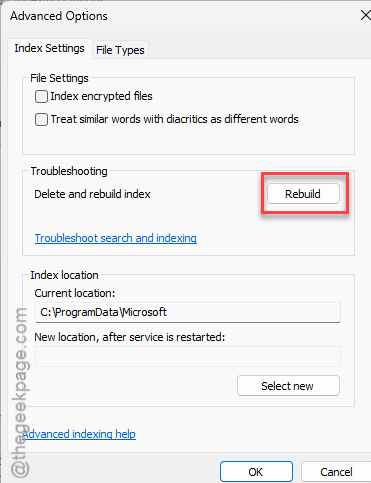
4 – Under Troubleshooting, click Rebuild.
5 – Click OK on the warning.
Windows re-scans every indexed file from scratch. Expect an hour, maybe more, and expect Explorer to feel sluggish until it’s done. Do not panic if search results look empty in the meantime.
Fix 6 – Check Where Your Pictures Folder Points
One more possibility. If iCloud Photos got mapped as the location of your Pictures folder, Gallery pulls in every placeholder file automatically. Worth checking.
1 – Open File Explorer.
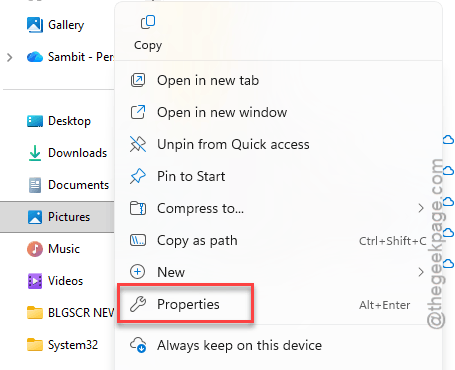
2 – Right-click Pictures in the left sidebar.
3 – Click Properties.
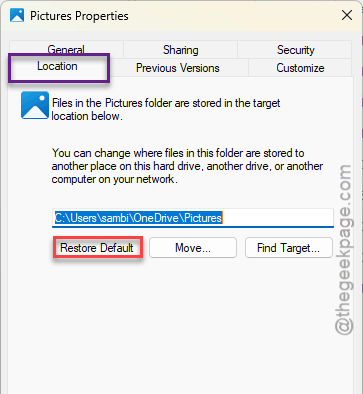
4 – Click the Location tab.
5 – Read the path shown. If it points at an iCloud folder, click Restore Default.
6 – Click Apply, then OK.
Windows may offer to move files to the new location. Say yes if you want them local. But say no if you’d rather keep them in iCloud.
Keep It From Coming Back
- After a big Windows update, check the Pictures folder location again. Updates have a way of quietly changing things.
- And if you shoot in HEIC on your iPhone, install the HEIF Image Extensions from the Microsoft Store. Explorer handles those files better with it.
People Also Ask
Why does File Explorer keep closing by itself?
Usually something in Explorer’s memory is corrupted. A bad thumbnail cache, a broken recent-files list, or a cloud sync folder full of placeholder files. With iCloud Photos, Gallery crashes trying to preview photos that aren’t downloaded yet. Clearing Explorer history and turning off thumbnails stops most of it.