You brush over the stranger in the background. Photos thinks for a second, the stranger vanishes, and it looks great. You hit Save. And then you open the folder and the file is 0 KB. The original is gone too, if you overwrote it. Here’s what’s going on. Photos creates the new file on disk first, then pours the finished image into it. If anything interrupts that second step, you get an empty shell. A locked temp folder does it. So does OneDrive grabbing the file too early, or Windows’ ransomware shield blocking the write. But every one of those causes has a fix, and most take under two minutes. If you already lost a photo, Fix 1 has a way to get it back.
Fix 1 – Use Save as Copy (and Rescue Anything You Overwrote)
This is the big one. Overwriting the original is what triggers the bug most often. Saving a copy sidesteps it.
1 – Finish your erase in Photos.
2 – Click the small arrow next to Save in the top right corner (some versions call it Save options).
3 – Pick Save as copy.
4 – Choose a folder and click Save.
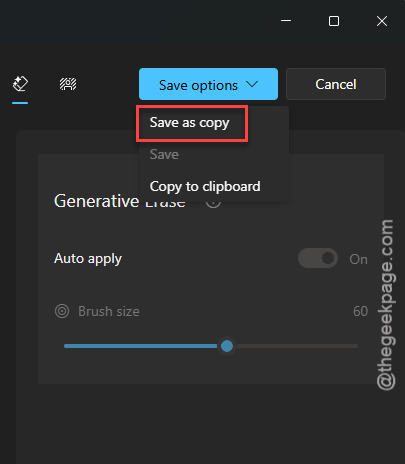
A new file appears next to the original. Check its size in File Explorer before you close anything.
Is your Pictures folder synced to OneDrive? Then do one more thing.
Right-click the folder and pick Always keep on this device.
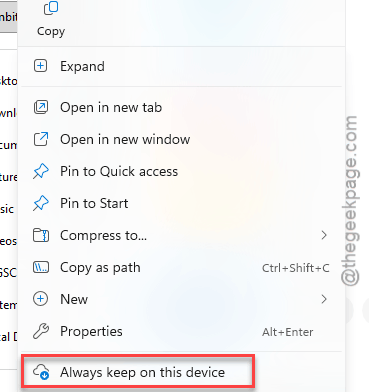
That turns the cloud placeholders into real local files, so OneDrive stops grabbing them mid-save.
Already overwrote a photo with an empty file? Don’t give up yet.
1 – At first, right-click the 0 KB file in File Explorer.
2 – Hover over OneDrive, and click Version history.
The previous version is usually sitting right there (OneDrive keeps old copies for 30 days). Restore it and breathe.
Fix 2 – Convert HEIC and Strip the Metadata First
Photos from an iPhone (HEIC) and WebP format, or a Samsung Motion Photo carry odd metadata that the Windows image encoder may not be able to rewrite. It crashes at the very last step. So feed it something simpler.
1 – Right-click the photo in File Explorer and pick Properties.
2 – Click the Details tab.
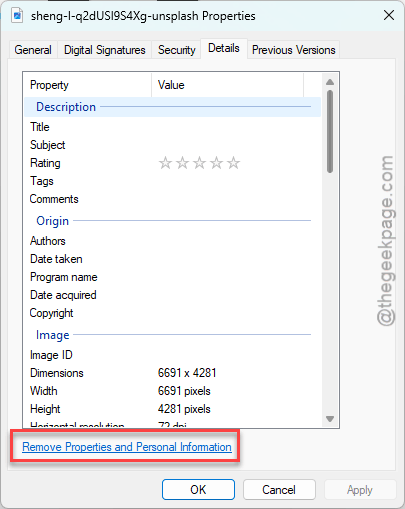
3 – Click Remove Properties and Personal Information at the bottom.
4 – Choose Create a copy with all possible properties removed and click OK.
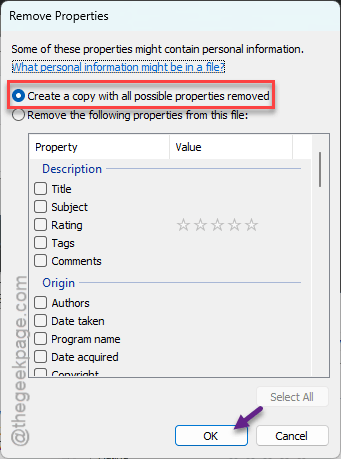
You get a clean copy of the photo in the same folder. Run Generative Erase on that one.
Fix 3 – Clear the Photos Cache
Generative Erase stages its work in a temp folder inside the Photos app’s data. A stale 0 KB file in there (ironic, I know) jams the whole pipeline.
1 – Close Photos completely.
2 – At first, hit the Ctrl + Shift + Esc to load the Task Manager.
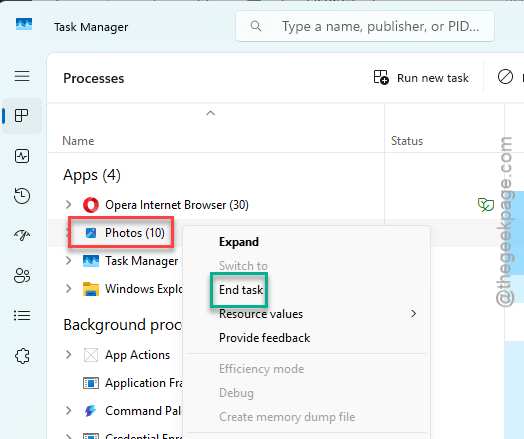
3 – Then, look for Photos or PhotosService in the list. If either is still there, select it and click End task.
4 – Press Windows + R.
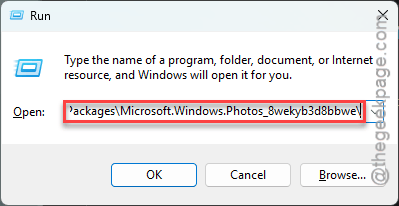
5 – Paste this and press Enter:
%localappdata%\Packages\Microsoft.Windows.Photos_8wekyb3d8bbwe\
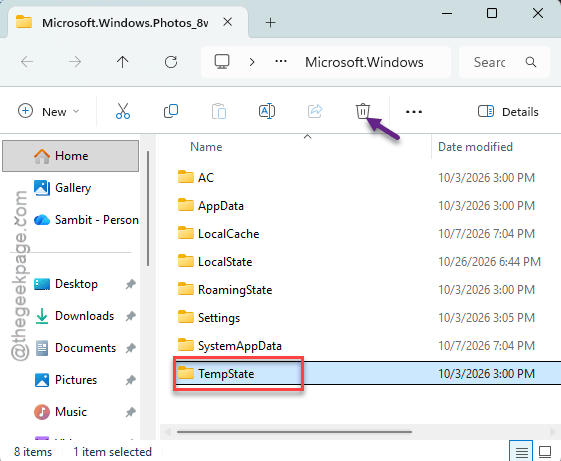
6 – Open the TempState folder and delete everything inside it.
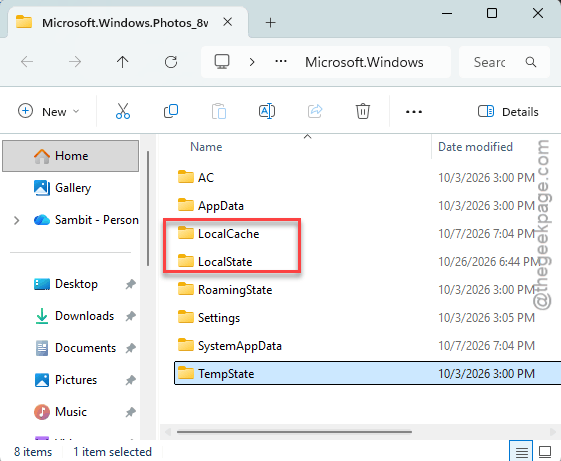
7 – Go back one level and open LocalCache, then LocalState. In each, delete any folder named PhotosAppCache, MediaEngine, or AIModels. Leave the parent folders alone.
8 – Open Photos and try an erase on a local photo.
The first erase after this takes longer than usual (the app rebuilds its AI model cache). Wait it out.
Fix 4 – Let Photos Through Controlled Folder Access
Did you turn on ransomware protection at some point? Smart move, but it bites here. Check if this works.
1 – Press Windows + I to open Settings.
2 – Proceed this way –
Privacy & security > Windows Security > Virus & threat protection
3 – Go down to Ransomware protection.
4 – Proceed to the Manage ransomware protection.
5 – If Controlled folder access is on, use the Allow an app through Controlled folder access feature.
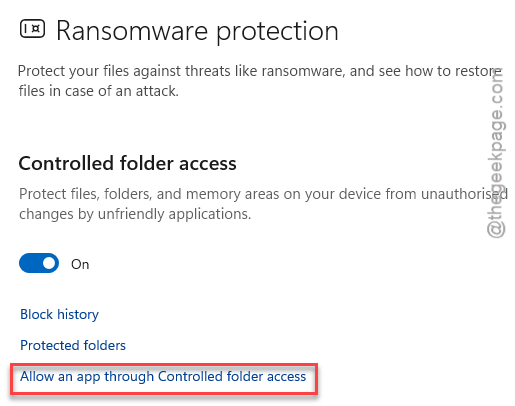
6 – Click Add an allowed app, then Recently blocked apps.
7 – Pick Photos.exe from the list and click Add.
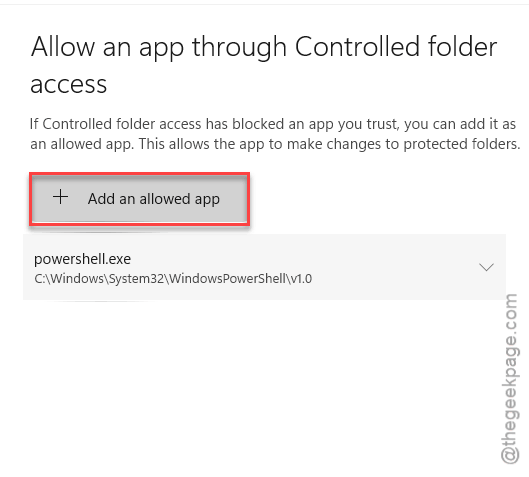
Not seeing Photos in the recently blocked list? Try an erase first so it gets blocked, then come back. The list only shows what Windows has actually stopped.
Fix 5 – Turn Off Hardware-Accelerated Encoding
Odd one. This setting is meant for video. But on some PCs with an NPU (the AI chip in newer laptops), it trips up the image-saving step too.
1 – Open Photos.
2 – Then, click the Settings gear in the top right corner.
3 – Scroll down to Use hardware-accelerated video encoding.
4 – Switch it off.
Close and reopen Photos, then test. Exports get a bit slower with it off. On a photo, you won’t notice.
Fix 6 – Repair the HEIF and HEVC Extensions
Still saving empty files? The image codecs themselves might be damaged.
1 – At first, hit the Windows + I to open Settings.
2 – Then, go to the Apps in the left sidebar, then Installed apps.
3 – Write down HEIF in the search box at the top.
4 – Tap the three dots (⋯) next to HEIF Image Extensions and pick Advanced options.
5 – Scroll down and click Repair. Wait for the checkmark.
6 – Go back and do the same for HEVC Video Extensions.
Repair keeps your settings. Check if this works.
Keep It From Coming Back
- Convert iPhone photos to JPEG before heavy edits. HEIC is great for storage and terrible for Windows editors.
- Keep your edited folders set to Always keep on this device if you use OneDrive. Placeholders and AI edits don’t mix.
- Add Photos to the Controlled Folder Access list the day you turn ransomware protection on. Saves a headache later.