Does your Apple Watch got stuck at the ‘Erase All Content and Settings’ prompt on your screen? If your watch is showing you just this message on the screen, and you can’t get past it, you can’t ignore the problem anymore. The users, who are affected by this issue, won’t be able to use the watch normally. In that case, these solutions will help you resolve the issue quickly.
Why Apple Watch is stuck to Erase All Content and Settings?
Your Apple Watch may get slower with time and usage. Just like your iPhone, your Apple Watch also has these resetting tools that you can use to reset the Apple Watch to the default state. One of such reset features is the ‘Erase All Content and Settings’ function. You can use the tool to erase everything on your watch.
Normally, you should not get stuck to this ‘Erase All Content’ page. These solutions should help you out, if that is the case with you.
Fix 1 – Force restart the Apple Watch
The first solution that we recommend is to exert a force-restart method on the affected device.
Step 1 – Connect the MagSafe charger to the Apple Watch and start charging it.
Step 2 – Simply, hold the side button and digital crown button together.
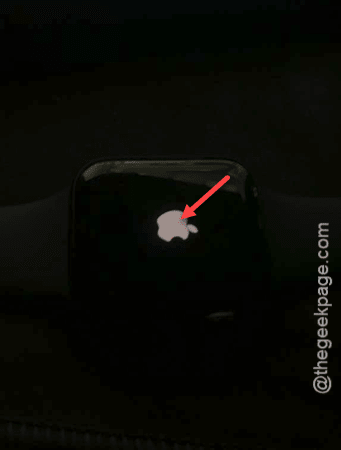
Step 3 – Holding these two buttons should force-restart the Apple Watch. Let go off those the buttons when the Apple Logo shows up.
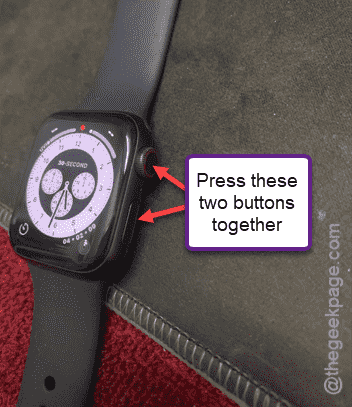
Step 4 – Just as soon as the Apple Logo shows up, press-hold the side button and the digital crown again.
Step 5 – Redo the same force-reboot process one more time.
This time you should see the red exclamation mark with a prompt asking you to contact the Apple Support.
Step 6 – Finally, do press-hold the side button and the digital crown button once to force-restart the Apple Watch to normalcy.
This entire procedure should take care of the issue.
Fix 2 – Connect the Apple Watch to the charger
You must put the Apple Watch to charge and then, try to erase all the content from the watch and complete the process.
Step 1 – Put up the Apple Watch to charging.
Step 2 – Press and hold both the side button and digital crown button together to force-restart the watch.
Step 3 – Now, press-hold the side button of the watch for 20 seconds until the ‘Erase All Settings’ prompt shows up.
Step 4 – On that ‘Erase All Content’ page, tap the “Erase” option.
Step 5 – Confirm that operation and your watch should be back to normal mode.
You won’t see the same error message screen again.
Fix 3 – Let your Apple Watch battery die
If none of the solutions have worked out for you, just leave the Apple Watch alone for an hour or two. You have to drain out the battery of the Apple Watch completely. Apple Watches offers under a day of battery backup. So, you can just leave the Apple Watch alone for a few hours and the watch battery should be drained to nil. You can turn on the flash on the watch or set the watch screen brightness to the maximum to drain the battery faster.
After the battery goes down to the minimum value, it will be turned off automatically. This will put an end to the error screen. Put the device on charge, and when it boots up, you won’t see the error prompt again. Check if this works out for you!
Fix 4 – Remove the protective cover from the watch
If you are using a very tight protective cover, you may experience this ‘Erase All Content’ loop problem often. Use the watch without the cover and see if that helps.