A stalled Windows service is behind most of this. The passkey prompt pops up, spins, and times out — not because your fingerprint failed, but because the browser asked Windows Hello for a signature and Credential Manager never answered. Passwordless future, they said. And here you are, locked out by a progress spinner.
Where This Comes From
Passkeys on Windows run through a chain: browser, then WebAuthn (the web login standard), then Windows Hello, then a secure hardware vault. Every link has to answer fast. One stalls? Timeout.
The usual suspects, in order. Credential Manager or the biometric service hangs. Chrome’s newer “enclave” routing hits a broken API. Or the browser’s own cookies and tokens go stale and it loops forever. So the fix list below just works down that chain.
And if your passkey lives on your phone, there’s a dumber cause: Bluetooth is off. The PC reaches your phone over Bluetooth — no radio, no handshake, instant failure. Not one error message mentions this, naturally.
Fix 1 – Restart the Credential Manager and Biometric Services
This resets the stalled handshake on the Windows side (usually the fastest fix of the lot).
1 – Press Windows + R, type services.msc, and press Enter.
2 – Scroll down to Credential Manager.
3 – Right-click it and select Restart (or Start, if it’s sitting stopped).
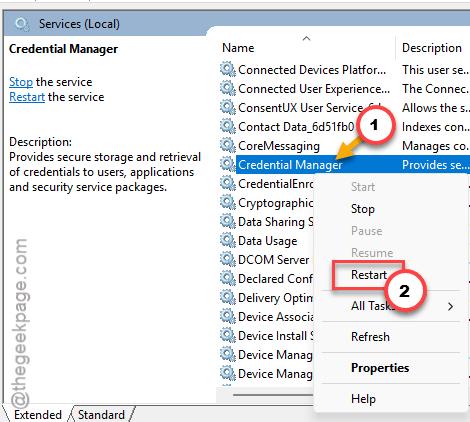
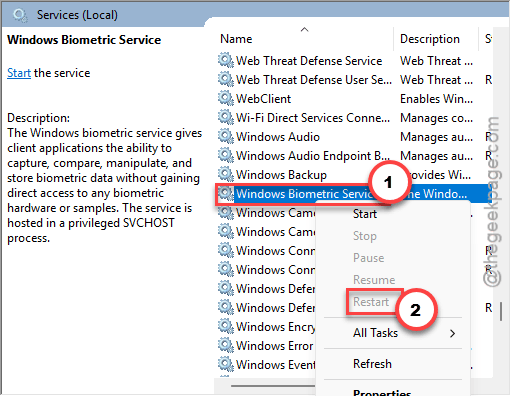
4 – Do the same for Windows Biometric Service — it’s further up the same list.
5 – Close your browser completely, reopen it, and retry the passkey.
Fix 2 – Turn Bluetooth On
Only relevant if the passkey is stored on your phone. But check it anyway. Takes ten seconds.
1 – Press Windows + I to open Settings.
2 – Click Bluetooth & devices in the left sidebar.
3 – Switch the Bluetooth toggle to On.
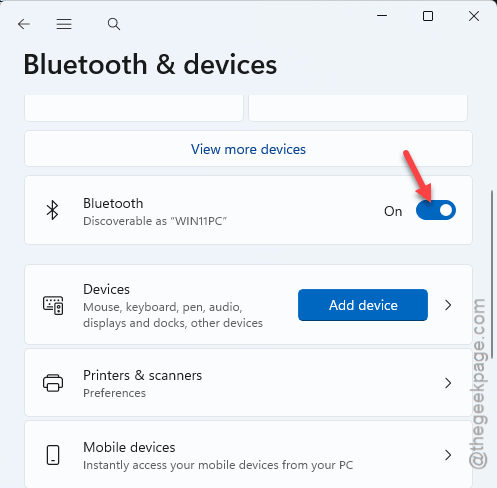
4 – Turn on Bluetooth on your phone as well.
And keep the phone unlocked while you sign in — a locked phone ignores the handshake.
Fix 3 – Turn Off the Browser’s Windows Hello Autofill
Chrome and Brave both have settings that push every login through Windows Hello. When Hello misbehaves, those settings turn each sign-in into a spinning wheel.
1 – In the address bar, type chrome://password-manager/settings and press Enter. On Brave, it’s brave://password-manager/settings.
2 – Turn off Use Windows Hello when filling passwords.
3 – Turn off Automatically create a passkey to sign in faster.
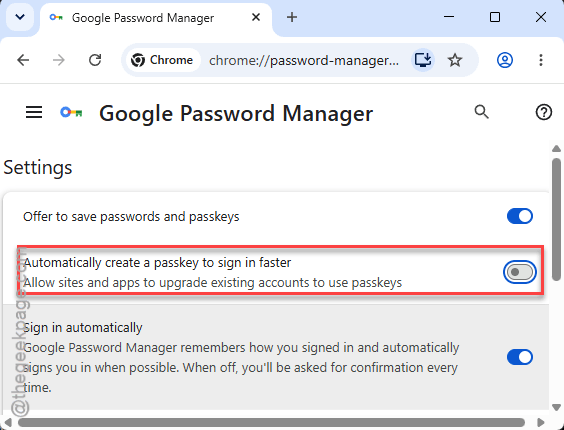
4 – Restart the browser and test the login again.
Fix 4 – Clear Cookies and Cached Files
Stale login tokens cause the endless authentication loops. Clearing them out breaks the loop.
1 – Press Ctrl + Shift + Delete in your browser.
2 – Set the time range at the top to All time.
3 – Check Cookies and other site data and Cached images and files.
4 – Click Clear data.
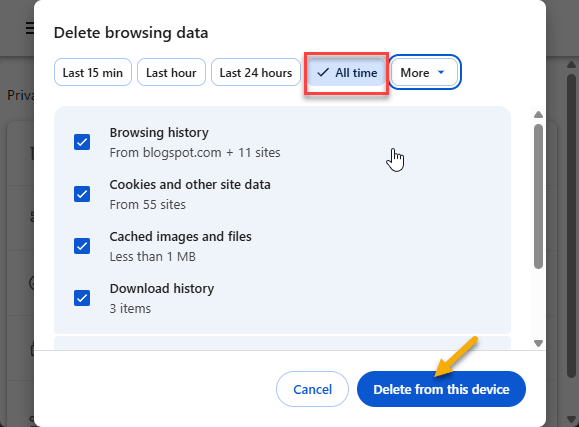
But heads up — this signs you out of most websites, so plan for that. Your passkeys themselves survive it (see the last Quick Answer below).
Fix 5 – Disable Windows Hello Enclaves in Chrome Flags
Chrome’s new “enclave” routing for passkeys is exactly the API layer that’s broken on some Windows 11 builds. Switching it off falls back to the older, working route.
1 – Type chrome://flags in the address bar and press Enter.
2 – Type “WebAuthentication” in the search box at the top.
3 – Find Enable Windows Hello Enclaves and set it to Disabled.
4 – Click Relaunch at the bottom right.
The flags page loves to reshuffle between versions. Can’t find the entry? Your Chrome build may have retired it — move on to the next fix.
Fix 6 – Run the Browser as Administrator
Quick test, not a lifestyle. Elevating the browser sidesteps the strict user-level token restrictions that some Windows 11 builds introduced.
1 – Close your browser.
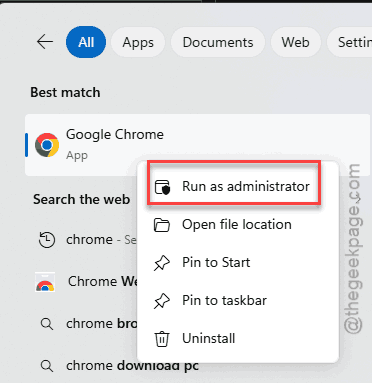
2 – Right-click the Chrome or Brave shortcut and select Run as administrator. Or, you can run it as administrator from the search box.
3 – Try the passkey login.
Works now? Then you’ve confirmed it’s the token restrictions. But don’t make admin mode a habit — use it while a proper browser or Windows patch catches up.
Fix 7 – Last Resort: Rebuild the Windows Hello Cache
Advanced territory. This wipes the local cryptography keys so Windows rebuilds the whole biometric pathway fresh. You will have to set up your PIN and fingerprint again afterward, so do this only if everything above failed.
1 – Boot into Safe Mode.
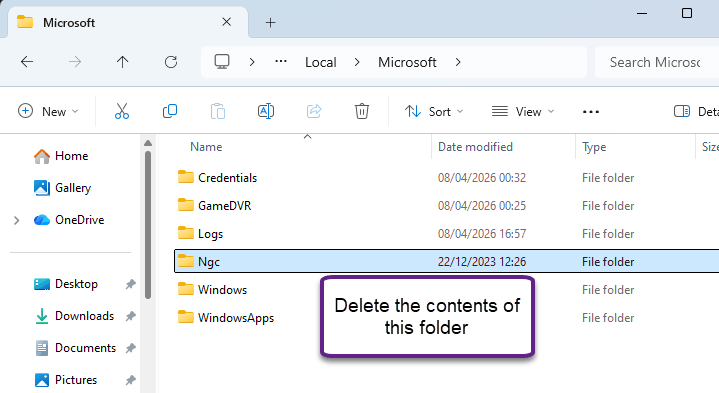
2 – In File Explorer, go to
C:\Windows\ServiceProfiles\LocalService\AppData\Local\Microsoft\Ngc
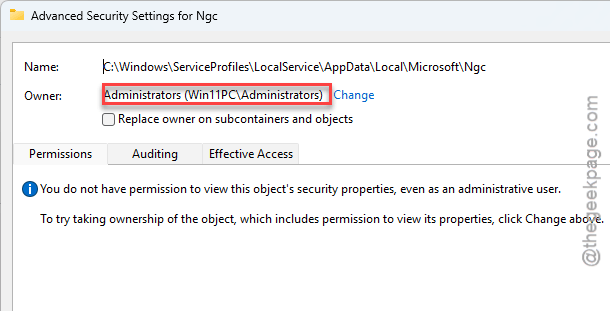
3 – Take ownership of the Ngc folder (Windows blocks it by default — you need to change the folder’s owner in its security properties).
4 – Delete everything inside the folder.
5 – Restart normally, then set up Windows Hello again under Settings > Accounts > Sign-in options.
So It Doesn’t Happen Again
- Keep Bluetooth on if your passkeys live on your phone. Obvious? Sure. Forgotten constantly.
- Let the browser update itself — the enclave bugs get patched at that layer.
- Keep a backup sign-in method on accounts that matter. Passkeys are great, until one link in the chain hiccups.
- Skip the admin-mode workaround once a patch lands. It was a diagnosis, not a cure.
Quick Answers
Why is my Chrome passkey not working?
Most often a stalled Credential Manager service on Windows — restart it from services.msc and reopen Chrome. After that, look at Bluetooth (for phone passkeys), stale cookies, or Chrome’s Windows Hello Enclaves flag, which breaks on some Windows 11 builds.
How do I turn off passkeys in Brave?
Go to brave://password-manager/settings and switch off “Automatically create a passkey to sign in faster,” plus the Windows Hello autofill toggle if you want prompts gone entirely. Sites will offer passwords or other sign-in methods again after a browser restart.
Why do passkeys suddenly stop working?
Something in the chain changed — a Windows update tightened token rules, a browser update swapped the passkey routing, or a background service quietly died. Restarting Credential Manager and the Windows Biometric Service brings most setups back without any deeper surgery.
Do I lose my passkeys if I clear browser data?
No. Passkeys aren’t stored in cookies or cache — they live in Windows Hello’s secure vault or on your phone. Clearing browser data just signs you out of websites. Your passkeys stay put and work again once you sign back in.