Ever caught a process called CrossDeviceService.exe eating your CPU while you weren’t doing anything? That’s the plumbing behind Phone Link (the system that connects your Android or iPhone to Windows).Here’s what goes wrong: the service polls for nearby phones constantly. And when its pairing token corrupts, it hunts forever for a phone it can never “find” — even though your phone sits right there, already paired. That loop never sleeps. So your CPU stays busy, the fan spins, and the battery melts away. The fixes below stop the loop without breaking Phone Link (unless you want the whole thing gone — that’s covered too).
Fix 1 – End the Runaway Process
First, immediate relief. Killing the process stops the drain right now (it can restart later — the next fixes handle that part).
1 – Press Ctrl + Shift + Esc to open Task Manager.
2 – Click Details in the left sidebar.
3 – Type “cross” in the search box at the top. Way faster than scrolling the full list.
4 – Right-click CrossDeviceService.exe and select End task.
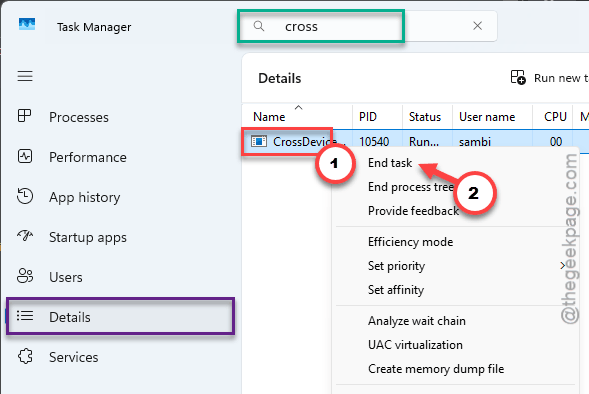
Your CPU usage should drop within a few seconds. Fan too.
Fix 2 – Stop Phone Link From Running in the Background
Worried this breaks Phone Link? It doesn’t. The app still works whenever you open it — it just stops running when you don’t.
1 – Press Windows + I to open Settings.
2 – Go to System, then System Components.
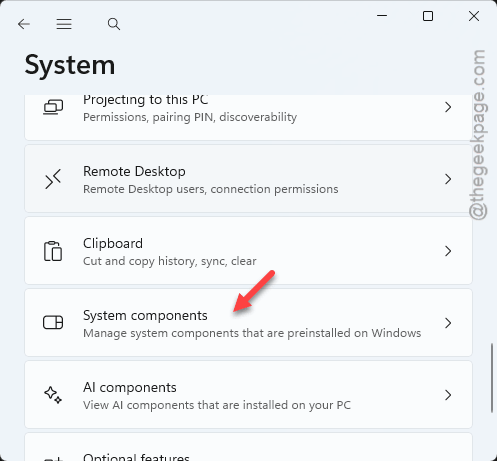
3 – Type “Phone Link” in the search box at the top.
4 – Click the three dots (⋯) next to Phone Link and select Advanced options.
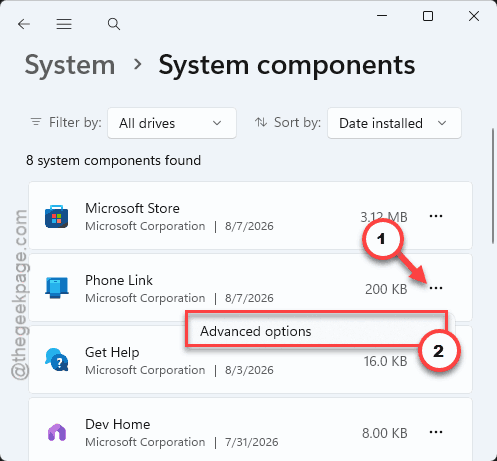
5 – Under Background apps permissions, change the setting to Never.
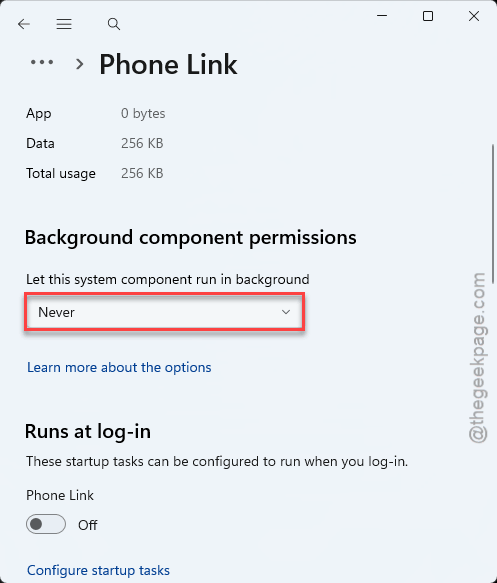
Check if this works for you.
Fix 3 – Do the Same for Cross Device Service
There’s a second entry hiding under its own name. Same treatment.
Repeat the steps from Fix 2, but search for “Cross Device Service” instead of Phone Link.
Set its Background apps permissions to Never as well.
Try the next fix if this one does not work.
Fix 4 – Unlink and Re-Pair Your Phone
Remember that corrupted pairing token from earlier? This replaces it with a fresh one.
1 – Open the Phone Link app on your PC.
2 – Click Settings (the gear icon in the top right).
3 – Go to My Devices.
4 – Remove your phone from the list.
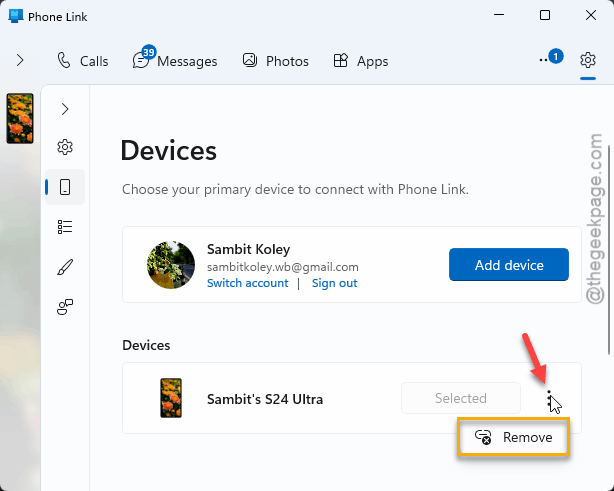
5 – Click to add a device and scan the QR code with your phone to pair it again.
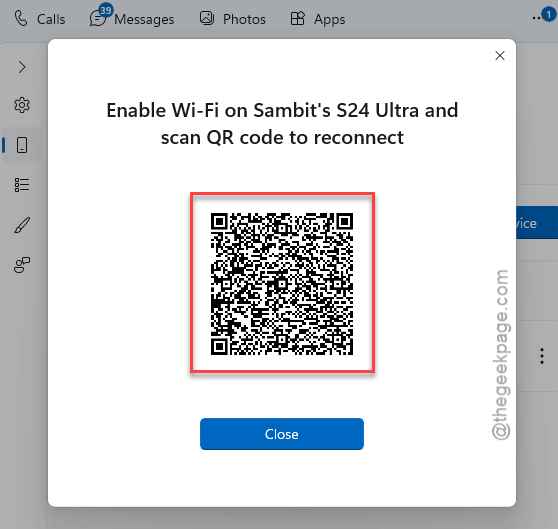
So the polling calms down once the token is fresh. Still churning after re-pairing? Then the app data itself is damaged — that’s the next fix.
Fix 5 – Reset the Phone Link App
This wipes the local cache and pulls a clean cross-device configuration from Microsoft (your texts and photos live on the phone — nothing is lost).
1 – Go back to Phone Link’s Advanced options page, like in Fix 2.
2 – Scroll down and click Reset.
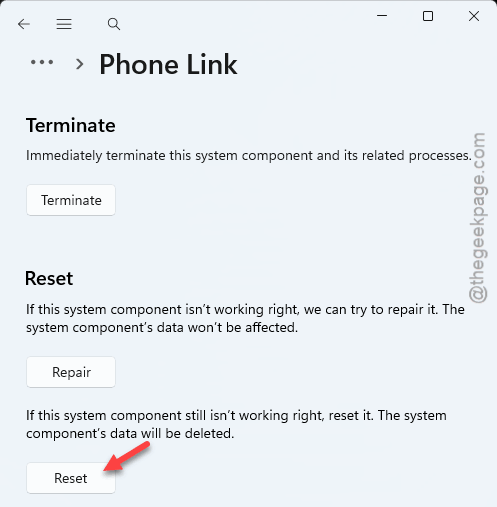
3 – Reopen Phone Link and pair your phone again, like in Fix 4.
Fix 6 – Don’t Use Phone Link at All? Block the Service
Pro-only, sadly. Windows Home doesn’t include the policy editor this needs. But if you’re on Windows 11 Pro and never touch Phone Link, this shuts the resume service down for good.
1 – Press Windows + R, type secpol.msc, and press Enter.
2 – Go to Security Settings > Software Restriction Policies > Additional Rules. (Seeing an empty policies folder? Right-click Software Restriction Policies and create new policies first.)
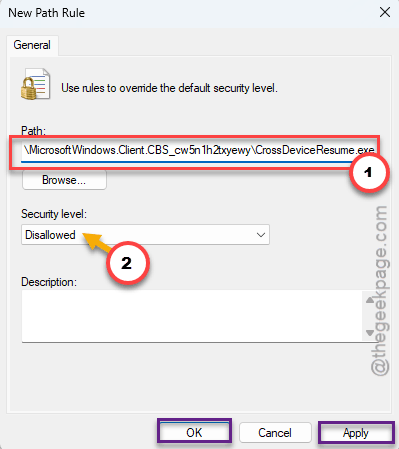
3 – Right-click in the right pane and choose New Path Rule.
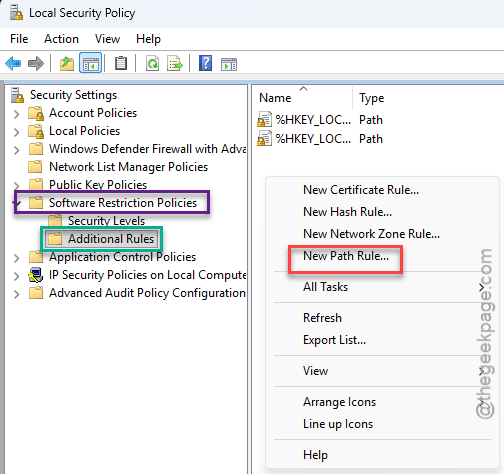
4 – Set the path to:
C:\Windows\SystemApps\MicrosoftWindows.Client.CBS_cw5n1h2txyewy\CrossDeviceResume.exe
5 – Set the Security level to Disallowed and click OK.
On Windows Home, Fixes 2 and 3 get you most of the way there anyway.
Keep It From Coming Back
- Re-check both background permissions after big Windows updates. They reset more often than they should.
- Pair your phone once. And leave it — constantly removing and re-adding devices is exactly how tokens corrupt.
- Not a Phone Link person? Keep both permissions on Never forever. Zero downside.
People Also Ask
What does CrossDeviceService.exe do?
It’s the background service powering Phone Link and other cross-device features — phone notifications on your PC, shared clipboard, resuming phone activities on the desktop. Useful when it behaves. When its pairing data corrupts, it burns CPU polling for devices nonstop.
Can I remove Cross Device Services completely?
Not through a normal uninstall — it ships as part of Windows 11. What you can do: set its Background apps permissions to Never under Settings > Apps, which stops the drain. Windows 11 Pro users can go further and block CrossDeviceResume.exe with a path rule in secpol.msc.