You’re typing along. And the screen just… stops. Cursor frozen mid-blink, clock stuck, keyboard dead. No blue screen, no error message — just a ThinkPad doing a statue impression until you force it off.Here’s the short background. Recent updates knocked Lenovo’s power management driver out of sync with Windows 11. When the laptop tries to idle the screen or shift power states, the whole machine locks up instead of crashing properly. Vantage’s silent background updates and out-of-date graphics drivers pile onto the same mess.And that’s exactly why there’s no BSOD. Windows never gets far enough to show one. One practical note before you start. This freeze is intermittent — it might hold off for hours, then hit twice in ten minutes. So after each fix, give the laptop a real workday before declaring victory. A quiet afternoon proves nothing.
Fix 1 – Escape the Freeze First
Stuck right now? Nothing on screen will respond, so don’t sit there waiting. You need a hard reboot.
1 – Press and hold the physical power button.
2 – Keep holding for about 15 seconds, until the screen goes completely black.
3 – Wait a few seconds, then press the power button again to start up.
The long hold cuts power at the motherboard level — the only exit from this kind of hardware lock. Unsaved work is lost, unfortunately. So save often until you’ve worked through the fixes below.
Fix 2 – Stop the Screen From Sleeping
The freeze loves to strike the moment the display tries to idle. Take that trigger away while you fix the real cause.
1 – Press Windows + I to open Settings.
2 – Click System, then Power & battery.
3 – Click the Screen and sleep section to expand it.
4 – Set both the screen-off timer and the sleep timer to Never.
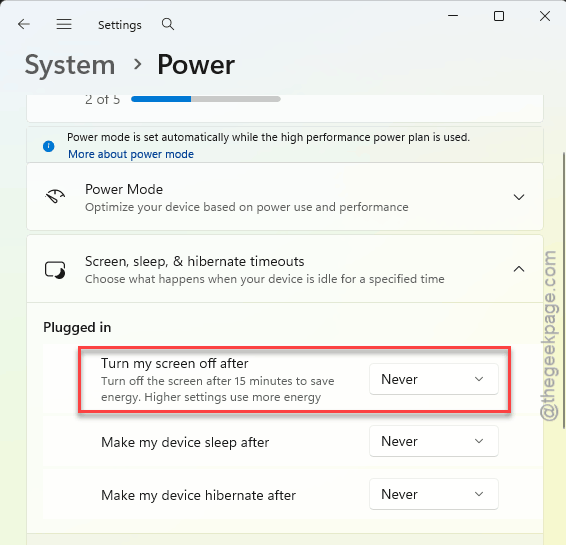
Temporary measure, not a lifestyle. Once the drivers are sorted out, set these back — your battery will thank you.
Fix 3 – Roll Back the Lenovo Power Driver
This is the big one for most people. A recent version of Lenovo’s power driver simply doesn’t get along with Windows 11, and rolling back to the older copy undoes the damage.
1 – Right-click the Start button and pick Device Manager.
2 – Expand the System devices section. It’s a long list — the entries are alphabetical.
3 – Find Lenovo Power and Battery, right-click it, and pick Properties.
4 – Open the Driver tab and click Roll Back Driver.
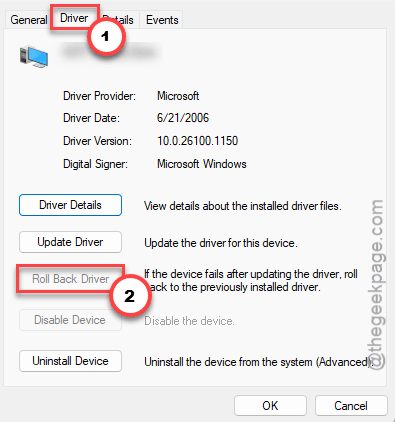
5 – Pick any reason it asks for, click OK, and restart the laptop.
Is the Roll Back button grayed out? That means no older driver is stored on the machine. Don’t worry — Fix 4 attacks the same problem from the other side.
Fix 4 – Uninstall Recent Lenovo Vantage Updates
Vantage pushes updates in the background without asking. And sometimes those pushes quietly corrupt the bridge drivers that connect Windows to Lenovo’s hardware controls. Wondering why nothing warned you? That’s the “silently” part.
1 – Open Settings, click Apps in the left sidebar, then Installed apps.
2 – Use the Sort by dropdown near the top and sort by install date, so the newest arrivals sit at the top.
3 – Look for recent entries tied to Lenovo Vantage or Lenovo System Interface Foundation.
4 – Click the three dots next to each one and pick Uninstall.
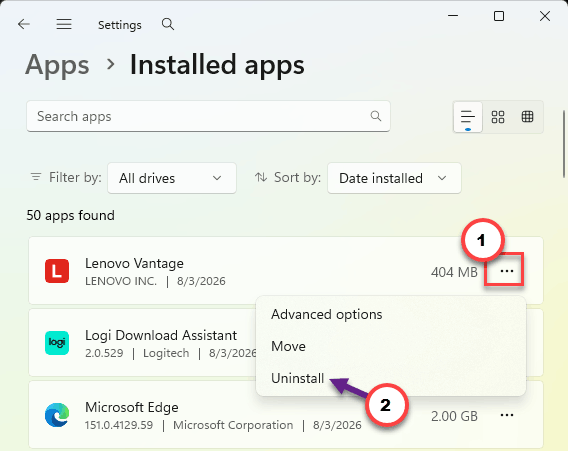
5 – Restart and see how the laptop behaves over the next day.
Fix 5 – Install the KB5077241 Stability Patch
Microsoft published an optional out-of-band patch aimed at exactly these static locks. But optional updates never install themselves — you have to go get this one.
1 – Open Settings and click Windows Update.
2 – Click Advanced options.
3 – Click Optional updates.
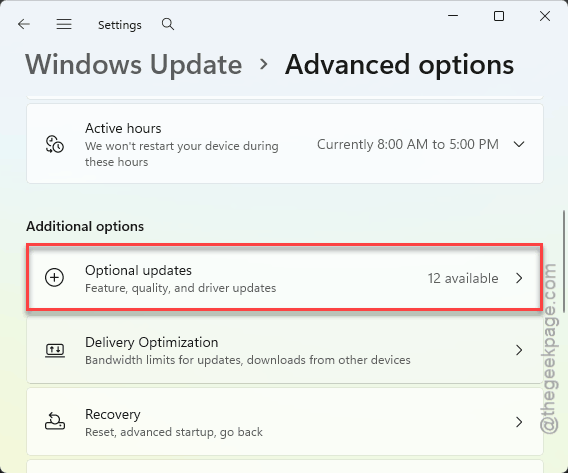
4 – Find KB5077241 in the list and click Install.
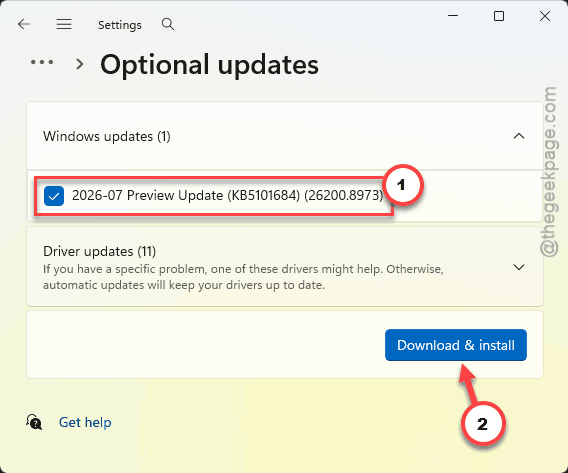
5 – Restart when Windows asks.
A stability fix hidden in the optional pile. Strange filing system? Agreed. That’s where it lives.
Fix 6 – Get Your Graphics Driver From AMD, Not Lenovo
Got an AMD-based ThinkPad that mostly freezes on battery power? Lenovo’s own graphics driver — the one Vantage installs — can fall out of sync with Windows 11 updates. AMD’s version stays current.
1 – Open your browser and go to AMD’s official driver support page.
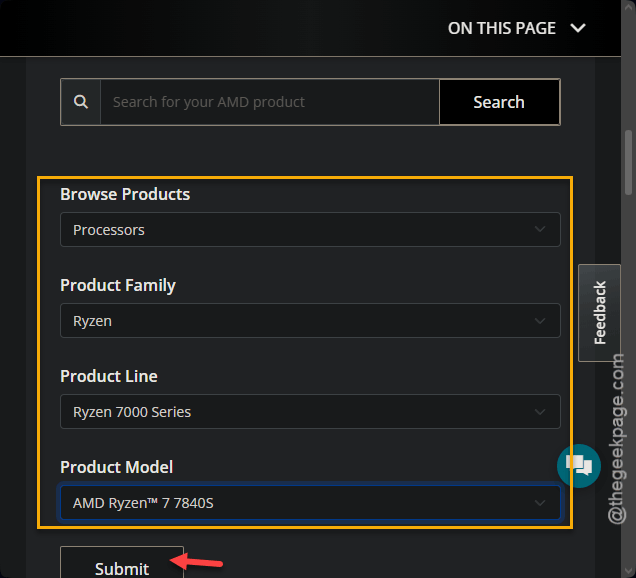
2 – Search for the Ryzen processor model inside your ThinkPad (it’s listed in Settings > System > About).
3 – Download the latest Windows 11 Adrenalin Edition driver package.
4 – Install it and restart the laptop.
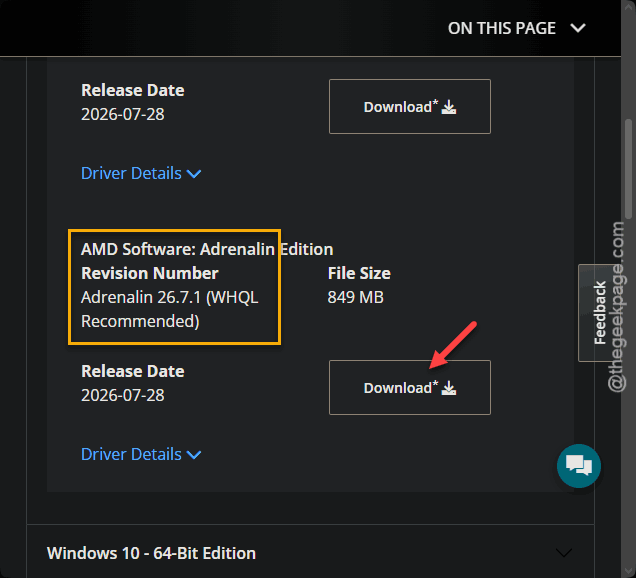
From here on, take graphics updates straight from AMD and let Vantage handle everything else.
Keep It From Coming Back
– Don’t let Vantage push updates silently. Open it now and then, and review what it wants to install instead.
– After any freeze wave, peek at the optional Windows updates list. Stability fixes hide there, not in the main queue.
– New driver makes things worse? Roll it back the same week. Living with daily freezes to stay “current” is a terrible trade.
– Keep AutoSave or frequent Ctrl + S habits going. Hard reboots eat unsaved work every single time.
People Also Ask
Why is my computer freezing but showing no blue screen?
A blue screen only appears when Windows itself detects the crash. These freezes happen at the hardware power level — the machine stalls before Windows can react, so no error ever fires. Driver conflicts between laptop power management software and Windows updates are the usual cause.
What is the pinhole reset on a Lenovo laptop?
It’s a tiny hole on the laptop’s underside marked with a small battery icon. Push a straightened paperclip in and hold for about 10 seconds to reset the internal power controller. Handy when a frozen ThinkPad won’t even respond to a long press of the power button.