You have started reading a page in Edge with the Narrator. You press the down arrow in Scan Mode. And it just stops. There is no speech or no movement, either. Sometimes the Narrator repeats the same element over and over, and sometimes the whole browser hangs with it. It can be maddening, especially if the Narrator is how you use your PC every day.
What’s Breaking
Basically? Narrator and Edge talk through something called UI Automation (the channel Windows uses to describe what’s on screen to a screen reader). When Edge is slow to answer, Scan Mode waits. And waits.
Edge gives it plenty of reasons to wait. It sends unlabeled images off to Microsoft’s servers for AI captions, and those requests time out on image-heavy pages. It also puts parts of a page to sleep to save memory. Then Narrator tries to read a piece that is not there anymore.
And the KB5041587 preview update made it all worse. Thanks, Microsoft. Why ship an accessibility bug in an optional update? No idea. But here we are.
Fix 1 – Unstick Scan Mode, Then Restart Narrator
Try the keyboard first. It takes ten seconds.
1 – Press Caps Lock + Spacebar to turn Scan Mode off.
2 – Press Caps Lock + Spacebar again to turn it back on.
Stuck hearing one element on a loop? Press Ctrl once. That cuts the speech off right away.
And if Narrator still won’t move, restart it:
3 – Press Ctrl + Windows + Enter to close Narrator.
4 – Wait about 3 seconds.
5 – Press Ctrl + Windows + Enter again to start it.
6 – Move to a different part of the page before you turn Scan Mode back on.
Do not skip that last step. Go straight back to the same spot and it usually locks on the same element again.
Fix 2 – Turn Off AI Image Descriptions
This is the big one. Scan Mode freezes the whole reading thread while it waits on a server for a caption. For a picture. Ridiculous.
1 – Open Edge and press Alt + F to open the three-dot menu.
2 – Select Settings.
3 – Select Accessibility in the left sidebar.
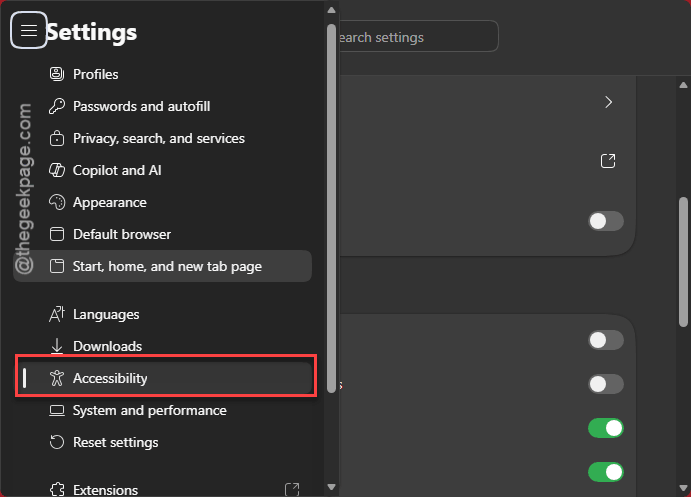
4 – Scroll down to the Usability section.
5 – Turn off Get image descriptions from Microsoft for screen readers.
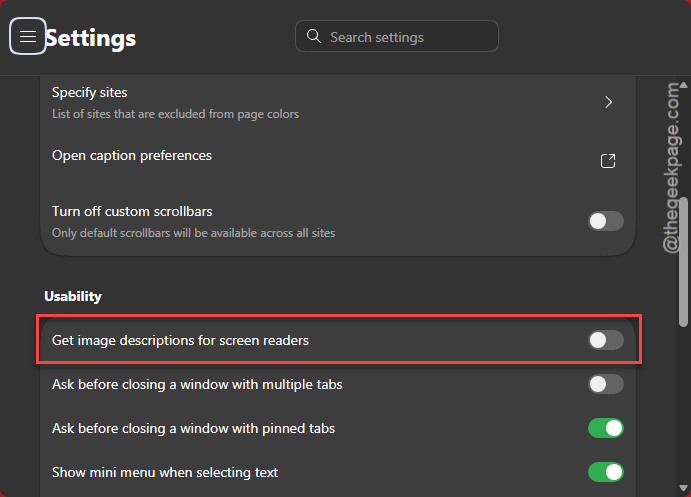
6 – Close Edge and open it again.
Narrator now reads the image’s own alt text (the short description the website wrote), or skips the image. No waiting on the cloud. Leave this setting off for good, because it’s the best way to keep the freeze from coming back.
Fix 3 – Turn Off Sleeping Tabs and Graphics Acceleration
Both live on the same settings page. So do them together.
1 – Open Edge Settings like you did in Fix 2.
2 – Select System and performance in the left sidebar.
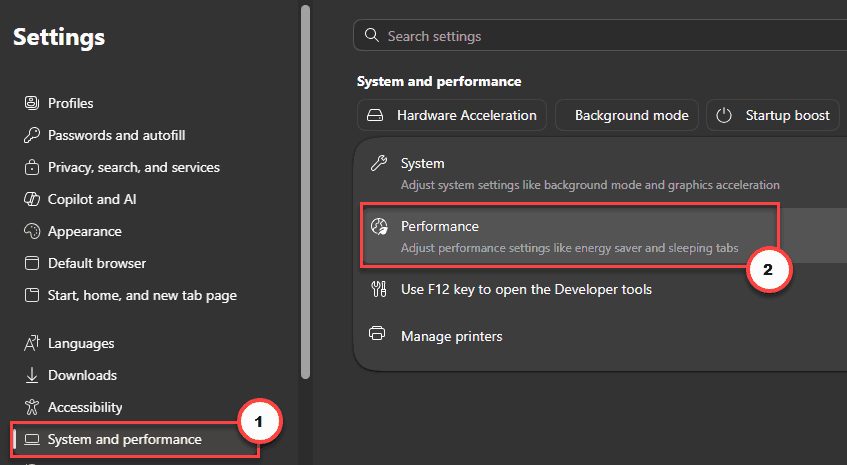
3 – Find the Optimize Performance section.
4 – Turn off Automatically put tabs to sleep feature.
5 – Turn off Efficiency mode too if pages still freeze.
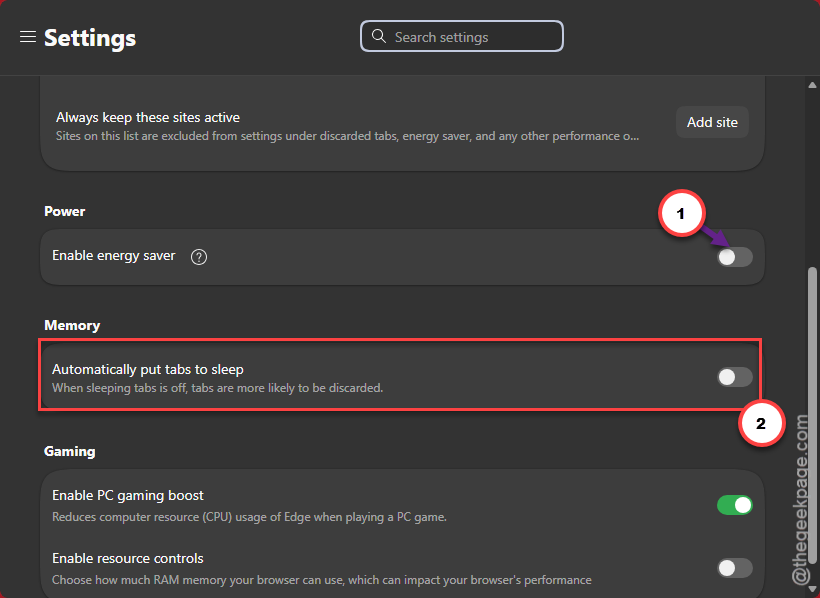
6 – Go to the System and performance/System settings. Turn off Use graphics acceleration when available.
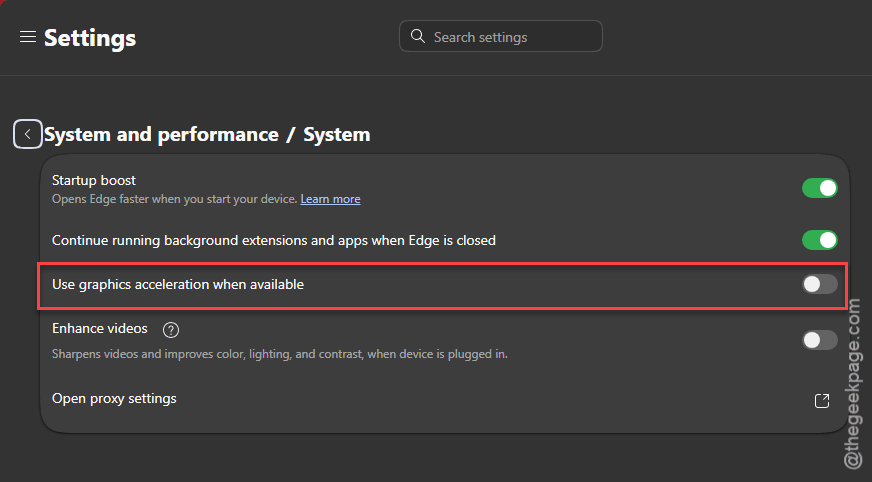
7 – Select Restart to relaunch Edge.
Need sleeping tabs to save memory? Fair. Select Add next to Never put these sites to sleep and list the sites where Narrator freezes. (Heavy web apps are the usual suspects.)
Fix 4 – Disable Experimental Accessibility Flags
Edge sometimes switches on experimental accessibility features by itself. Narrator can’t always make sense of them, and it ends up in a loop.
1 – Type edge://flags in the address bar and press Enter.
2 – Type ‘Accessibility’ in the search box at the top of the page.
3 – Look for any UI Automation or experimental accessibility flag set to Enabled.
4 – Change each one to Disabled.
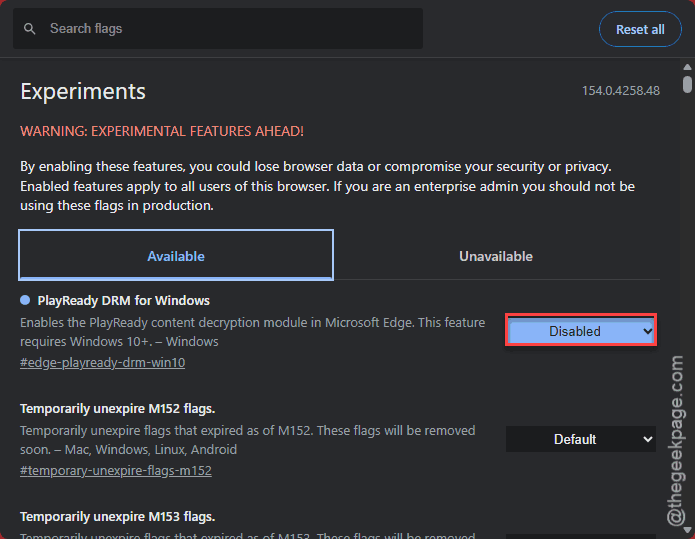
5 – Restart the browser.
Nothing set to Enabled? Then flags are not your problem. Move on.
Fix 5 – Clear the Edge Cache
Quick one. Old cached copies of a page can confuse Narrator after a Windows update.
1 – In Edge, press Ctrl + Shift + Delete.
2 – Set Time range to All time, check Cached images and files, and select Clear now.
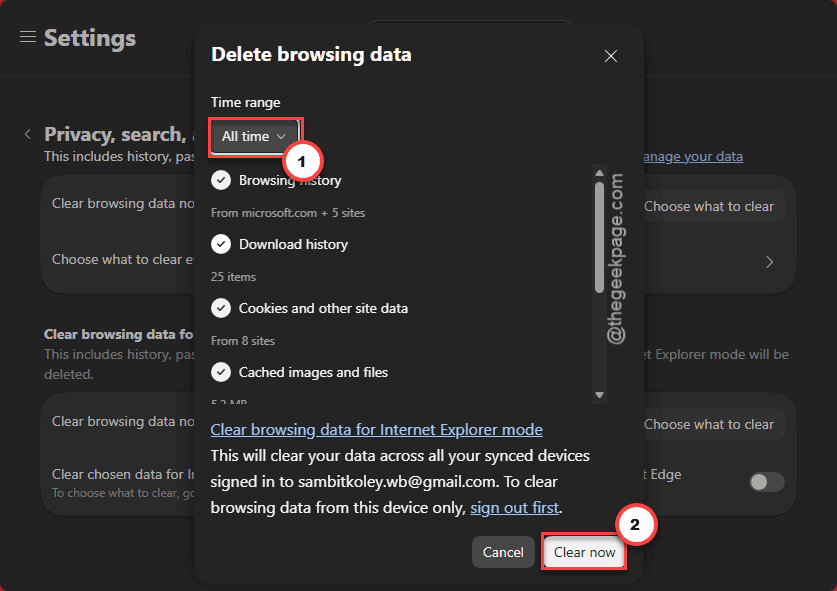
3 – Then reload the page.
And no, this won’t wipe your passwords or bookmarks, as long as that’s the only box you check.
Fix 6 – Force Edge to Build the Accessibility Tree Up Front
Normally Edge only builds its accessibility tree (the map of the page that Narrator reads from) when a screen reader asks for it. On complex sites, that causes big stutters. So make Edge build the map from the start.
1 – Close Edge completely.
2 – Right-click your Edge desktop shortcut and select Properties.
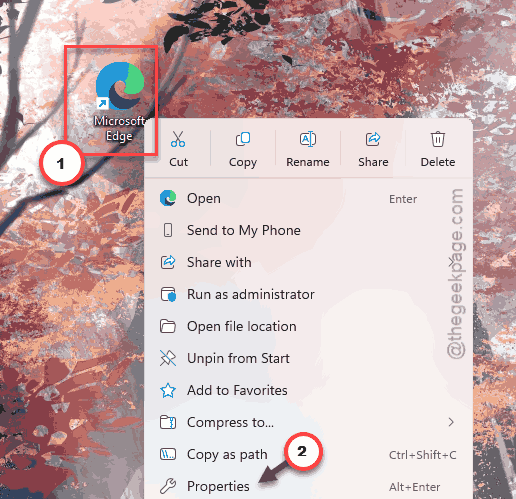
3 – Open the Shortcut tab.
4 – Find the Target box.
5 – Go to the very end of the text, after the closing quote mark.
6 – Type one space, then paste this:
--force-renderer-accessibility
7 – Select Apply, then OK.
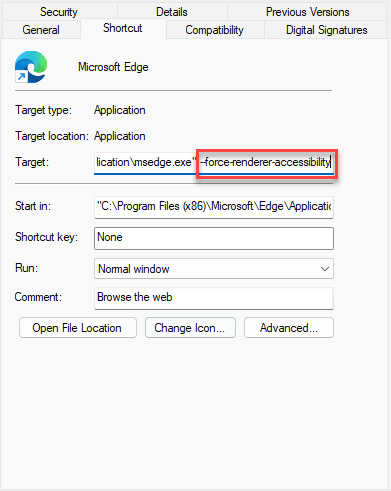
The catch: it only works when you open Edge from that exact shortcut. Open Edge any other way and you’re back to the old behavior. Annoying, but that’s how it works.
Fix 7 – Reset the Narrator Package
But what if it freezes on every site, no matter what you change in Edge? Then Narrator’s own files may be damaged. One PowerShell command rebuilds them.
1 – Right-click the Start button and select Terminal (Admin).
2 – Type this code, and press Enter.
Get-AppxPackage *Microsoft.Windows.NarratorQuickStart* | Reset-AppxPackage
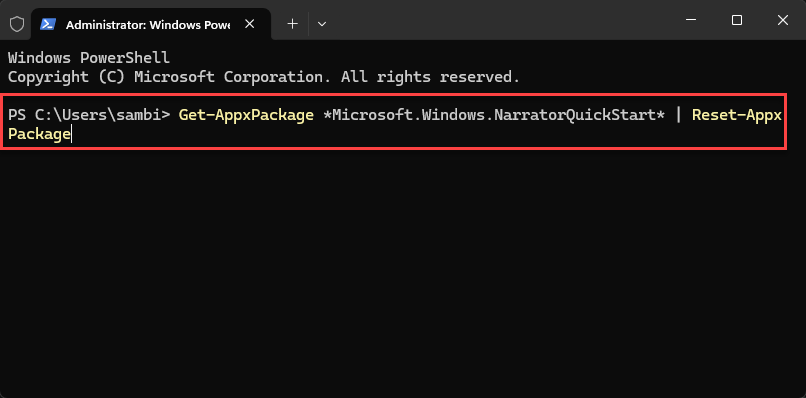
3 – Restart your PC.
Fix 8 – Uninstall the KB5041587 Update
If you rely on Narrator daily and that preview update left it unusable, take the update off. It is the safest bet until Microsoft ships a proper fix.
1 – Press Windows + I to open Settings.
2 – Select Windows Update at the bottom of the left sidebar.
3 – Select Update history.
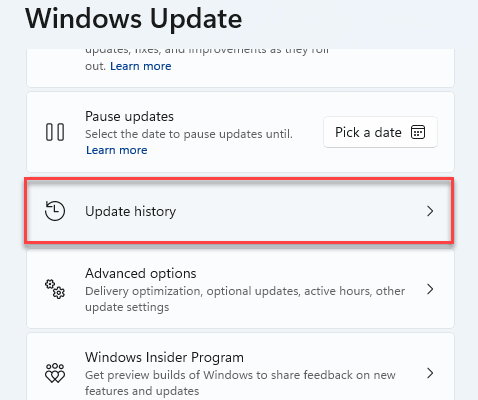
4 – Scroll down and select Uninstall updates.
5 – Find KB5041587 in the list and select Uninstall.
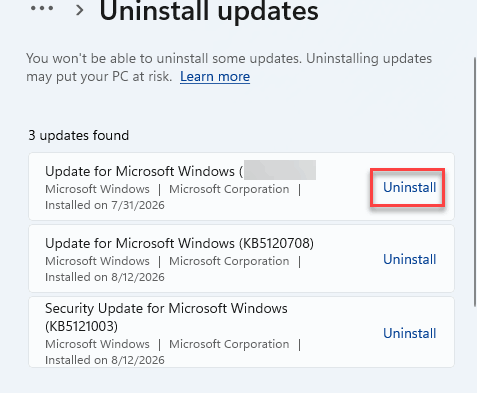
6 – Restart your PC.
So here’s the tip going forward: skip optional preview updates. They’re test runs, and people who depend on a screen reader shouldn’t be the testers.
People Also Ask
How do I turn off Narrator in Microsoft Edge?
Press Ctrl + Windows + Enter. That shortcut turns Narrator off anywhere in Windows, Edge included. Press it again to turn Narrator back on. If you only want to stop Scan Mode and keep Narrator running, press Caps Lock + Spacebar instead.
Why does Narrator keep freezing in Edge?
Mostly because Edge is slow to answer it. The AI image description feature waits on a server. Sleeping tabs unload parts of the page. And a Windows preview update made things worse. Turning off image descriptions in Edge’s Accessibility settings is the best place to start.
How to fix Microsoft Edge freezing?
Turn off graphics acceleration first. It’s under Settings, then System and performance. Clearing cached images and files helps too (press Ctrl + Shift + Delete). If Edge only freezes while Narrator is running, turn off image descriptions for screen readers in the Accessibility settings.