If the controller stops working while playing Aniimo, it may look like a broken controller at first glance. It’s almost never the controller. Aniimo is picky about how input reaches it, and Steam, of all things, is usually what gets in the way. So your gamepad lights up, works in every other game, and does nothing here. Or the button prompts keep flipping between keyboard and controller icons. Same problem, different symptom.
Why This Happens
Too many things are trying to be your controller at once.
Steam has a translation layer called Steam Input (it sits between your gamepad and the game and rewrites the signals). Aniimo has its own built-in support for Xbox and PlayStation pads. And the two clash. The developer, Pawprint Studio, said as much in the version 1.0.35 patch notes.
But Steam is not the only offender. Mapping tools like DS4Windows make the game see two controllers fighting over Player 1. Fancy keyboards and racing wheels can show up to Windows as game controllers too. Why does a keyboard count as a gamepad? Beats me.
Either way, the game picks the wrong device and ignores the real one.
Fix 1 – Disable Steam Input
Start here. This is the developer’s own fix.
1 – Open Steam and go to your Library.
2 – Right-click Aniimo and select Properties.
3 – Click the Controller tab in the left sidebar.
4 – Open the drop-down next to Override for Aniimo.
5 – Select Disable Steam Input.
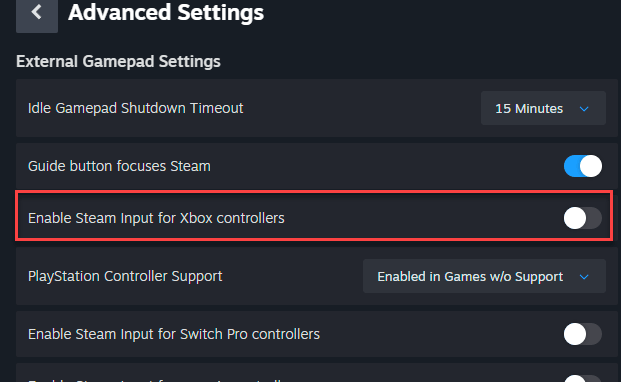
6 – Close the window and restart the game.
Still dead? Weirdly, some setups need the opposite. Go back to that drop-down, pick Enable Steam Input, and test again.
Fix 2 – Force the Gamepad Layout in Steam
This one is mostly for unbranded third-party controllers. With Steam Input on, Steam may hand them a Desktop layout that sends keyboard presses instead of controller commands. Not helpful.
1 – Open the Aniimo page in your Steam Library.
2 – Click the small controller icon on the right side, next to the settings gear.
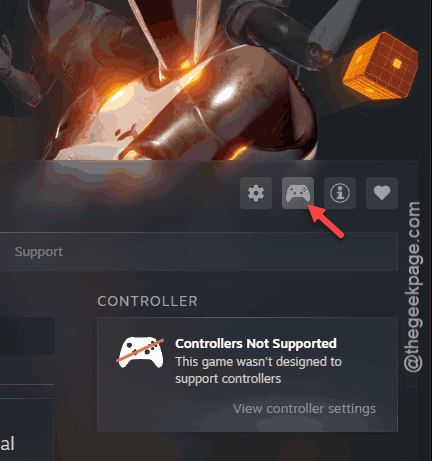
3 – Click your current layout to open the configurator.
4 – Go to the Templates tab.
5 – Select the standard Gamepad layout.
6 – Click Apply Layout and launch the game.
Fix 3 – Close Every Controller Mapping Tool
Aniimo already supports DualSense, DualShock, and Xbox controllers by itself. So DS4Windows and friends do more harm than good here.
1 – Look at the system tray in the bottom right corner of your taskbar.
2 – Right-click DS4Windows, reWASD, Xpadder, or any other mapping tool and exit it fully.
3 – Turn off the NVIDIA and Discord overlays for now. They can grab controller input too.
4 – Unplug your controller and plug it back in.
And if you have vJoy or another virtual joystick app installed, uninstall it. Those fake controllers jump the queue.
Fix 4 – Unplug the Gear That Poses as a Controller
Quick test.
1 – Unplug flight sticks, steering wheels, pedals, and any spare controllers.
2 – Keychron keyboards and Razer Huntsman or Tartarus devices are known troublemakers too.
3 – So pull those for a minute (borrow a plain keyboard if you have to).
Launch the game. If your controller suddenly works, plug things back in one at a time until you find the device that breaks it.
Fix 5 – Clear Out Duplicate Controller Entries
But sometimes Windows itself is the confused one. It lists the same controller several times, and the game grabs a dead copy.
1 – Right-click the Start button and open Device Manager.
2 – Expand Human Interface Devices.
3 – Look for duplicate entries named HID-compliant controller or HID-compliant system controller.
4 – Right-click each extra entry and select Uninstall, until only one is left.
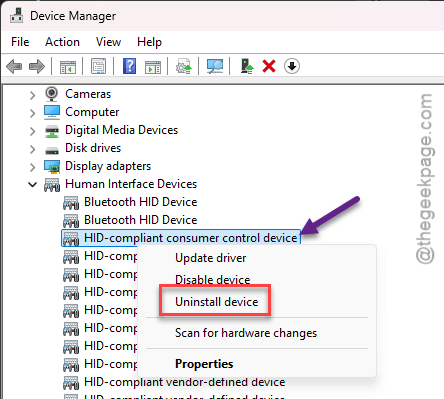
5 – Restart your computer.
6 – Reconnect your controller.
Fix 6 – Set Your Preferred Controller in Windows
Windows keeps its own list of which controller comes first. Old-school panel, still matters.
1 – Press Windows + R.
2 – Type joy.cpl and press Enter.
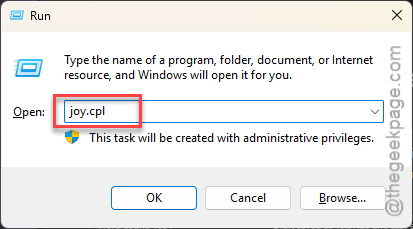
3 – Click Advanced.
4 – Pick your controller under Preferred device.
5 – Click OK.
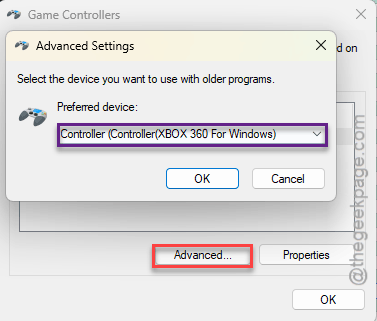
Check if this resolves the issue.
Fix 7 – Stop the DualSense Trackpad Acting as a Mouse
Using a PlayStation controller? Brush the trackpad mid-fight and the game thinks you grabbed a mouse. The prompts flip to keyboard icons and your inputs get dropped (like that Aniipod throw that never happened). Infuriating.
1 – Open the Steam layout configurator for Aniimo, like in Fix 2 (steps 1 to 3).
2 – Edit your current layout and find the Trackpad section.
3 – Change the Center Trackpad behavior from As Mouse to None.
4 – Apply the settings.
So no more phantom mouse movements. If you still want the trackpad click, choose Single Button in step 3 instead.
Fix 8 – Update the Firmware and Go Wired
1 – Plug your controller into the PC with a USB data cable instead of using Bluetooth.
2 – Open the Xbox Accessories app from the Microsoft Store if you have an Xbox controller. For a DualSense or DualShock, open the PlayStation Accessories app.
3 – Install any firmware update the app offers. On Xbox, it’s under the three-dot menu (⋯).
4 – Click the Big Picture Mode icon in the top right corner of Steam.
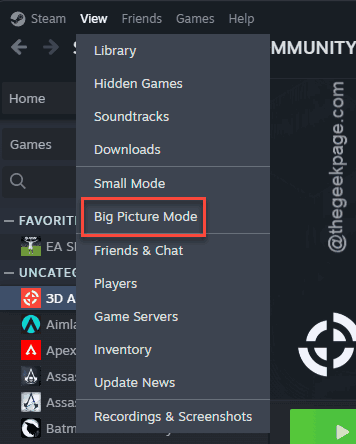
5 – Find Aniimo and launch it from there.
And do not use a charge-only cable for this. It has to be one that carries data.
How to Prevent This
- Pick one input path and stick with it. The game’s own support or Steam Input. Never both.
- Quit mapping tools before you launch. Every time.
- Play wired when you can, because there’s less to go wrong.
- Skim the patch notes after updates. That’s where the Steam Input fix was announced.
People Also Ask
How do I fix my controller on my PC?
Plug it in with a USB data cable first, since that rules out Bluetooth trouble. Then press Windows + R, type joy.cpl, and check that Windows sees it. Close mapping tools like DS4Windows. In Steam games, try switching Steam Input off (or on) in the game’s Properties.
How to fix controller when not working?
Check the basics. Is it charged? Is the cable a data cable and not charge-only? After that, update the controller’s firmware with the Xbox Accessories or PlayStation Accessories app. Still nothing? Unplug other USB gear like wheels and flight sticks, because games sometimes grab those instead.
Does Aniimo support PS5 controllers on PC?
Yes. Aniimo has built-in support for DualSense and DualShock controllers, plus Xbox pads. You don’t need DS4Windows or any other mapping tool. Running one makes the game see two controllers at once and reject both. So close it before you launch.