You start Ubuntu from the boot menu like you do on a daily basis,. But, instead of the login screen, you get a wall of text. “Verifying shim SBAT data failed: Security Policy Violation.” Then “Something has gone seriously wrong: SBAT self-check failed.” Then there is nothing. Windows still boots fine, by the way. From this you can understand that your Linux install isn’t broken. Windows just told the motherboard not to trust it.
Why This Happens
The August Windows update pushed a fresh SBAT list into your motherboard’s memory. That list marks older Linux bootloaders (shim and GRUB, the two small programs that start Linux) as revoked. So the next time you pick Linux, Secure Boot checks the loader against the list, finds a match, and slams the door. Windows doesn’t check whether you dual boot before it writes that list. It just writes it.
Why would Microsoft do that to a machine it shares? Honestly, no good answer. The intent was to block a real security hole in old loaders. But the result was a lot of people locked out of their own Linux partitions.
Nothing is deleted. Your files, your apps, your desktop, all still there. You just have to get past the door. And there are two ways to do that: get the motherboard to stop checking (temporarily), or get the loader updated so it passes the check.
Fix 1 – Turn Off Secure Boot for Now
Start here, because every other fix needs you inside Linux first. This is a temporary step (you’ll turn it back on in Fix 2 or 3), and it takes about two minutes.
1 – Restart your PC.
2 – As soon as the screen goes black, tap Del or F2 repeatedly until the BIOS screen appears. Some laptops use F10 or F12 instead, and the brand logo usually says which one at the bottom.
3 – Look for a tab called Boot, Security, or Authentication. The name changes by brand, but Secure Boot lives in one of those three.
4 – Find Secure Boot and change it from Enabled to Disabled.
5 – Press F10 to save and exit. Confirm with Yes if it asks.
Is the Secure Boot option greyed out? Go to the security tab and set an Administrator Password (sometimes called Supervisor Password) first. Some firmware locks the option until you do. Annoying, and nobody tells you that.
Your PC restarts, and Linux should boot normally now. But don’t stop here. Secure Boot off is fine for a week, not forever.
Fix 2 – Delete the SBAT Policy From Inside Linux
Now we wipe the list Windows planted. Linux has a tool called mokutil (it manages the keys your motherboard trusts) that can delete the revocation policy in one command.
1 – Boot into Linux with Secure Boot still off from Fix 1.
2 – Press Ctrl + Alt + T to open a terminal.
3 – Type this code, and press Enter.
sudo mokutil --set-sbat-policy delete
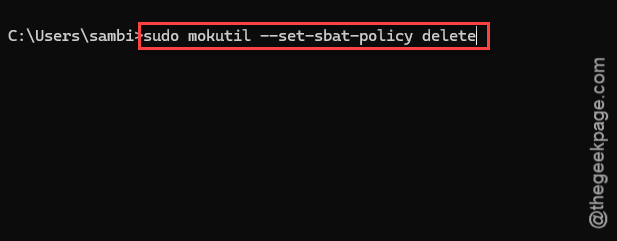
4 – Type your password when asked. Nothing shows as you type, not even dots. That’s normal.
5 – Restart the PC and go back into the BIOS like in Fix 1.
6 – Set Secure Boot back to Enabled, then press F10 to save.
Pick Linux from the boot menu and it should come up clean, with Secure Boot on. That’s the goal. Wondering if Windows will just push the list again next month? It might. Fix 4 handles that.
Fix 3 – Update Shim and GRUB So They Pass the Check
The better long-term answer is a bootloader that isn’t on the blocklist. Ubuntu, Debian, and Fedora have all shipped updated versions that meet the new SBAT rules. So instead of deleting the list, you update the loader until it passes.
1 – Boot into Linux with Secure Boot off.
2 – Open a terminal with Ctrl + Alt + T.
3 – On Ubuntu or Debian, type sudo apt update && sudo apt upgrade and press Enter. On Fedora, use sudo dnf upgrade instead.
4 – Type Y when it asks to continue, then wait. This can take a few minutes if you haven’t updated in a while.
5 – Watch the package list scroll by and make sure shim-signed and grub-efi are in it (they’ll appear if an update exists for them).
6 – Restart, enter the BIOS, and turn Secure Boot back on.
If Linux boots with Secure Boot enabled, you’re done for good. And if it still throws the SBAT error, the new shim hasn’t reached your distro yet. Fall back to Fix 2 for now and try this again in a couple of weeks.
Fix 4 – Stop Windows From Pushing the List Again
This one is for the Windows side. Microsoft included an official opt-out: a registry setting that tells Windows Update to leave the SBAT list alone on this PC. Set it once and the problem stops coming back.
1 – Boot into Windows 11.
2 – Right-click the Start button and click Terminal (Admin). On older builds it says Command Prompt (Admin).
3 – Click Yes on the permission prompt.
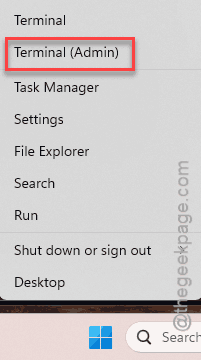
4 – Paste this whole line and press Enter:
reg add HKEY_LOCAL_MACHINE\SYSTEM\CurrentControlSet\Control\SecureBoot\SBAT /v OptOut /t REG_DWORD /d 1 /f
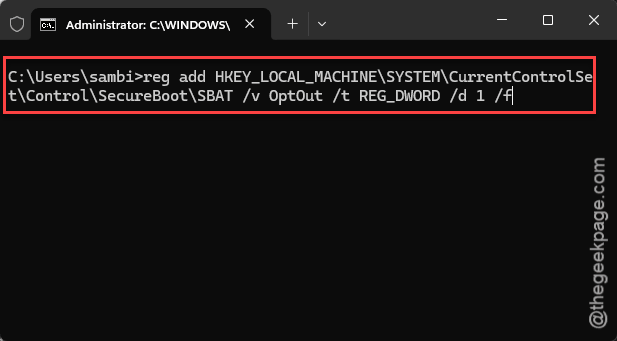
5 – Check for the message “The operation completed successfully.”
6 – Restart Windows.
That’s it for this side. Do it even if Fix 2 or 3 already worked (especially then, actually). Otherwise you’ll be right back here after the next big update.\
Fix 5 – Enroll the Key on the Blue MOK Screen
Sometimes, instead of the error text, you get a blue screen titled Perform MOK management. Don’t panic. That’s the motherboard asking whether to trust your Linux loader again, and the answer is yes.
1 – Use the arrow keys to highlight Enroll MOK and press Enter.
2 – Choose Continue.
3 – Type the MOK password you set when you installed Linux or your graphics driver. Forgot it? It’s usually the one you picked during the driver install, not your login password.
4 – Select Reboot.
And Linux should boot straight through after that. If the blue screen keeps coming back on every boot, the key isn’t sticking, and Fix 6 usually sorts it out.
Fix 6 – Reset Secure Boot Keys to Factory Defaults
The SBAT list and any other custom keys live in the motherboard’s memory. Most firmware has a button to wipe them all and go back to what shipped from the factory. Not every board offers it (Dell and HP usually do, cheap boards sometimes don’t), so this one is worth a look but not guaranteed.
1 – Restart and enter the BIOS like in Fix 1.
2 – Go to the Security or Secure Boot section.
3 – Look for Key Management. If you can’t see it, change Secure Boot Mode from Standard to Custom first, and it appears.
4 – Select Restore Factory Keys (or Clear Secure Boot Keys, depending on the board) and confirm.
5 – Press F10 to save and exit.
The original keys don’t include the new SBAT list, so the Linux loader passes again. But apply Fix 4 too, or Windows will refill the list eventually.
Fix 7 – Rebuild GRUB From a Live USB
Last resort. You can rebuild the GRUB from a live USB.
1 – Plug in the live USB and restart. Tap F12 (or your board’s boot menu key) and pick the USB.
2 – Choose Try Ubuntu on the welcome screen. Don’t install anything.
3 – Open a terminal with Ctrl + Alt + T.
4 – Type this code and press Enter, then press Enter again to confirm.
sudo add-apt-repository ppa:yannubuntu/boot-repair
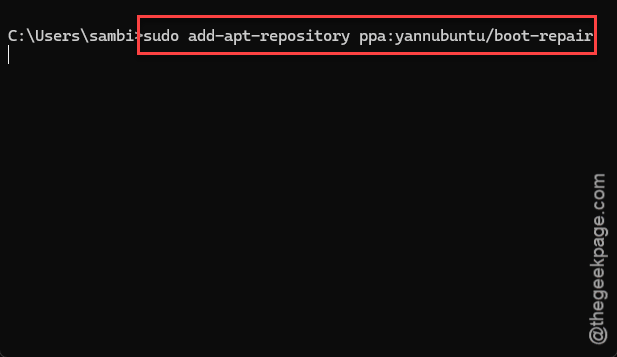
5 – Type sudo apt install boot-repair and press Enter. Wait for it to finish (about a minute on decent Wi-Fi).
6 – Type boot-repair and press Enter to open the tool.
7 – Click Recommended repair and wait. It shows a progress bar and can take five to ten minutes.
8 – Restart when it says the boot was successfully repaired, and remove the USB.
And Boot-Repair writes a summary with a web link at the end.
How to Prevent This
- Apply the registry opt-out from Fix 4 on the Windows side today. Two minutes. It’s the only thing that stops a repeat.
- Keep Linux updated, and boot into it at least once a month. An updated shim passes the SBAT check, so the list can’t hurt you.
- Before a big Windows feature update, boot Linux first and run your updates there. Then let Windows do its thing.
- Keep a live USB in a drawer. Seriously. When the boot menu is the thing that’s broken, it’s the only way back in.
People Also Ask
What does “SBAT self-check failed” mean?
It means Secure Boot found your Linux bootloader on a revocation list and refused to run it. The list was pushed by the August Windows 11 update, which doesn’t check for dual boot setups.
Is it safe to turn off Secure Boot to boot Linux?
For a short while, yes. Windows itself boots fine with it off. The catch is some games with kernel-level anti-cheat refuse to launch until it’s back on, and you lose a layer of protection against boot malware. So treat it as a temporary step. Delete the SBAT policy or update your shim, then re-enable it.
Do I need to reinstall Linux to fix the SBAT error?
No. Nothing on the Linux partition is damaged, only blocked. Disabling Secure Boot gets you in right away, and either the mokutil command or an update to shim and GRUB fixes it properly. Only reach for Boot-Repair from a live USB if Linux still won’t start with Secure Boot already off.