Where’s the cursor? The game is running fine. Clicks still land — menus respond, buttons work — but the pointer itself is invisible. So you’re aiming blind at menu buttons like it’s a memory game. And you’ve probably noticed it only happens in Game Pass games. That’s not bad luck. That’s a clue.
What’s Actually Going On
Here’s the deal. Xbox Game Bar hooks into every Game Pass game with an overlay. One of its newer toys is a custom crosshair — and to draw it, the overlay first hides your Windows cursor.
See the problem coming? The overlay hides the cursor, then fails to draw the crosshair. You get neither. Just a blank spot where your pointer should be.
But Game Bar isn’t the only suspect. Overwolf overlays hook games the same way. And wireless mice add their own twist — when the mouse naps to save battery, Windows can hide the cursor and forget to bring it back. A corrupted Game Bar settings file can even lock the cursor in its hidden state permanently. Fun, right?
Fix 1 – Turn Off the Game Bar Crosshair
Start with the main culprit. If the crosshair widget is on, the overlay keeps hiding your cursor every time a game launches.
1 – Press Windows + G while in a game (or on the desktop) to open Game Bar.
2 – Click the Crosshair widget.
3 – Toggle it Off entirely.
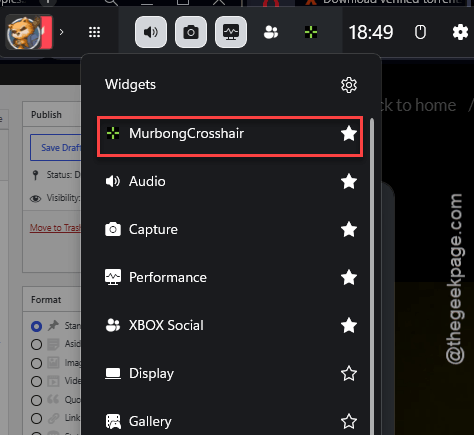
4 – Press Windows + G again to close the overlay, then click back into your game.
Cursor back? Great. If you liked having a crosshair, sorry — until Microsoft patches the widget, it’s the price of a visible pointer.
Fix 2 – The Rapid Alt+Tab Trick
Quickest one on the list, and a good test while you’re mid-game.
1 – Close any extra windows so only the game is running.
2 – Press Alt + Tab three or four times, quickly.
3 – Click back into the game window.
Each switch forces the game to re-grab the cursor, and one of those grabs usually renders it again. Not a permanent cure — but when the pointer vanishes mid-session, this beats restarting the game.
Fix 3 – Plug In a Controller, Then Unplug It
Sounds ridiculous. Works surprisingly often.
1 – With the game open, plug any controller into a USB port.
2 – Wait for the game’s menus to switch over to controller buttons. You’ll see the on-screen prompts change — that’s your cue.
3 – Unplug the controller.
The game is forced to re-detect your mouse from scratch, and the cursor comes back with it. No controller around? Skip ahead — the next fix doesn’t need hardware.
Fix 4 – Turn On Pointer Trails
This is the classic workaround, and it’s clever. Pointer trails force Windows to draw the cursor in software mode, which games and overlays can’t hide (the overlay only intercepts the normal hardware cursor).
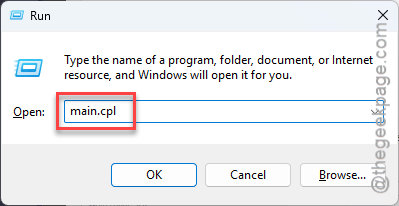
1 – Press Windows + R to open the Run box.
2 – Type main.cpl and press Enter. Mouse Properties opens.
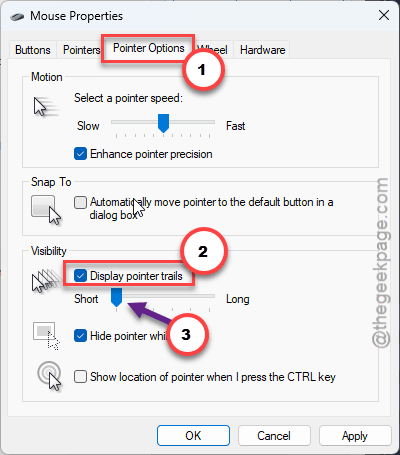
3 – Click the Pointer Options tab at the top.
4 – Check the box for Display pointer trails.
5 – Drag the slider all the way to Short — it’s on the left side.
6 – Click OK.
Yes, your cursor now has a faint little tail. Some people hate it. But it is visible in every game, every time, and you can switch it off whenever the bug gets patched.
Fix 5 – Close Overwolf
Running Overwolf for game overlays or mods? It hooks the cursor the same way Game Bar does, and the two of them fight over it.
1 – Press Ctrl + Shift + Esc to open Task Manager.
2 – Find every Overwolf entry in the process list. There are usually several.
3 – Right-click each one and select End task.
4 – Restart your game.
If the cursor behaves with Overwolf dead, you’ve found your answer.
Fix 6 – Disable Fullscreen Optimizations for the Game
Windows forces its own display layer onto fullscreen games, and that layer is what lets overlays mess with cursor rendering. Turning it off for one game restores the game’s native cursor handling.
1 – Open File Explorer and go to your XboxGames folder. It’s usually on the drive where you install Game Pass titles.
2 – Open the game’s folder, then the Content folder inside it, and find the game’s .exe file.
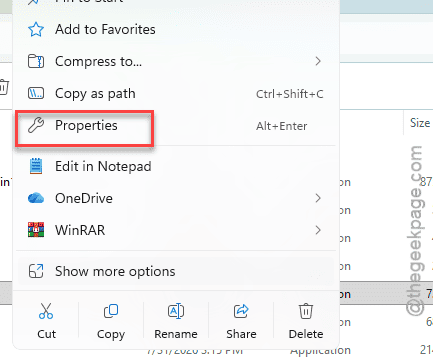
3 – Right-click the .exe and select Properties.
4 – Click the Compatibility tab.
5 – Check Disable fullscreen optimizations.
6 – Click Apply, then OK, and launch the game again.
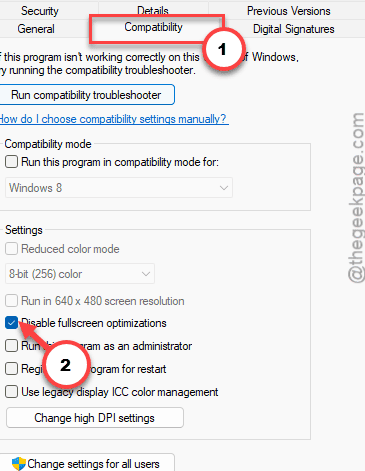
Check if this works.
Fix 7 – Clear the Game Bar Settings Cache
Crosshair off but the cursor is still invisible? A corrupted Game Bar settings file can lock the hidden-cursor state even after you disable the widget. Wiping the folder resets it.
1 – Press Windows + R to open the Run box.
2 – Paste this and press Enter:
%localappdata%\Packages\Microsoft.XboxGamingOverlay_8wekyb3d8bbwe\LocalState
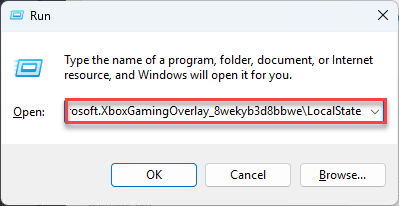
3 – Select all the files inside (press Ctrl + A) and delete them. This only clears Game Bar’s local settings — your games and saves are untouched.
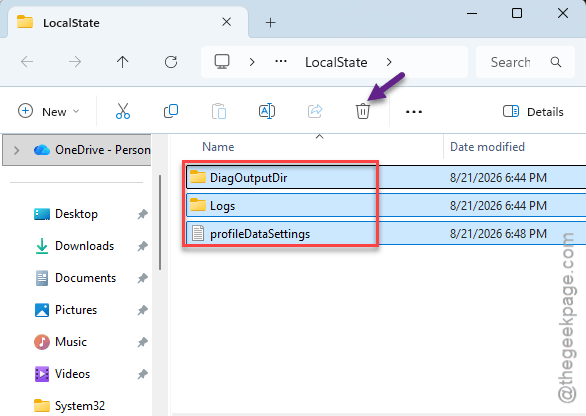
4 – Restart your PC, then launch a game and check.
Game Bar will feel factory-fresh afterward, so expect to redo any widget layouts you had customized.
Fix 8 – Keep a Wired Mouse Plugged In
This one is for wireless mouse users. When a wireless mouse goes to sleep to save battery, Windows sometimes hides the cursor — and Game Pass games don’t always wake it back up.
1 – Keep using your wireless mouse like normal.
2 – Plug any cheap wired mouse into a spare USB port.
3 – Leave it there. You don’t have to touch it.
With a wired mouse always awake on the system, Windows never fully hides the pointer. A spare from a drawer works fine.
So It Doesn’t Happen Again
- Leave the Game Bar crosshair widget off. It’s the number one trigger, and games with real crosshairs don’t need it anyway.
- Don’t use the capture or chat features? Turn Game Bar off completely under Settings > Gaming > Xbox Game Bar. No overlay, no cursor hooking. Period.
- Wireless mouse people: the spare wired mouse from Fix 8 is a permanent vaccine, not just a fix.
- Keep pointer trails set to Short if you can live with the look. Software rendering is immune to this whole mess.
Quick Answers
Why does my cursor disappear only in Game Pass games?
Because Xbox Game Bar auto-attaches its overlay to every Game Pass title. When its crosshair feature hides your cursor and then fails to draw a replacement, you’re left with nothing. Steam games skip that overlay, which is why they usually behave.
Will turning off Xbox Game Bar break my games?
No. Games launch and run exactly the same without it. You lose the overlay extras — screen recording, the FPS counter, party chat widgets. That’s the whole cost. And you can toggle it back on any time under Settings > Gaming.
What do pointer trails actually do?
They make Windows draw the cursor in software instead of leaving it to your graphics hardware. Overlays can only hide the hardware cursor, so a software-drawn one stays visible in every game. The trail effect is the side effect you tolerate for that.
My cursor is invisible on the desktop too. Same fix?
Probably not — this article’s bug lives inside game overlays. A cursor that’s gone everywhere points to the mouse itself or its driver. Try another USB port, test a second mouse, and check for the battery-sleep issue if it’s wireless. Pointer trails can still help you see it meanwhile.