While you are in the middle of a competitive game in Marvel Rivals, you press the button, and instead of the big moment you get a black screen and a little box that says Fatal Error, D3D device lost. Back to the desktop. Here are some tips to fix the issue.
The Short Version
“D3D device lost” means Windows lost contact with your graphics driver for a moment. The game asks the card for the next frame. Nothing comes back. And Unreal Engine 5 (the engine Marvel Rivals runs on) treats that silence as a fatal error and quits.
Why does the driver go quiet? A few reasons, and they stack. Overlays like Discord poke at the driver while it’s busy. An uncapped framerate pins the card at 100 percent with no room to breathe. Heavy particle effects during team fights can push a factory-overclocked card past its stable voltage. Windows itself makes it worse with a two-second timeout (called TDR) that kills the driver at the first sign of a stall.
So you have a twitchy engine, a card running flat out, and an operating system with a hair trigger. Any one of them can cause the crash. Fixing two or three of them makes it stop.
Fix 1 – Turn Off the Discord and NVIDIA Overlays
Start here. It’s the most common cause, and it costs you nothing but a frame counter.
1 – Open Discord.
2 – Click the gear icon at the bottom left, next to your username.
3 – Click Game Overlay in the left sidebar.
4 – Switch Enable in-game overlay to Off.
5 – Open GeForce Experience or the NVIDIA App.
6 – Open Settings and switch In-Game Overlay to Off.
7 – Restart your PC before launching the game.
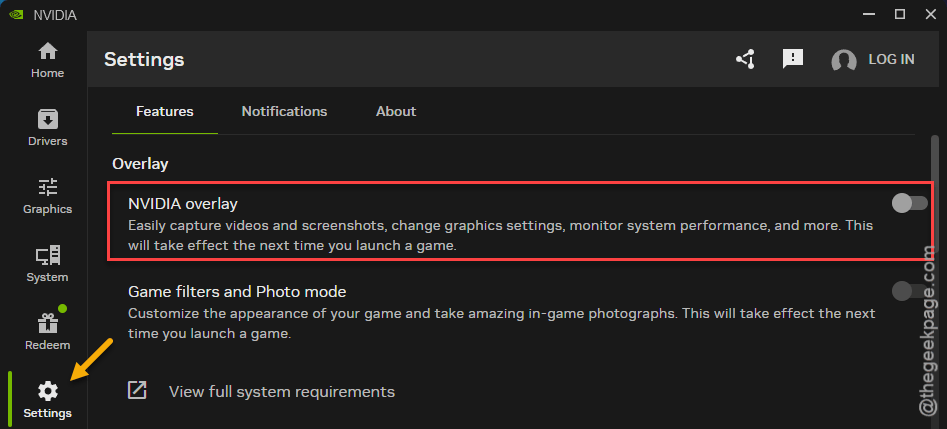
The restart matters (the overlay hooks stay loaded in memory until you reboot). Running Steam’s overlay or Xbox Game Bar too? Turn those off as well while you’re at it.
Fix 2 – Cap Your Framerate in the NVIDIA Control Panel
An uncapped framerate means your card never rests.
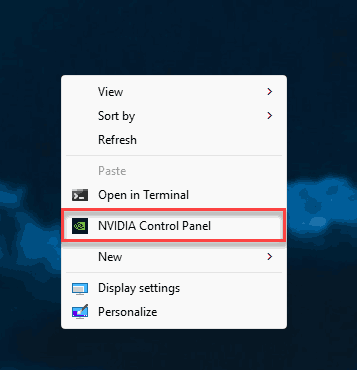
1 – At first, right-click an empty spot on the desktop, and click NVIDIA Control Panel.
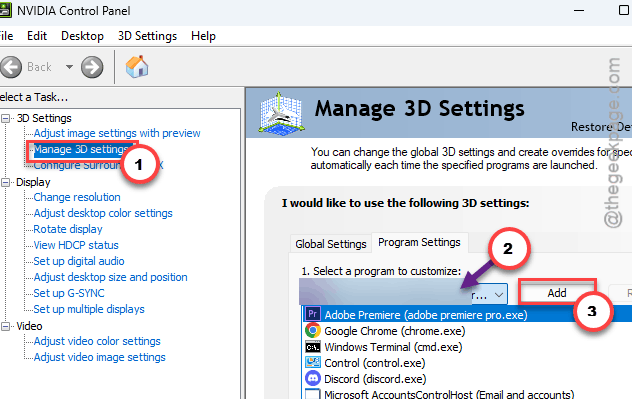
2 – Click Manage 3D Settings in the left panel.
3 – Click the Program Settings tab.
4 – Click Add, pick Marvel Rivals from the list, and click Add Selected Program.
5 – Scroll down to Max Frame Rate and switch it On.
6 – Set it to 3 below your monitor’s refresh rate. A 144 Hz monitor gets 141, a 60 Hz monitor gets 57.
7 – Click Apply in the bottom right.
Not sure of your refresh rate?
1 –Press Windows + I,
2 – Then, open the System tab. Go to the Display section.
3 – Next, go to the Advanced display.
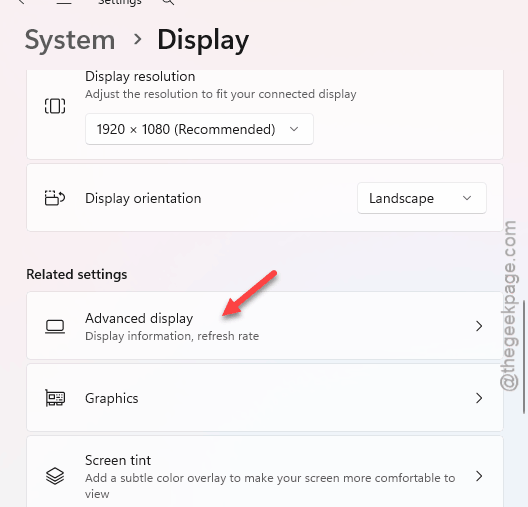
It’s listed there.
Fix 3 – Play in Windowed Borderless
Exclusive fullscreen has a bug in this build. Try playing in the windowed borderless mode.
1 – Open Marvel Rivals and open Settings.
2 – Click the Display tab. Some versions call it Video.
3 – Change Display Mode from Fullscreen to Windowed Borderless.
4 – Apply the change.
Looks identical to fullscreen. Alt-tabbing gets faster too, which is a nice bonus.
Fix 4 – Clear the NVIDIA Shader Cache
You should try clearing the NVIDIA shader cache.
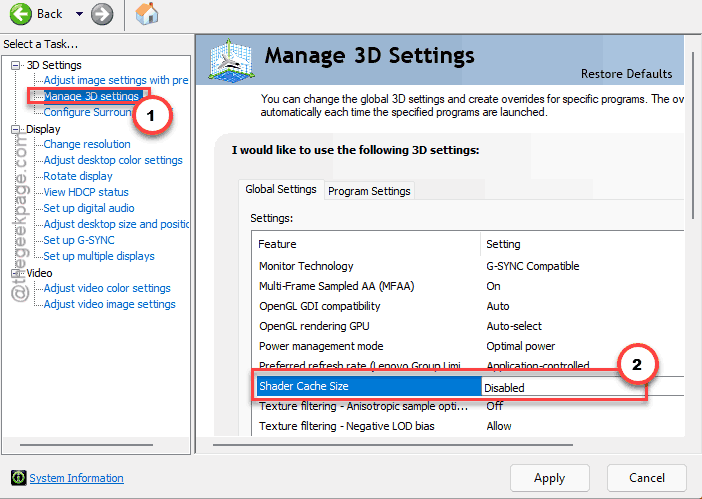
1 – At first, open the NVIDIA Control Panel and click Manage 3D Settings.
2 – Next, on the Global Settings tab, find Shader Cache Size.
3 – Set it to Disabled and then, click Apply.
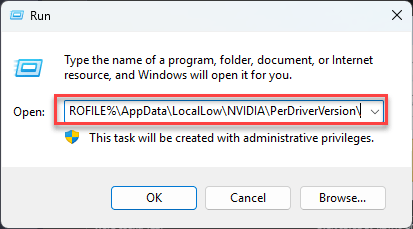
4 – Press Windows + R.
5 – Type this code, and press Enter.
%USERPROFILE%\AppData\LocalLow\NVIDIA\PerDriverVersion\
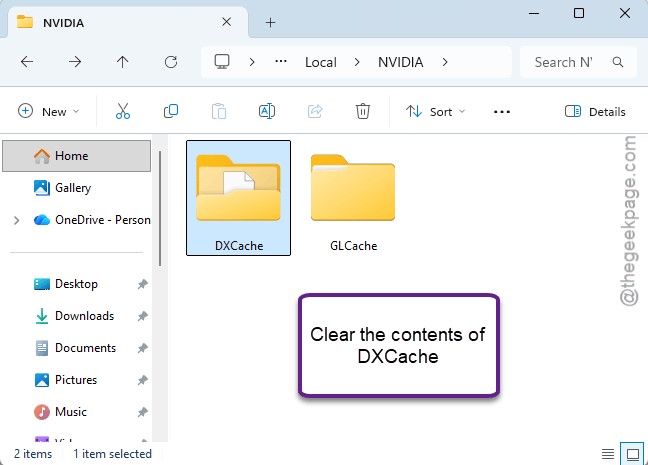
6 – Delete the whole DXCache folder.
7 – Go back to the NVIDIA Control Panel and set Shader Cache Size to Driver Default (or 10 GB).
8 – Restart the PC and launch the game.
The first match after this will stutter while shaders rebuild.
Fix 5 – Give Windows More Patience With the TDR Delay
Try tweaking the system registry.
1 – Press Windows + R.
2 – Type regedit and press Enter.
3 – Click the address bar at the top and paste this address, and then press Enter.:
HKEY_LOCAL_MACHINE\System\CurrentControlSet\Control\GraphicsDrivers
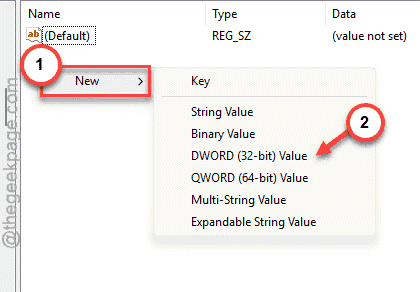
4 – Right-click an empty area in the right pane.
5 – Then, click the New and click DWORD (32-bit) Value.
6 – Name it TdrDelay exactly, with that capitalization.
7 – Then, double-click it, select Decimal, type60, and click OK.
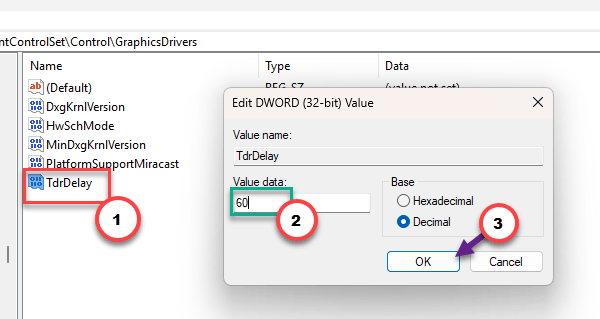
8 – Close Registry Editor and restart the PC.
Now the driver gets a full minute before Windows gives up on it. So a brief stall becomes a hitch instead of a crash. It doesn’t fix the stall itself, which is why the other fixes still matter.
Fix 6 – Lower the In-Game FPS Cap and Render Scale
Still crashing in big fights? The video memory buffer is likely overflowing when six ultimates go off at once. Two in-game settings take the pressure off.
1 – Open Marvel Rivals Settings.
2 – Click the Display tab (or Graphics, depending on your version).
3 – Change the Frame Rate cap from Unlimited or Custom to 60.
4 – Find Render Scaling and lower it from 100 to somewhere between 60 and 80.
5 – Apply the settings.
The picture softens a little. But the crashes usually stop, and you can nudge render scaling back up later once you know where the safe line is.
Fix 7 – Underclock the GPU by 50 MHz
Sounds backwards, doesn’t it? Slowing your card down to fix a game. But many cards ship with a factory overclock that’s a hair too aggressive, and Unreal Engine 5 finds that edge during shader compiles and heavy particle scenes. Shaving 50 MHz off the core clock steadies the voltage. You lose maybe 2 percent performance.
1 – Download and open MSI Afterburner (or your card maker’s tool, like Aorus Engine).
2 – Find the Core Clock (MHz) slider.
3 – Drag it to -50.
4 – Click the checkmark at the bottom to apply.
5 – Leave Afterburner running in the background and launch the game.
Using a vendor app instead? Picking Silent Mode does the same job. And close Afterburner’s own overlay (RivaTuner) if it starts up alongside, or you undo Fix 1.
Fix 8 – Disable the Intel Graphics Chip
Laptop with both Intel graphics and an NVIDIA or AMD card? The game can accidentally start on the weak Intel chip, or bounce between the two, and the handoff drops the D3D device. And one player reported this alone fixed every crash. Worth a try if nothing above helped.
1 – Right-click the Start button and click Device Manager.
2 – Expand Display adapters.
3 – Right-click the Intel entry (not your NVIDIA or AMD card) and click Disable device.
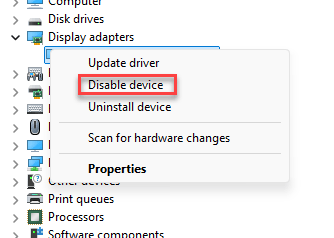
4 – Click Yes to confirm.
5 – Launch the game.
Your screen may flicker once or twice while it switches.
Avoiding This Next Time
- Keep the framerate capped. Always. Uncapped frames buy you nothing on a 144 Hz screen except heat and crashes.
- Leave overlays off in Unreal Engine 5 games. Discord chat works fine without the in-game overlay, honestly.
- After a big game patch, clear the shader cache before your first match. It takes two minutes and heads off the corrupted-cache crash.
- And keep the TDR delay change in place. It survives updates, and there’s no downside for gaming.
Quick Answers
My AMD GPU is crashing Marvel Rivals. How do I fix it?
Same fixes, different menus. Cap the framerate in AMD Software under Graphics, then Radeon Chill or Frame Rate Target Control. Reset the shader cache from the same Graphics tab. Turn off overlays and use windowed borderless in the game. The TDR registry fix applies to AMD cards too, and so does a small underclock in AMD’s tuning tab.
Will the TdrDelay registry change hurt anything?
No. It just tells Windows to wait up to 60 seconds for the graphics driver instead of 2 before restarting it. In normal use you’ll never notice, because a healthy driver answers in milliseconds. The only change is that a brief GPU stall in a game becomes a short freeze rather than a crash to desktop.