Something on your PC is telling Copilot it’s not allowed to look at your screen. That’s the whole bug. The button grays out the moment Windows decides screen sharing is off-limits — and about five different things can make it decide that. Annoying? Very. But it also means the fix is usually one setting, not a broken installation.
Where This Comes From
Copilot’s screen context feature is, at its core, a screenshot tool. So everything that blocks screenshots blocks Copilot too.
But there are gentler causes too. Windows 11 has a global privacy toggle for screen access. Work and school laptops often have the feature banned by policy. And sometimes the Copilot app package itself just breaks. We’ll work from the most common cause down.
Fix 1 – Close Your Streaming Apps
Yes, really. Spotify humming along in the background is enough to gray the button out.
1 – Close Spotify, Netflix, Disney+, Apple Music — any app that plays protected music or video.
2 – Check the system tray in the bottom right corner (click the little up arrow). Streaming apps love hiding there instead of actually closing. Right-click and quit each one.
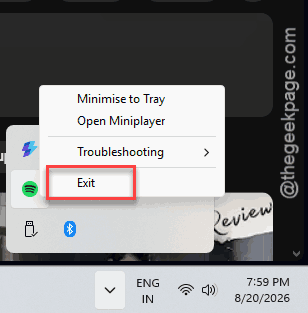
3 – Open Copilot and look at the screen context button again.
Back to normal? That was HDCP doing its job, just a bit too enthusiastically. You’ll need to close those apps every time you want Copilot to see your screen — the two simply can’t run together.
Fix 2 – Turn On Screen Access in Privacy Settings
Windows has one master switch that decides whether apps may see your screen at all. If an update or a cleanup tool flipped it off, Copilot loses screen access everywhere.
1 – Press Windows + I to open Settings.
2 – Click Privacy & security in the left sidebar.
3 – Scroll down and click Screenshots and screen recording.
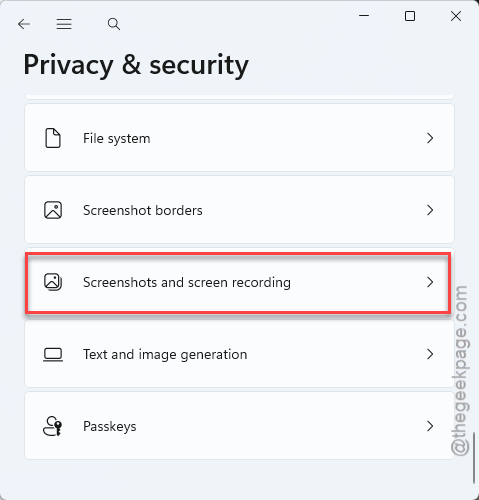
4 – Toggle Let apps access your screenshots and record screen to On.
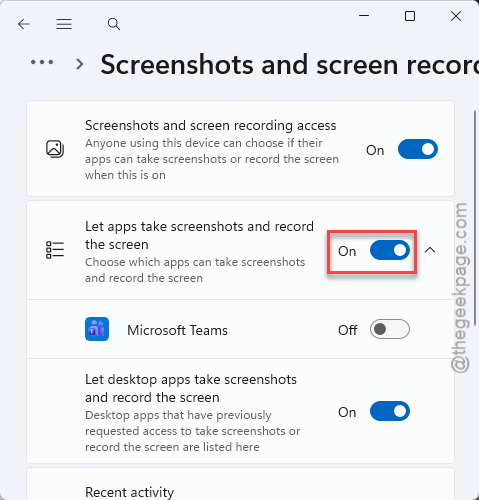
5 – Close and reopen Copilot.
Worth leaving this page bookmarked in your memory, so to speak — privacy-cleaner tools switch it off again with some regularity.
Fix 3 – Make Sure Copilot Isn’t Disabled in the Registry
A leftover policy value can keep Copilot half-disabled — running, but stripped of features. Takes about two minutes to check.
1 – Press Windows + R, type regedit, and press Enter.
2 – Go to this key:
HKEY_CURRENT_USER\Software\Policies\Microsoft\Windows
3 – Look for a WindowsCopilot key in the left pane. Not there? Right-click Windows, choose New, then Key, and name it WindowsCopilot.
4 – Inside it, right-click the right pane, choose New, then DWORD (32-bit) Value, and name it TurnOffWindowsCopilot.
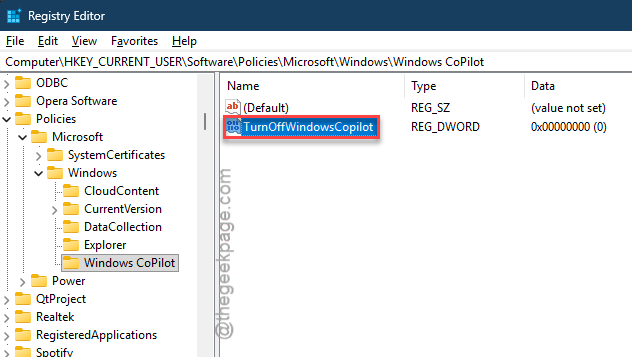
5 – Double-click the value, set it to 0, and click OK.
6 – Close the Registry Editor and restart your PC.
Zero means “do not turn Copilot off” — a double negative, because of course it is.
Fix 4 – Check Group Policy on Work and School PCs
Company laptop? There’s a decent chance nothing is broken at all. Plenty of organizations block screen analysis tools on purpose, for data security.
1 – Press Windows + R, type gpedit.msc, and press Enter.
2 – In the left pane, go to User Configuration > Administrative Templates > Windows Components > Windows Copilot.
3 – Double-click Turn off Windows Copilot.
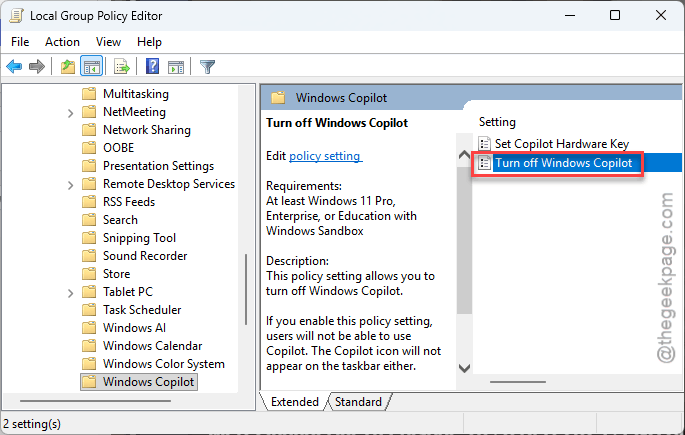
4 – If it says Enabled, your admin has switched the feature off. Set it to Disabled only if this is your own PC — on a managed device, the setting snaps back and IT gets to decide.
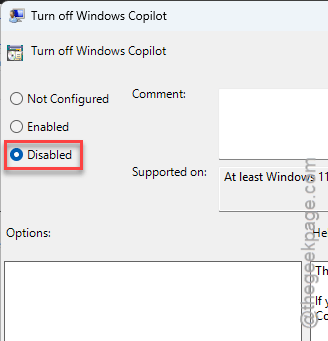
And honestly, if it’s a work machine, ask IT before fighting the policy. They may have a reason. Or they may just flip it on for you, which is the easiest fix on this whole page.
Fix 5 – Turn Off Edge’s Graphics Acceleration
Is the button gray only when you’re trying to share a browser window? Edge’s GPU renderer can block the capture hook that Copilot uses.
1 – Open Microsoft Edge.
2 – Click the three dots (⋯) in the top right corner and choose Settings.
3 – Click System and performance in the left sidebar. Go to the System.
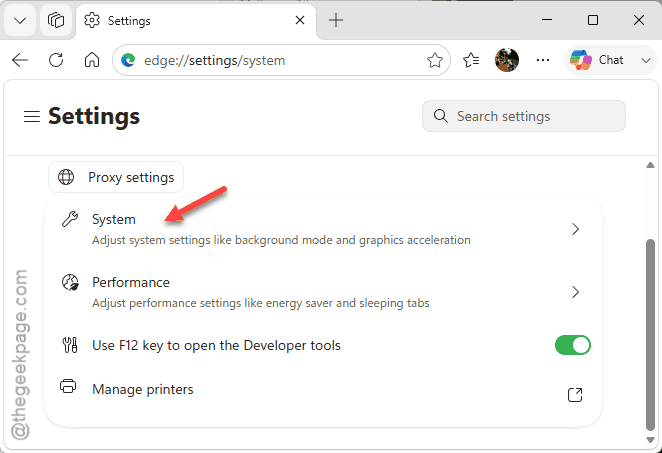
4 – Toggle off Use graphics acceleration when available.
5 – Click the Restart button that appears, and Edge relaunches on its own.
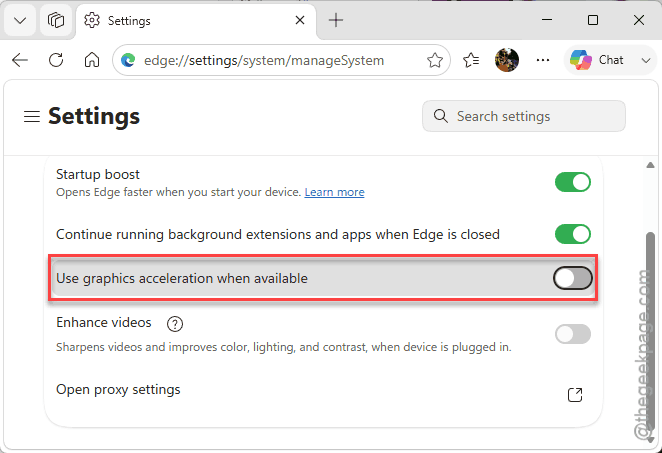
Videos in Edge may play a touch less smoothly with this off (the CPU does the drawing instead). If that bothers you, flip it back on after your Copilot session.
Fix 6 – Launch Copilot Directly With a Run Command
Sometimes the button is gray because the Copilot panel itself loaded up glitched. This launch command skips the broken interface and opens a fresh panel.
1 – Press Windows + R to open the Run box.
2 – Paste this exactly and press Enter:
microsoft-edge://?ux=copilot&tcp=1&source=taskbar
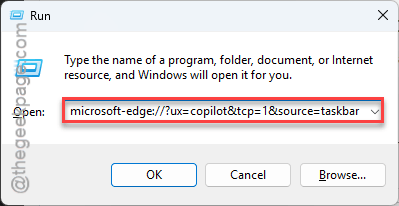
3 – A new Copilot panel opens. Check the screen context button there.
Works in the fresh panel but not the taskbar one? Then it’s a glitch in the interface, not your permissions — a restart usually settles it for good.
Fix 7 – Install Pending Windows Updates
The screen context feature is new, and Microsoft is still patching it. A half-updated system is a common reason the button never lights up.
1 – Make sure your internet connection is steady.
2 – Press Windows + I and click Windows Update at the bottom of the left sidebar.
3 – Click Check for updates and install everything pending.
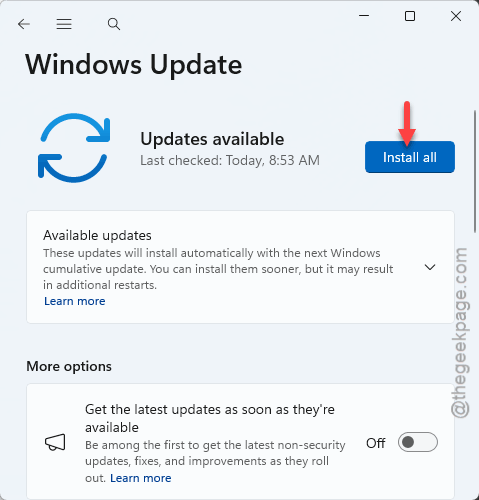
4 – Restart your PC, even if Windows doesn’t insist. Copilot components load fresh at boot.
Fix 8 – Reset the Copilot App Package
The last stop. If the button is still gray, the Copilot package itself has broken permissions — usually in the handoff between Copilot and the Snipping Tool that does the actual capture. Re-registering the package rebuilds those permissions.
1 – At first, press the Windows key and type “PowerShell“.
2 – Right-click Windows PowerShell and select Run as administrator.
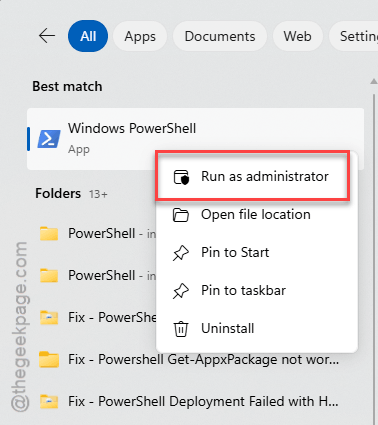
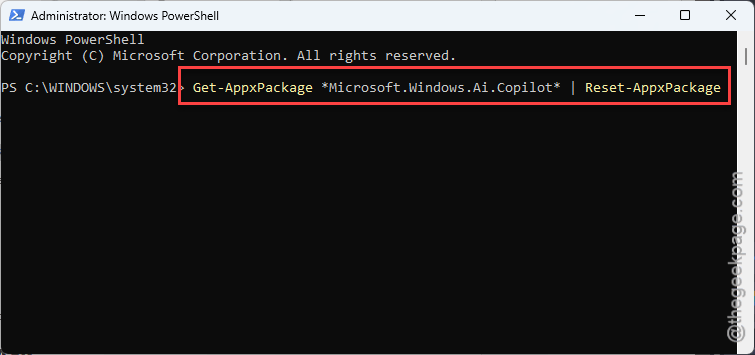
3 – Paste this and press Enter:
Get-AppxPackage *Microsoft.Windows.Ai.Copilot* | Reset-AppxPackage
4 – Wait for the prompt to return, then restart your PC and test the button.
Your Copilot chat history and settings live in your Microsoft account, so a package reset doesn’t cost you anything there.
People Also Ask
How do I remove the Ask Copilot option from the context menu in Windows 11?
The policy value from Fix 6 works in reverse. Changing the TurnOffWindowsCopilot value in system registry and then restarting the device should work. That disables Copilot’s integration points, right-click entries included. Set it back to 0 whenever you want them again.
Why is the screen context button gray only on my work laptop?
Almost certainly policy, not a bug. Companies commonly block screen analysis tools so business data never leaves the machine. You can confirm it in gpedit.msc under Windows Components > Windows Copilot — if the screen analysis policy says Enabled, that’s IT’s decision, and they’re the ones to ask.