New Copilot+ laptop, brand-new Bluetooth standard, and your expensive earbuds sound like a campfire. Static, crackling, random pops. Great work, everyone. The culprit is the shiny new LE Audio system — and you can absolutely switch it off.
What’s Actually Going On
Basically? Your laptop and earbuds are speaking a brand-new dialect, badly.
Copilot+ PCs with Snapdragon chips push Bluetooth LE Audio — a new standard built around a compression format called LC3. Less battery drain, better sound. On paper. But the radio firmware on these Snapdragon machines still has bugs, and the stream comes out crackling.
There’s a second trap: absolute volume. That’s the feature tying the Windows volume slider directly to the amp inside your earbuds. When the two fall out of sync over LE Audio, you get loud pops. And your calling app can pile on — noise suppression set to High chews up the stream even more.
Fix 1 – Turn Off LE Audio
The instant fix. Turning this off drops your earbuds back to classic Bluetooth (the SBC and AAC codecs that have worked fine for years).
1 – Press Windows + I to open Settings.
2 – Click Bluetooth & devices in the left sidebar.
3 – Click Devices.
4 – Click your earbuds in the device list.
5 – Switch the Use LE Audio toggle to Off.
Play some music. It should be clean immediately.
Fix 2 – Forget the Earbuds and Pair Them Again
Sometimes the very first pairing negotiates a broken connection. But a fresh handshake can land a clean one. Takes two minutes.
1 – In Settings, go to Bluetooth & devices, then Devices — the same list from Fix 1.
2 – Click the three dots (⋯) next to your earbuds.
3 – Select Remove device.
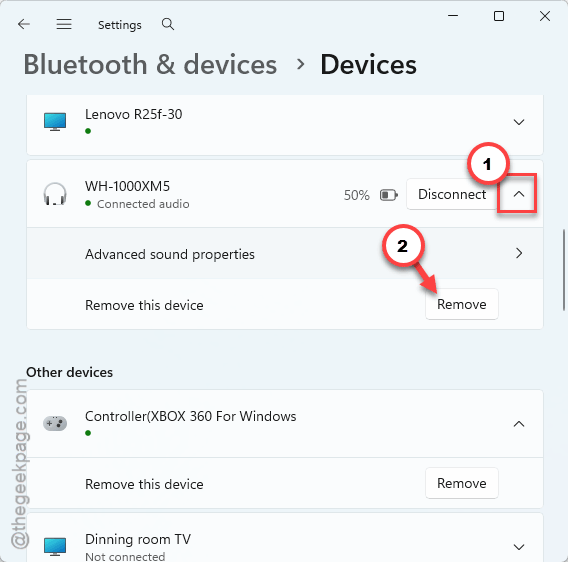
4 – Put the earbuds back into pairing mode (usually by holding the case or earbud button — check your model).
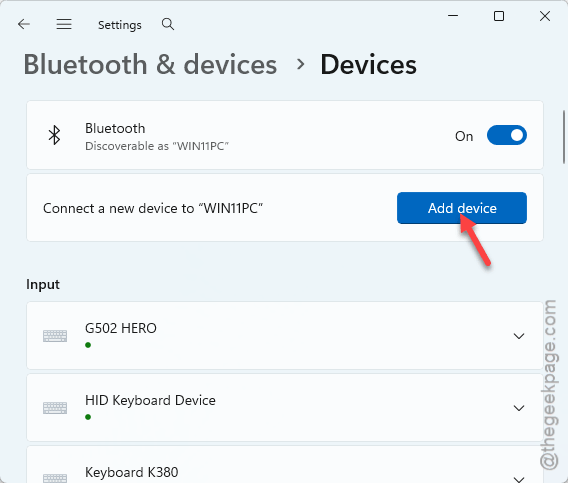
5 – Click Add device, choose Bluetooth, and select your earbuds.
Still crackling? Keep going.
Fix 3 – Turn Off Windows Audio Enhancements
Windows layers its own audio processing on top of the stream. Over a glitchy LE Audio link, that extra processing makes the crackle worse.
1 – Open Settings and go to System, then Sound.
2 – Under Output, click your Bluetooth headphones.
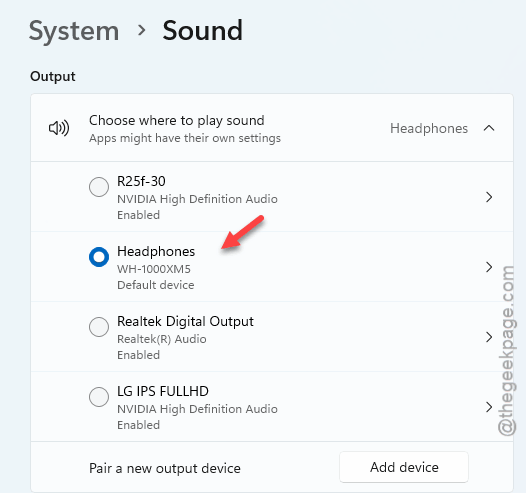
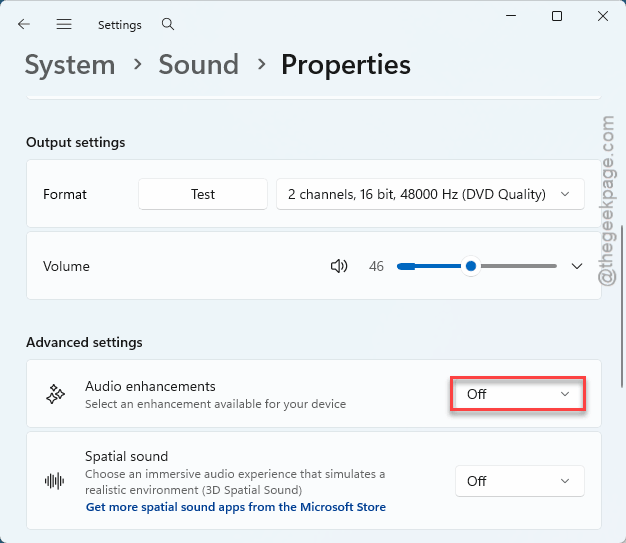
3 – Scroll down to Audio enhancements.
4 – Switch it to Off.
Check if this helps.
Fix 4 – Disable Absolute Volume in the Registry
Remember the volume-sync popping from earlier? This is the cure. One command in the registry (Windows’ internal settings database) shuts the feature off.
1 – Click Start, type cmd, and choose Run as administrator on the right side.
2 – Copy and paste this command, then press Enter:
reg add HKLM\SYSTEM\ControlSet001\Control\Bluetooth\Audio\AVRCP\CT /v DisableAbsoluteVolume /t REG_DWORD /d 1 /f
3 – Restart your PC.
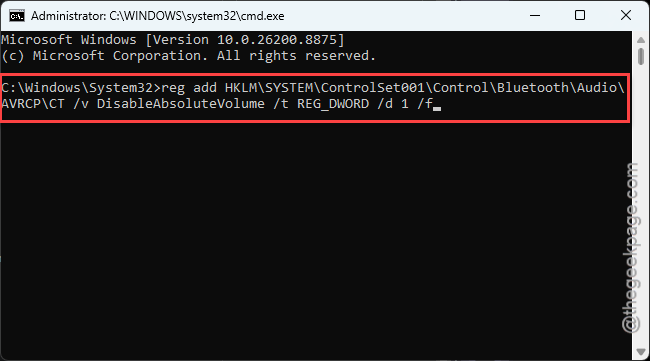
After the reboot, your earbuds keep their own separate volume level. So adjust loudness on the buds themselves, not just the Windows slider.
Fix 5 – Update the Qualcomm Bluetooth Drivers
The real bug lives in the Snapdragon radio firmware. Lenovo, Dell, and HP ship microcode patches for it through their own update apps — not Windows Update. Naturally.
1 – Open your laptop maker’s update app. That’s Lenovo Vantage, Dell SupportAssist, or HP Support Assistant.
2 – Run a scan for new updates.
3 – Install anything labeled Bluetooth, Radio, or Firmware.
4 – Restart when prompted.
This is the only permanent fix on the list. The others work around the bug — this one removes it.
Fix 6 – Static Only During Calls? Split Speaker and Mic
Bluetooth has a dirty secret. The moment your mic turns on, audio drops to a low-bandwidth hands-free channel. Tin-can city. The workaround: use the earbuds for listening only.
1 – Open your calling app — Teams, for example — and go to its Devices settings.
2 – Set Speaker to your earbuds’ stereo profile.
3 – Set Microphone to your laptop’s built-in mic.
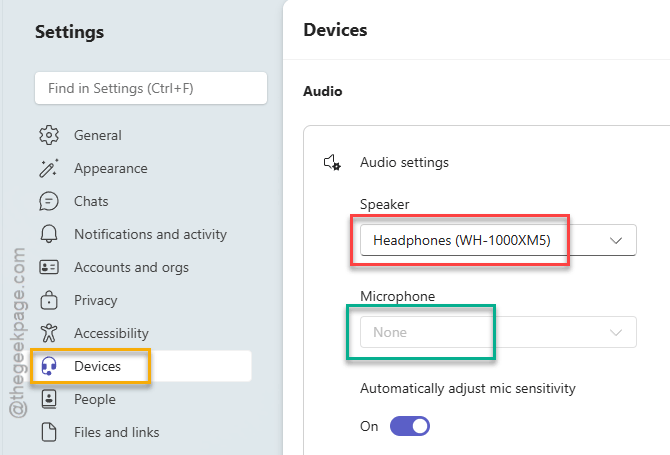
Call audio stays crisp. And laptop mics are honestly fine for meetings.
Fix 7 – Lower Noise Suppression in Teams
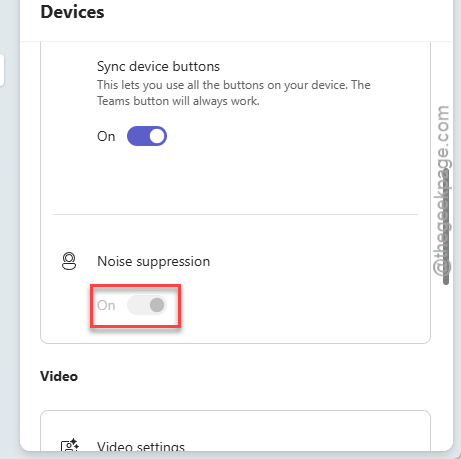
High suppression burns bandwidth the shaky LE Audio link does not have.
1 – Open Teams and go to Settings, then Devices.
2 – Find the Noise suppression dropdown.
3 – Change it from High to Auto or Low.
4 – Turn off High-fidelity music mode if it’s enabled.
Check if this helps.
Avoiding This Next Time
- Check your laptop maker’s update app monthly. Firmware fixes land there first.
- Leave LE Audio off until a firmware update genuinely fixes it. You lose almost nothing.
- Buying new earbuds? Test with LE Audio off before blaming the hardware.
- Keep noise suppression on Auto. High is overkill for a quiet room anyway.
Quick Answers
How do I fix Bluetooth audio static on a PC?
Turn off the Use LE Audio toggle for your device under Settings > Bluetooth & devices > Devices. That drops the connection to classic Bluetooth and clears most static instantly. Then grab firmware updates from your laptop maker’s app for the lasting fix.
Why is my Bluetooth audio crackling?
On Copilot+ machines, buggy Snapdragon radio firmware mangles the new LC3 audio stream. Elsewhere, the usual suspects are interference, Windows audio enhancements, or a volume desync between PC and earbuds. Disabling LE Audio and audio enhancements covers most cases.
What is Bluetooth LE Audio?
It’s the next-generation Bluetooth audio standard. LE stands for Low Energy — it uses the LC3 codec to deliver better sound with less battery drain. Solid idea, rough launch. Early Windows 11 support on Snapdragon laptops is where the static problems come from.
Will turning off LE Audio make my earbuds sound worse?
Not noticeably. Your earbuds fall back to SBC or AAC, the same codecs almost every phone and laptop has used for years. You might lose a little battery life on the buds. But clean audio beats a few extra minutes of charge.