Having ghost touch issues with the Apple Watch screen? If your Apple Watch is registering erratic inputs out of nowhere, it can be termed as a ghost touch issue. If your Apple Watch has this particular issue, you should not take it lightly. Usually, this is just a bug in either your watch or the watchOS. These are the fixes that can solve the issue on your Apple Watch.
Fix 1 – Clean up the Watch screen
Liquids like water or any other layer of foreign substance may induce ghost touch issues or erratic inputs on the Apple Watch. This happens to almost any electronic touch display out there.
Step 1 – Take a clean, lint-free piece of cloth.
Step 2 – Use that to clear up the surface of your Apple Watch gently. Make sure there is a no layer of such stuff on the watch display.
After this, the Apple Watch won’t register any ghost touch or erratic inputs again.
Fix 2 – Remove any screen protector from the Apple Watch
Poorly applied screen protector on the Apple Watch may lead to such issues where the Apple Watch may register some false touch. If you have any additional watch frame on the Apple Watch display, it can cause such problems as well.
Step 1 – Remove any screen protection that is applied on the Apple Watch display.
Step 2 – Clean up any residue from the watch display.
After this, check whether the display is functioning properly or not.
NOTE – Check for any physical damage to the Apple Watch display. Physical damage like scratches or dents on the Apple Watch screen can contribute to such unusual inputs.
Fix 3 – Force Restart the Apple Watch
If this is just a temporary bug in the Apple Watch, you should just force-restart the Apple Watch to fix the issue.
Step 1 – Press-hold the Side button and Crown of the Apple Watch together for 10–15 seconds.
Step 2 – Do this until the Apple logo shows up on the Apple Watch.
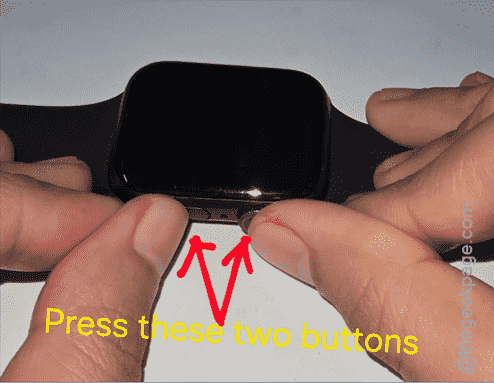
After the Apple Watch force-restarts, check whether the Apple Watch is still registering erratic touch response or not.
Fix 4 – Update to the Latest Version of watchOS
It can just be a minor bug in the watchOS version installed on your Apple Watch.
Step 1 – Open the Watch app on the Apple Watch.
Step 2 – Then, go this way –
General ⇾ Software Update
Step 3 – Install the latest version of watchOS on the Apple Watch.
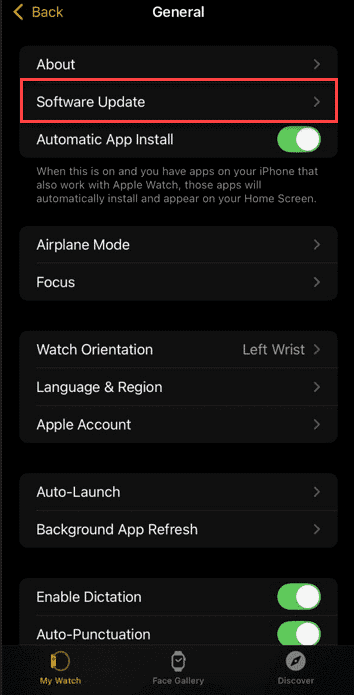
The watchOS update will now be downloaded and installed on the device. Next,
Fix 5 – Contact Apple Support
If you are still having the ghost touch issues, it is time for you to book an appointment at a nearby Apple Service Center. There is a chance that this is a display issue, so you should get your Apple Watch inspected for a hardware defect. They can guide you towards a definitive resolution for this problem.