Why would a hotspot shut itself off two seconds after you turn it on? You’ve rebooted. Same result. Toggle on, toggle off — like it’s mocking you. Two culprits, usually. Windows has a power-saver rule that kills the hotspot when nobody’s connected — and “nobody’s connected” is true the instant you start it. The other is a driver problem: an updated Intel Wi-Fi driver tries to broadcast on the restricted 6GHz band, gets blocked, and gives up. So a reboot fixes neither. These do.
Fix 1 – Turn Off the Hotspot Power Saver
The built-in self-destruct switch. Off it goes.
1 – Press Windows + I to open Settings.
2 – Click Network & internet, then Mobile hotspot.
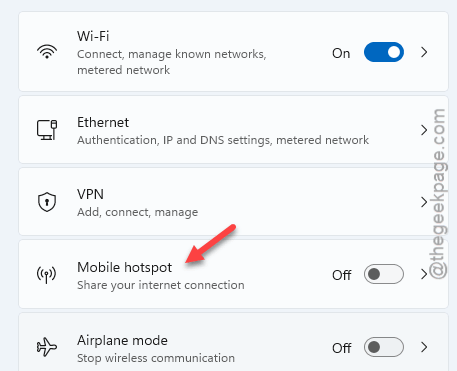
3 – Scroll down to Power saver.
4 – Toggle off When no devices are connected, automatically turn off mobile hotspot.
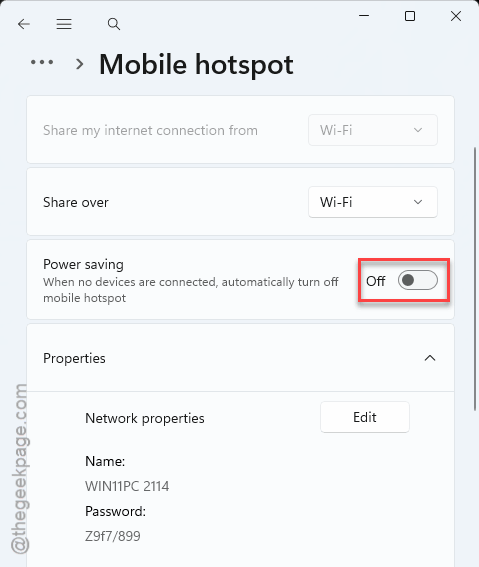
Now the hotspot waits for your phone instead of quitting first.
Fix 2 – Pin the Network Band to 5 GHz or 2.4 GHz
“Any available” lets Windows try the 6GHz band. The driver blocks it. Hotspot dies. Forcing a normal band skips the whole standoff.
1 – On the same Mobile hotspot page, click Edit under Properties.
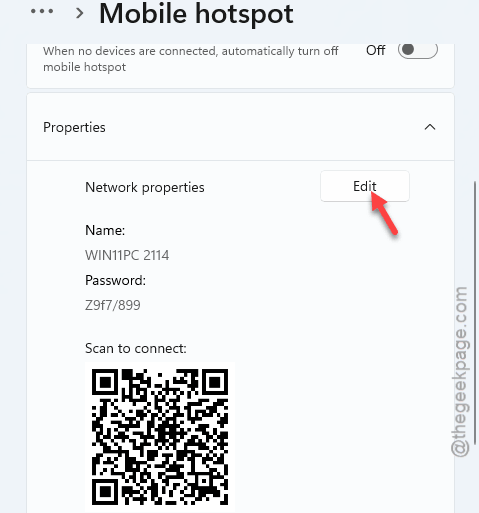
2 – Change Network band from Any available to 5 GHz.
3 – Click Save and start the hotspot.
Older phone or laptop connecting? Pick 2.4 GHz instead. Slower, but everything supports it.
Fix 3 – Turn Bluetooth Off, Start the Hotspot, Turn It Back On
Weird one. Wi-Fi and Bluetooth share one chip, and an actively pairing Bluetooth device can knock the hotspot over during startup.
1 – Go to Settings page in Windows.
2 – Then, proceed to the Bluetooth & devices, toggle Bluetooth off.
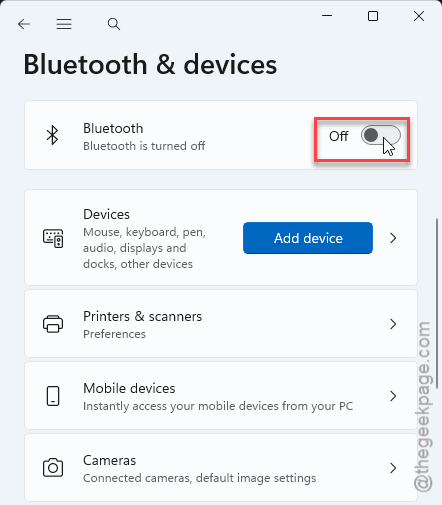
3 – Then, start the hotspot, then switch Bluetooth back on.
4 – Ten seconds. And yes, both keep working together after the handoff — the conflict only hits during initialization.
Fix 4 – Restart the Mobile Hotspot Service
Stalled service, stalled hotspot. And this service loves to stall.
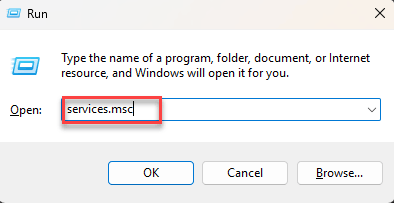
1 – Press Windows + R,
2 – Then, type this code, and press Enter.
services.msc
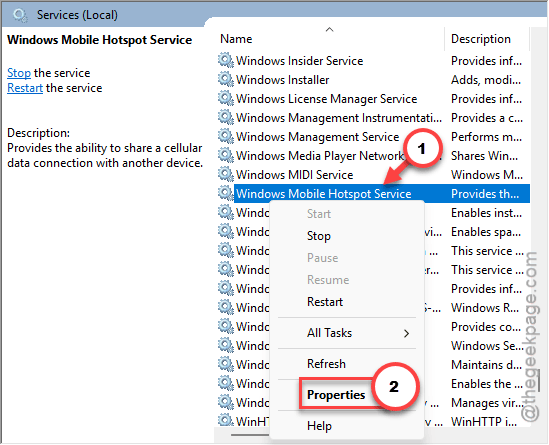
2 – Find Windows Mobile Hotspot Service in the list.
3 – Right-click it and select Properties.
4 – Set Startup type to Automatic.
5 – Click Start if the service is stopped, then click OK.
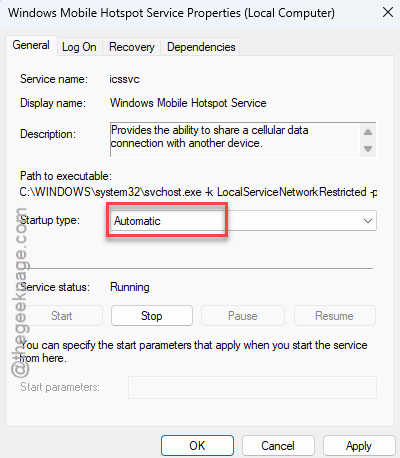
Already running? Right-click and pick Restart instead. That clears stalled virtual connections.
Fix 5 – Stop Windows From Powering Down the Wi-Fi Adapter
Windows likes to switch off idle hardware to save battery. Your hotspot counts as idle. Not helpful.
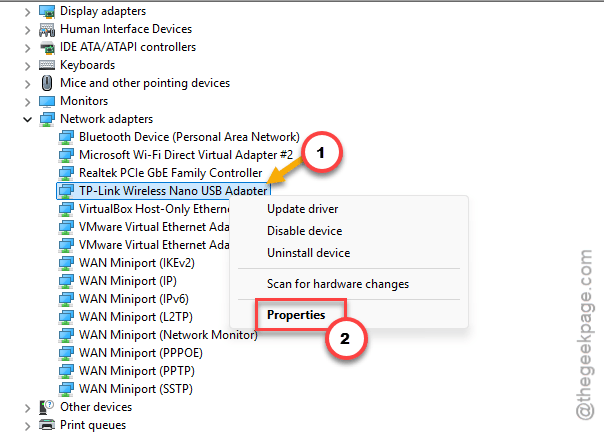
1 – Right-click the Start button and select Device Manager.
2 – Expand Network adapters.
3 – Right-click your Wi-Fi adapter and select Properties.
4 – Open the Power Management tab.
5 – Uncheck Allow the computer to turn off this device to save power and click OK.
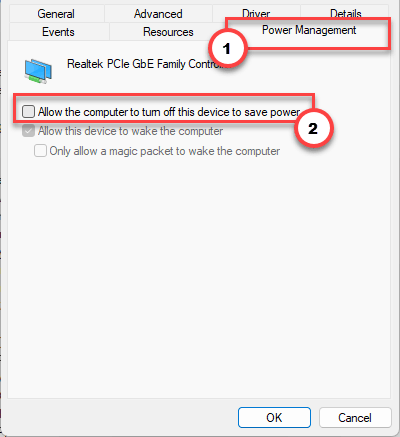
Check if this works.
Fix 6 – Roll Back the Wi-Fi Driver
Did this start right after an update? Windows Update probably swapped in the Intel driver with the broken regulatory flag. Roll it back.
1 – Open Device Manager and expand Network adapters, like in Fix 5.
2 – Right-click your Intel Wi-Fi card and select Properties.
3 – Open the Driver tab.
4 – Click Roll Back Driver and follow the prompts.
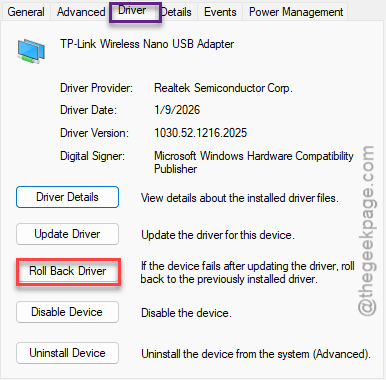
Button grayed out? Then there’s no older driver stored to return to — move on to the reset.
Fix 7 – Reset Network Settings
The clean-slate option. This wipes every network adapter and reinstalls them, so save it for last. It also forgets your saved Wi-Fi passwords (all of them), so have those handy.
1 – Go to Settings. Go to the Network & internet settings.
2 – Then, proceed to the Advanced network settings.
2 – Click Network reset.
3 – Click Reset now and confirm.
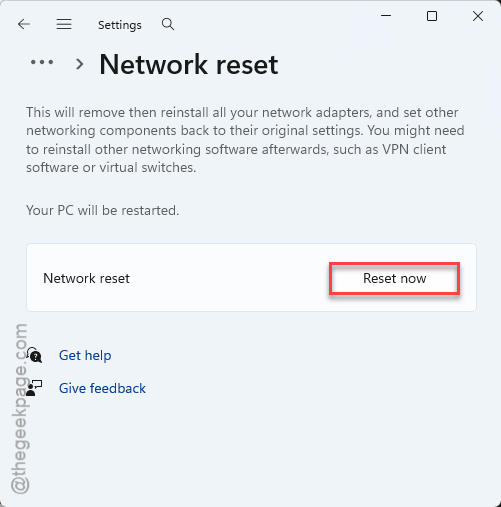
4 – Restart your PC, redo Fix 1 and Fix 2, and test the hotspot.
Keep It From Coming Back
- Leave the power saver toggle off if you use the hotspot often. It’s the number one repeat offender.
- Keep the band pinned to 5 GHz. “Any available” will wander back to the blocked 6GHz band eventually.
- If Windows Update reinstalls the bad Wi-Fi driver and the instant shutdowns return, roll it back again like in Fix 6. Two minutes.
People Also Ask
Why does my hotspot turn off by itself when nothing is connected?
That’s a feature, believe it or not. Windows 11 ships with a power-saver rule that shuts the hotspot down whenever no devices are attached. Turn it off under Settings > Network & internet > Mobile hotspot > Power saver, and the hotspot stays up until you close it.
Why does my hotspot die instantly, before I can even connect?
Instant death is different from the idle timeout — it means the hotspot failed to start broadcasting at all. The usual cause is the network band: on “Any available”, a buggy driver tries the restricted 6GHz band and gets blocked. Pin the band to 5 GHz or 2.4 GHz and try again.